Some configuration elements of the Funeral Director are universal across byondcloud products.
In these instances, we have provided a link to this section of the guide, along with some helpful and specific hints towards using this configuration for the Funeral Director application.
Product-specific configuration will be explained in further detail in the relevant areas of this guide.
Manage Account: Account Configuration
Manage Account: Site Structure
Set up each site of your cemetery / crematorium within byondcloud within the
Site Structure area.
|
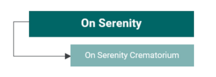
Sole trading cemetery with 1 contact address
|
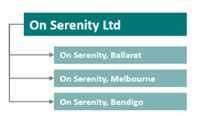
Head office with 3 sites in different regions
|
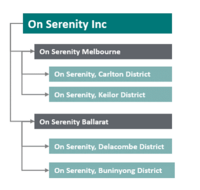
Head office with regional operations and multiple sites
|
|
One branch is required in the company structure, with the same address and contact details as the main account.
|
The head office is the main account, with separate site and contact details for each region
The head office details can repeat as a site office.
|
The head office is the main account. The 2 regions are marked as “logical” non-trading entries. The 4 sites are inserted within their respective region.
|
|
|
|
|
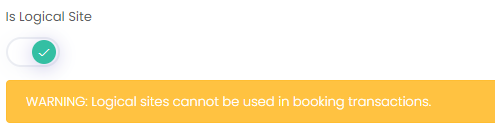
Remember: If your business has multiple sites in different states or regions of the country, you can insert “logical” (non-trading) sites into the structure to group these.
Security (Profiles & Permissions)
Users who can sign in to byondcloud to manage bookings will need to be set up, along with managing the actions each group of users can see and do by configuring their Security Profiles.
The default account user gets automatic permissions to all features. Each additional user is then set up by the default user.
The following functions to consider for a cemetery / crematorium profile using the Funeral Director Application are:
-
-
-
byondpro Sync Configurations (integrated)
-
Funeral Director Mapping (integrated)
-
Orgnisation Structure Permissions
-
Security Profile Function Permissions
-
-
-
Site Field Library Input Values
-
Site Field Library Validations
-
-
-
-
Site Screen Category Transaction Types
-
-
-
View Resource Calendar (stand-alone).
Manage Users
Once security profiles are set up, create any users that will need access to byondcloud to manage sites and / or funeral bookings and assign them to a security profile and the applicable territory.
Manage Sites
Each transacting site (not labelled as a logical site), will need to be
configured to set the rules and parameters around booking types, resources and what the Funeral Director sees when placing a booking with you.
This can be configured before or after your security profiles and users are set up.
If integrating byondcloud to byondpro, you will need to leave the Partner Permissions function until after the sync has occurred and the Funeral Directors have been mapped.
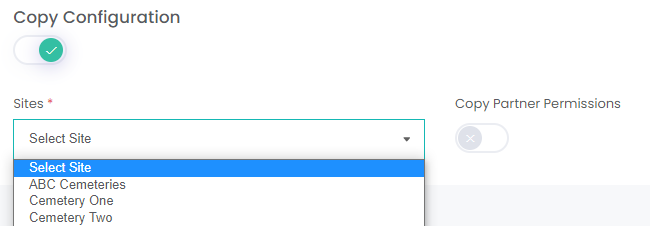
Remember when setting up a new site, you can choose to copy the configuration and partner permissions of a site.
You might want to set up only 1 site (the most complex) in the first instance and configure the site. Then add other sites and copy the configuration of the sites and make any necessary adjustments on the individual site(s).
Resource Calendar
The Resource Calendar is used with a stand-alone byondcloud only. The configuration elements are minimal, however, is something to consider when setting up byondcloud.
byondpro Sync Configuration
Should byondcloud be integrated to byondpro, then the sync to initiate this integration will need to be switched on. This
sync remains the same across all byondcloud products.
Mapping
For the integrated Funeral Director Application, certain elements of byondpro and byondcloud need to be
mapped together once the sync has been turned on, such as Funeral Directors, Booking Statuses, etc.
Partner Permissions
Partner Permissions is located within the Manage Sites section of the Funeral Director application. However, whether syncing byondcloud to byondpro or using the application as a stand-alone product, granting permissions to Funeral Directors to place bookings with you should always be the final step within configuration.