(c) Copyright by OpusXenta Pty Ltd. All rights reserved.
Resource Calendar
The Resource Calendar is a tool that cemetery users with the stand-alone byondcloud product can use to manage the bookings made on each resource.
Let us briefly have a look at the Resource Calendar configuration and how it displays to users.
By default, the calendar is set up to view all bookings on a resource when viewing the resource calendar.
There generally should be no need to make any changes to this setup.
Outlined below is an explanation of the global settings if you would like to explore / change the display.
Configuration options are set up under Manage Account > Global Settings.
Where there are multiple resources across multiple sites, we encourage you to leave the default setting in place and leave the configuration setup switched off for Show resource calendar of all sites by default, otherwise this would display too much information on screen and the resources displayed would lose usability & functionality.
Generally, if you have only a small number of resources (one or two) you may like to switch on the Show resource calendar for all sites by default.
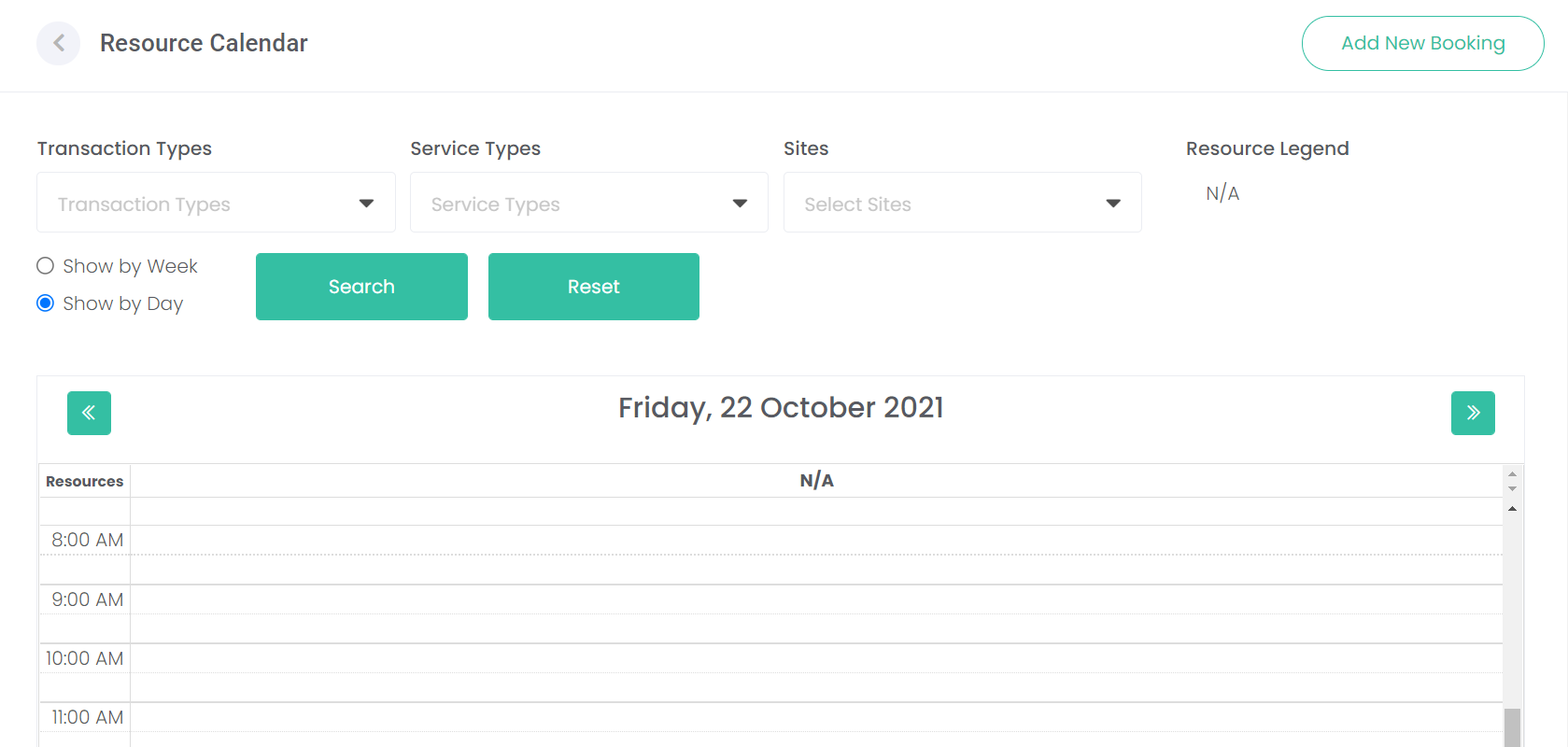
To see how the Resource Calendar displays, choose View Resource Calendar from the side menu.
Where the Show Resource Calendar for all sites is switched off, users can filter by transaction type, service types and / or sites and select Search to display the associated calendar resources.
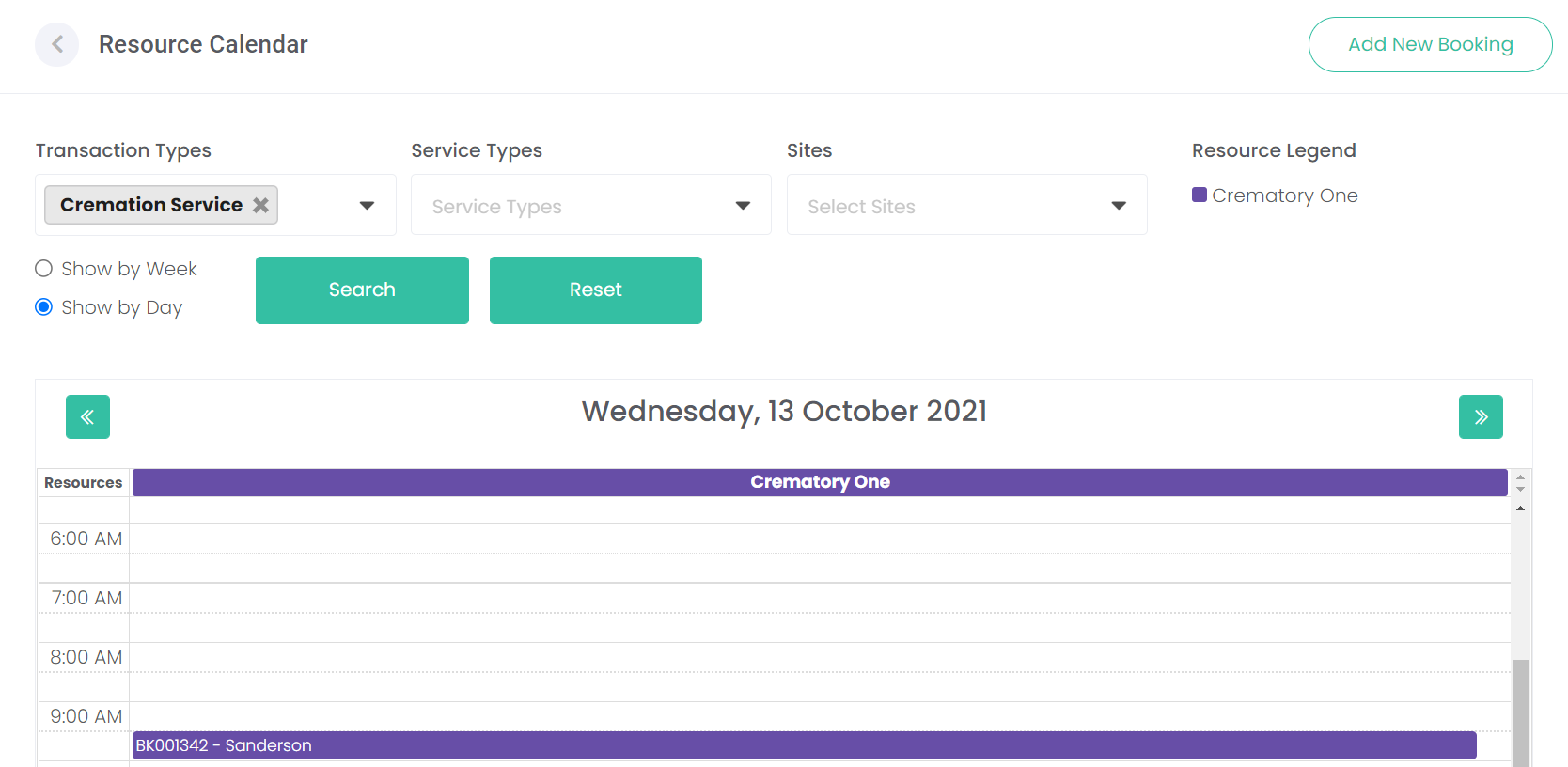
In the example below, the screen is filtered by transaction type; the resource linked to Cremation Service is displayed.
You can further filter to
View by day or by week
Review and add bookings
Move between dates by using the forward and back arrows.
A dotted line indicates an available time, a coloured block indicates the time is booked & therefore unavailable. A more detailed look at this feature will be covered in the Cemetery / Crematorium Processes section of this guide.
You can also see here, the colour applied to each resource calendar flows through from the setups where you added the resources & chose the calendar colour earlier.