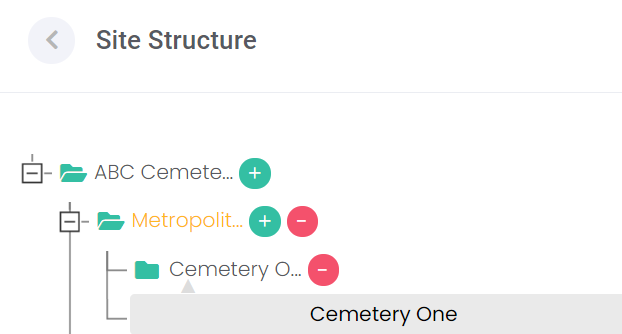
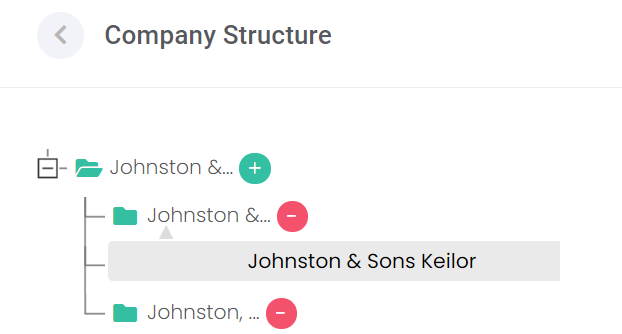
The site / company structure menu needs to be set up to reflect your head office / parent account and the subsidiary or branch offices.
Under Manage Account on the side menu, choose the Site Structure menu option.
Please note: for a Funeral Director or Mason user, Site Structure appears as Company Structure.
|
Cemetery / Crematorum Account
|
Funeral Director / Mason Account
|
|
|
|
The first level of your site structure will appear automatically and represents your corporate account.
The uppermost level is non-transactional, so you need to set up at least one site or branch. Sites (or Branches) will need to be added in line with each of your operating cemeteries / branches.
If your business has multiple sites in different states or regions of the country, you can insert Logical (non-trading) sites into the structure to group these.
|
Cemetery / Crematorum Account
|
Funeral Director / Mason Account
|
|
|
|
Here are a couple of examples to demonstrate.
|
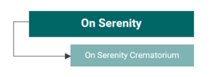
Sole trading cemetery with 1 contact address
|
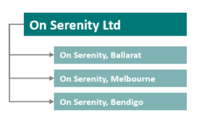
Head office with 3 sites in different regions
|
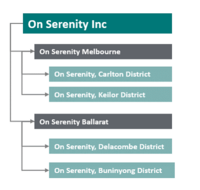
Head office with regional operations and multiple sites
|
|
One branch is required in the company structure, with the same address and contact details as the main account.
|
The head office is the main account, with separate site and contact details for each region
The head office details can repeat as a site office.
|
The head office is the main account. The 2 regions are marked as Logical non-trading entries. The 4 sites are inserted within their respective region.
|
|
|
|
|
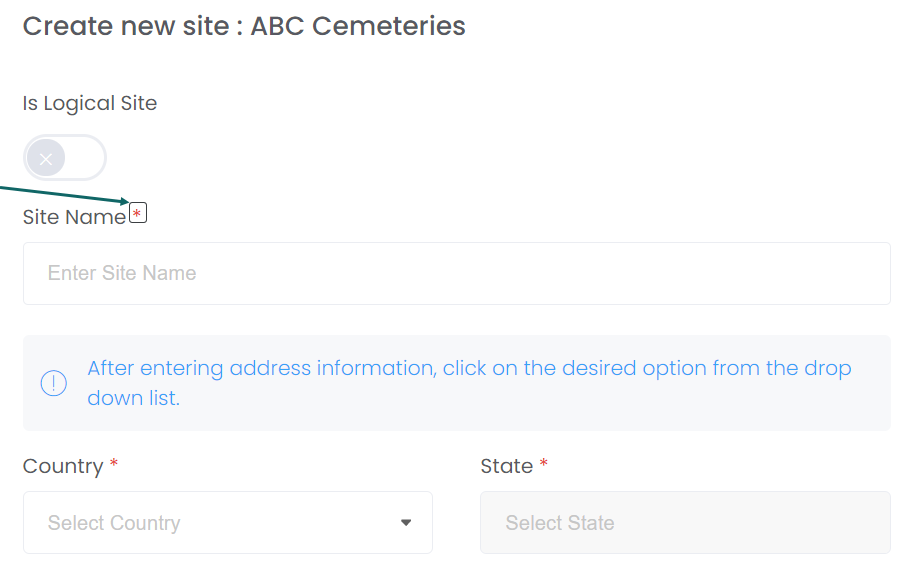
To set up the first site / branch, choose the green plus button

next to the head office entry and fill in the information requested.
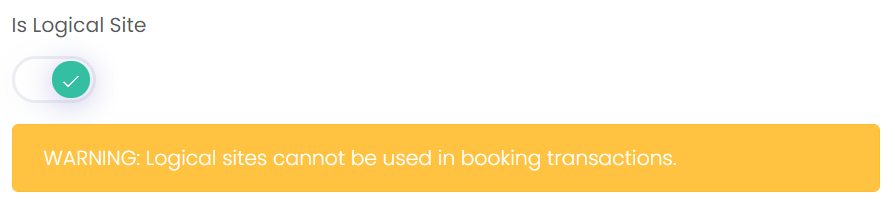
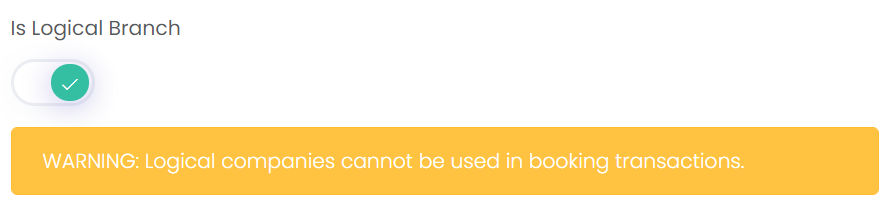
Is Logical Site / Is Logical Branch
Click on the cross under Is Logical Site / Is Logical Branch to switch to a logical site / branch. This will display a tick, to activate a non-trading entity.
To switch off, click on the tick and the button will revert to a cross to activate as a trading entity.
Add the Site Name.
Complete the Address details
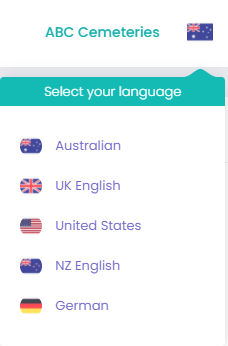
*Note, ‘State’ may appear as the word ‘County’ if your user profile language is set to UK English.
You can check or change the language setting on the top right of the screen.
Complete the contact details, in particular, the email to receive system notifications.
Fields marked with a red asterisk * are mandatory (information is required).
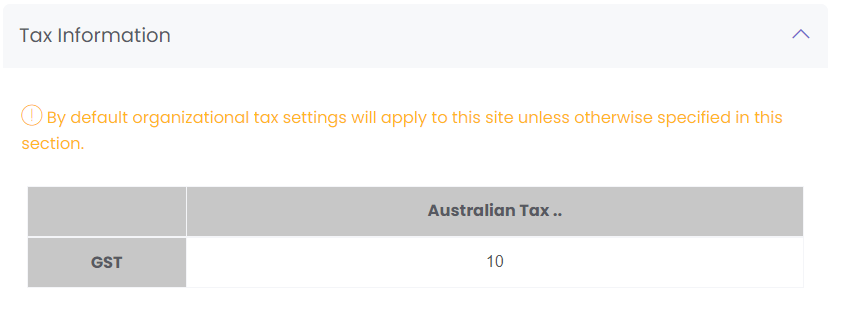
The
Tax Information block allows the site's tax settings to be configured. By default, they will default to the organisation's tax settings configured in
Account Configuration.
However, changes can be made on this page that apply to only this site. This can be useful if a site is in another country or state, and therefore has different tax percentages.
Populate the details for the site and choose Save to create in the structure.
You can edit the information at any time by returning to this screen and selecting an existing site / branch from the list.
When changes are made, choose the Update button at the bottom of the screen to accept the changes.
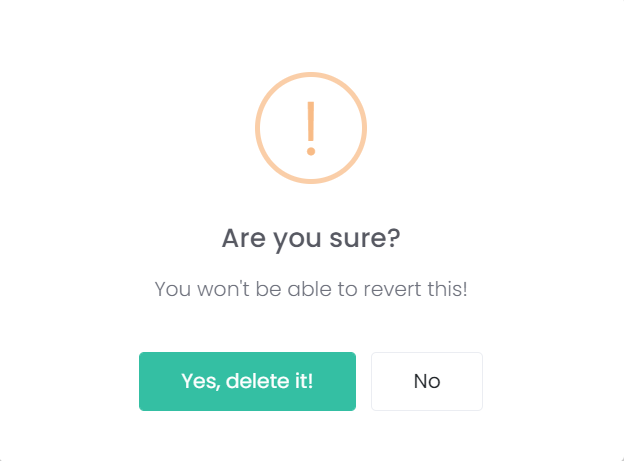
If you make a mistake in setting out your company structure, you can remove a site by selecting the red

delete button.
Depending on your last action:
• You will be returned straight back to the dashboard.
• You may have to use the back arrow next to Site Structure / Company Structure.