Users will need to be set up within byondcloud, along with managing the actions each group of users can see and do by configuring their security profiles.
The default account user gets automatic permissions to all features. Each additional user is then set up by the default user.
We recommend setting up security profiles first and then applying the profile /s to your users.
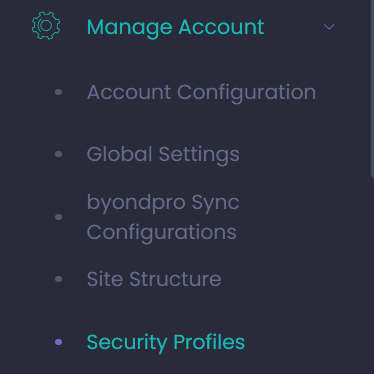
These Security Profiles are configured from the side menu, under the Manage Account -> Security Profiles menu.
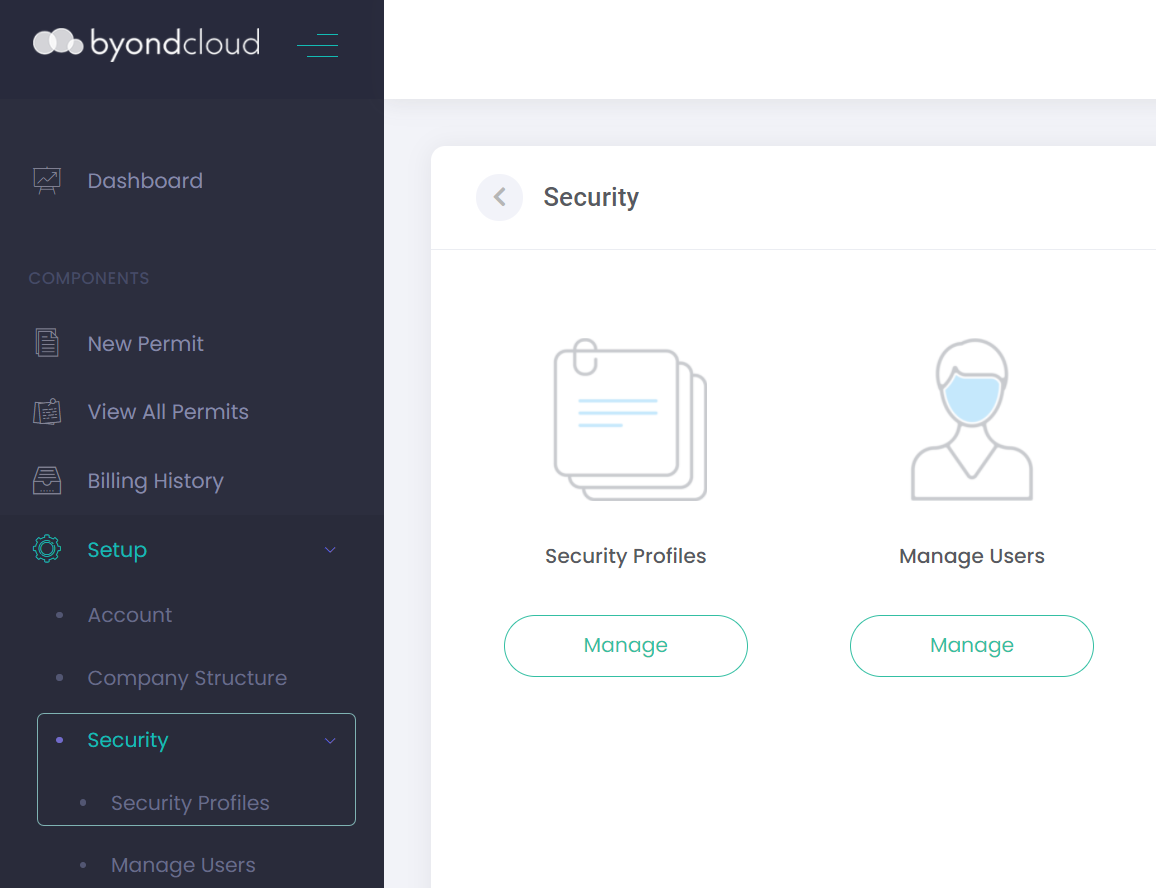
If accessing the account as a Mason using the Mason's Application, configure the Security Profiles from Setup -> Security -> Security Profiles.
Choose Add New Profile on the top right of the screen.
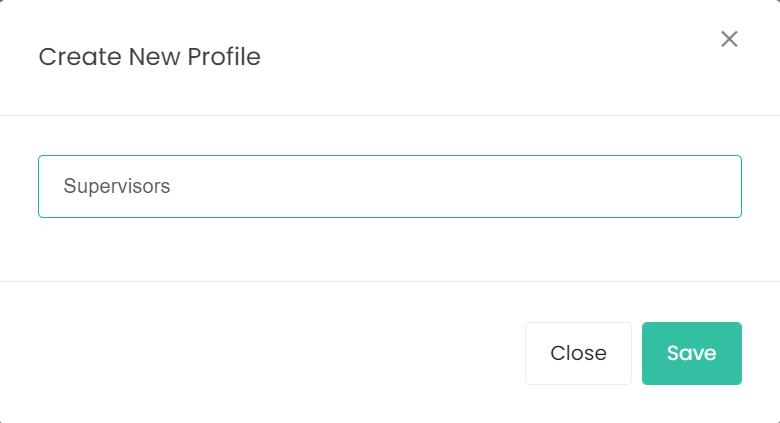
Assign a profile name and select Save.
The profile name entered should describe the group of users who will be assigned to this group.
The new profile will be displayed in the list of Security Profiles.
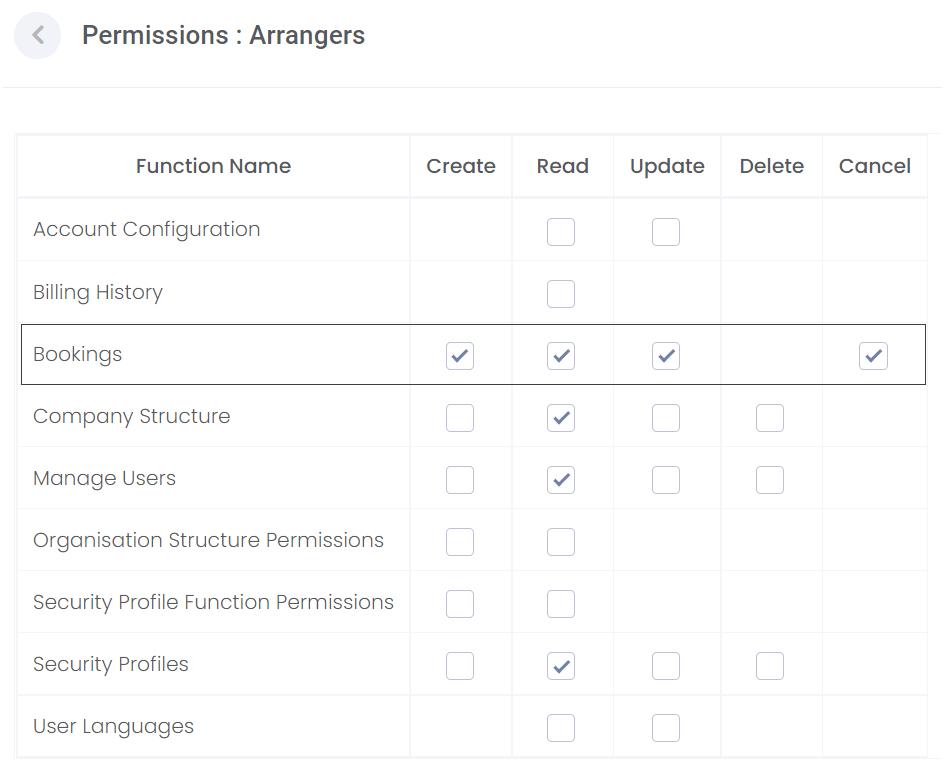
Select the Permissions button to open the security features screen for this profile.
For each function, check the type of access rights to be allowed within this profile and Save.
|
FUNCTION NAME:
|
screen / feature of byondcloud
|
|
CREATE:
|
allows the user to insert new records
|
|
READ:
|
allows the user to view existing records
|
|
UPDATE:
|
allows the user to change or edit existing records
|
|
DELETE:
|
allows the user to remove existing records
|
|
APPROVE:
|
allows the user to approve existing records
|
|
CANCEL:
|
allows the user to change the status of an existing record to cancelled.
|
|
COMPLETE:
|
allows the user to change the status of an exisitng record to complete.
|
|
REJECT:
|
allows the user to change the status of an existing record to rejected.
|
|
ON HOLD:
|
allows the user to change the status of an existing record to on-hold.
|
|
PROCESS:
|
allows the user to process endowment allocation and run periodic processing.
|
For example, you may like to create a permission where a user can read, update, approve and cancel bookings in the Funeral Director application.
In this instance, you would ensure these tick boxes are ticked for the profile.
Save any changes.
If no changes are made, use the back arrow on the top left of the screen next to the Permissions.
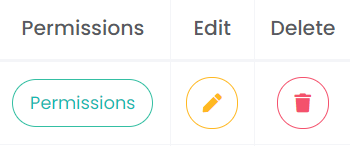
The security profile name / description can be edited by selecting the yellow Edit button (pencil icon).
The security profile can be deleted by selecting the red Delete button (trashcan icon). Where the profile is linked to a user, the delete function cannot be actioned until the link to the user /s is removed.