Assign Team by Default to Jobs
Click on the Edit button under the Actions column on the Team Management page to open the Edit Team page, then scroll down to the Assign Team by Default to Jobs section.
The Assign Team by Default function allows an administrator or user with appropriate permissions to set certain job types to be assigned automatically to a specific team.
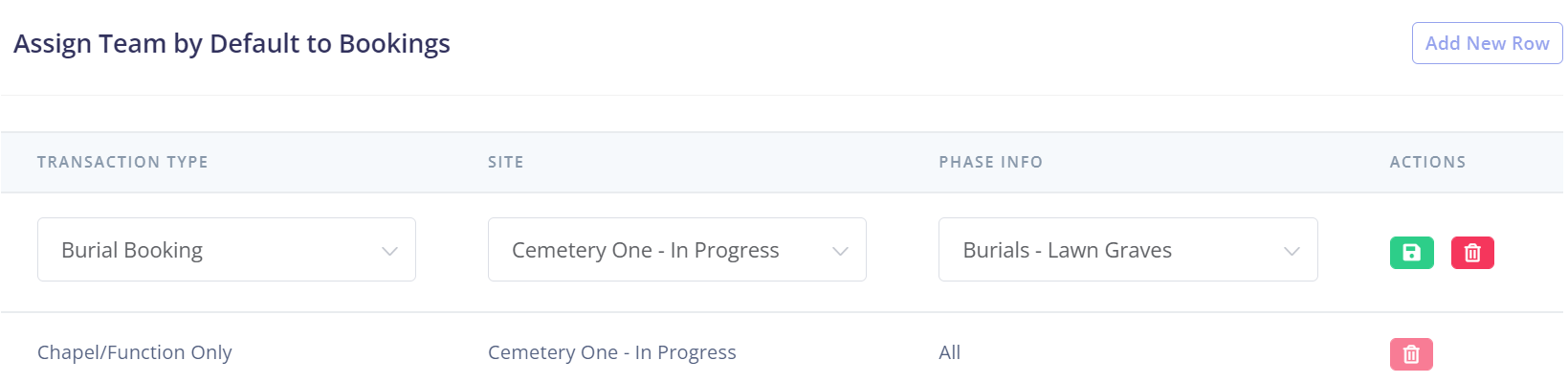
Click on Add New Row to create a new row to be setup with the criteria that determines the type of jobs this team will be automatically assigned to.
You can set up multiple rows, assigning the one team to a variety of different transaction types as needed.
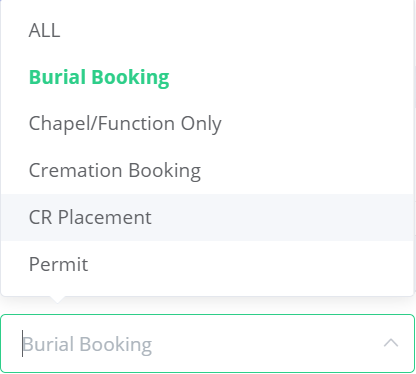
The Transaction Type field relates to the transaction types that appear on and transfer from byondpro.
If you select Burial Booking, this team will be automatically assigned to any burial bookings that are created in byondpro, as long as the other fields discussed below also match.
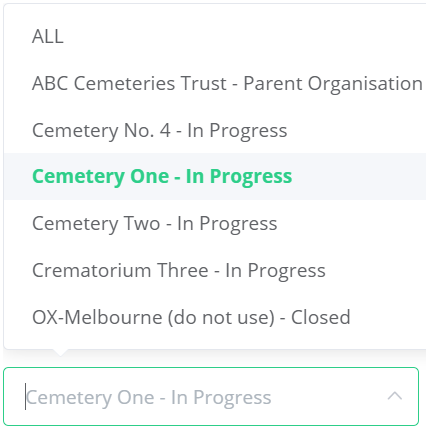
Next, you'll select a Site from the drop-down.
The sites listed are also directly linked to your byondpro site setup.
The team will only be automatically assigned the job if it occurs at their designated site.
The team can also be assigned to multiple sites by adding multiple rows, each with a different site selected. Alternatively, choosing the ALL option will automatically assign the team to jobs at every site.
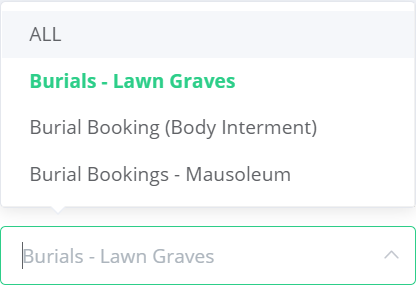
In this example, the Burials - Lawn Graves phase info option has been set up to assign the team to any variation of lawn grave jobs.
Provided the Transaction Type and Site fields also match the job, all lawn grave jobs will be assigned automatically to your team.
To save the new row, click the green button under Actions.
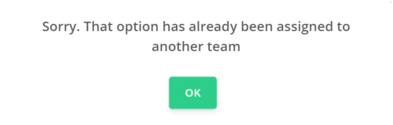
If another team has already been assigned the same job options, then the following message will appear:
The other team will need to be removed from the booking options.
If you need to delete an existing or in-progress row, click the red button under the Actions column.