Rather than invoicing from a quote, you also have the ability to create a new invoice from scratch. This then requires all the Invoice To and Item information to be entered.
Create a new invoice from the Manage Quotes/Invoices page by clicking Add New Invoice. This circumvents the process of creating a new quote.
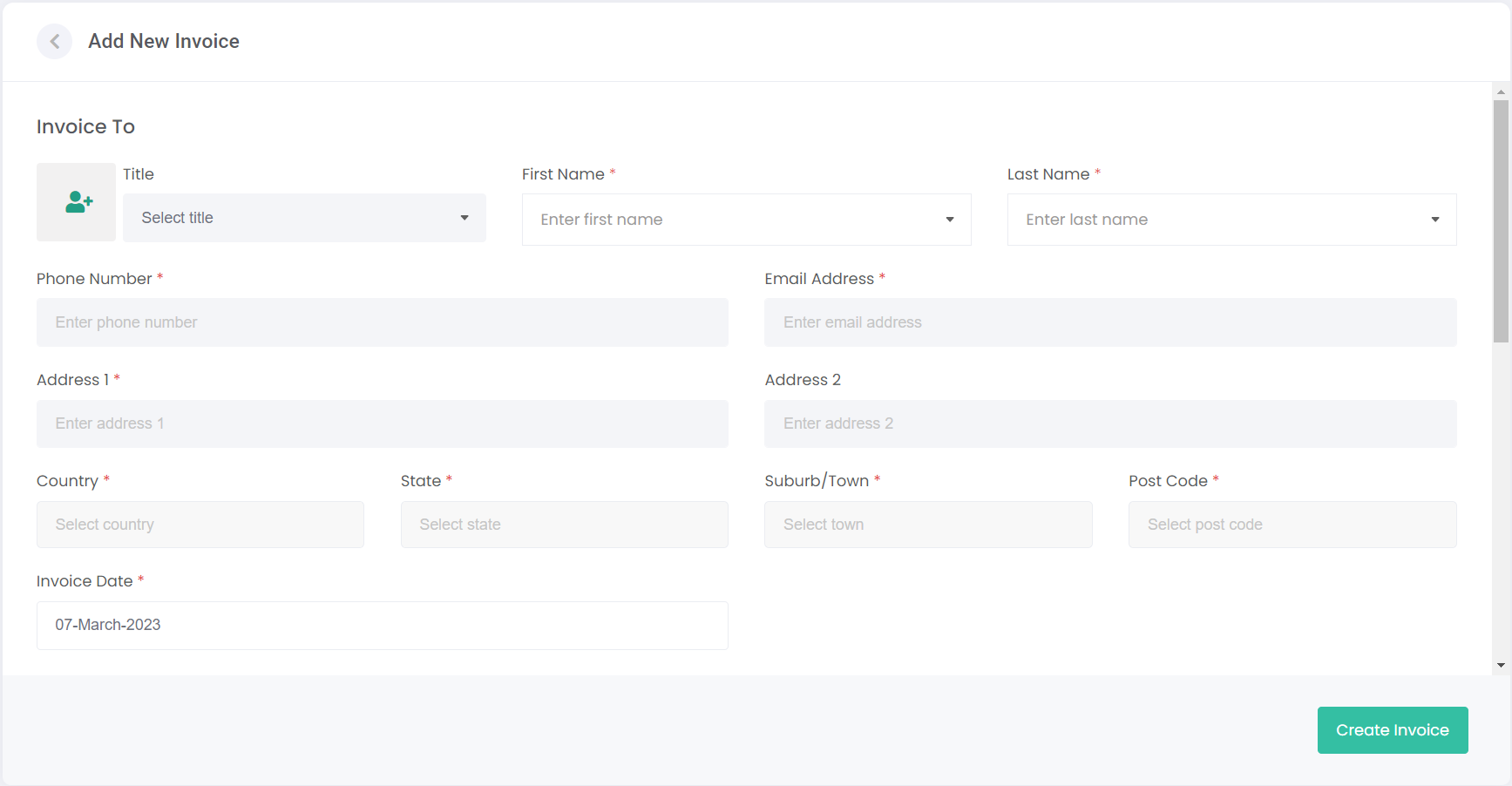
The Add New Invoice page displays.
The first step in creating an invoice is to add a billing customer.
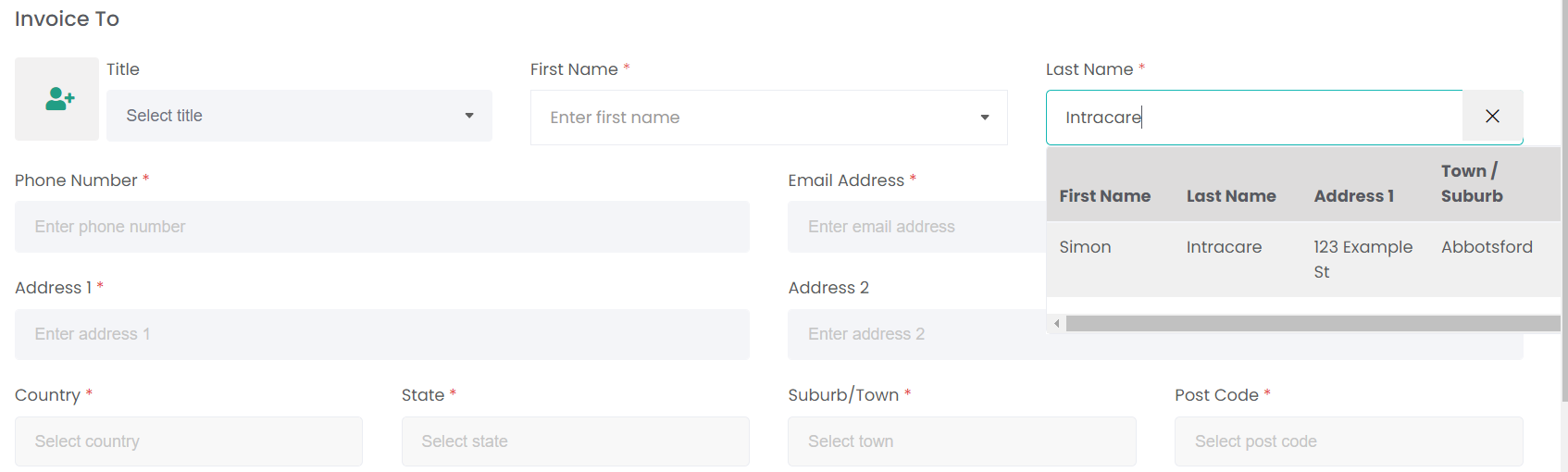
To select an existing person, use the First Name or Last Name fields to search your Person records.
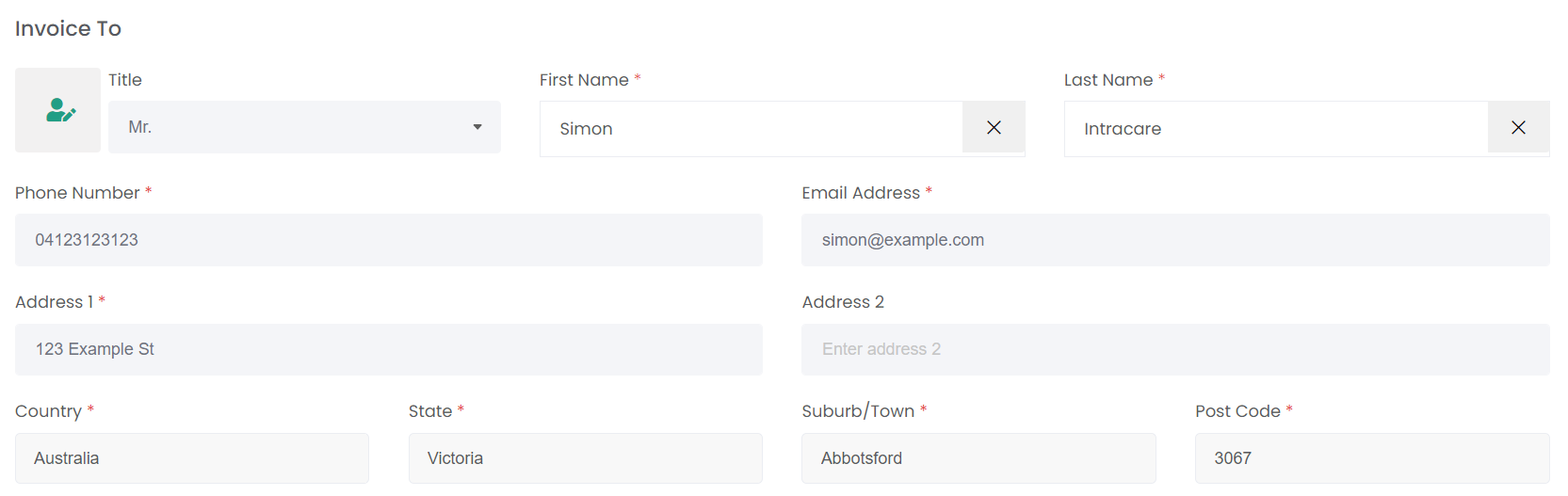
Once the Person is selected, their contact and address details auto-populate from their person record.
If the person being billed is not already set-up in byondcloud, you need to create a new Person record.
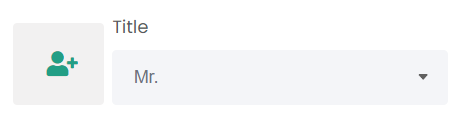
Click on the profile image with the plus symbol to the left of the Title field:
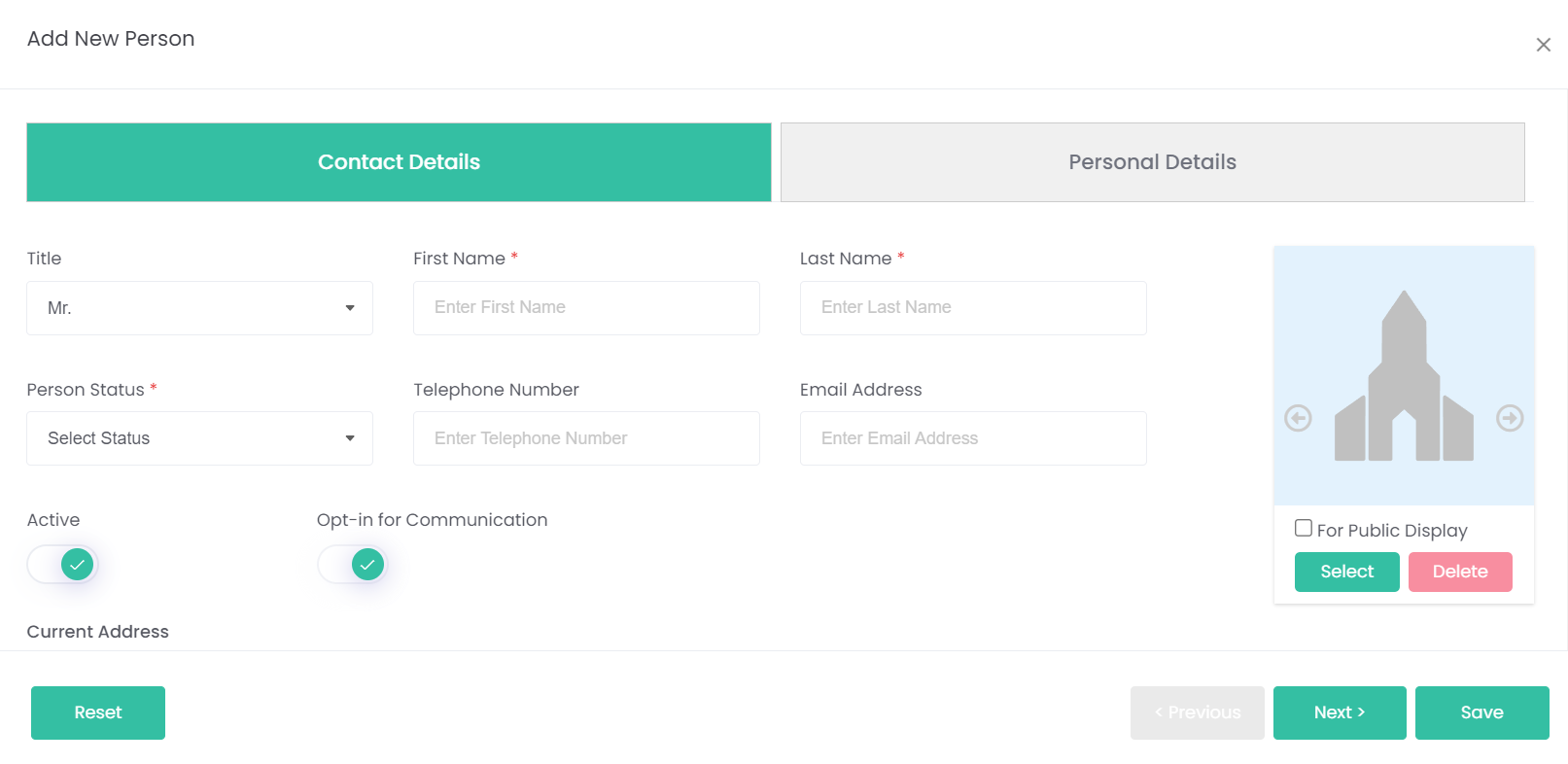
This opens the Add New Person pop-up. Refer to the Persons module for guidance on completing this process.
Once the new person's details are entered and you've hit Save, their details will be entered into the Add New Invoice page.
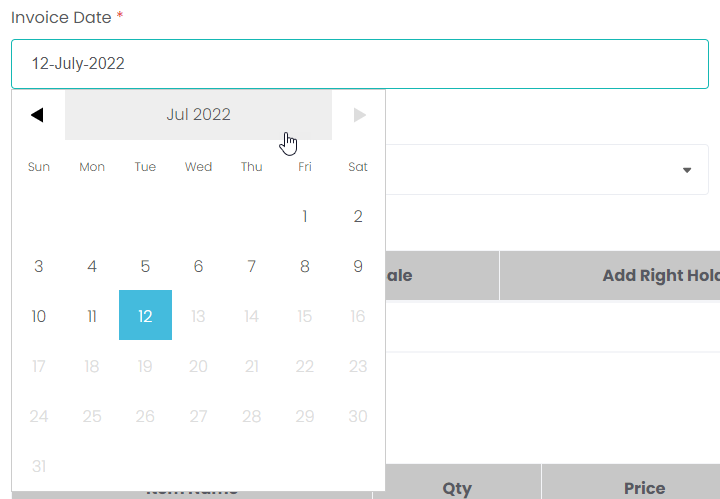
The Invoice Date field will auto-populate with today's date. If the date needs to be changed, click on the field to open the date search function.
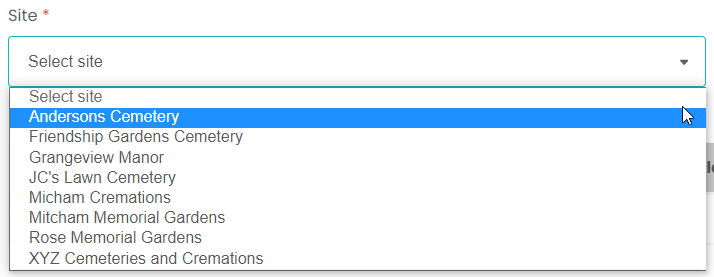
Choose the Site from the drop-down selection.
If the item /s being sold relate to a location, that location needs to be added. Items can be sold independently of locations, and in that case users can skip straight to the Add Items section below.
Select Add Location on the right-hand side of the screen.
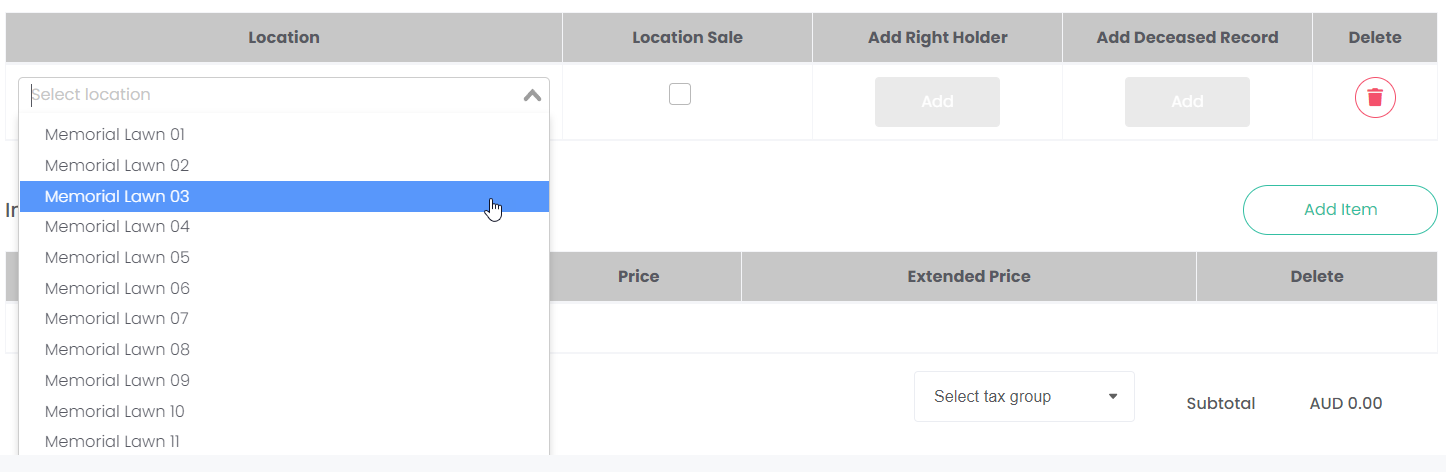
This creates a new row of information to fill out. The first step is to select a location from the drop-down list.
These locations have been previously created following the
Manage Locations process.
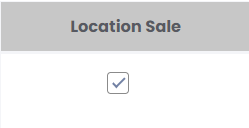
Tick the Location Sale box if the location is being sold in this transaction. If the items being sold are only adding to or altering the location, leave the box unticked.
Where a location has already been marked as sold, interred, or reserved, the Location Sale box can't be ticked.
If the location is being sold, a rights holder must be added here. There is also an option to add a deceased record as well.
Adding person records to the location in the invoice marks the location record as Sold, and updates the rights holder and deceased records to link them to this location.
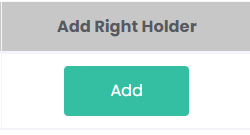
Click
Add under
Add Right Holder. This opens the
Add New Rights Holder page (refer to this section of the guide for a detailed explanation of this process), where the rights holder record can be created from scratch.
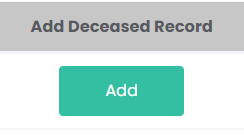
If a deceased record needs to be added, click Add under Add Deceased Record. Otherwise, the deceased details can be added under the Manage Deceased Records module afterwards.
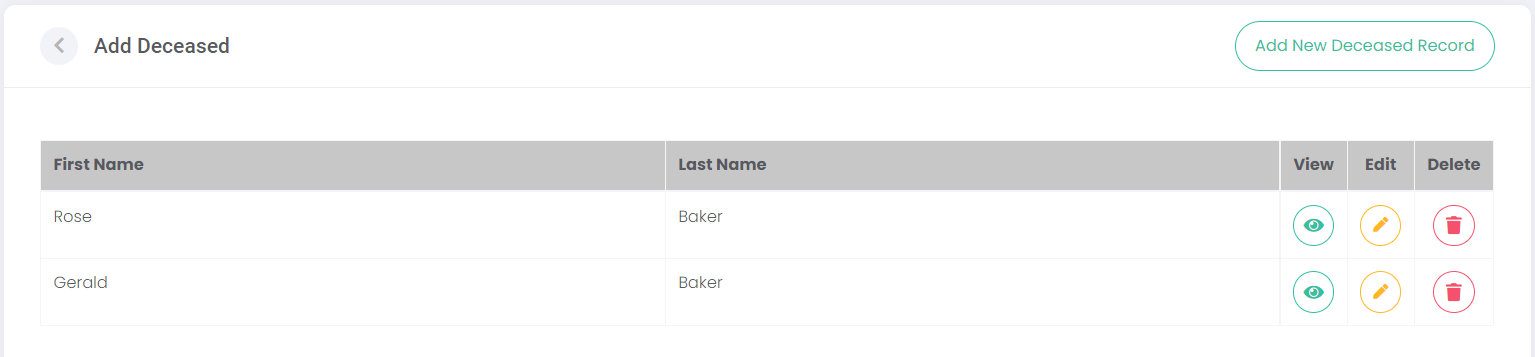
The Add Deceased page displays.
From this page, cemetery users can click
Add New Deceased Record (refer to this section of the guide for a detailed explanation of this process) to add an existing or new deceased record to this page.
Multiple records can be added, to account for multiple deceased persons being interred/memorialised in the location.
To the right of the listed deceased records, there are action buttons to View, Edit, or Delete these records.
Once deceased person /s are added, click Add on the bottom right-hand side of the screen to return to the Add New Invoice page.
Back on the Add New Invoice page, the location information can be deleted using the Delete button.
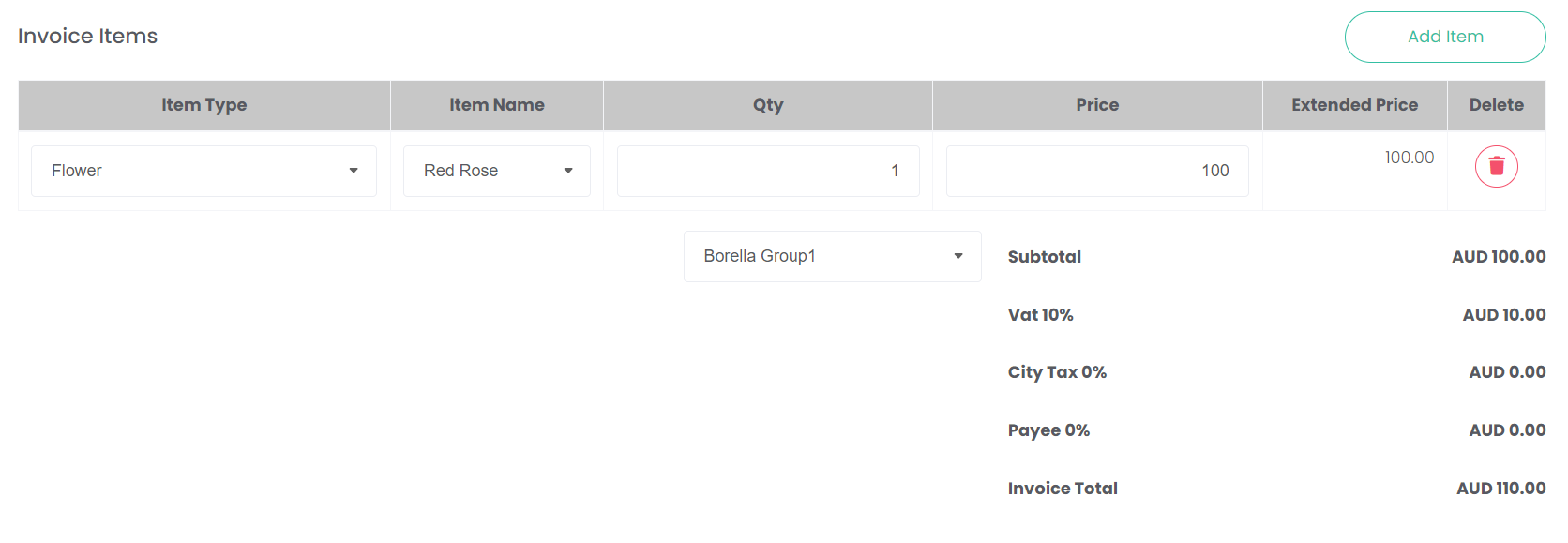
The
Invoice Items section allows the items and pricing of the invoice to be created and edited. This
Add Item function works identically to the process detailed in the
Add New Quote topic.
Once all the invoice information has been completed, click Create Invoice.
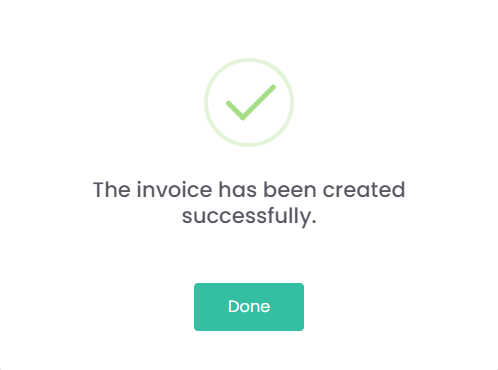
A pop-up will display, showing that the invoice has been successfully created. Click Done.
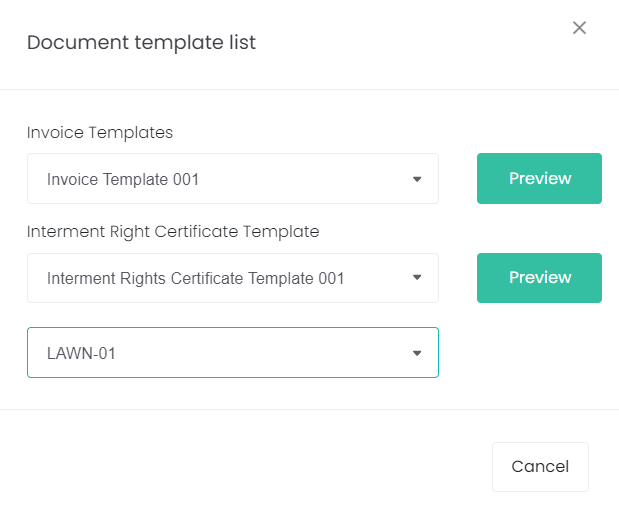
The following pop-up shows two drop-down fields:
Invoice Templates and
Interment Right Certificate. These documents are generated from templates set-up in the
Document Templates section of byondcloud.
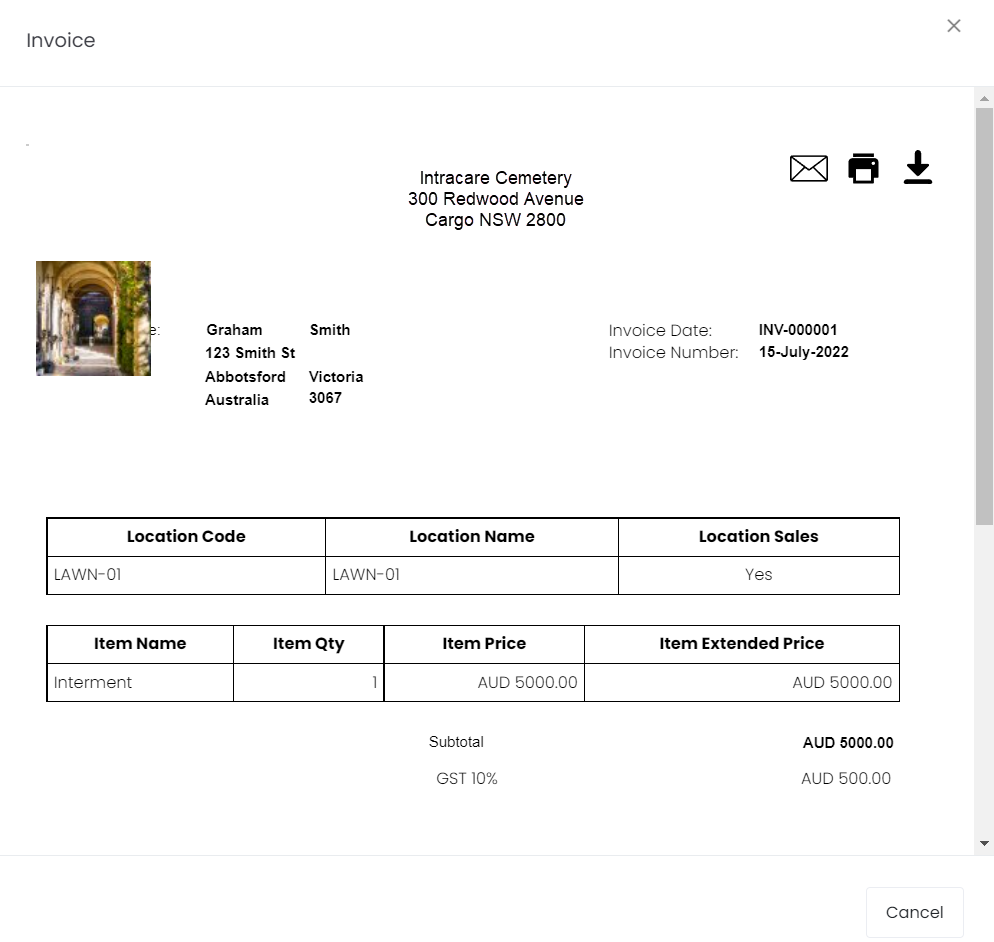
Click Preview to see the documents. In the case of the Interment Right Certificate, you must select a location from the drop-down list before clicking Preview.
From here, use the three buttons on the top right-hand side to Email, Print or Download the document.
Closing the documents window takes the user back to the Manage Quotes/Invoices screen, where they can see their new invoice listed.