Create Invoice from Quote
A new invoice can be created from within an existing quote, which automatically fills in much of the invoices information from the original quote and thereby converts the quote to an invoice.
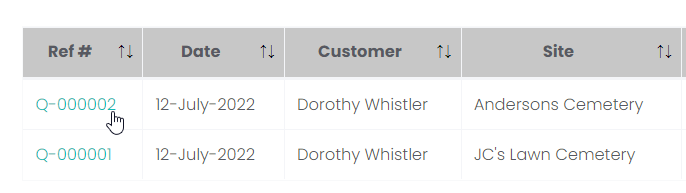
To do this, open the quote on the Manage Quotes/Invoices page by clicking the Ref # hyperlink.
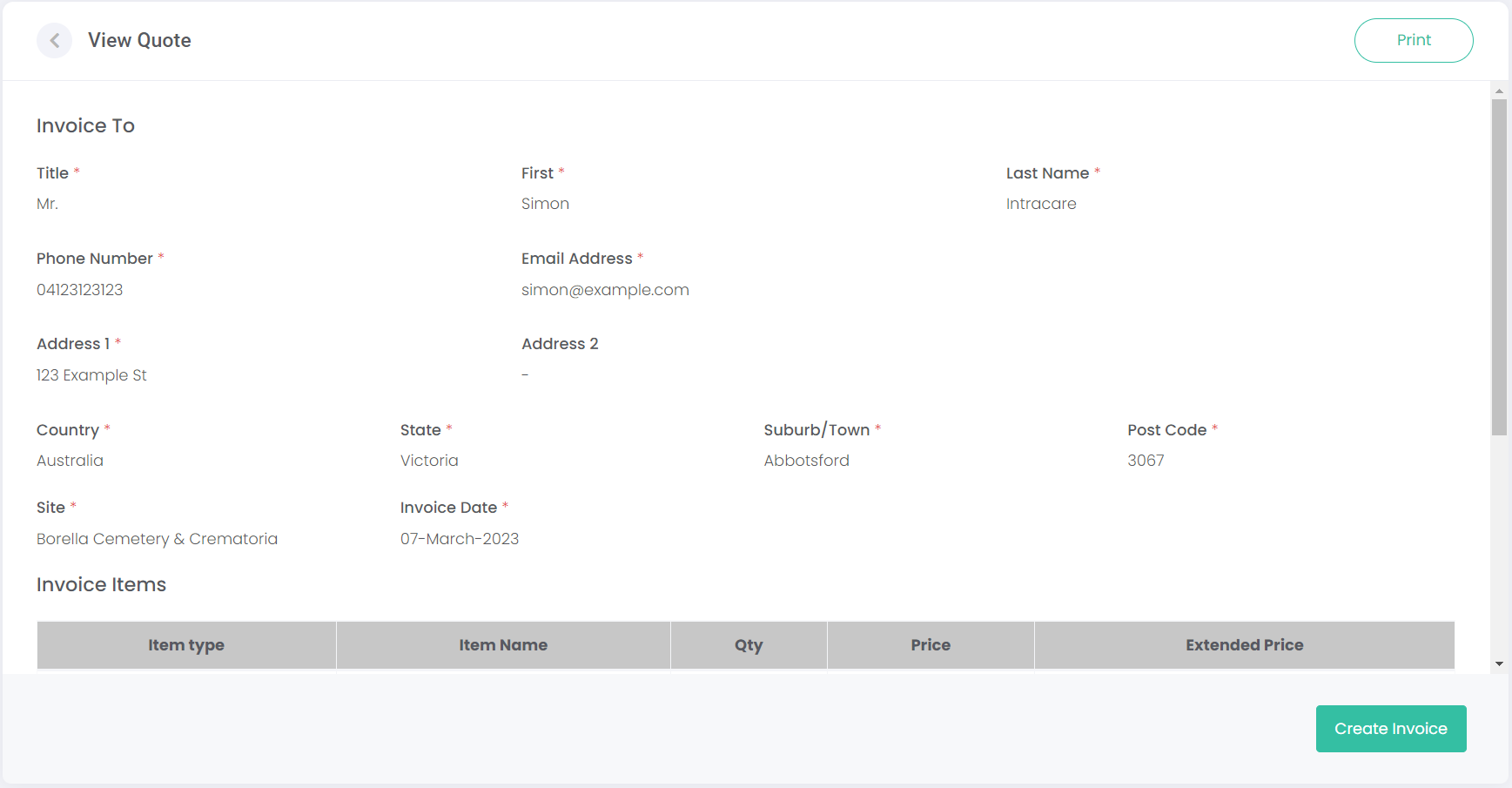
On the View Quote screen, click the Create Invoice button on the bottom right-hand side of the screen.
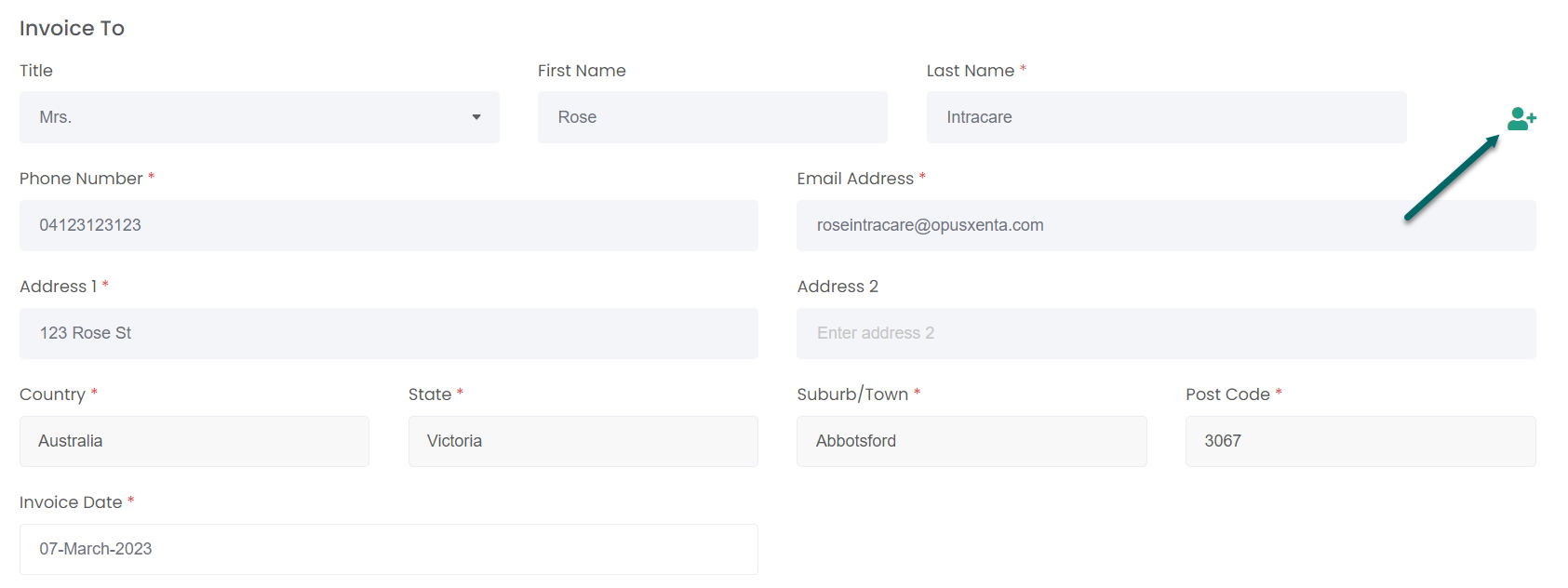
This opens the Add New Invoice screen with the details of the quote automatically filled in. The Invoice To block has captured the person details previously entered into the quote.
These details can be overwritten by clicking on the new person button to the right of the screen. For example, we created Rose in the below screenshot to replace Simon's information in the above screenshot.
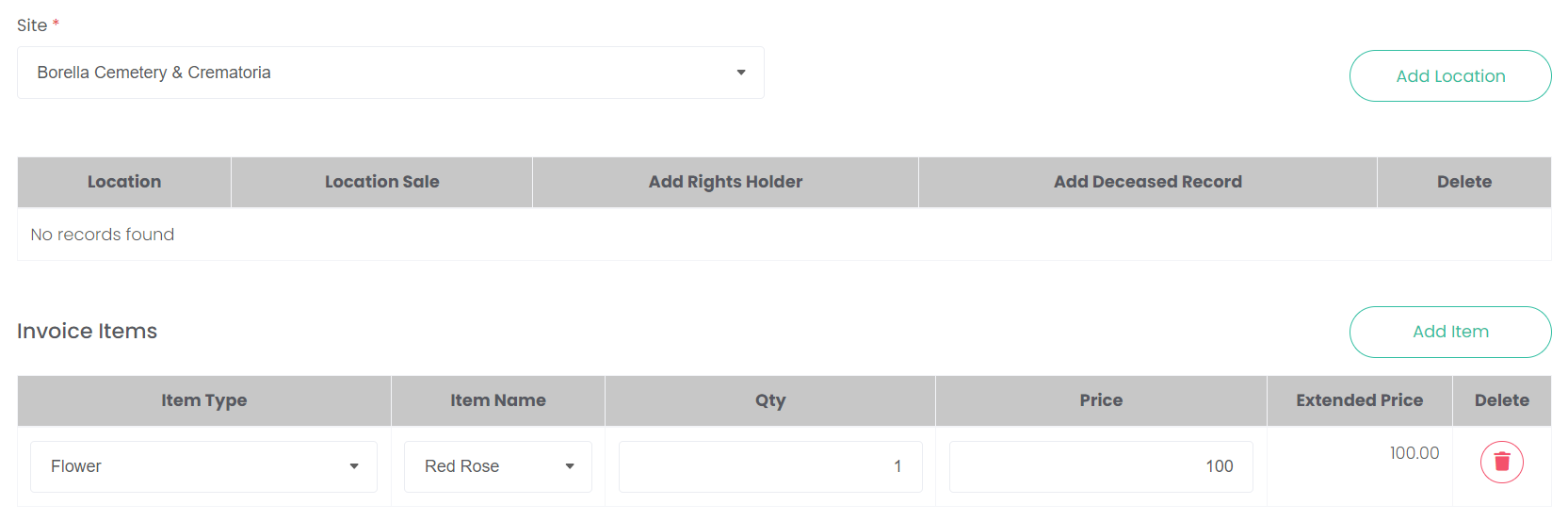
Below the Invoice To information block, the Invoice Items section has been filled with our quoted items.
You have the ability to add or delete items to/from our invoice, in case the customer wishes to make changes to their original quoted order.
You can also add a location here. This is covered in greater detail in the next topic,
Add New Invoice.
Once all the invoice information has been completed, click Create Invoice.
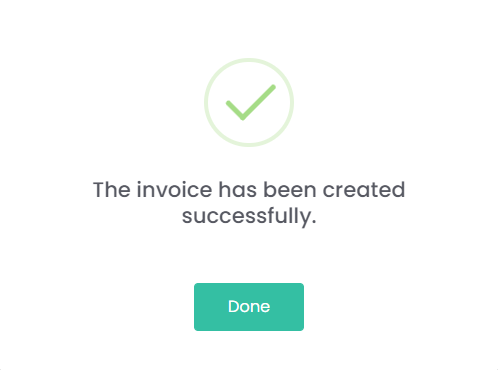
A pop-up will display, showing that the invoice has been successfully created. Click Done.
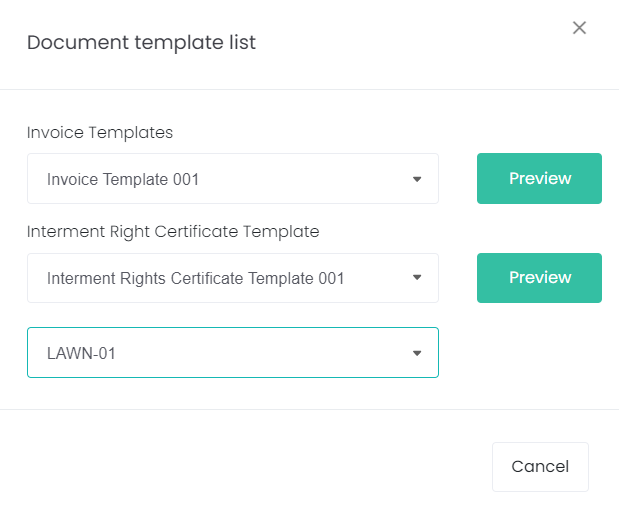
The following pop-up shows two drop-down fields:
Invoice Templates and
Interment Right Certificate. These documents are generated from templates set-up in the
Document Templates section of byondcloud.
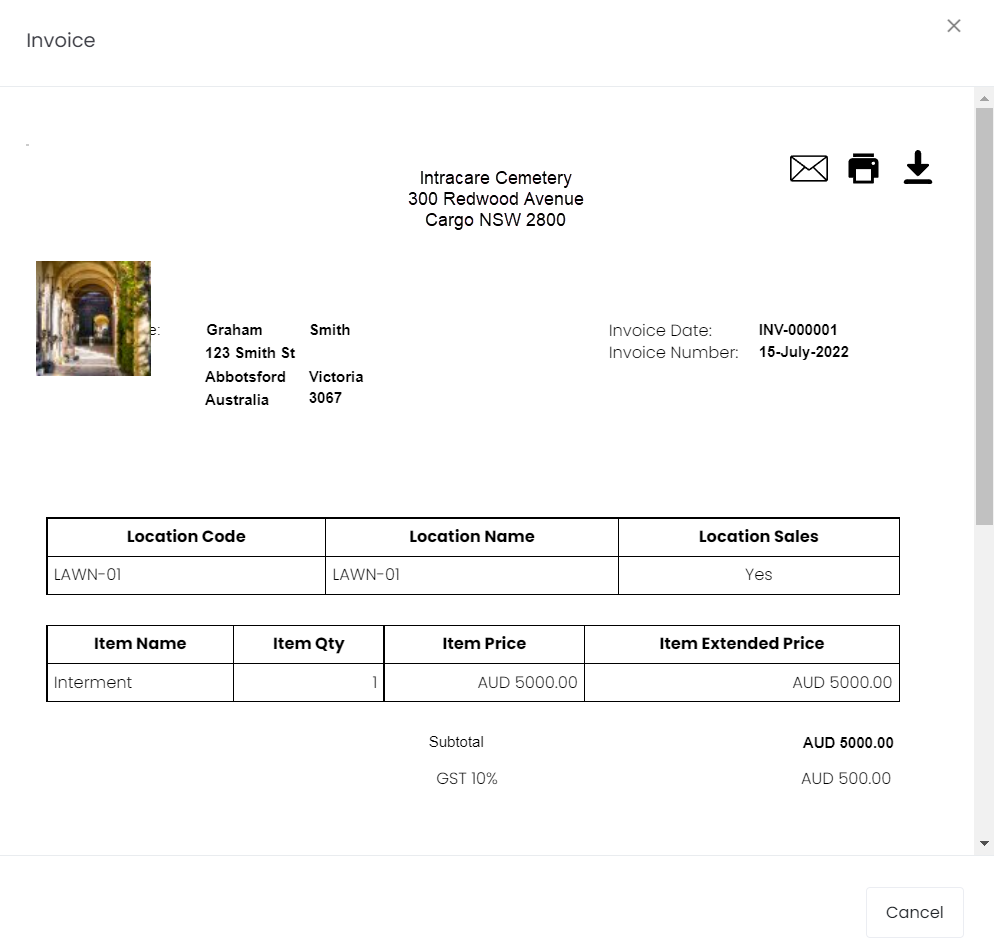
Click Preview to see the documents. In the case of the Interment Right Certificate, you must select a location from the drop-down list before clicking Preview.
From here, use the three buttons on the top right-hand side to Email, Print or Download the document.
Closing the documents window takes the user back to the Manage Quotes/Invoices screen, where they can see their new invoice listed.