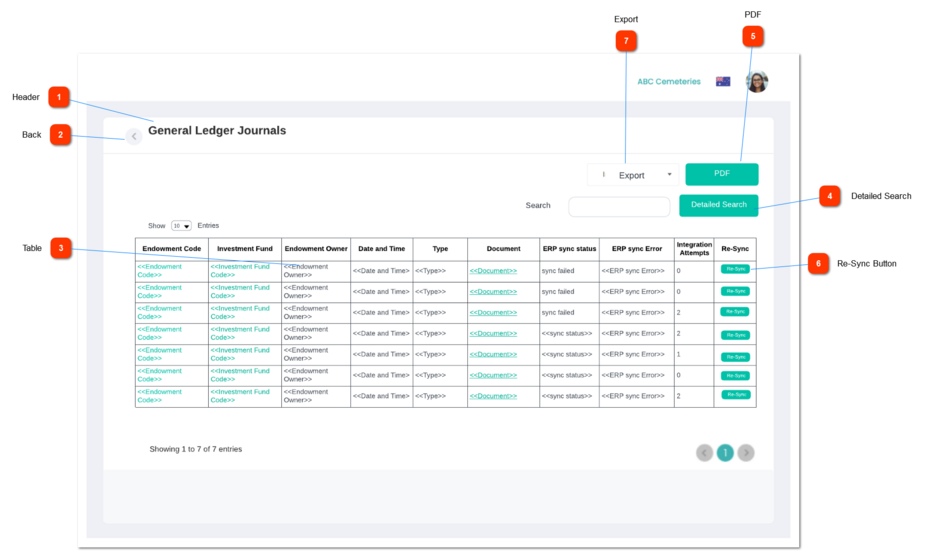
4. Show "-", for the empty data (no data) fectched for the records.
5. This table allows the users to sort,
Endowment Code
Endowment Fund code
Endowment Owner
Date and Time
Type
columns by ASC or DESC order. When sorting the columns by ASC order, the records with "-" (i.e. empty data) will be listed down at the END of the list and vice versa.
6. The "Show <<drop down goes here>> entries" (placed at the top-left corner of the table) will allow the user to define the number of records to be shown/listed down per table page. By default, this will be 10 and other options will be 25, 50 and 100.
7. The "Search" text field (placed at the top-right corner of the table) will allow the user to search/filter records by the data in the columns.
8. The "Table pagination" (placed at the bottom-right corner of the table) will allow the users to move to the other pages of the table.
9. If the system found records, show the text placed at the bottom-left corner of the table. The format of the text is; Showing <<Beginning record number of the page>> to <<Last record number of the page>> of <<total records count>> entries.
10. If no results found, show the text "No records found" at the middle of the table.
-
-
-
-
-
-
-
Table column
Column name will be "Endowment Code"
1. Endowment code will be displayed as anchored text. By clicking on it the User will be navigated to the Endowment screen
-
-
Text
-
-
Yes
-
Table column
Column name will be "Investment Fund"
1.This column will list down the Investment Fund related to the Endowment.
2. by clicking on it the user will be navigated to the investment fund
-
-
Text
-
-
Yes
-
Table column
Column name will be "Endowment Owner"
1. This column will list down the name of the Endowment Owner related to the Endowment
-
-
Text
-
-
Yes
-
Table column
Column name will be "Date and Time"
1. This column will list down the Date and Time
For General Ledger journals : date and time when the journal was created
For AR Receipts: date and time when the Receipt was created
. The user defined date format will be considered (FYI - Byondcloud has/will have user capability to choose their own date format. Currently, the date format will be DD-MMMM-YYYY).
-
-
Text
-
-
Yes
-
Table column
Column name will be "Type"
1. This column will show the Type of each.
For General Ledger Journals : the type will be General Ledger Journal
For AR Receipts : the Type would be either Receipt or Refund Receipt
-
-
Text
-
-
Yes
-
Table column
Column name will be "Document"
1. This column will show the Document related to the Type.
This should be hyperlinked to view the relevnt document.
2. Show "-" if there are no documents related to it
-
-
Text
-
-
Yes
-
Table column
Column name will be "ERP Sync Status"
1. The sync status taken from sage should be displayed here.
Checkin byondpro for similar behaviour,
path : Administration ---> Cemetery System Setup --> Integration Monitor - ERP sync status column to get an idea.
-
-
Text
-
-
Yes
-
Table column
Column name will be "ERP sync error"
1. This column will list down the ERP sync error in the table.
check in byondpro for similar behaviour,
path : Administration ---> Cemetery System Setup --> Integration Monitor - ERP sync error column to get an idea.
-
-
Text
-
-
Yes
-
Table column
Column name will be "Integration Attempts"
1. This column will list down the number of integration attempts.
check in byondpro for similar behaviour,
path : Administration ---> Cemetery System Setup --> Integration Monitor - ERP sync error column to get an idea.
Table column
Column name will be "Re-Sync"
1. This column will have the Re-Sync button which will allow the user to re-sync the record.
Once the user clicks on this button, it will expand and show a section including additional filters. In order to collapse the expanded section, the user has to click on this button again. The filters showing in the expanded view are as follows.
Endowment Code/Name
Type
Notes
Rules
Compulsory
Placeholder
Format
Edit
Size
Default
Messages
Searchable Dropdown
-
1. By default, this text field is blank/empty.
1. By default, this text field is blank/empty.
The user can type/paste the relevant Endowment Code/Name and the most relevant will be on top
The search should appear as <<Endowment Code>> - <<Endowment Name>>
Optional
Enter Endowment Code/Name
Text
-
-
Active
-
Investment Fund Code/Name
Type
Notes
Rules
Compulsory
Placeholder
Format
Edit
Size
Default
Messages
Searchable dropdown
-
1. By default, this text field is blank/empty.
The user can type/paste the relevant Investment Fund Code/name and the most relevant will be on top
The search should appear as <<Investment Fund Code>> - <<Investment Fund Name>>
Optional
Enter Investment Fund Code/Name
Text
-
-
Active
-
Endowment Owner
Type
Notes
Rules
Compulsory
Placeholder
Format
Edit
Size
Default
Messages
Searchable Dropdown
-
1. By default, this drop down will NOT be selected (means; by default, it's blank/ empty).
2. The user can type/paste the relevant Endowment Ownder and the most relevant will be on top
Optional
Enter Endowment Owner
Text
-
-
Active
-
Date
Type
Notes
Rules
Compulsory
Placeholder
Format
Edit
Size
Default
Messages
Date
-
1. By default, this drop down will NOT be selected (means; by default, it's blank/ empty).
The User should be able to select a date or date range and search.
Optional
Select Date/Range
Text
-
-
Active
-
Type
Type
Notes
Rules
Compulsory
Placeholder
Format
Edit
Size
Default
Messages
Drop Down
Not needed for General Ledger Journals
1. By default, this drop down will NOT be selected (means; by default, it's blank/ empty).
2. The options and their order will for AR Receipts will be;
Receipts
Refunds
Optional
Select Type
Text
-
-
Active
-
Document
Type
Notes
Rules
Compulsory
Placeholder
Format
Edit
Size
Default
Messages
Searchable drop down
-
The user can type/paste the relevant document number and the most relevant will be on top
Optional
Enter Document code
Text
-
-
Active
-
Search Button in the Search Section
Type
Notes
Rules
Compulsory
Placeholder
Format
Edit
Size
Default
Messages
Button
Post-conditions:
1. The filtered records will be listed down in the table.
1. By default, this button is disabled.
2. This button will be enabled when the user selects at least one filter.
3. Once the user clicks on this button, the "AND" operation will be considered between the seleted values of the filters. As the results of that, the filtered records will be listed down in the table or show "No records found" text at the middle of the table, if there is no matching records found for the provided filter values.
-
-
-
-
-
Inactive / Disabled
-
Reset
Type
Notes
Rules
Compulsory
Placeholder
Format
Edit
Size
Default
Messages
Button
Post-conditions:
1. The table will be reset to default.
1. Once the user clicks on this button, the filters in the "Search Section" will be reset and the table will be reset to default.