View & Manage Permits - byondpro
Cemetery users have the choice to view and manage permit applications in either byondpro or byondcloud. Outlined below is the process for viewing and managing permit applications within byondpro.
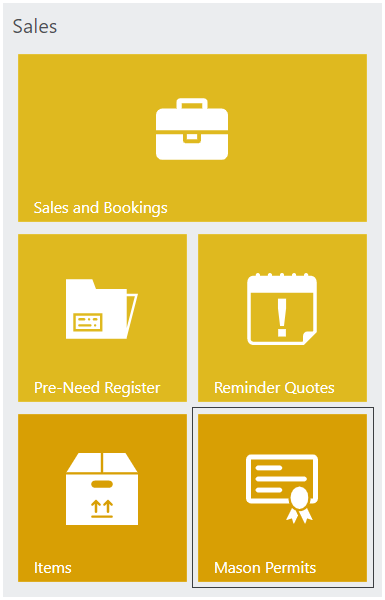
To search for permits in byondpro, click the Mason Permits icon in the byondpro Sales stream.
Permit applications can be filtered by the Status of the permit. For example, to find submitted permits, set the Status field to Submitted.
Otherwise, if information is known in relation to the permit, search by Mason Permit ID, Permit Type, Location and so on.
The permit will be visible in byondpro, whether flowing from byondcloud or entered directly in byondpro, and the dates of receipt, issue and work completed will be visible.
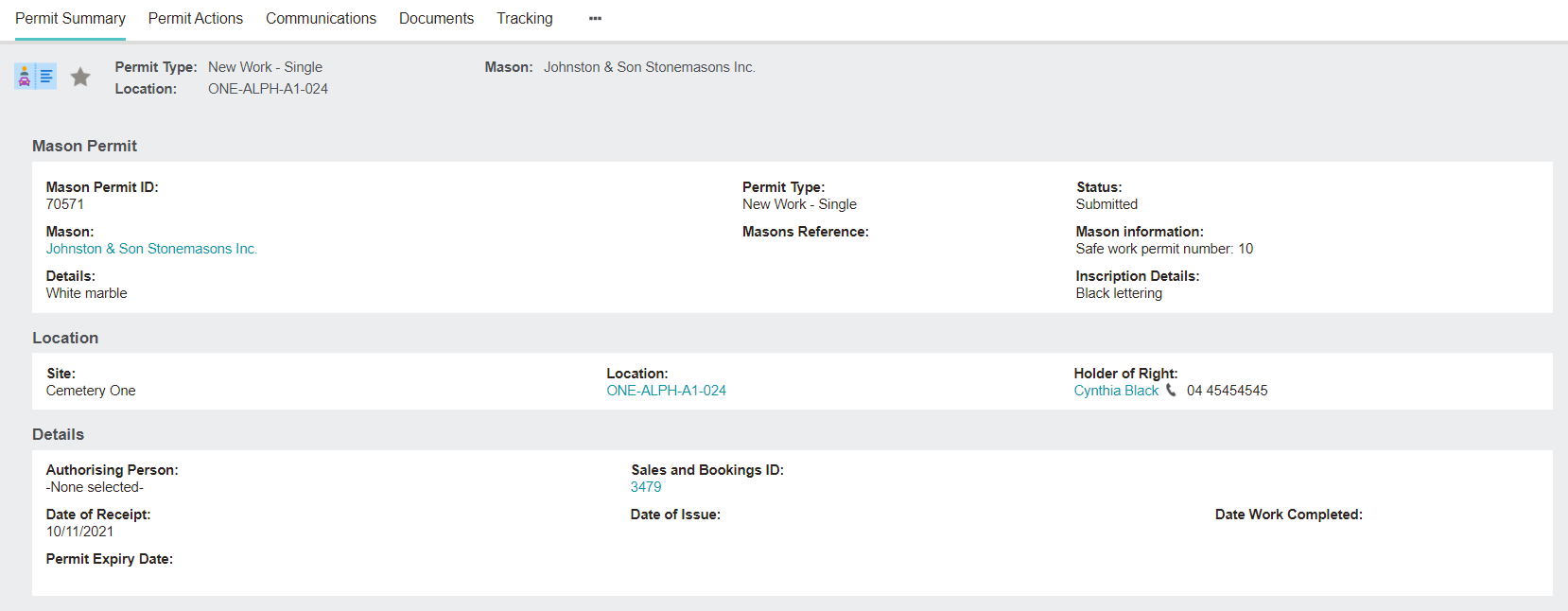
Click the Permit Type hyperlink to open the Permit Summary page.
The Permit Summary will include the deceased and authorising person's details, grave location that the works are associated to, and the paperwork that has been submitted.
The details captured in byondcloud will display with corresponding entries in byondpro.
This simplifies the cemetery staff's process, removing the steps required to enter the permit information into the byondpro system themselves.
Any documentation added to the byondcloud booking will appear on the Documents tab of the permit in byondpro.
However, if documents are added directly against the sales & booking or permit in byondpro, these will not integrate back across to byondcloud.
Sales & Booking
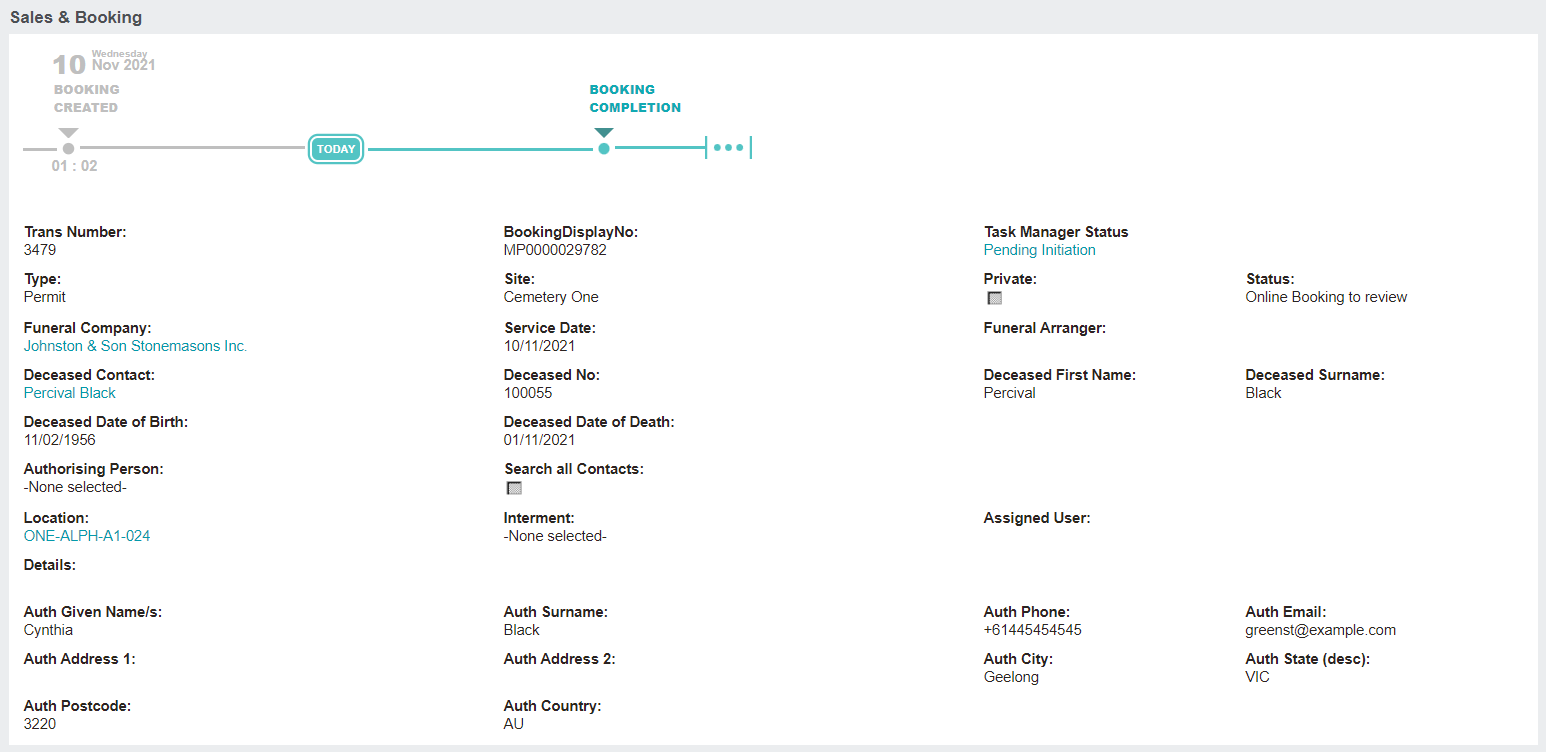
When the mason submits a permit application through byondcloud, the byondpro system automatically creates a new Mason Order Sales & Booking.
The authorising person's details entered by the mason in byondcloud flow through to byondpro in the form of the Auth Given Name /s, Surname, etc. at the bottom of the Sales & Booking summary.
However, the Authorising Person field remains empty, and the byondpro system does not create a new authorising person record nor use an existing record.
The cemetery must review the paperwork and records in byondpro to confirm the details provided by the Mason are accurate.
If so, the cemetery can add the authorising person to the Sales & Booking.
If the person record needs to be added to byondpro, remember you can create the person from the Sales & Booking window and add the person to the authorising person field.
All other details in the summary screen have flowed through from byondcloud.
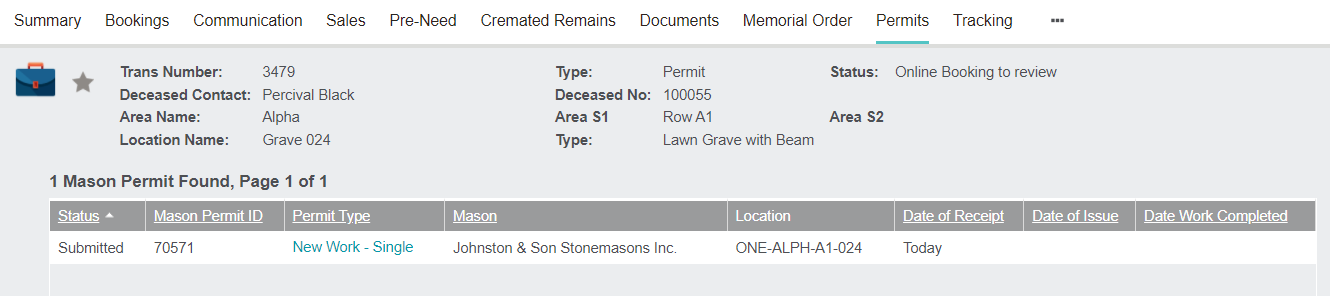
In byondpro, on the Sales & Booking, take a look at the Permits tab.
You can open the individual permit and view all the information, including documents, have been captured here from the byondcloud entry created by the mason.