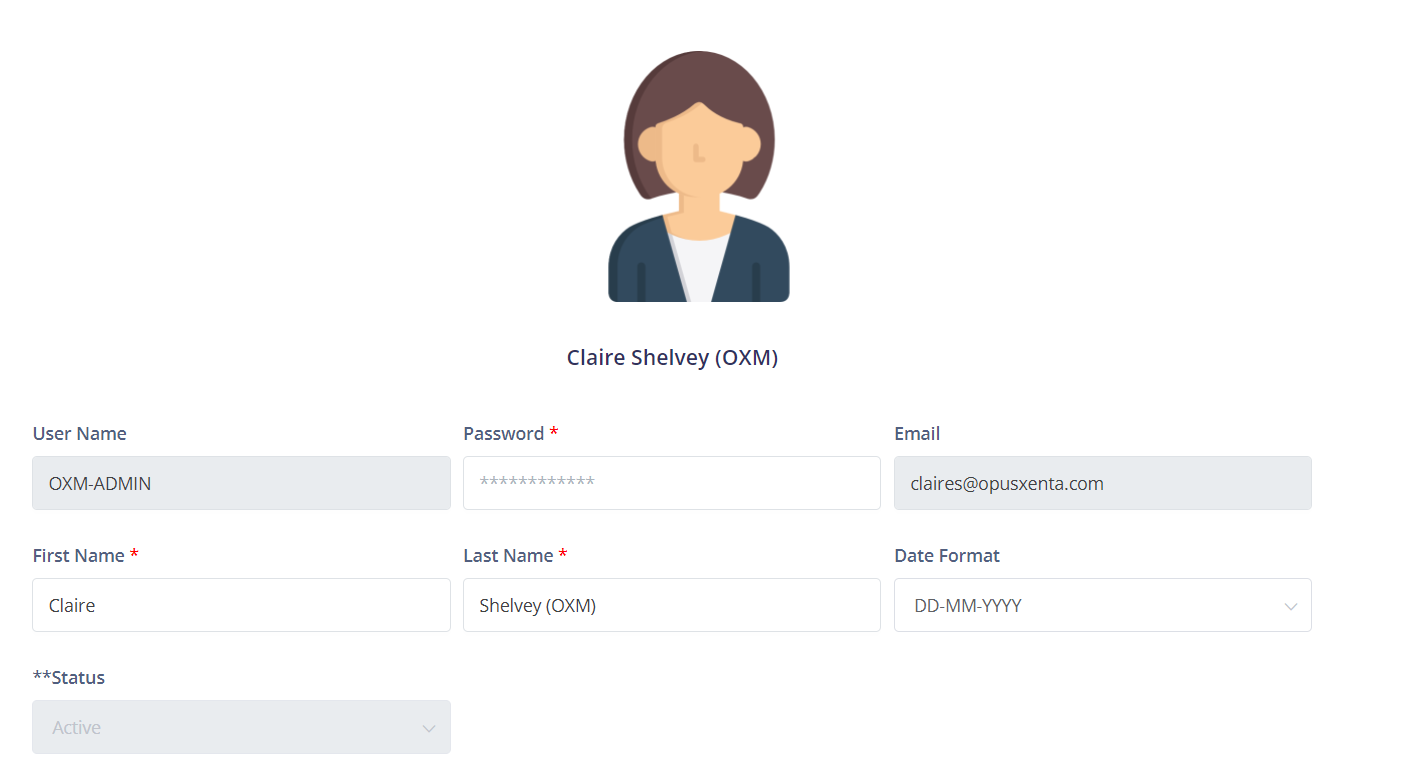
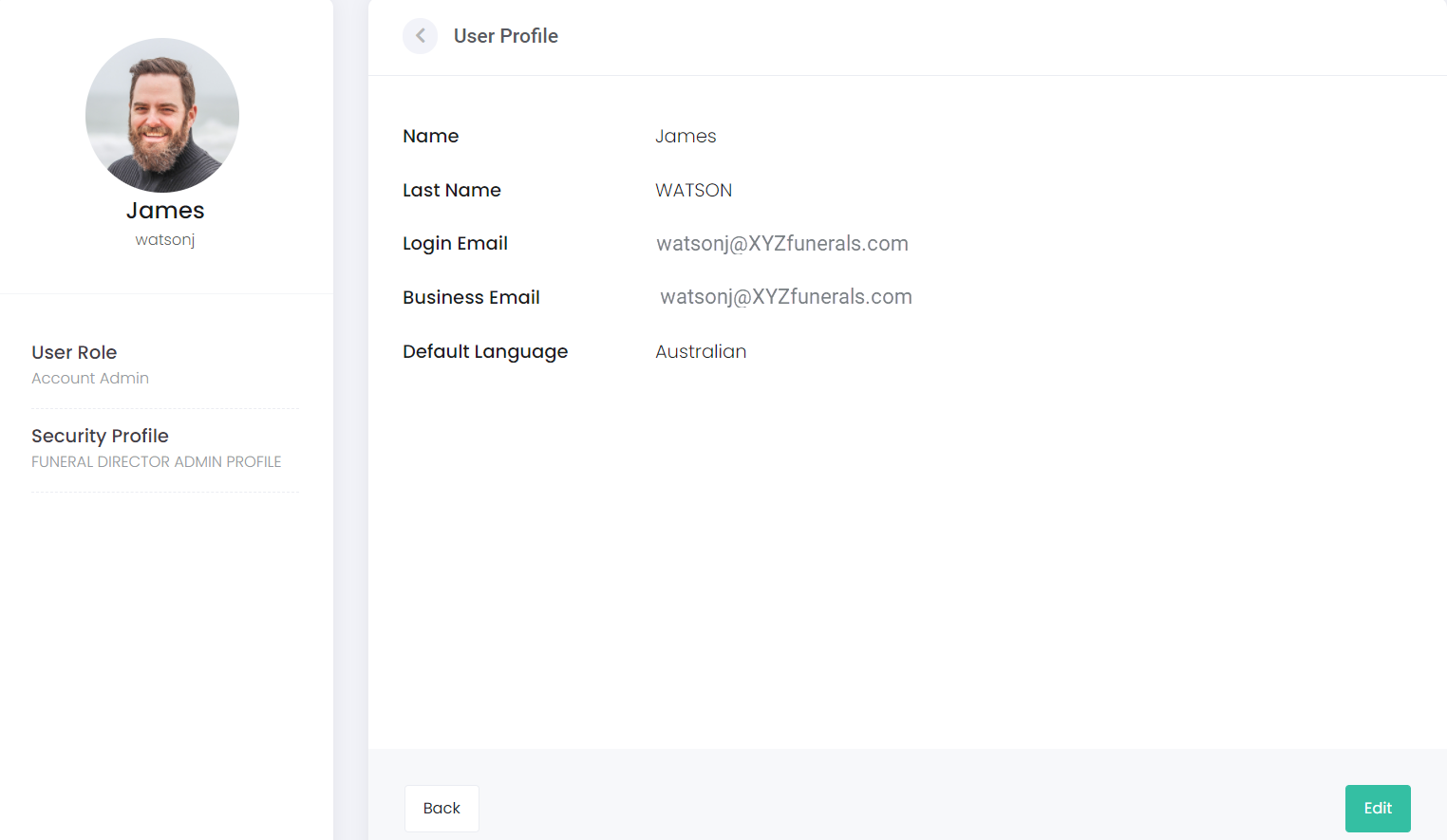
Please note that when using Task Manager, the user profile has a different look to other byondcloud applications.
To assist with navigation, this guide will review updating languages and user profiles of both versions together.
Updating Languages
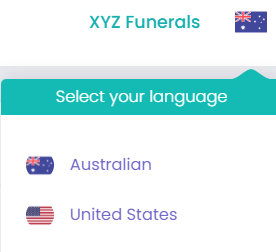
Users can update the language which displays from the toolbar on the top right-hand side of the page.
The language and relevant country flag will display.
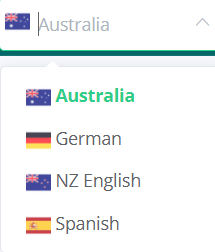
To make any changes, simply click on the arrow next to the flag in Task Manager, or click on the flag in byondcloud Applications.
A drop-down list will appear with the la
nguage choices. Task Manager displays all possible language options, whereas byondcloud Applications will display the languages chosen on the user account in the
Manage Users area.
|
byondcloud Applications
|
Task Manager
|
|
|
|
Click on the language of your choice from the drop-down list and the language will update to reflect your choice.
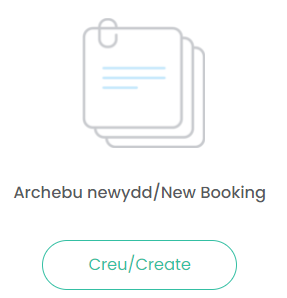
In the image below, the language has been updated to Welsh.
Editing User Profile
You may like to edit your user profile, to add a profile picture or update information.
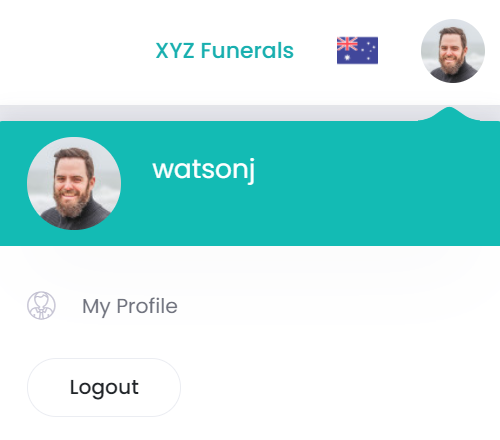
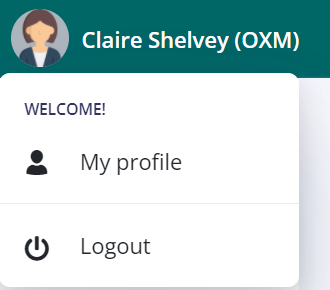
On the top right of the screen, click on the Profile Picture and then choose My Profile.
You can always log out of your application, by choosing the Logout option from the menu.
|
byondcloud Applications
|
Task Manager
|
|
|
|
To update your profile picture:
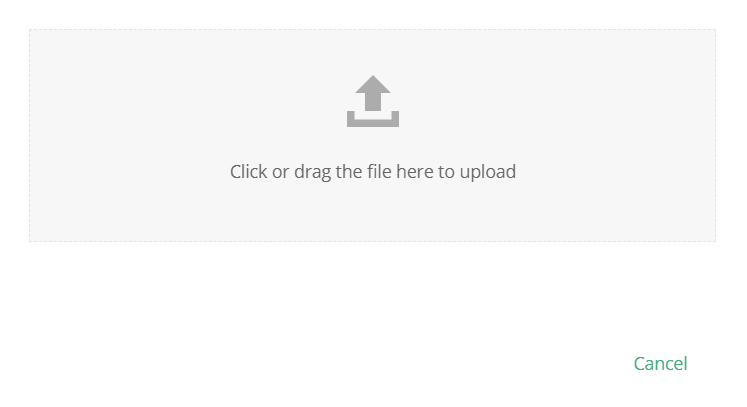
Click on the existing picture, which will open up a drag and drop option for you to drop in a new photo.
Within Task Manager, simply make the changes, then press Submit.
Within byondcloud Applications, click on the Edit button to make any changes.
If any changes are made to your profile, choose Update to accept the changes, otherwise choose Back to return to the Dashboard.