On the current phase of the job, tasks that the user can complete will display.
The current task that is being undertaken shows as a yellow slider.
This indicates to the user that this is the task they need to complete next.
When a task is labelled as yellow, the next task can't be accessed until this one is completed.
When a task is completed, the uses will click on the yellow slider to switch it to green.
All users with access to that task will be able to see that the task has been completed on their Phase Info tabs.
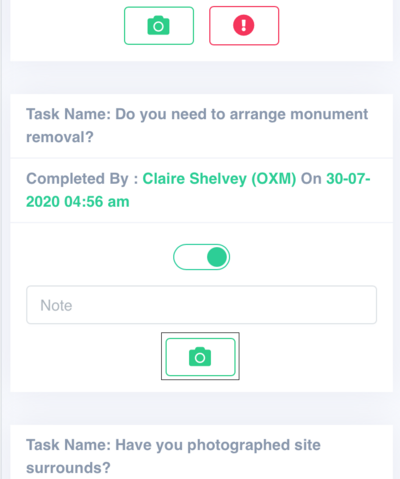
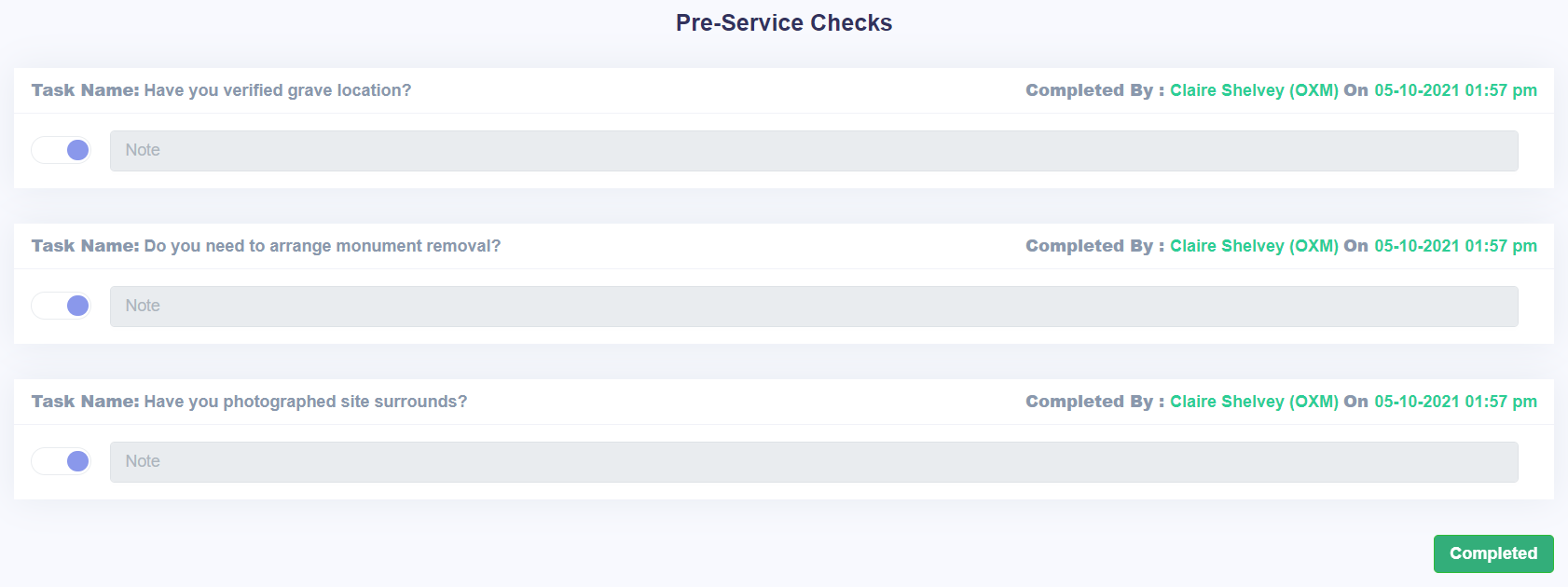
They will also see who completed it and when it was completed.
The red Alert button on the right of the task will flag that the supervisor needs to be notified about a potential problem with the job phase / task.
Clicking the Alert button will turn the slider red, and will open the next task for completion.
The next task is opened so that the team isn't forced to stop all tasks when an issue is raised; however, the alerted task will need to be completed before the supervisor can complete the phase.
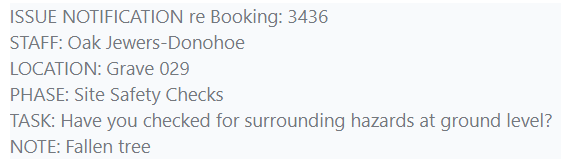
When an alert is used, the team supervisor will receive an email with the note attached for review.
The grey slider indicates a task that has not yet been reached.
A task cannot be completed until all prior tasks have been marked as complete or have been marked with an alert.
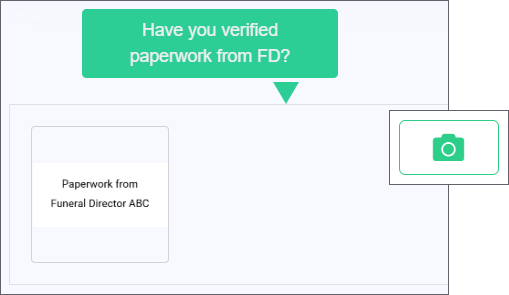
The Upload button allows the user to upload photos.
These photos appear at the bottom of the phase.
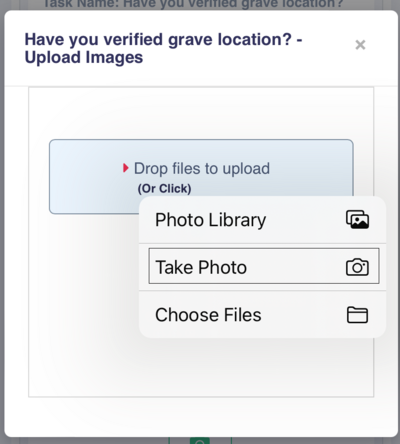
When using a mobile phone or tablet, clicking the Upload button will open the devices camera, allowing the user to take the image and upload it instantly.
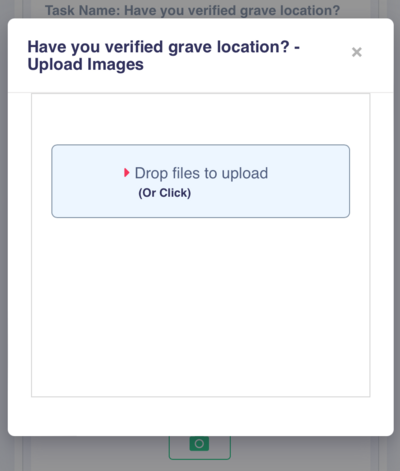
After clicking the Upload button, click (Or Click).
Then, click Take Photo to open your devices camera.
Task Manager autosaves any changes made to task completion; however, if a note is added, users need to select Save to capture the note.
Users / teams will work through each of the tasks in order.
Once all the tasks in the phase are complete, the supervisor can click the Complete button at the bottom of the page.
This will cause all the sliders to turn purple, indicating that the whole phase has been completed and the team is ready to move on to the next phase.
Users will continue until all tasks and phases are marked off through to the final phase.
The Complete button is not available on accounts that aren't supervisors or users that do not have special permissions.
However, team members can see that the phase has been completed.
To learn more about the phase completion process for supervisors, go to
Phase Completion.