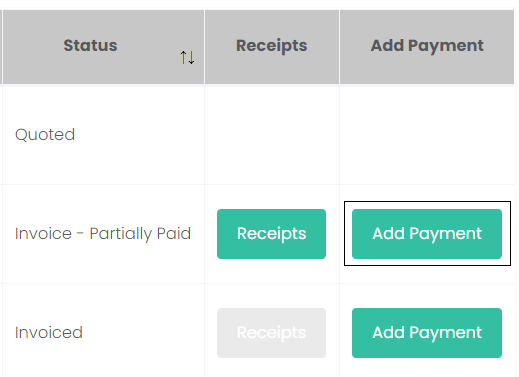
Press the Add Payments button.
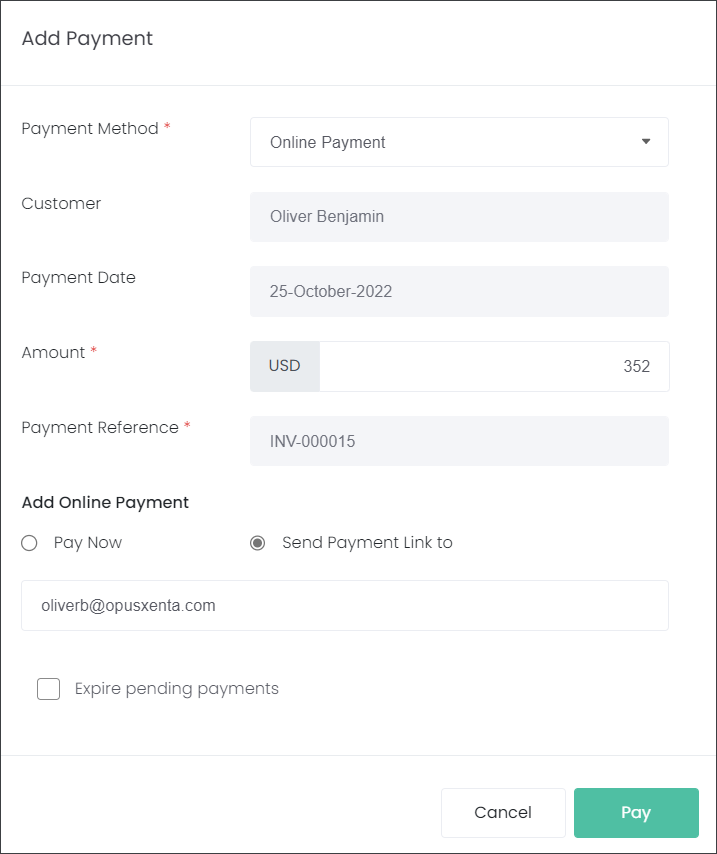
On the Add Payment pop-up screen select Online Payment in the Payment Method selection list.
The fields Customer, Amount and Payment Reference will be auto-populated from the details captured on the Invoice.
The Payment Date will be auto-populated with today's date.
Note: The Amount field will be auto-populated with the full Amount Owing. However, if you have offered your customer partial payments you can manually override it and enter the amount the customer has paid now. This will result in the Invoice status being Partially Paid. At a later date you can record further payments until the invoice is Fully Paid.
Select the Send Payment Link to circle.
The customer's email will be auto-populated in the field below, if there is one recorded in byoncloud. If the customer's email is not recorded in the system the user can type it in the provided field.
Let's consider the following scenario: staff have sold a location and other items to their customer. The customer is in a rush and would like to pay at a later date. The cemetery staff will send an email to their customer with the link to an online checkout page, and then the customer can action the payment from the comfort of their home.
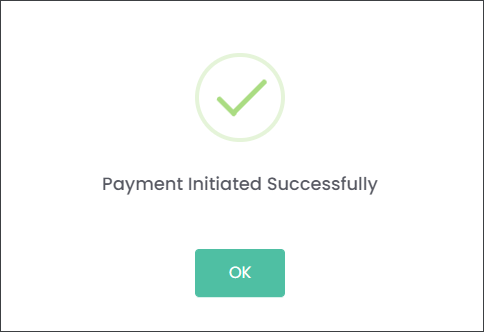
Press Pay.
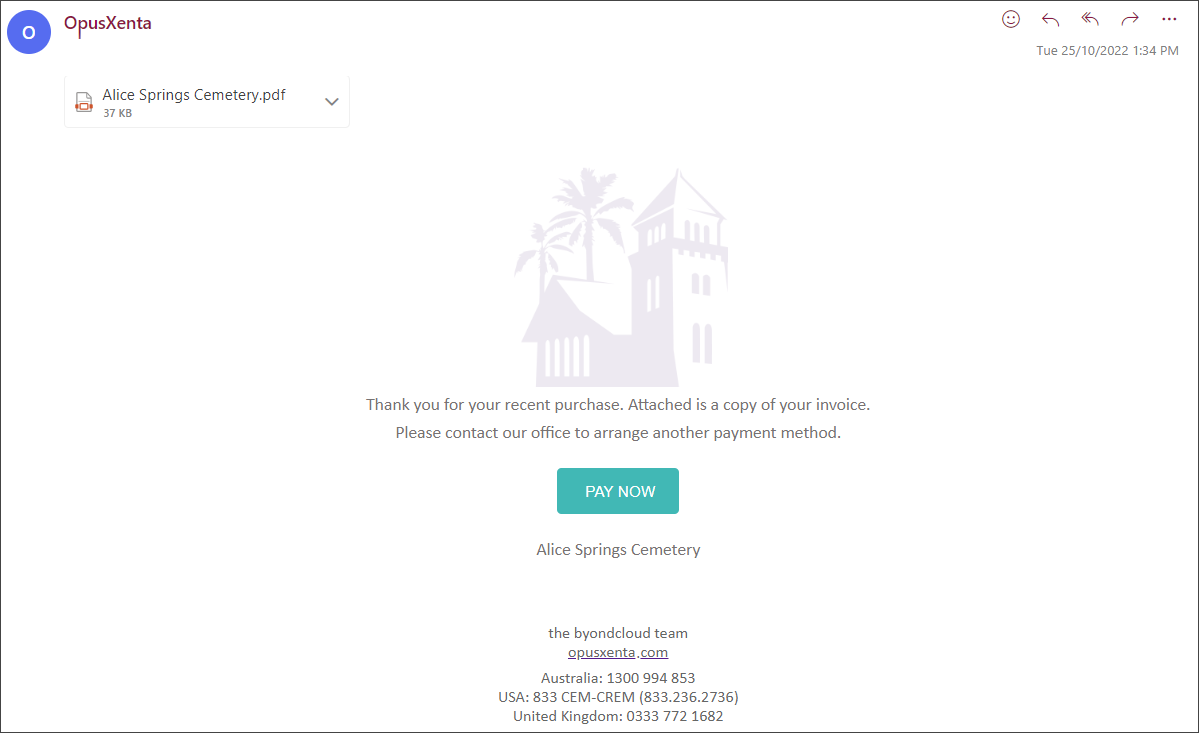
The cemetery customer will receive an email with a Pay Now button and an Invoice attached.
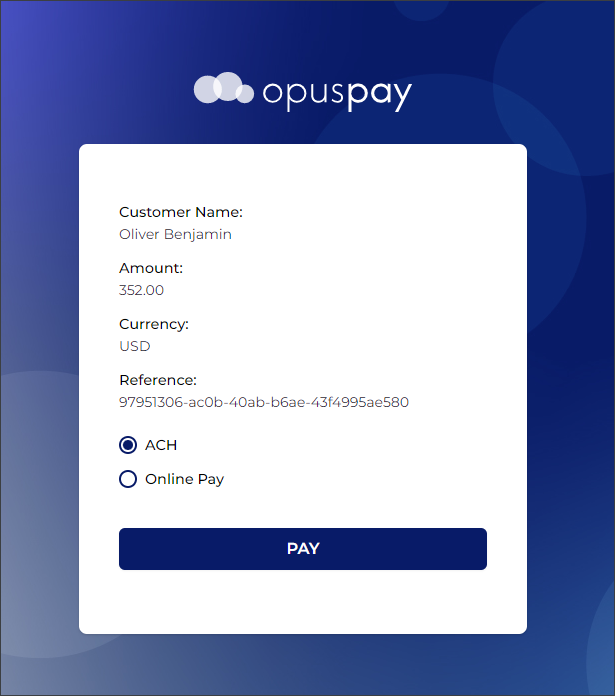
When the customer presses the Pay Now button, a new window with an online checkout page hosted by opuspay will open in the browser.
The customer checks their transaction details, selects their preferred payment type and presses Pay.
Note: The payment types, ACH and Online Pay/Card, depend on your allowed gateway payments methods that are configured with opuspay. Please, navigate to the
opuspay Registration topic to find out more.
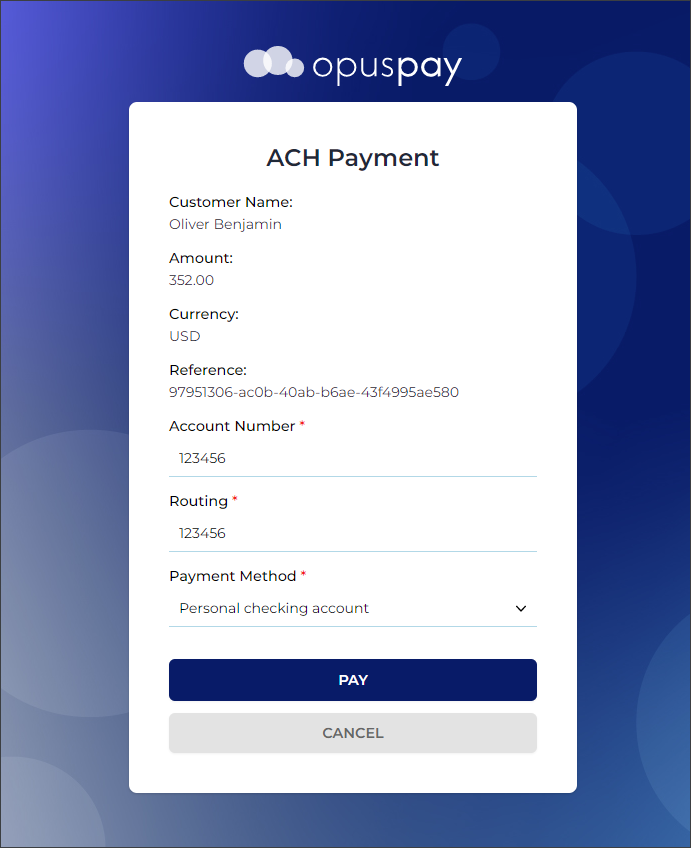
A checkout page will appear where the customer can type in their ACH details like in our example below, or their card details if that method is selected. Press Pay.
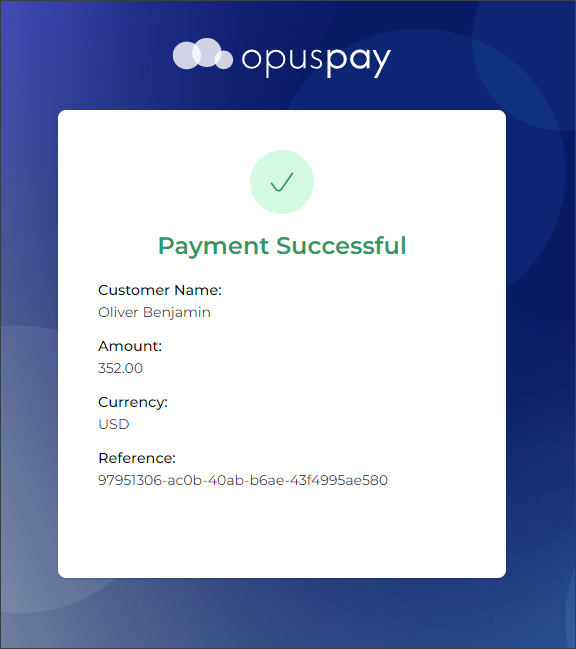
The payment has been processed successfully. In byondcloud when staff refresh the View Invoice page they will see the following.
Under Payments Transactions, the status will be updated from Processing to Approved.
Back on the Manage Invoices page, the Invoice Status has updated to Fully Paid. It also updated the Total Paid and Amount Owing fields.
NOTE
In a situation when there is an existing payment being processed but the customer would like to change the Payment Method, the user has to select the Expire open payments exist checkbox.
For example, a customer spoke to staff about paying for the services with an Online Payment. The customer was sent a link to an online checkout page. In byondcloud this transaction was recorded as Processing until the customer actioned it. However, the customer found themselves on site and would like to pay with cash instead. The cemetery staff can add a new payment as Cash/Cheque/Other Payment but also has to check the Expire open payments exist box to cancel the Online Payment Processing.