Once responses are added, they will display with the columns that you chose to include.
All votes will be assigned a status, which can be seen on both the Responses screen and the Vote Summary screen.
|
Status
|
Meaning
|
|
|
Vote slip has been printed, however, voter has not responded to date.
|
|
|
Response was returned, however, the vote slip is not valid.
|
|
|
Response was returned and is considered a valid vote slip.
|
|
|
Response was returned to sender / likely undeliverable.
|
Should a response need to be deleted, click on the Delete icon in line with the response to be deleted.
When the responses start to pile up, you might need to narrow down the responses.
Click on the Search button on the top of the page.
Additional fields of Location Code, Owner Name, and Status will display.
Enter in the search criteria in the relevant fields.
Then choose Search and the responses will be narrowed down by the criteria entered in.
To reset the screen to display all responses, click the Reset button.
Alternatively, by typing in the Search field part of a name or location code, the list will narrow as you type to display only responses which contain the text.
To generate a PDF report of the responses to date, click the PDF button.
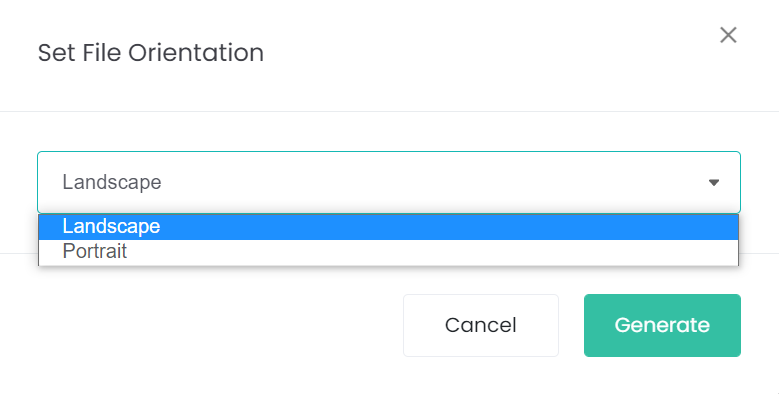
From the pop-up window, choose whether to generate via landscape or portrait.
Then click Generate.
A PDF will download to your device. Click into the PDF to view.
You will note that the PDF displays the columns that display on the Campaign Response screen.
To return to the Manage Campaign screen, click on the arrow next to the campaign year.
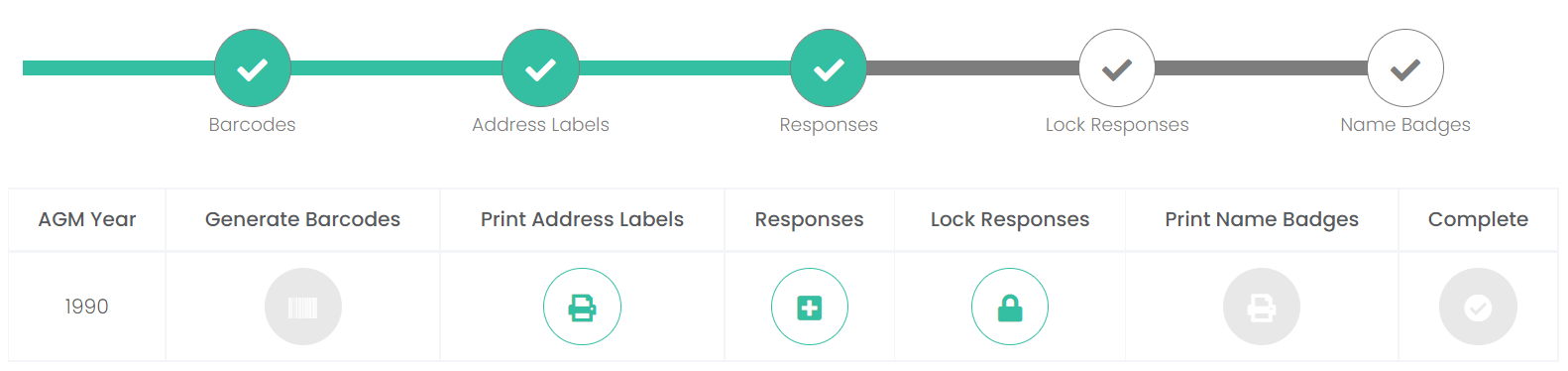
The Responses section has been marked with a tick on the process timeline, to indicate at least one response has been recorded.
Additionally, once responses have been entered, you will be able to view a summary of the votes by clicking on the Vote Summary button on the bottom right-hand side of the screen.