Plans on the website
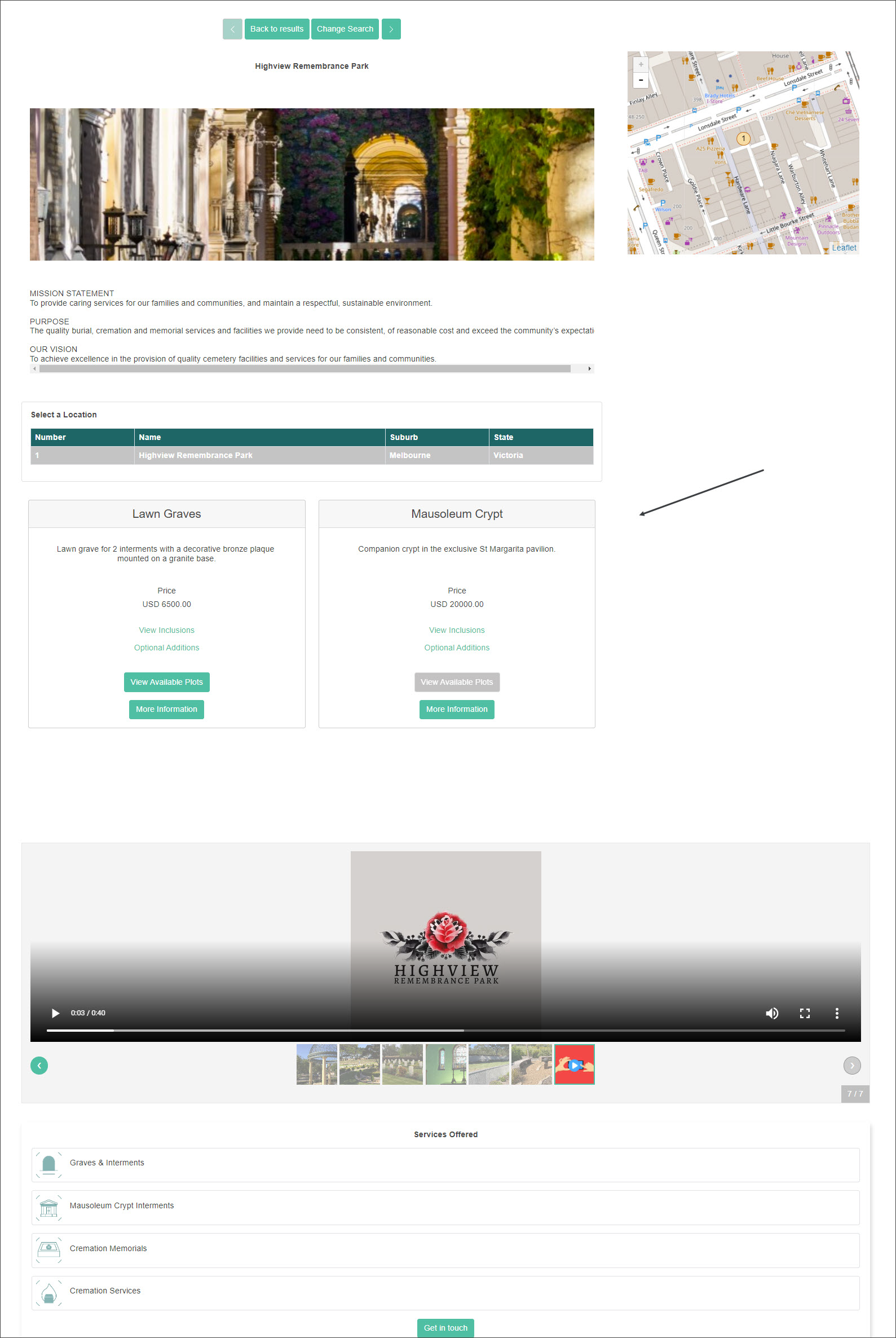
In our example, Highview Remembrance Park offers two Plans; Lawn Graves and Mausoleum Crypts. Let's take a look at how marketmakr display the plans on the Highview Remembrance Park's website.
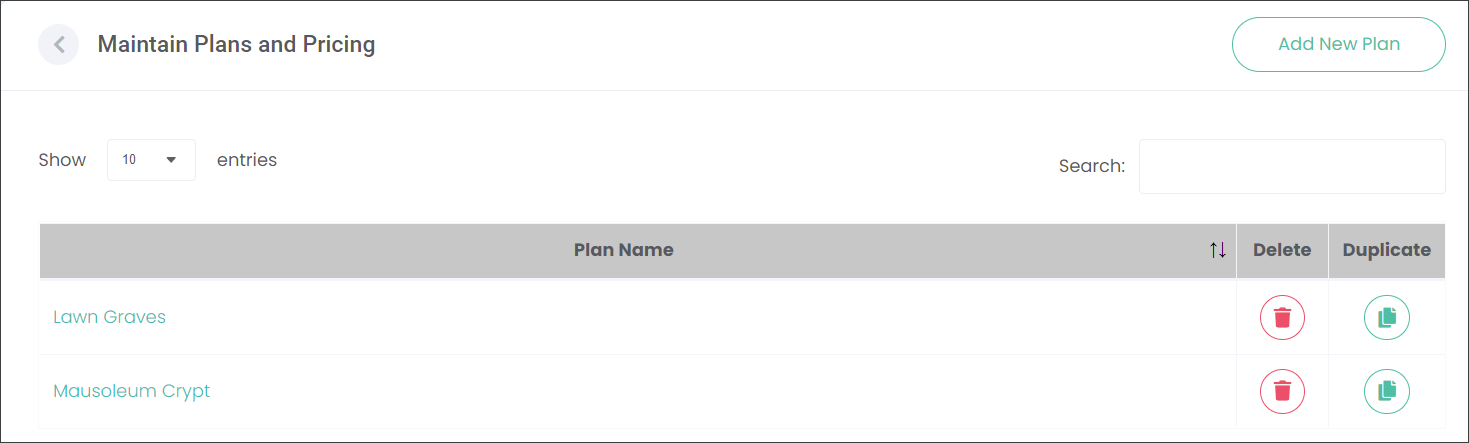
When a customer is browsing through the South East Regional Cemeteries trust website and chooses the View more option on the Highview Remembrance Park profile, they will be taken to a page that includes information entered in the Extended Catalog Entry and Maintain Plans and Pricing* pages of marketmakr.
*Note: An additional configuration on the Assign Plans to Entities page need to be completed for the Plans to be attached to your branch/site, in our example, to Highview Remembrance Park.
On the image below you can see that marketmakr displays the Plan Name, Plan Description and Price as the first information to your customer.
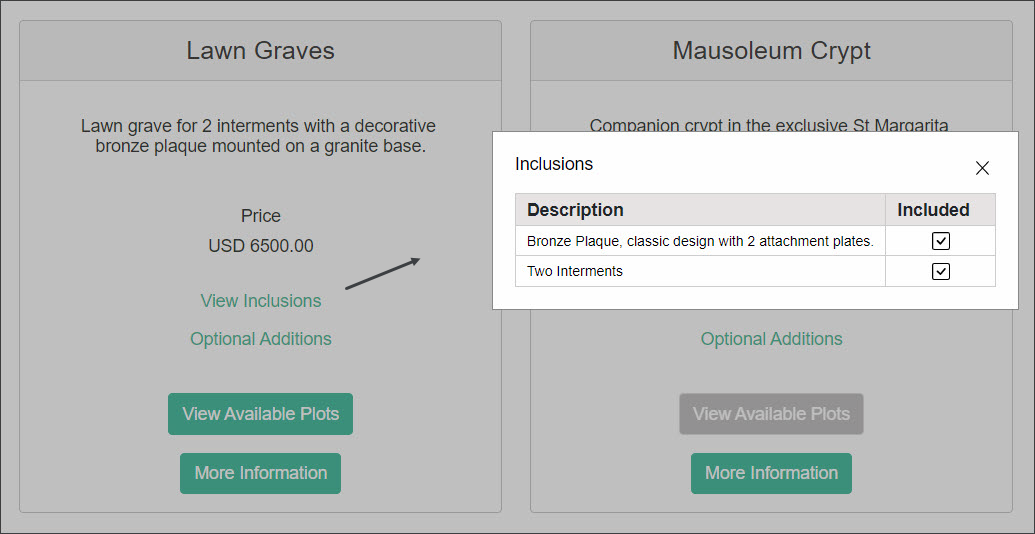
When the customer would like to find out what is included in your Plan, for example Lawn Graves Plan, they can choose the View Inclusions option. The information entered on the Inclusions tab will be displayed as a pop-up window.
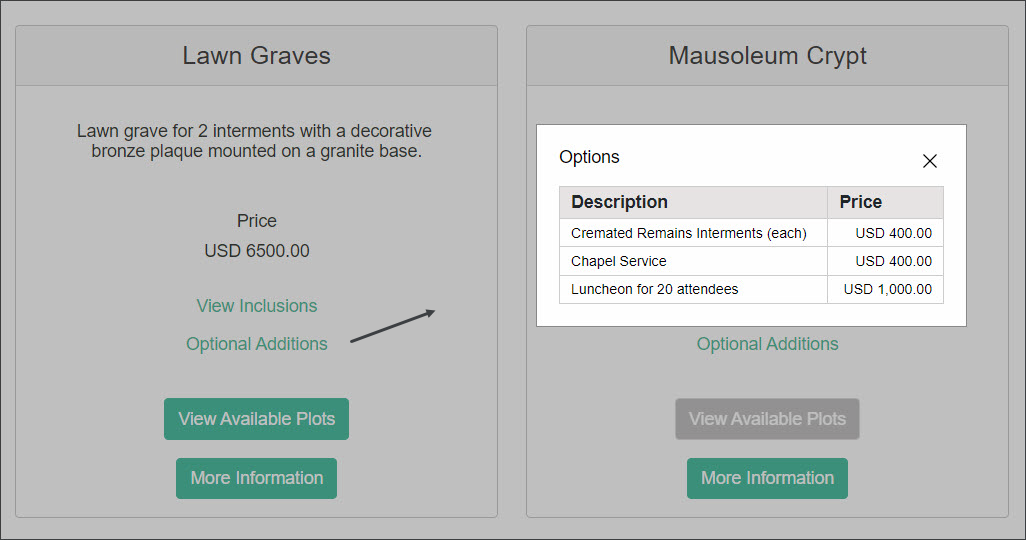
When the customer would like to find out what else they can purchase with your Plan, for example Lawn Graves Plan, they can choose the Optional Additions button. The information entered on the Optional Items tab will be displayed as a pop-up window.
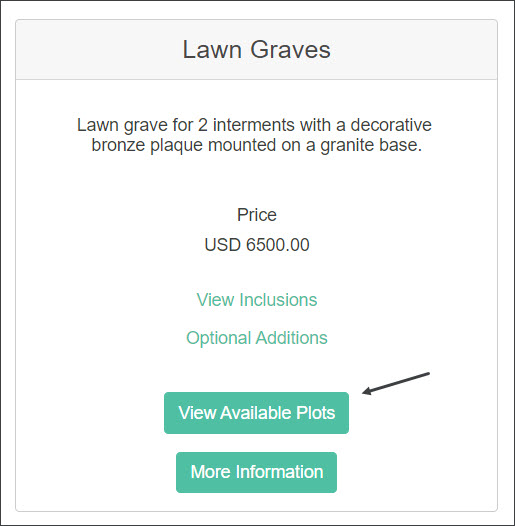
At the bottom of the Plan, your customer can press the View Available Plots button. In our example, marketmakr will present the customer with a list of locations - lawn graves- at Highview Remembrance Park that are available for sale. marketmakr connects to RecordKeepr to show your customer what is available for sale. Find out more about this configuration in the Manage Sites section of this guide.
Note:This option will differ from business to business depending what area of the death care industry they represent.
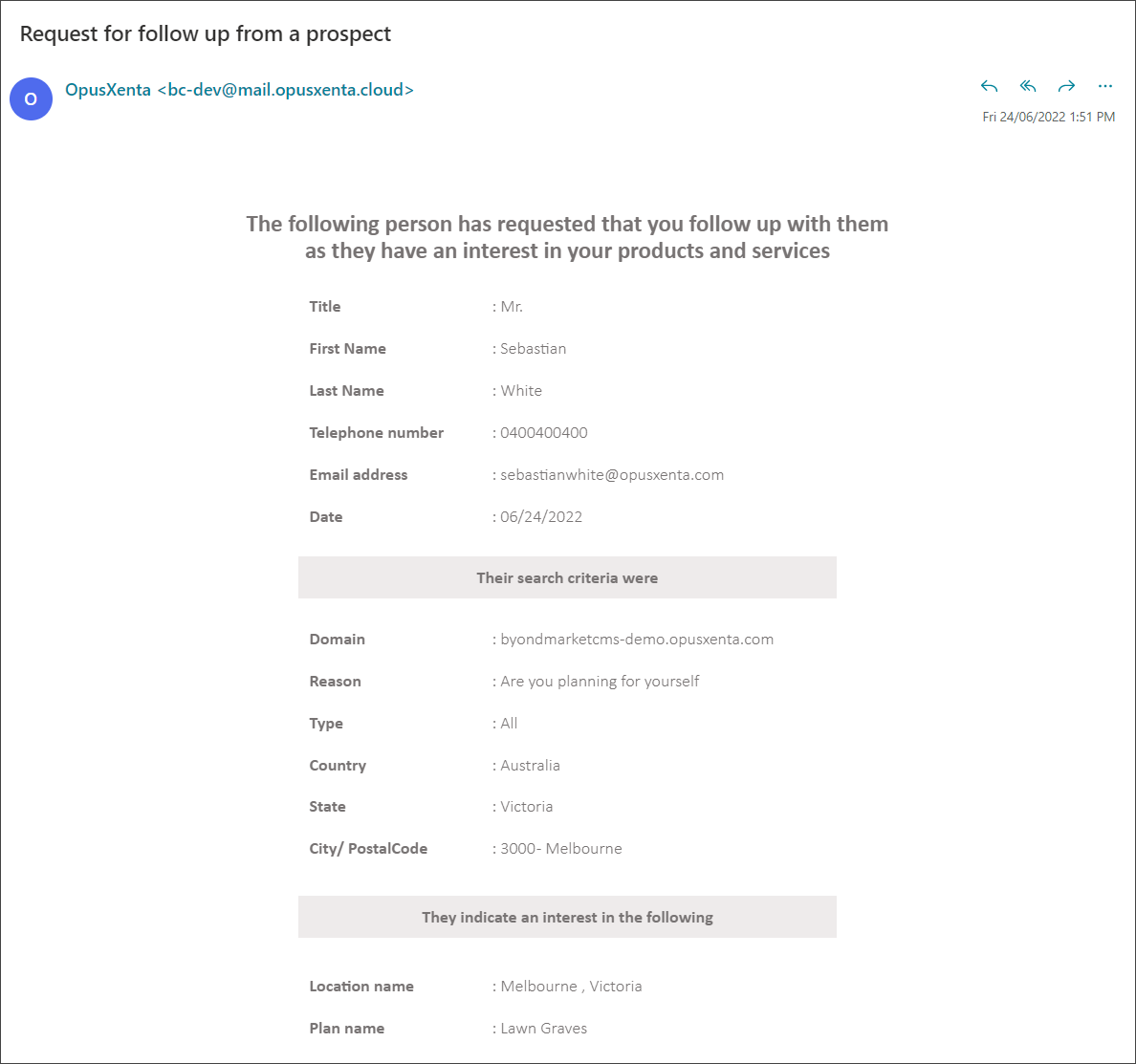
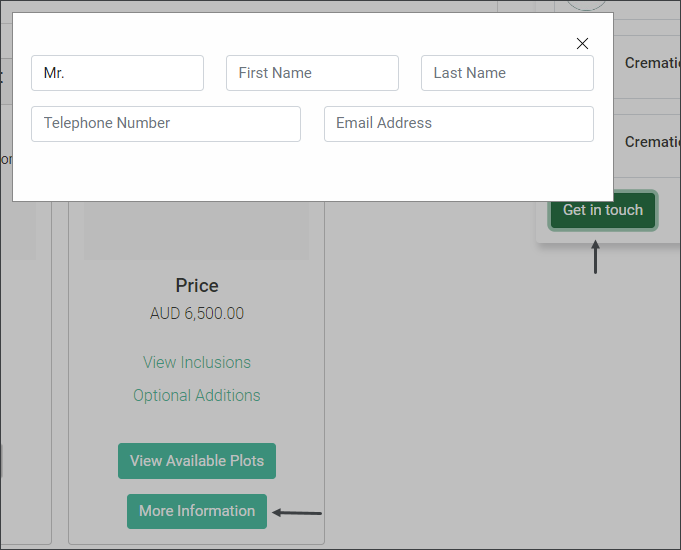
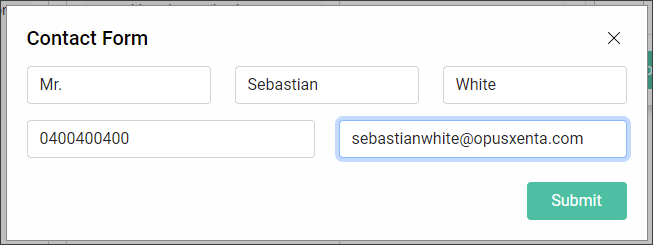
Note: As mentioned in the Extended Catalog Entry section of this guide, if the customer would like to contact your business about the offer, they can select the Get in touch or More Information buttons. The customer will be presented with a pop-up window requesting their contact details. The inquiry will be directed to the email address nominated in the Extended Catalog Entry.
The nominated address will receive an email with details regarding your customer's inquiry; from the customer's contact details to their search criteria.