(c) Copyright by OpusXenta Pty Ltd. All rights reserved.
Permissions Management
Planning will be required to setup profiles and the applicable permissions for the users allocated to the profile.
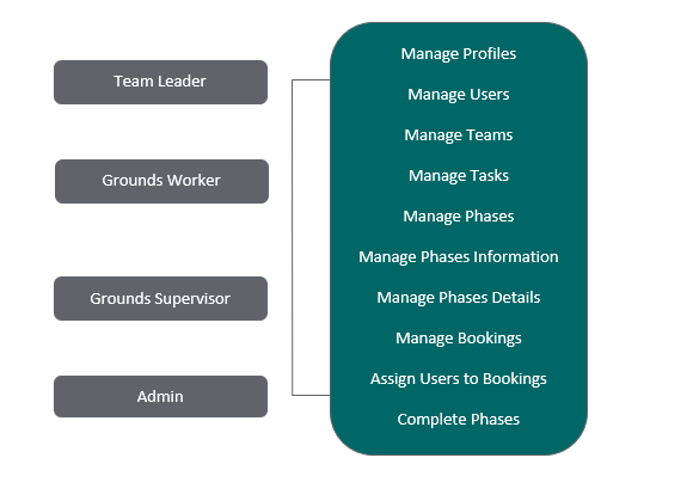
For example, consider the example profiles below and identify which permissions you would apply to the profile:
Team Leader
Grounds Worker
Grounds Supervisor
Admin
You may wish to apply all permissions to your Team Leader, while you may only allow a Grounds Worker to access the Manage Jobs page, where they can access their assigned tasks and phases.
Permissions can be configured to allow specific users to complete phases.
Some phases have special permissionrequirements by default in the Task Manager system.
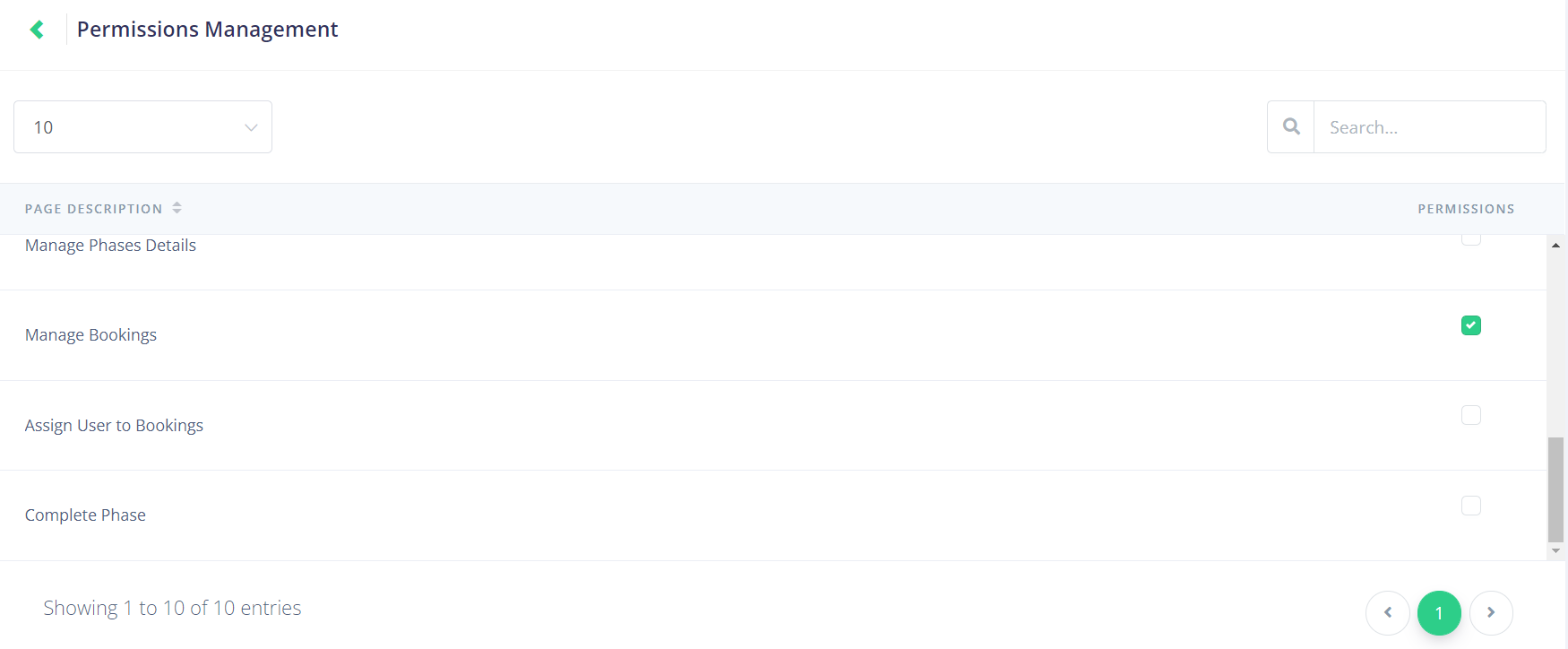
Permissions Management Screen
Click on the Permissions button under the Actions column on the Profile Management page to open the Permissions Management screen.
The Permissions Management screen allows the user to set the security permissions of the profile.
Tickinga box in the Permissions column gives the profile access to the specific page or function within Task Manager.
Read Only Profile
The Read Only profile can only access the Manage Jobs permission.
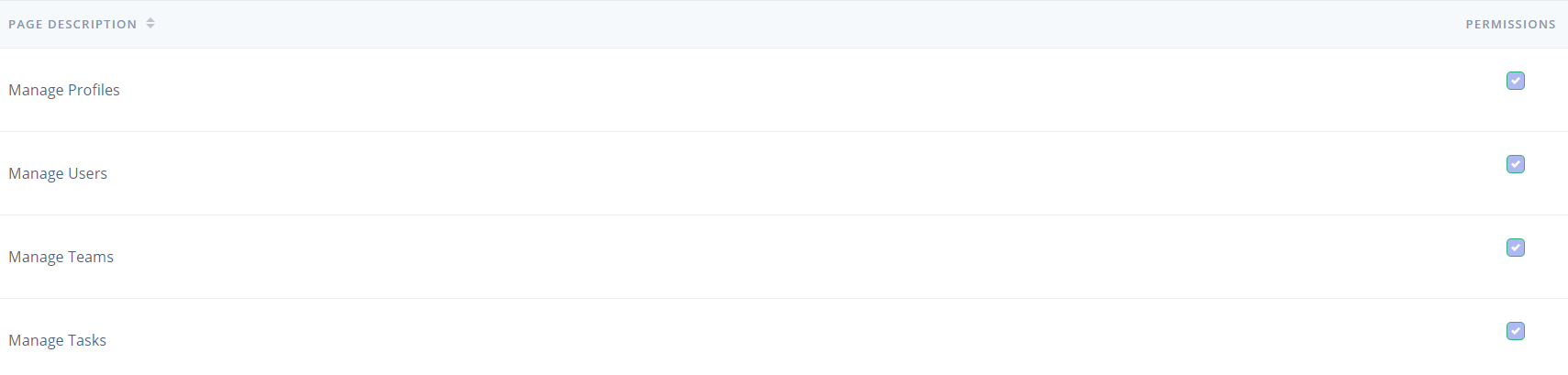
The permission cannot be unticked, and shows up as a purple tick.
Default Admin Profile
The Default Admin profile has all permissions locked as ticked.
Search Function
If you have have many permissions, you can type the page description into the Search field in the topright to narrow your options, or you can change the number of entries viewable on each page by using the dropdown in the topleft.