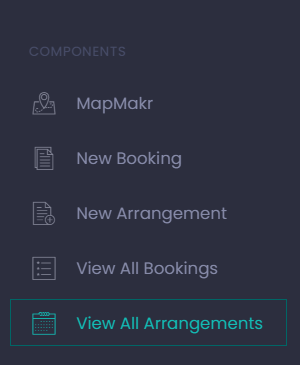
From the Dashboard choose the View button under View All Arrangements or from the side menu, choose View All Arrangements. Alternatively, the user will be taken to this screen after they submit a new arrangement.
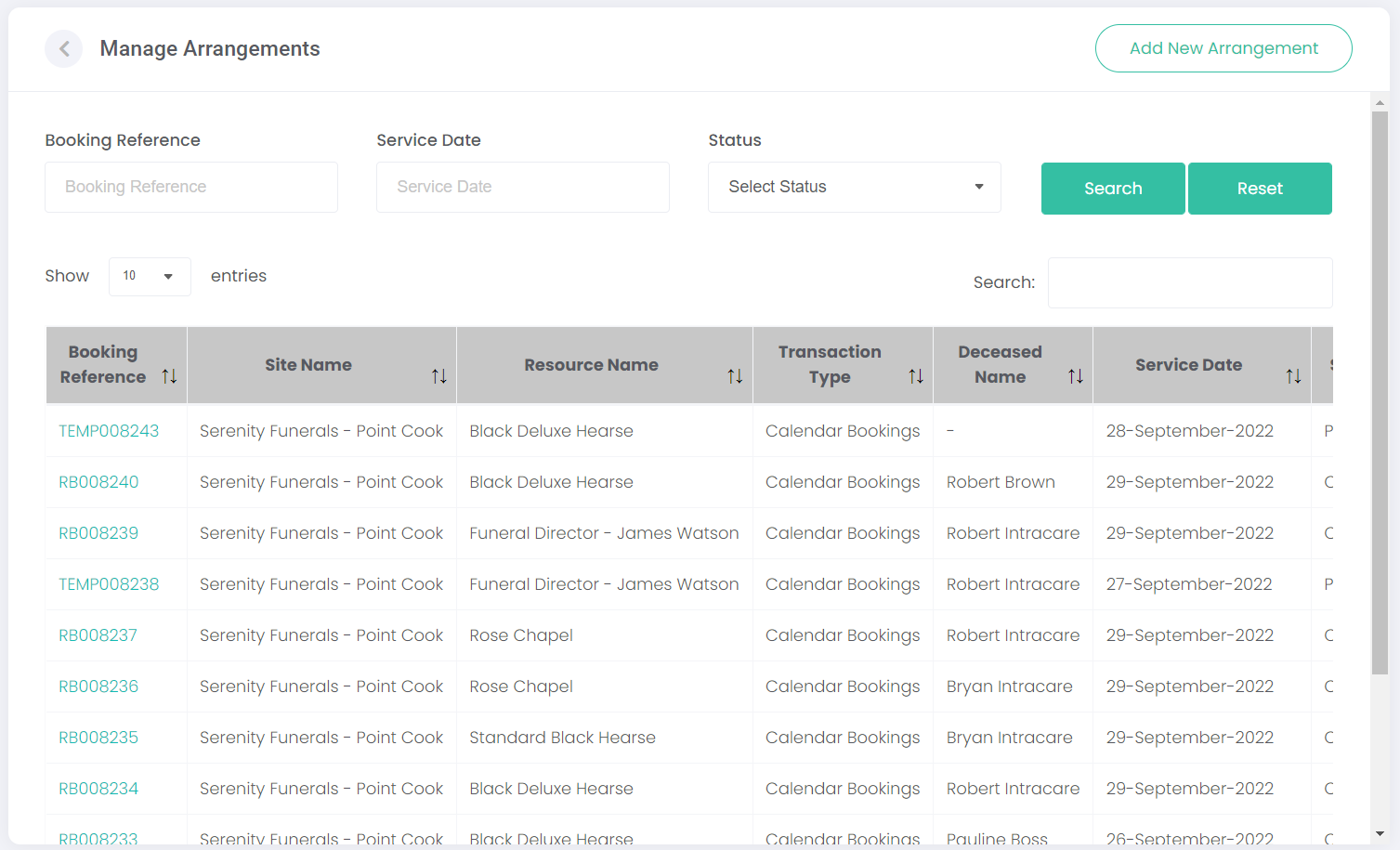
The Manage Arrangements page displays all the arrangements made by the funeral director organisation. The arrangements can be viewed, edited, sorted, and searched for on this page.
On the top right-hand side of the page, the
Add New Arrangement button provides another way to navigate to the
New Arrangement function.
At the top of the page, there are three search filters that can be used to help the user find arrangements. They can be searched by their Booking Reference, the Service Date, or the Status of the arrangement. Once the filters have been filled, click Search to apply them to the page. Click Reset to clear the applied search.
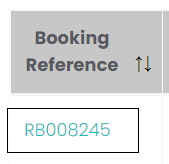
To see more detailed information about the arrangement, click the Arrangement Reference hyperlink.
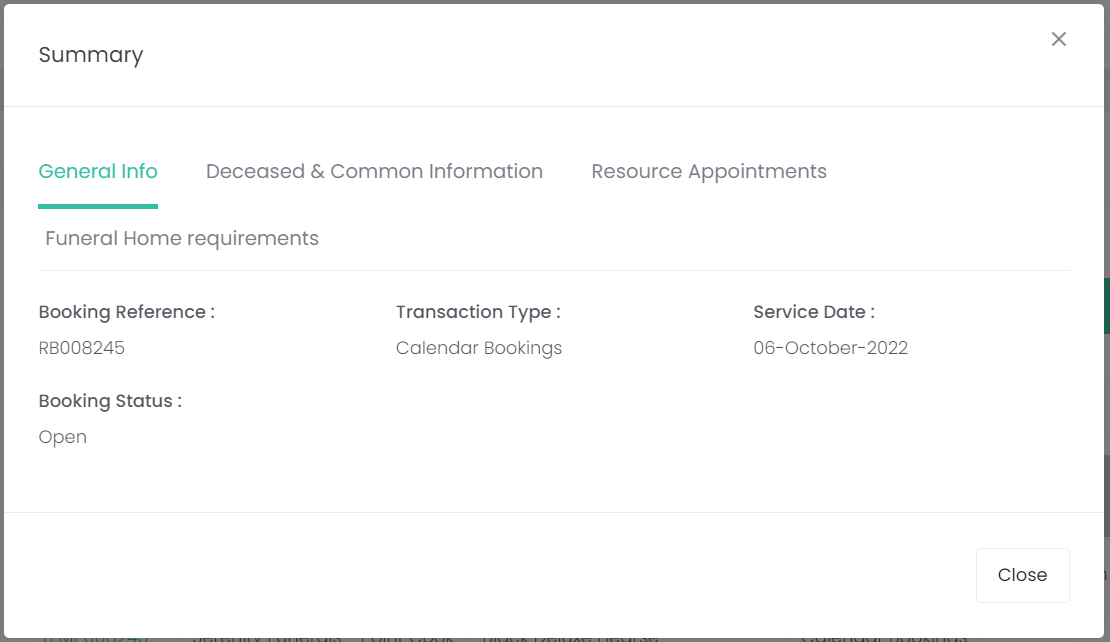
This will open the Summary pop-up screen. All details entered while creating or editing an arrangement can be found here. The tabs across the top each correspond to the screens seen when creating an arrangement.
When finished reviewing the content, click Close to exit this page.
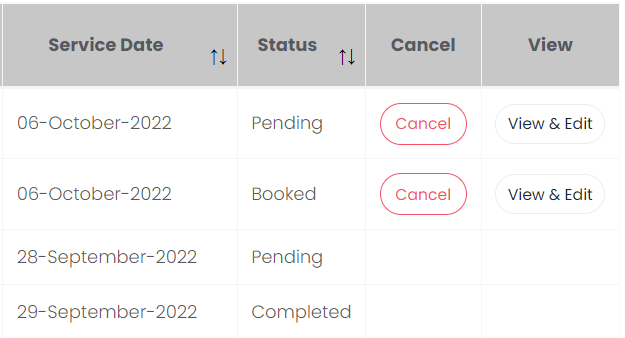
On the right-hand side of the screen, the Status column will show whether the arrangement is Booked, Pending or Completed.
An arrangement that is pending has been partially completed but has not been submitted. Pending arrangements can be cancelled or edited by clicking the corresponding action buttons. A pending arrangement cannot be cancelled or edited if the service date has passed.
If an arrangement is saved and submitted, it will show a status of booked until the date of service has passed. Until that time, it can be cancelled or edited using the action buttons.
Once a booked arrangement has passed its service date, its status changes to completed. Completed arrangements cannot be cancelled or edited.