(c) Copyright by OpusXenta Pty Ltd. All rights reserved.
Generate Purchase Orders
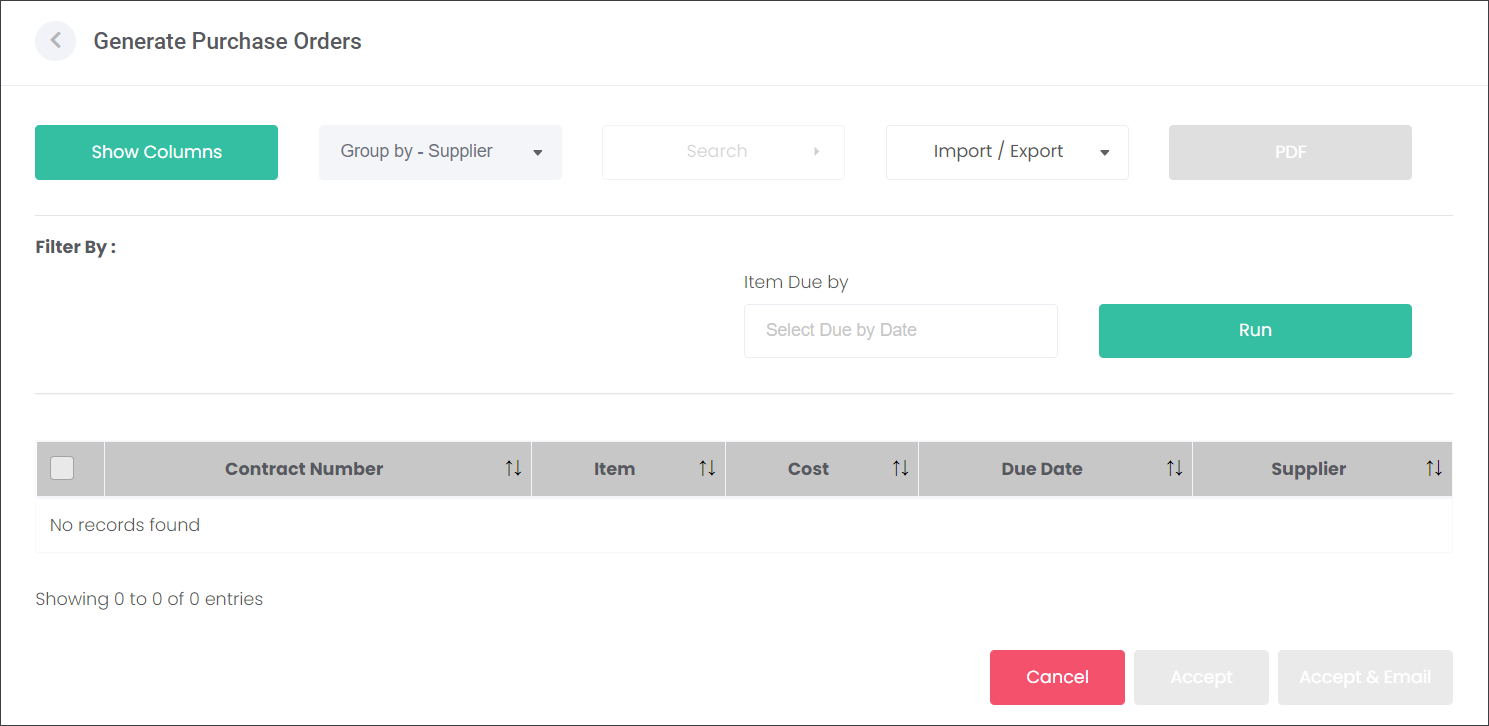
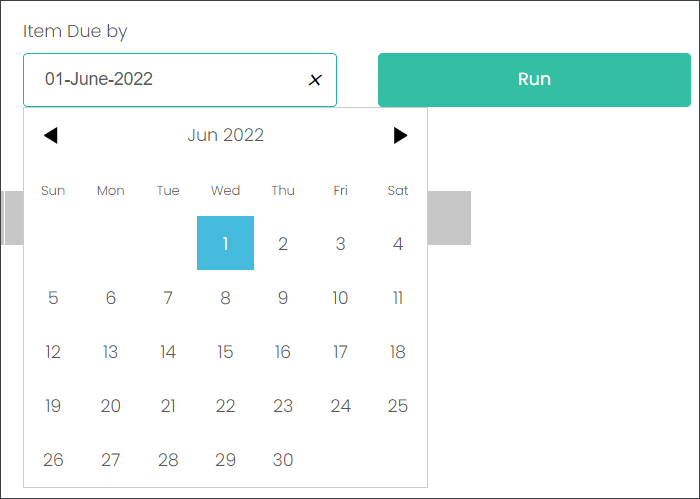
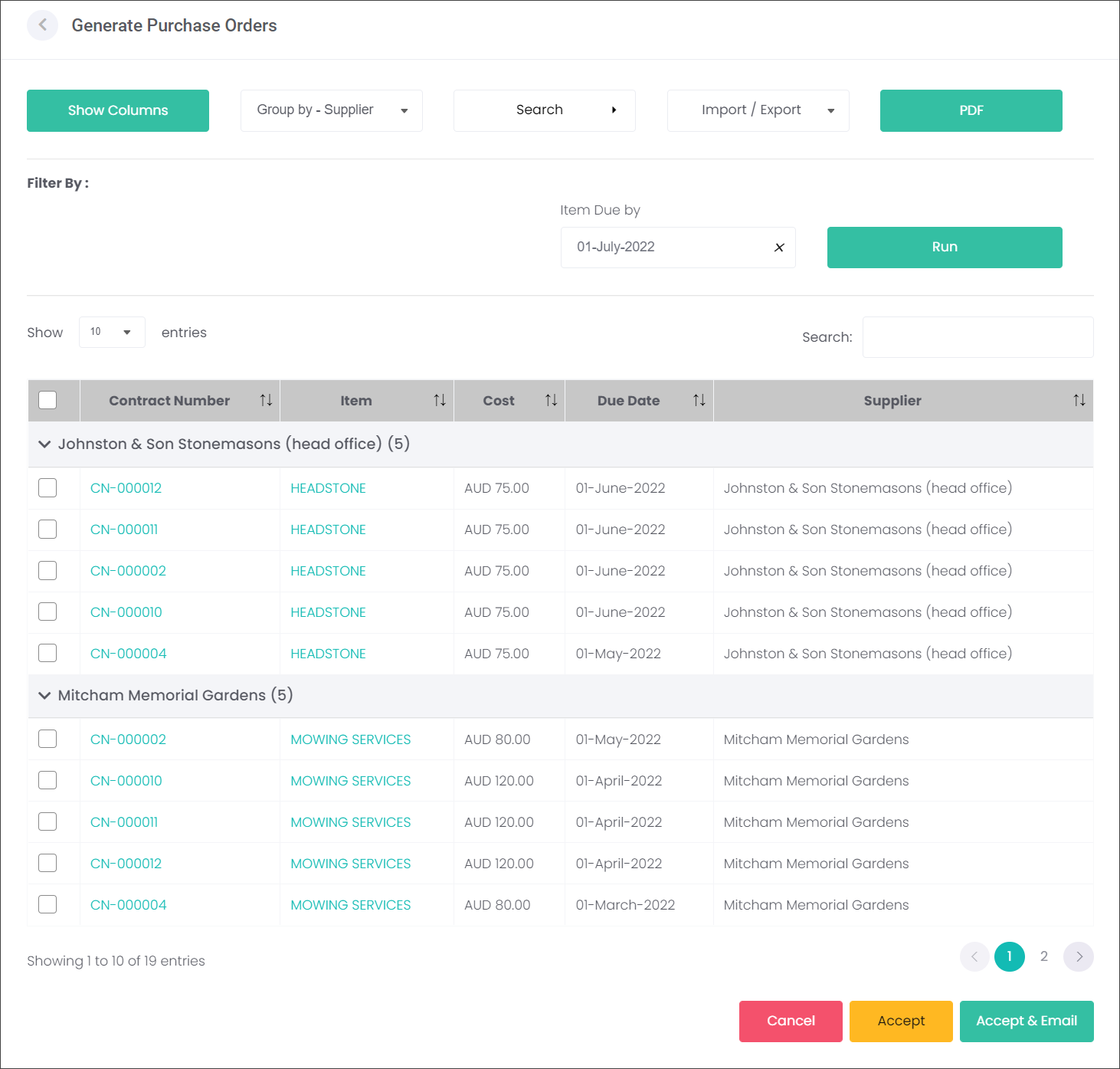
Enter the date the Items are due by in the corresponding field and press Run.
The system will use the data from the existing Contracts to generate Purchase Orders for the Suppliers.
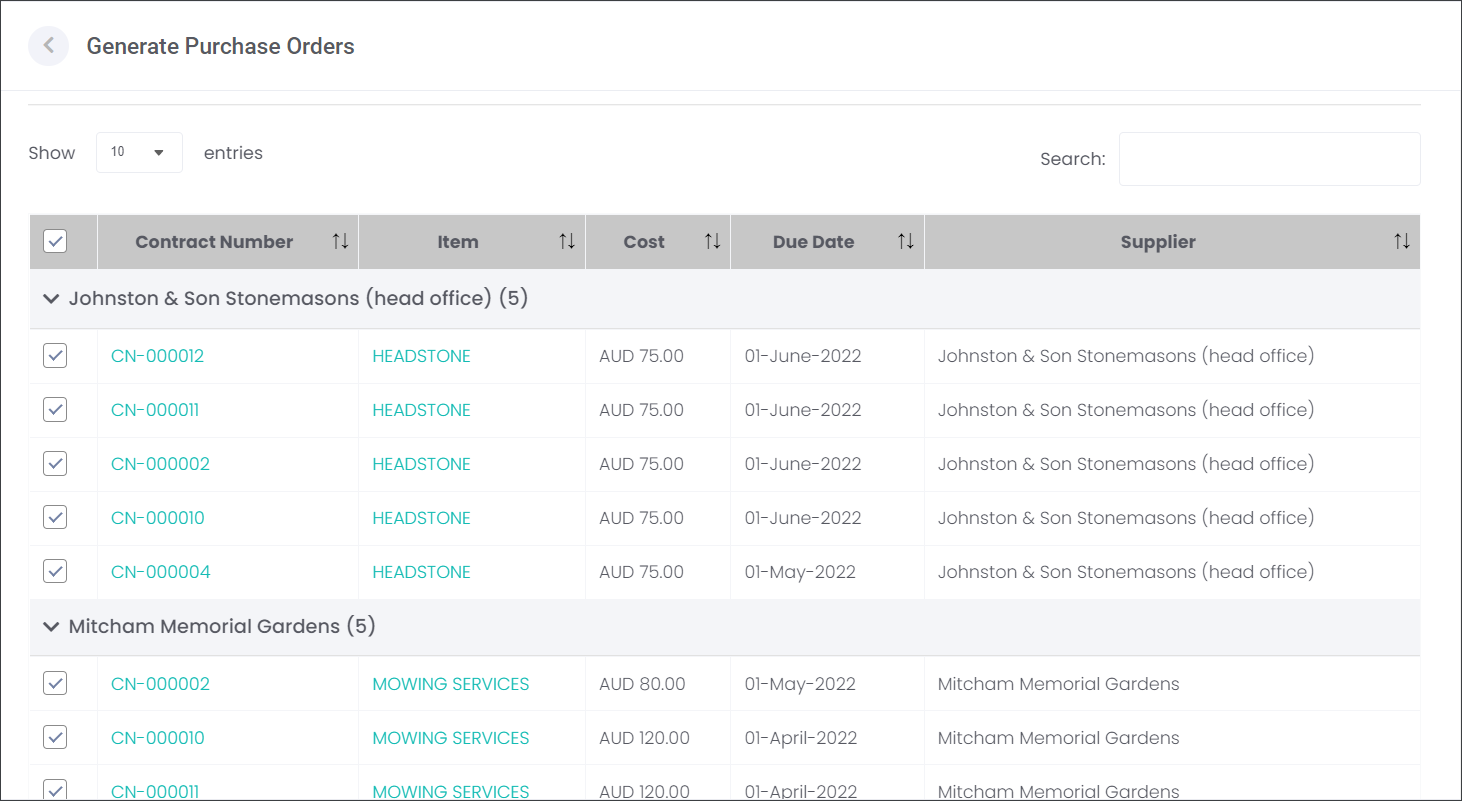
Use the tick boxes on the left side of the screen to select individual purchase orders or the tick box in the top left corner to select all due by the chosen date. Depending on the cemetery processes, the users may choose to generate the Purchase Orders in bulk or individually to cater to particular delivery dates.
Press:
1. Cancel, if you do not wish to proceed or
2. Accept to generate the Purchase Orders, that can be sent to the Suppliers later, for example closer to the due date. The Purchase Orders will have their Status as Pending and will then be released to the Suppliers using the Release Pending Purchase Orders function.
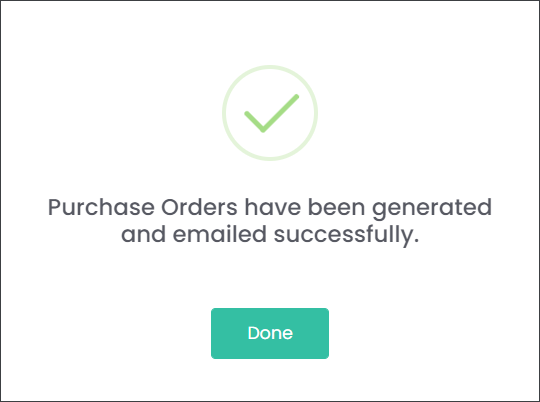
3. Accept & Email to generate the Purchase Orders in byondcloud and send them directly to your Suppliers.
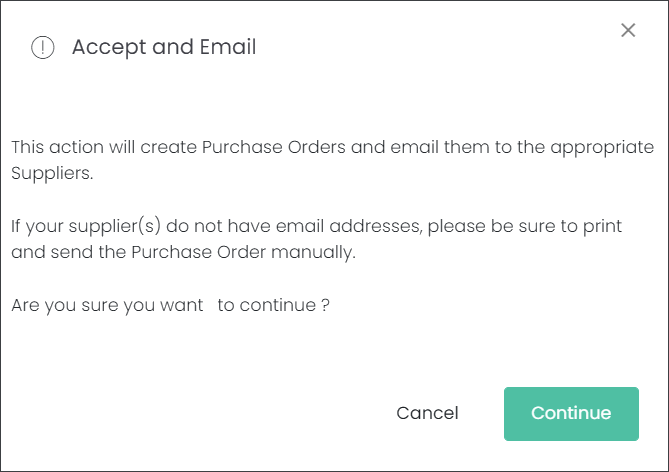
If the third option is chosen, you will see the reminder below. Press Continue to proceed.
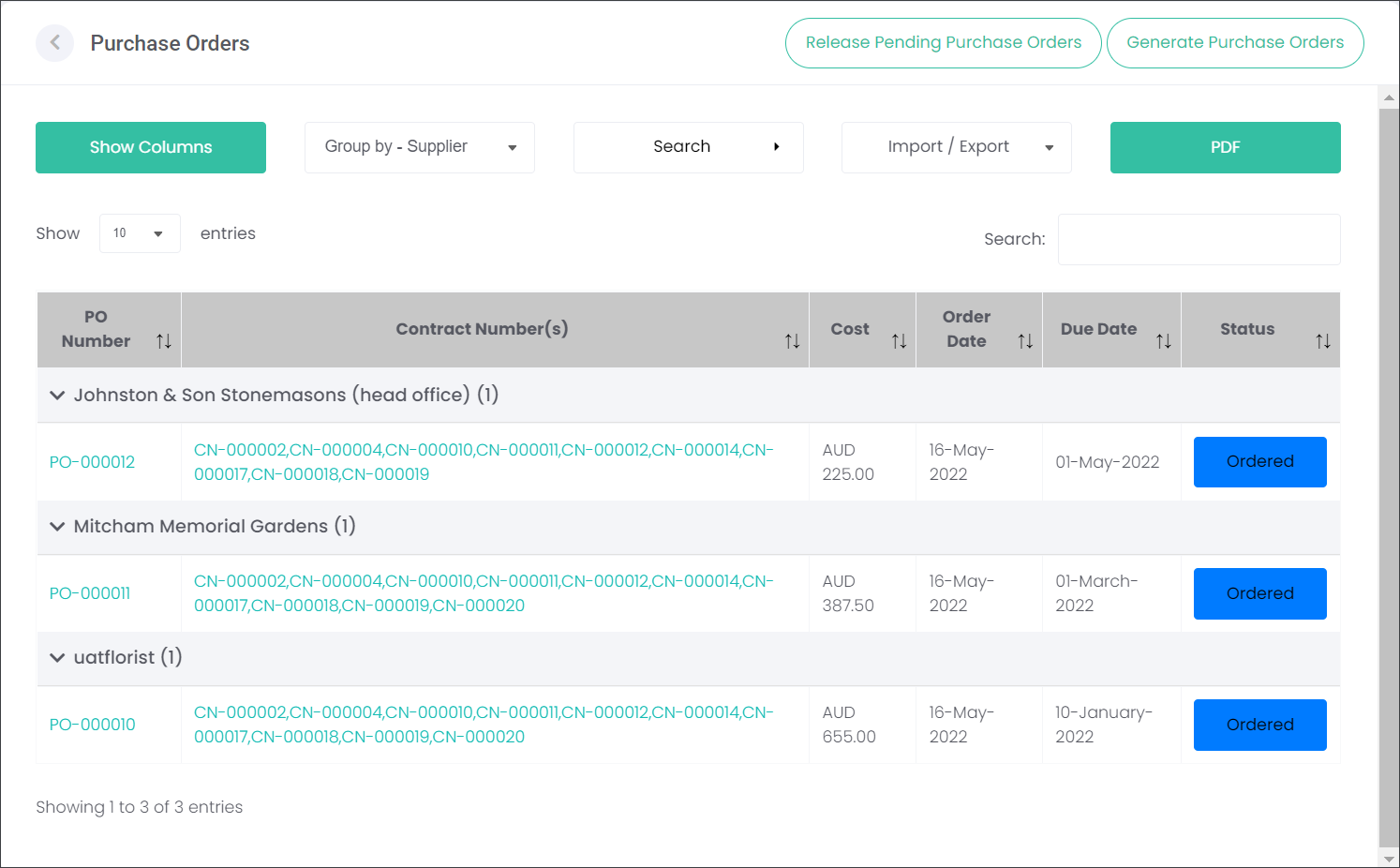
The generated Purchase Orders are visible on the corresponding page with their Status as Ordered.
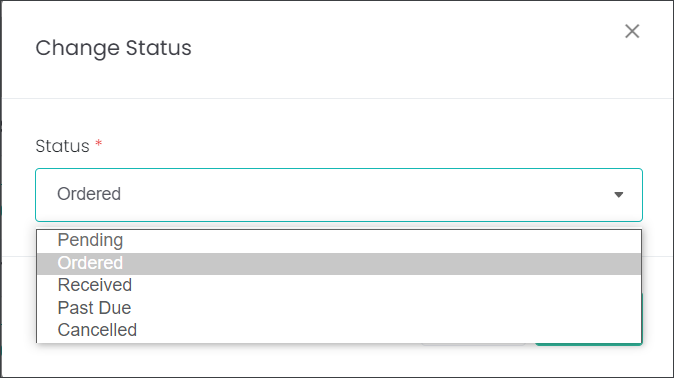
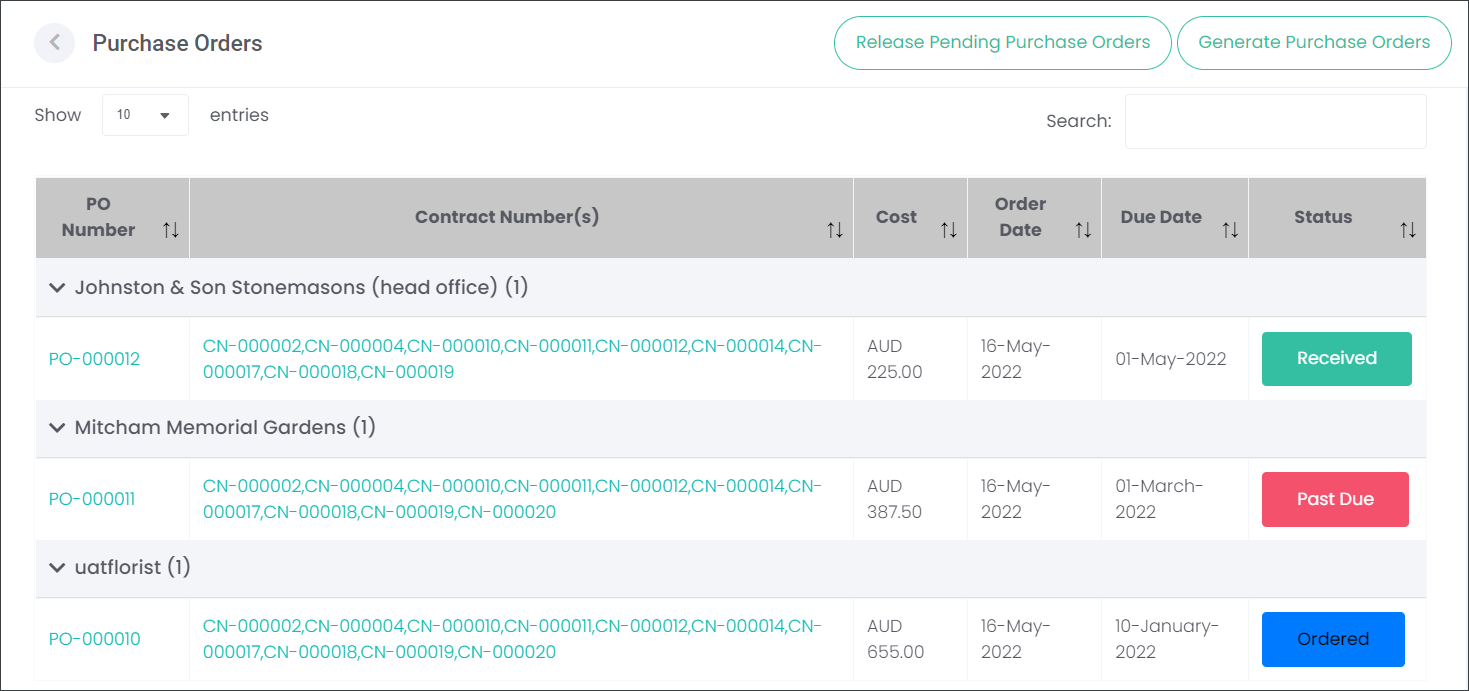
The Status of Purchase Orders can be changed by clicking on the colourful tiles. The change of the status will depend on the Supplier's response to the Purchase Order:
Received when the Items were delivered by the Supplier
Past Due when the Items were delivered late or the cemetery is still waiting for the delivery
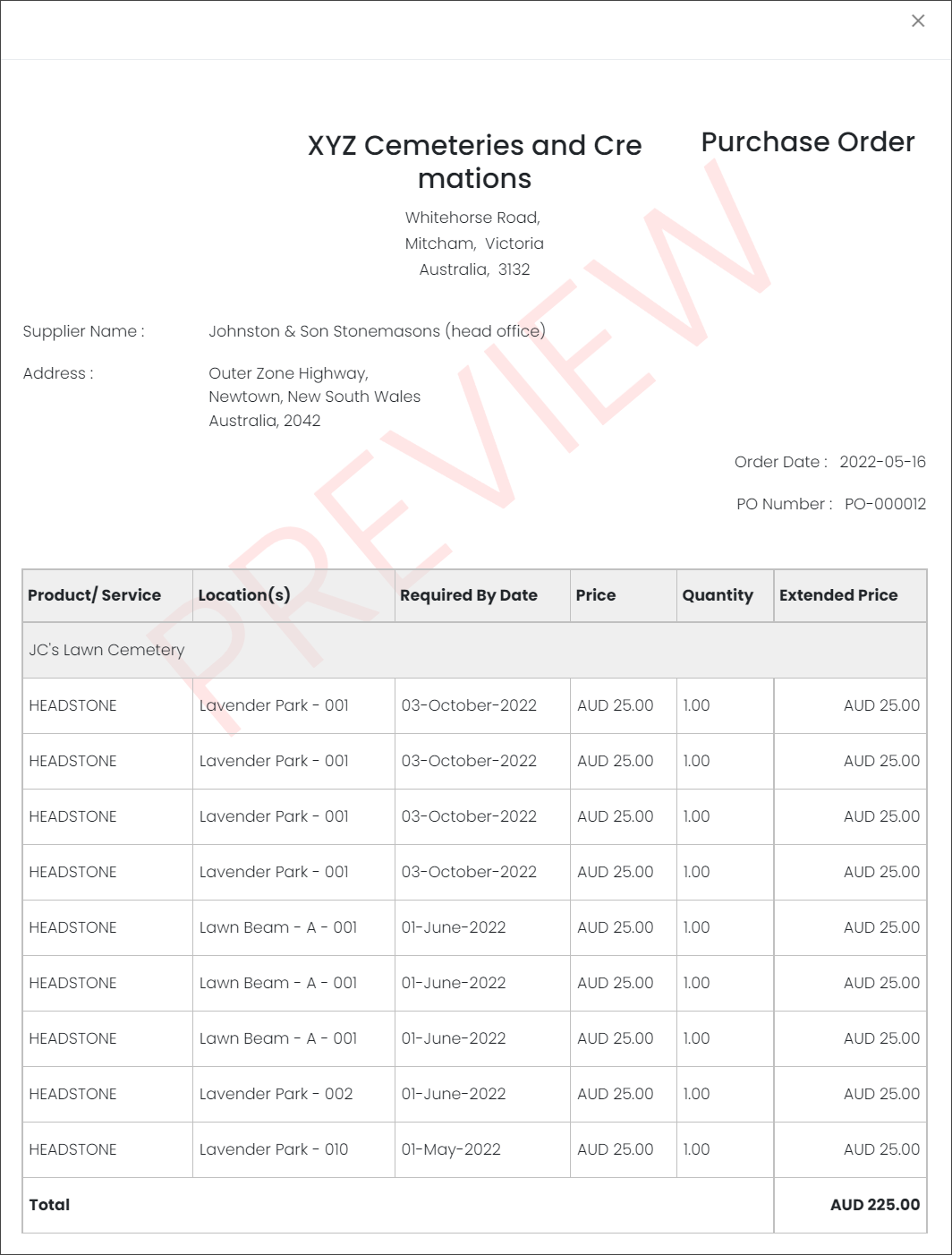
Let's view the Purchase Order for the Johnston & Son Stonemasons Supplier for the delivery of the moss and mould removal services recorded in the system as HEADSTONE.