Edit User
Click on the Edit button under the Actions column on the User Management page to open the Edit User page.

Much of the information on this screen is blocked out and cannot be edited. To change this information, refer to the Manage Users section of the guide.
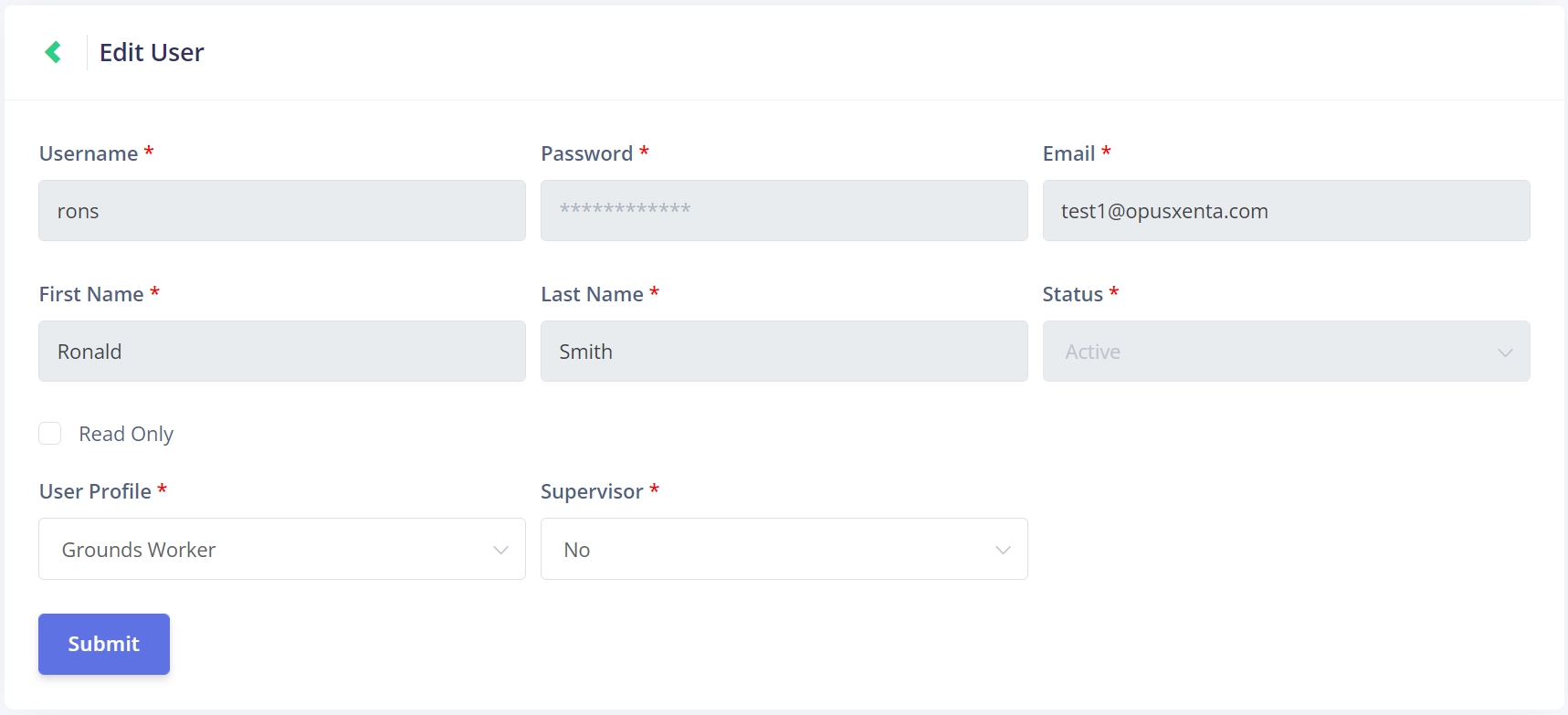
There are three fields that can be edited on this screen.
These fields are unique to Task Manager, and should be inspected for each user when configuring Task Manager to ensure the users' security and supervisor access are configured correctly.
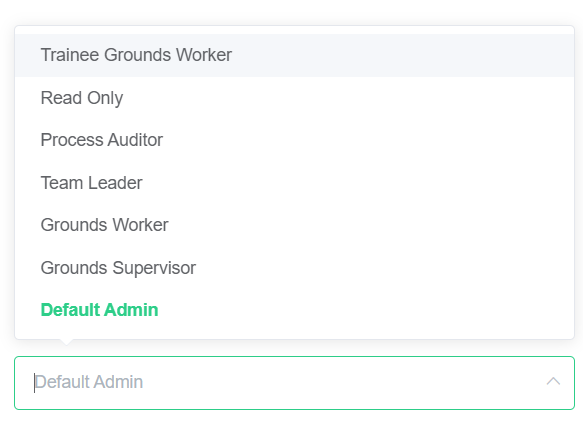
The first step is to select a profile for your user from the User Profile drop-down list.
This profile will determine what permissions the new user will have in the rest of Task Manager.
Rather than selecting a profile, the Read Only box can be ticked. This will lock the user's profile as Read Only.
A user assigned to a read only profile cannot complete tasks or phases, nor can they do any type of configuration in Task Manager.
The read-only user may only view information about jobs.

The profile selected above will likely indicate to you whether your new user is a supervisor.
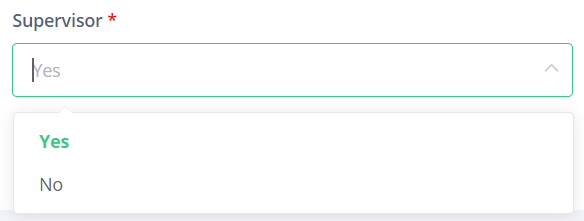
Simply select yes or no from the Supervisor drop-down.
This will determine whether the new user has supervisor access, which will determine whether they can complete phases, as shown in the Phase Completion topic in Supervisor Processes.
Once all the required fields have been completed, click the Submit button to save the changes.