Next, you need to create your map layer within your project.
You can use this function to import and view a drone image or polygon image of your site.
To create a new map layer:
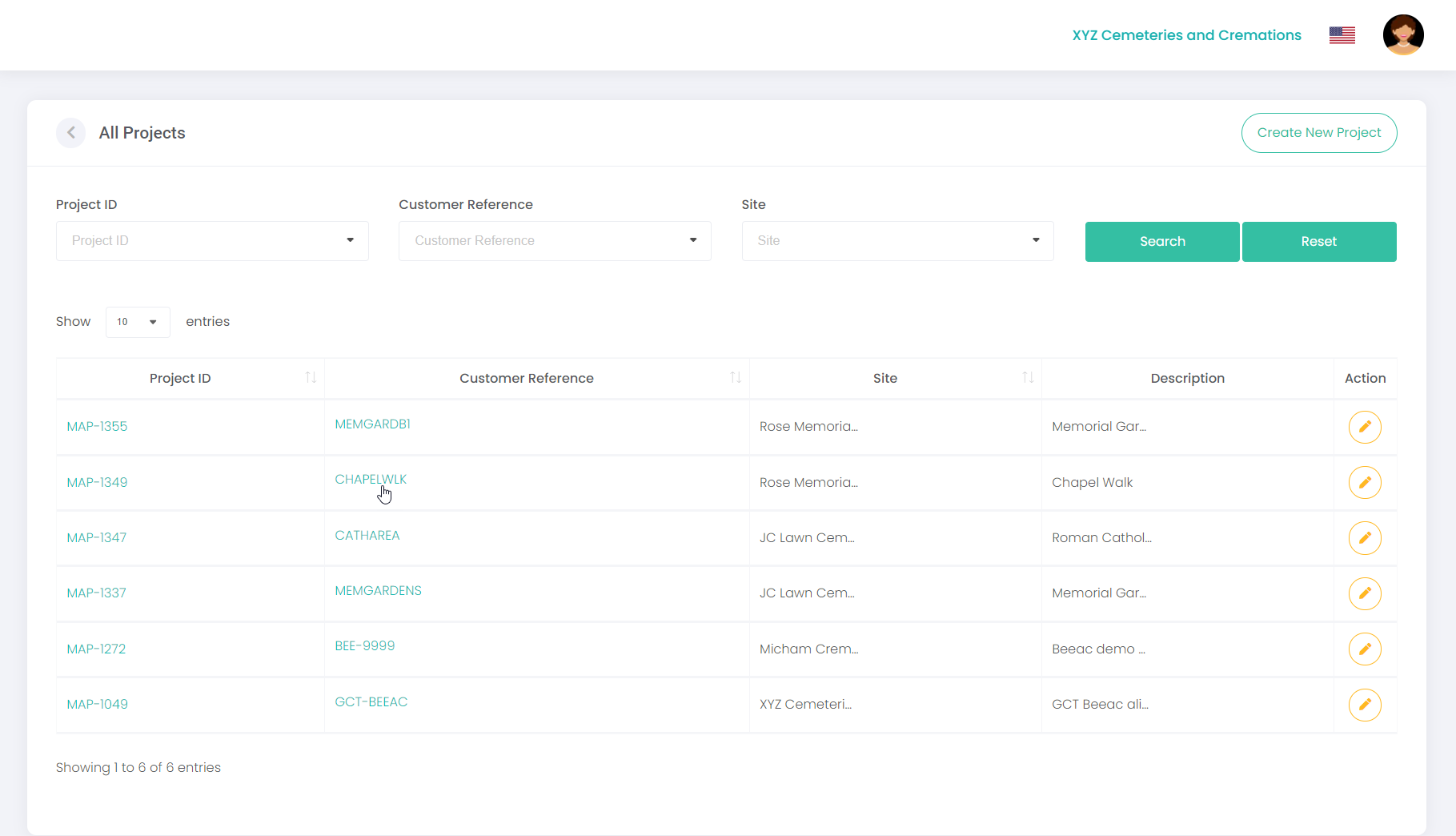
Open the project by clicking on the Project ID or Customer Reference hyperlink.
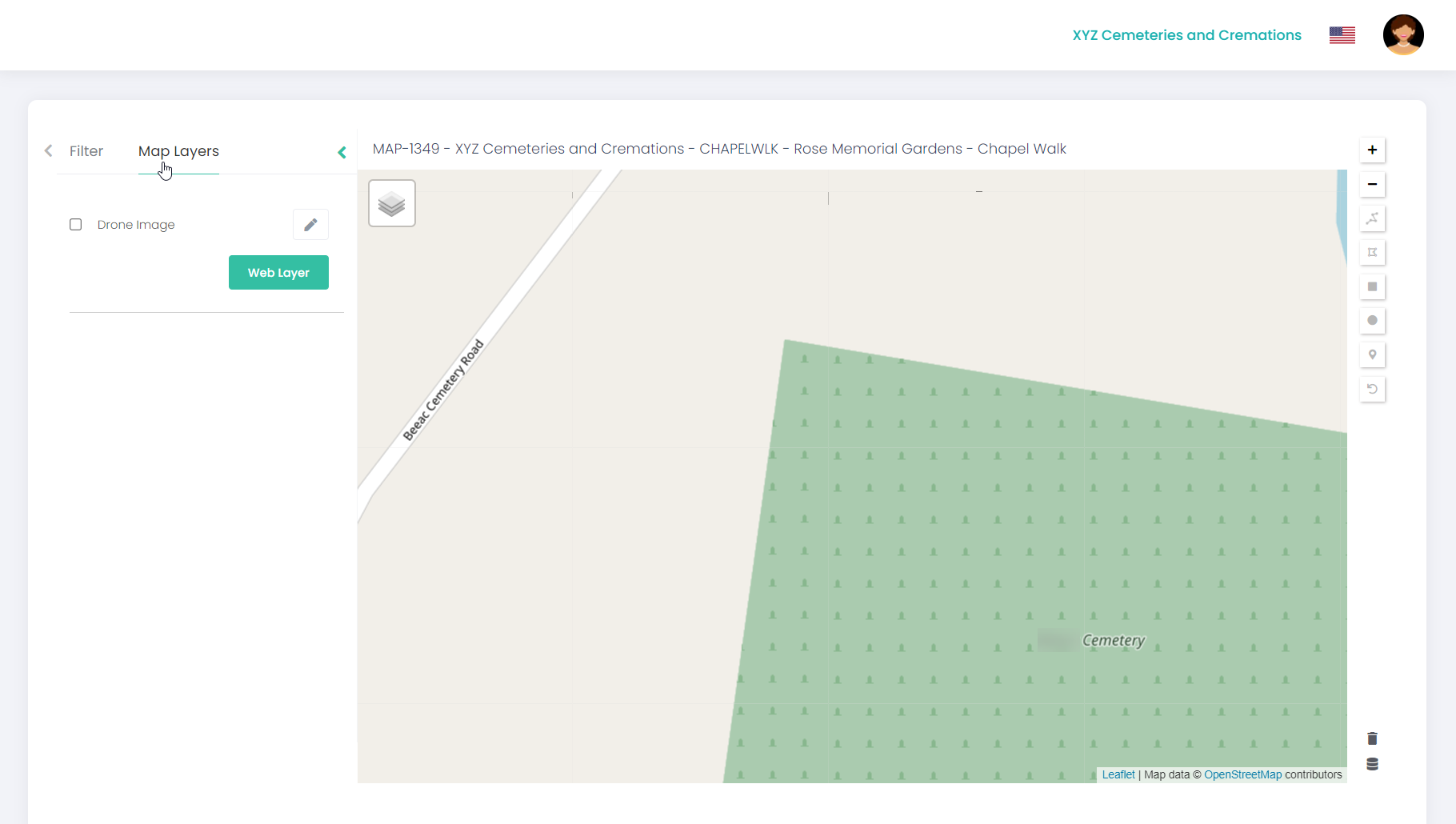
Click on Map Layers.
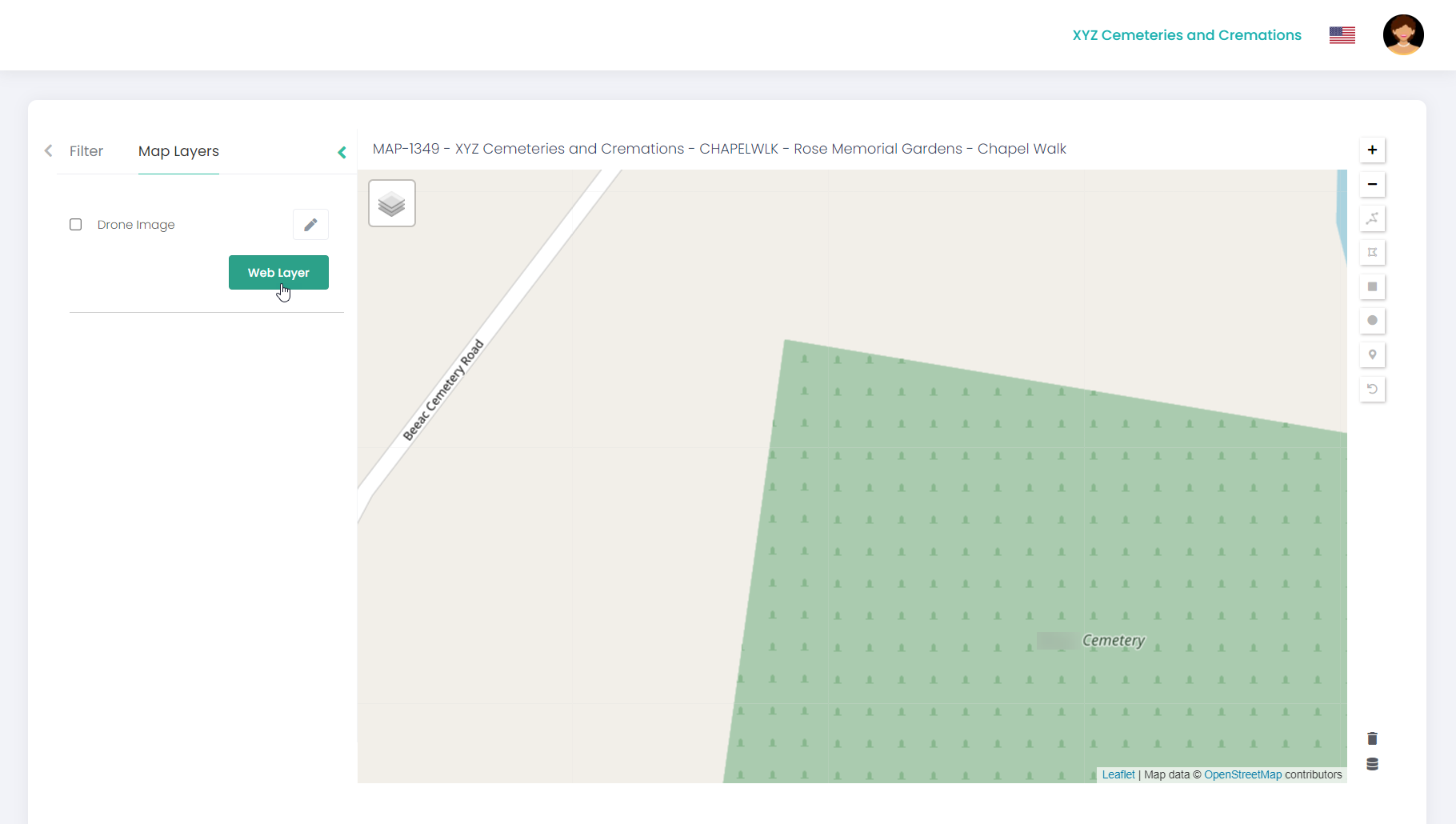
Click on Web Layer.
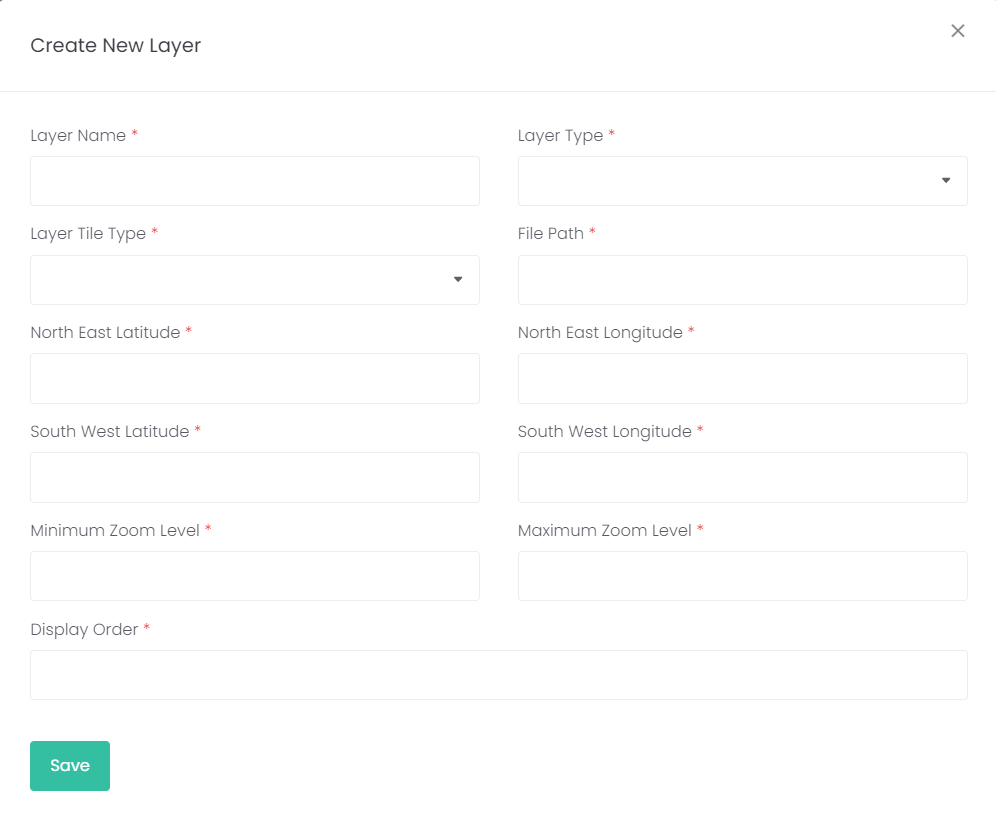
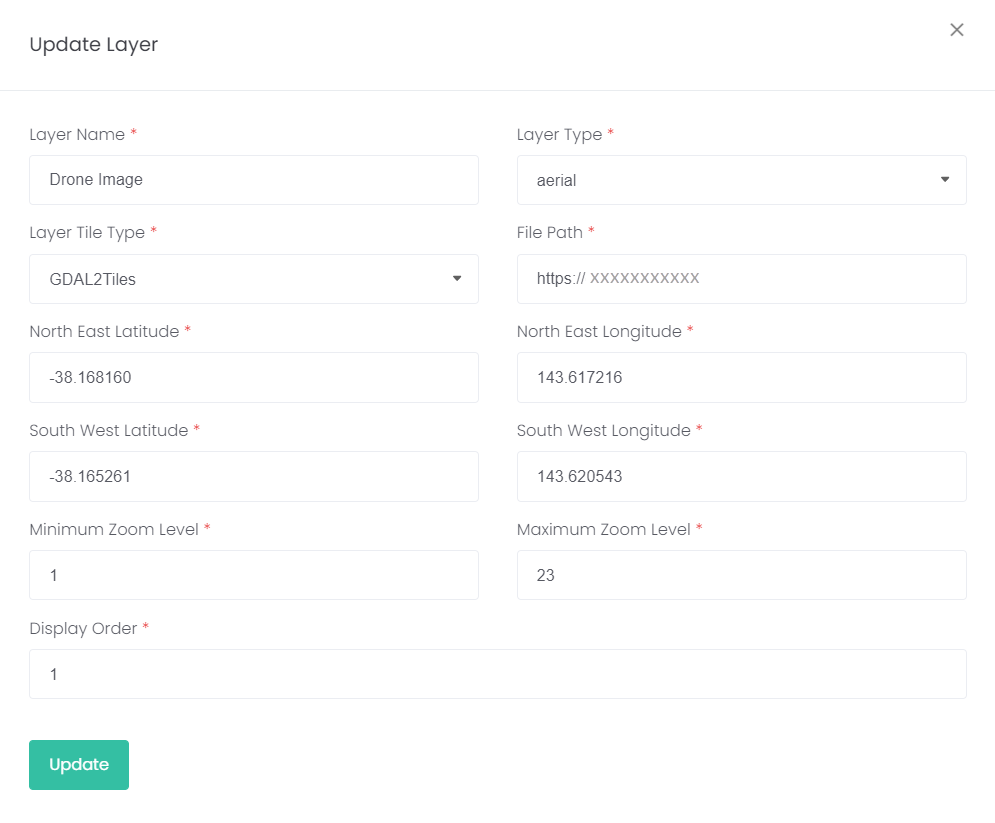
The Create New Layer window displays:
Complete the following fields:
|
Field
|
Field Description
|
|
Layer Name
|
Enter a relevant name for the layer e.g., Drone Imagery.
|
|
Layer Type
|
Select the relevant layer type from the drop-down list, e.g., Aerial for a drone image.
|
|
Layer Tile Type
|
Select the layer tile type from the drop-down list, e.g., GDAL2Tiles.
|
|
File Path
|
This is the file path to access the drone image.
|
|
North East Latitude
|
Refer to drone image for these coordinates.
|
|
North East Longitude
|
Refer to drone image for these coordinates.
|
|
South West Latitude
|
Refer to drone image for these coordinates.
|
|
South West Longitude
|
Refer to drone image for these coordinates.
|
|
Minimum Zoom Level
|
Minimum zoom level is always 1.
|
|
Maximum Zoom Level
|
Maximum zoom level is 25.
|
|
Display Order
|
Enter the display order of map overlay (if there is more than one map overlay added). Display order is otherwise 1.
|
Click Save.
Here’s an example of a completed map layer for a standard drone image:
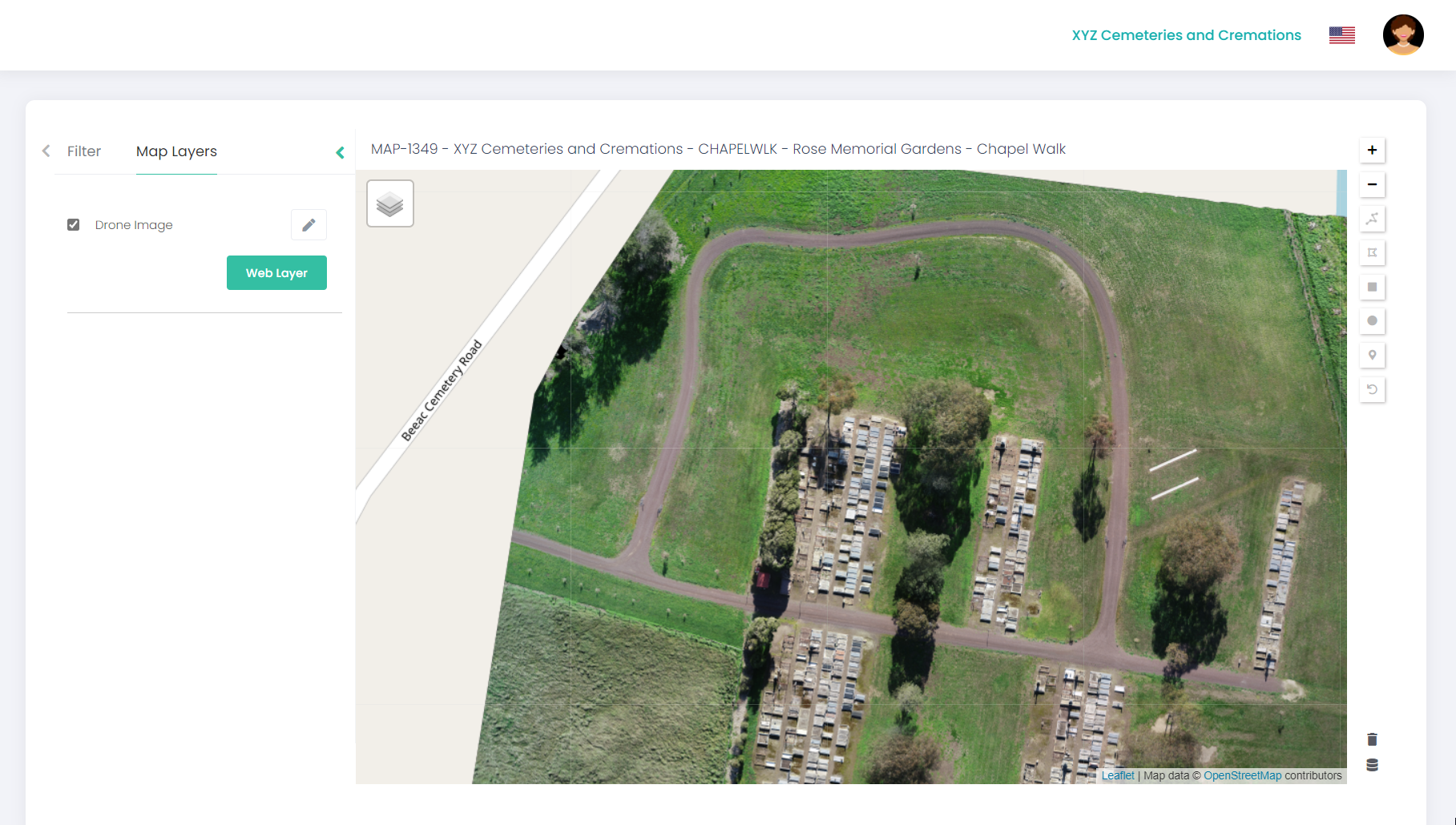
Once you’ve created the map layer, you’ll be able to see the drone image loaded in your map project.