(c) Copyright by OpusXenta Pty Ltd. All rights reserved.
Cash/ Cheque/ Other
The Cash/ Cheque/ Other Payment Method allows payments that don't involve opuspay to be recorded.
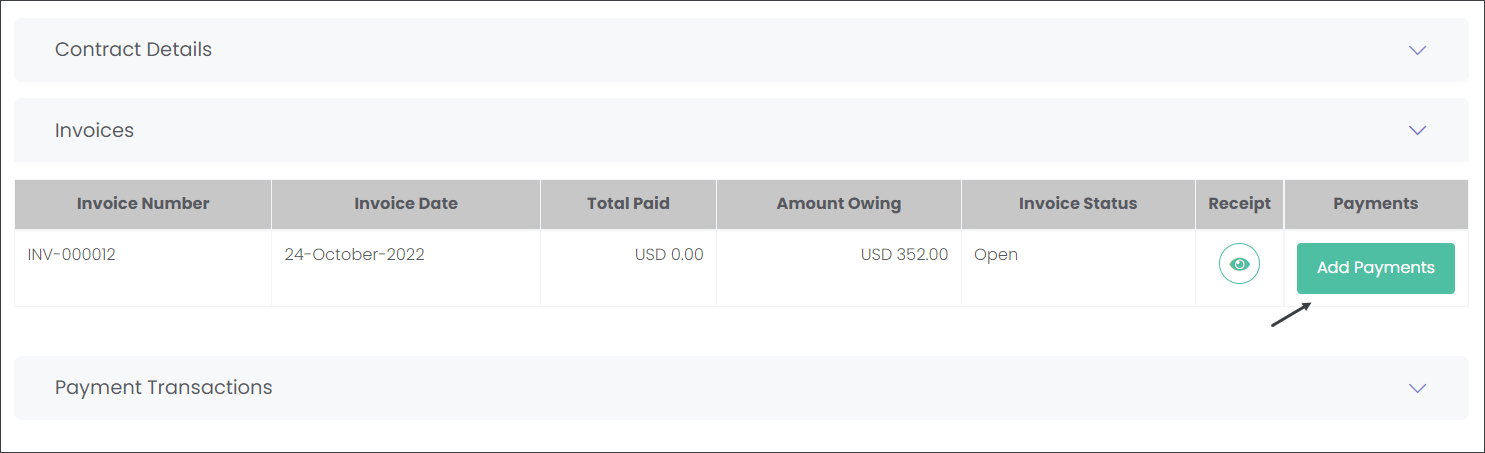
Press the Add Payments button.
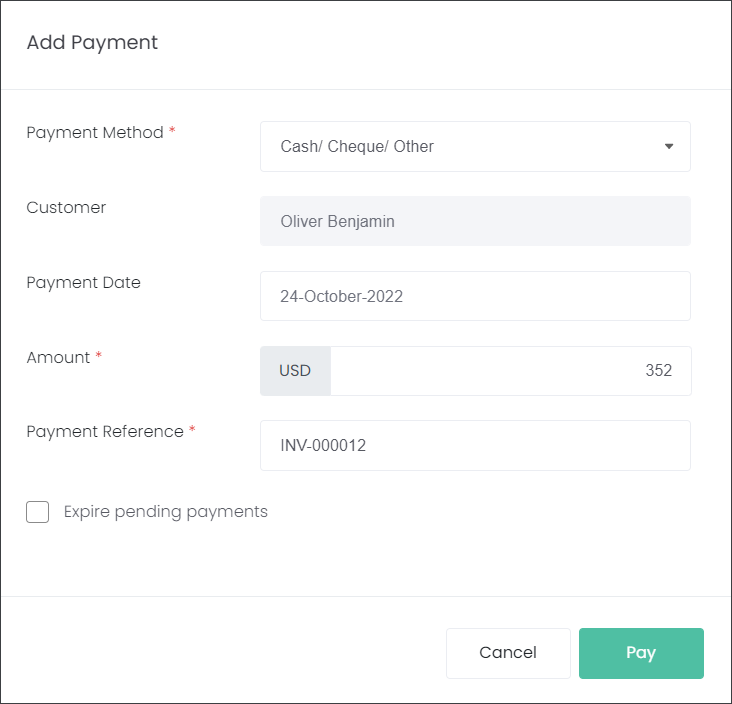
On the Add Payment pop-up screen select Cash/Cheque/Other in the Payment Method selection list.
The fields Customer, Amount and Payment Reference will be auto-populated as per the Contract information.
The Payment Date will be auto-populated with today's' date.
Note: The Amount field will be auto-populated with the full Amount Owing. However, if you have offered your customer partial payments you can manually override it and enter the amount the customer has paid now. This will result in the Invoice status being Partially Paid. At a later date you can record further payments until the invoice is Fully Paid.
Press Pay.
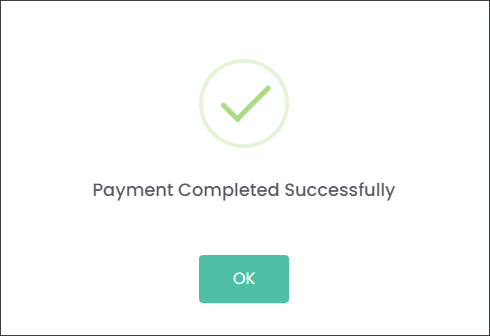
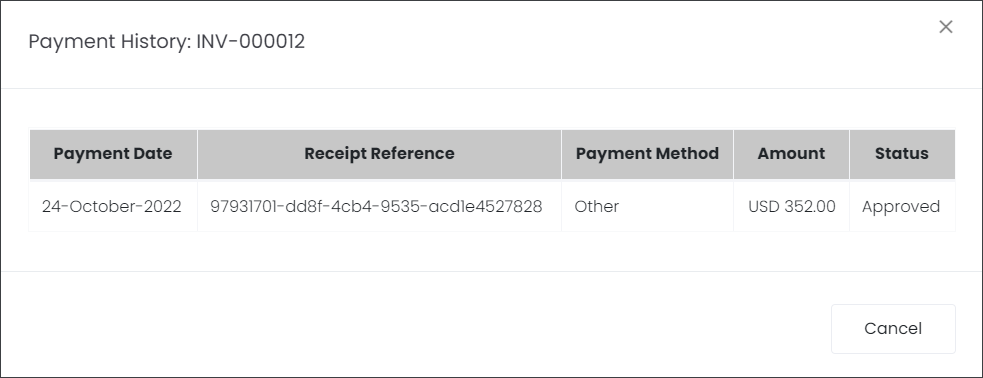
The payment has been recorded on the Invoices tab with the Invoice Status as Fully Paid. It also updated the Total Paid and Amount Owing fields.
You can also view the transaction Receipt by pressing on the green icon.
The payment has also been recorded in the Payments Transactions tab.
On the Contracts page the Amount Owing is updated.
NOTE
In a situation where there is an existing payment being processed but the customer would like to change the Payment Method, the user has to select the Expire pending payments checkbox. The Expire pending payments checkbox is checked by default to ensure that all pending payments are canceled before processing a new one.
For example, a customer spoke to staff about paying for the services with an Online Payment. The customer was sent a link to an online checkout page. In byondcloud this transaction was recorded as Processing until the customer actioned it. However, the customer found themselves on site and would like to pay with cash instead. The cemetery staff can add a new payment as Cash/Cheque/Other Payment but also has to check the Expire pending payments box to cancel the Online Payment Processing.