(c) Copyright by OpusXenta Pty Ltd. All rights reserved.
Add New Rights Transfer
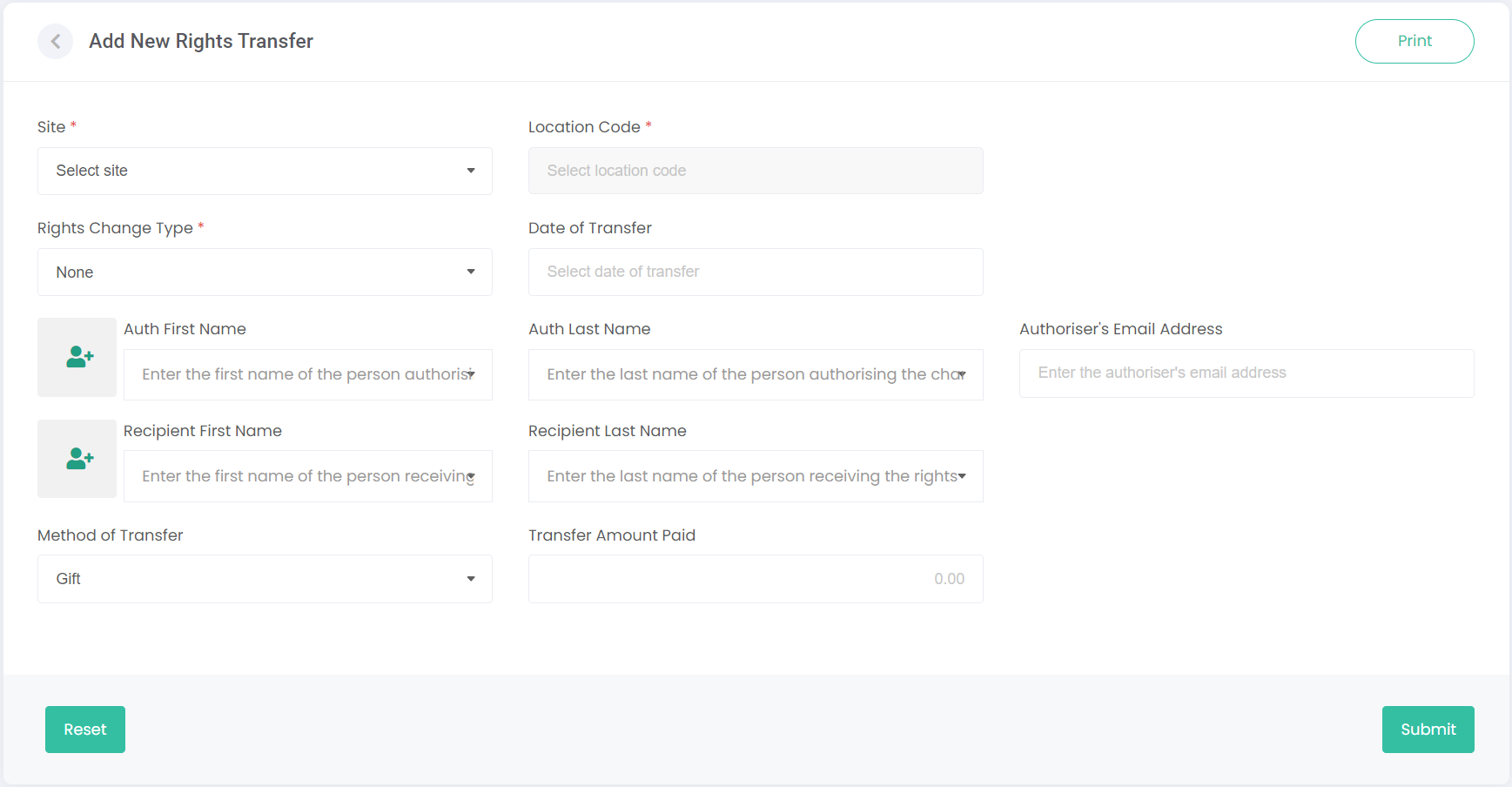
To add a new rights transfer, click on the Add New Rights Transfer button (top right of screen).
You can now add in the rights transfer details.
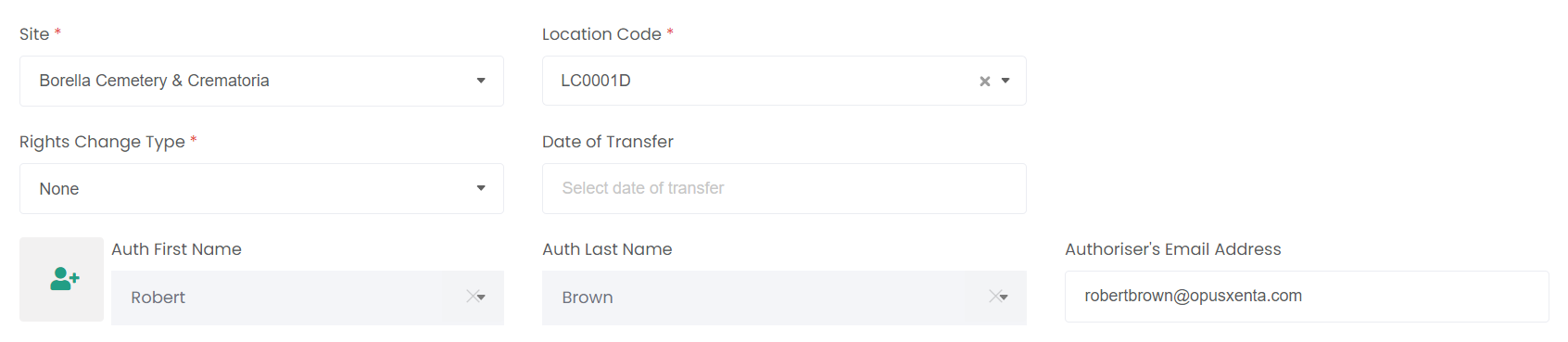
Enter the Site and Location Code. Entering the location code will automatically fill out the original Auth First/Last Name and Email Address.
Select whether the Rights Change Type is a cancellation, surrender, or transfer and enter the Date of Transfer.
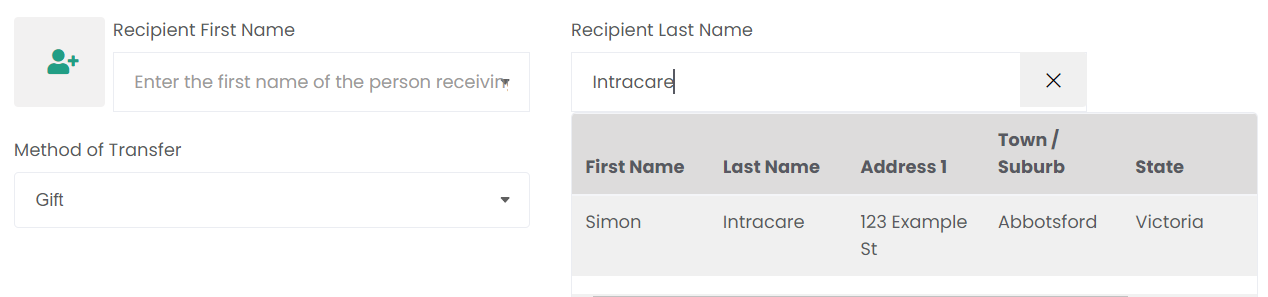
Either use the Recipient First/Last Name fields to search for an existing Person record, or click the new person button to the left.
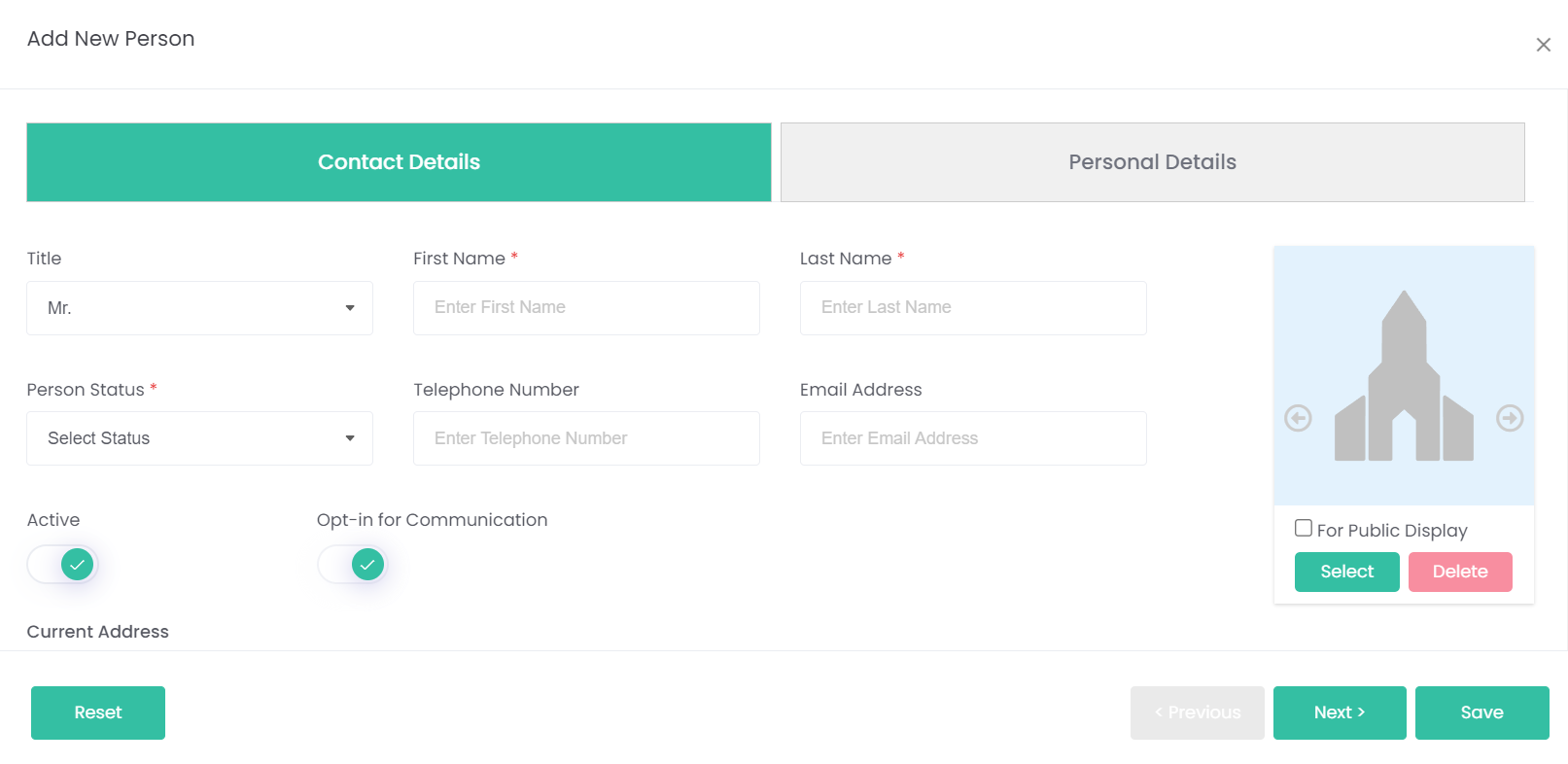
Clicking the button opens the Add New Person pop-up. Refer to the Persons module for guidance on completing this process.
Once the Save button is clicked, the new person's details will populate the Recipient First/Last Name fields.
The Method of Transfer can either be a gift from one holder to the next, or a sale by the cemetery to the recipient rights holder. If it is a sale, you may enter the Transfer Amount Paid here.
Click Submit to finish the transfer. This will cause the recipient to become the rights holder of the chosen location record. The recipient will have a new Rights Holder record back on the Manage Rights Holders screen that is linked to the location record.