(c) Copyright by OpusXenta Pty Ltd. All rights reserved.
Add New Job Type
To add a new custom job type, click New Job Type on the top right-hand side of the Job Type Management screen.
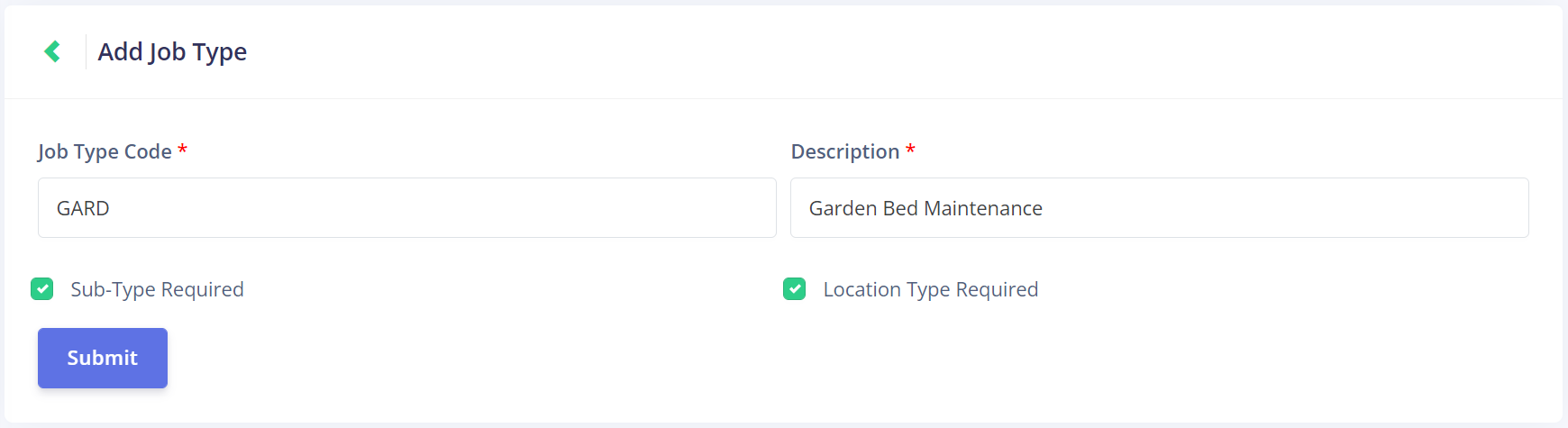
This opens the Add Job Type screen.
On this screen, first enter the Job Type Code. This code will be used later in the Phase Info Management setups when creating the checklists of work associated with this job.
Ideally, this code should also reflect the type of work being completed. The job type we're creating is for a gardening checklist, hence the code GARD.
Next, enter the Description. This should tell us about the job type we're creating. From this description, we know this is a gardening job.
Below the text fields, there are two checkboxes to consider. If the Sub-Type Required and/or the Location Type Required boxes are ticked, then extra setups will be required to configure sub-types and locations associated with the job type.
If the boxes are ticked, then the sub-type and/or location type will need to be selected when creating the Phase Info entry, and when creating Custom Jobs.
If the boxes are unticked, then it won't be possible to select a sub-type and/or location type when creating a Phase Info entry or when creating a Custom Job. Those fields will be blocked.
Once all the information is entered, click Submit to save the new job type.