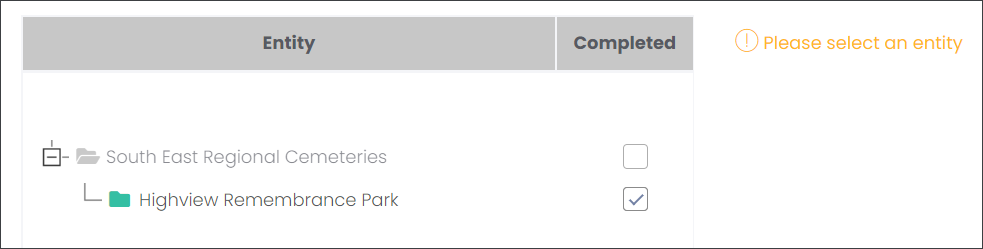
Begin by selecting an entity - branch or site - on the Entity table.
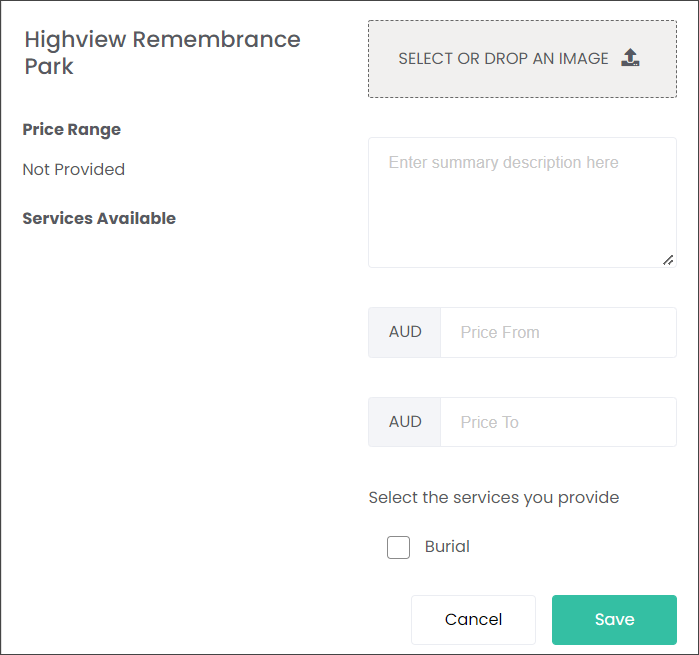
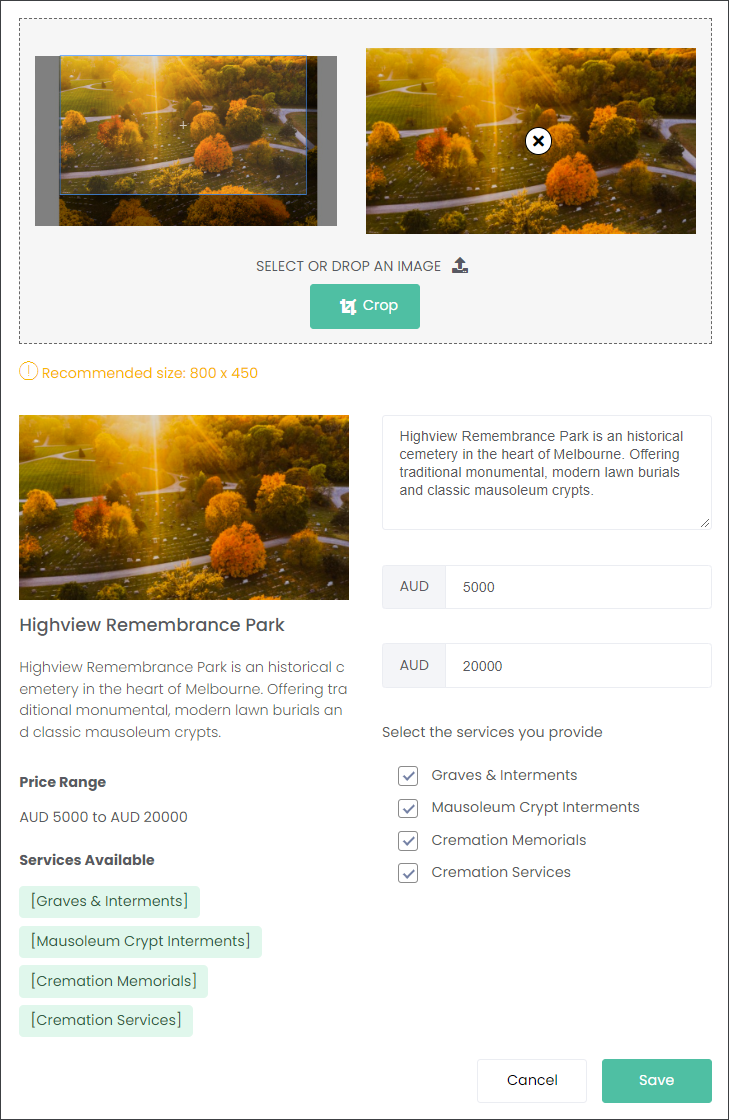
When you select the branch you want to showcase, like in our example Highview Remembrance Park, further options appear on the right hand side of the screen.
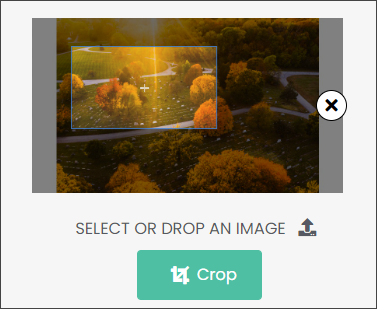
Select or drop an image in the provided field. This image will be the first image your customers will see on the website when they are browsing.
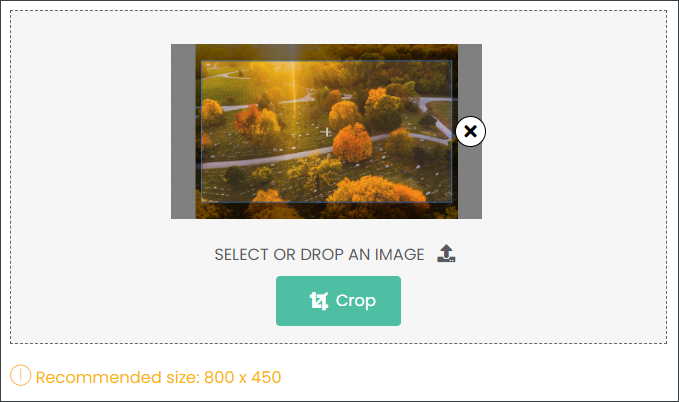
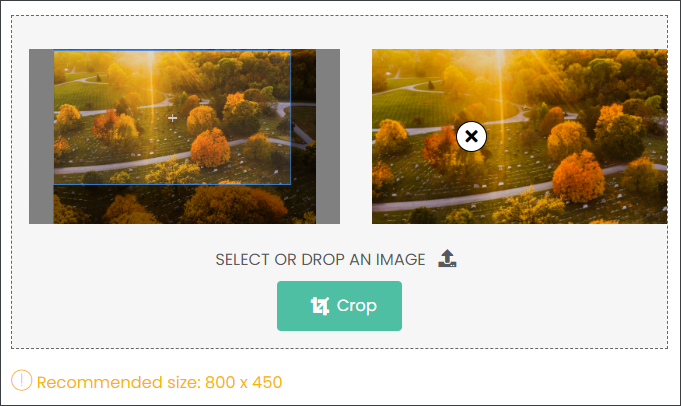
The image recommended size in 800 X 450. Crop the image to the recommended size for an optimal view on the website.
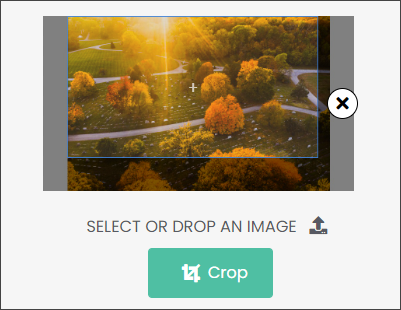
You can select which part of the image you would like to use by moving the highlighted box with your cursor.
You can crop smaller or larger parts of the image than the recommended size by clicking on the image and dragging the highlighted box. However, the size ratios will remain the same for an optimal view on the website.
When you are satisfied with the image press Crop.
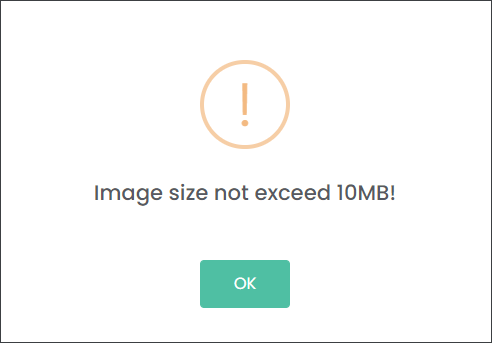
The images have size limit of 10 MB.
Please navigate to the
Crop Feature topic to view a video showing how to crop images in marketmakr.
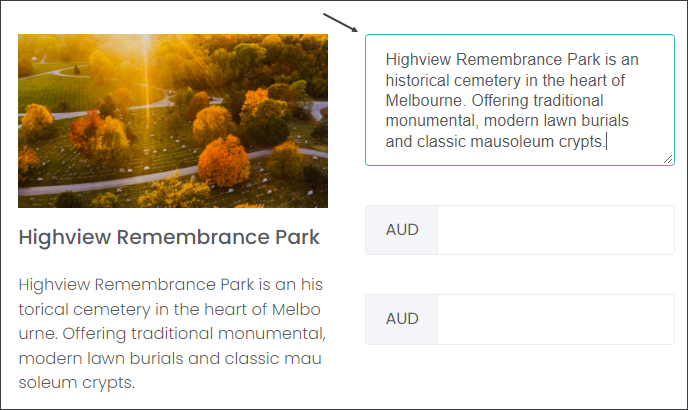
Type in, or copy a brief summary description of your branch in the text field below the image upload box.
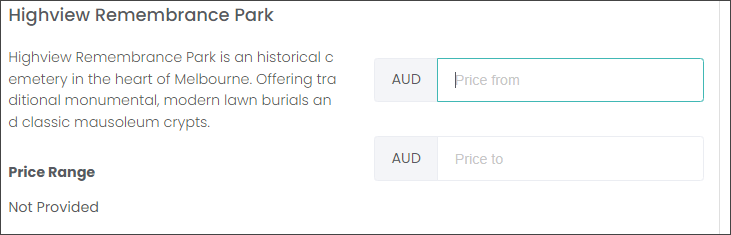
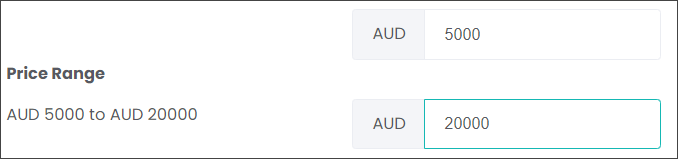
Type in the broad Price Range of the products and services in your offering. Depending which country you operate from, the currency will be displayed here as per your byondcloud settings. In our example, Highview Remembrance Park is located in Australia, therefore the Price Range is recorded in Australian Dollars (AUD).
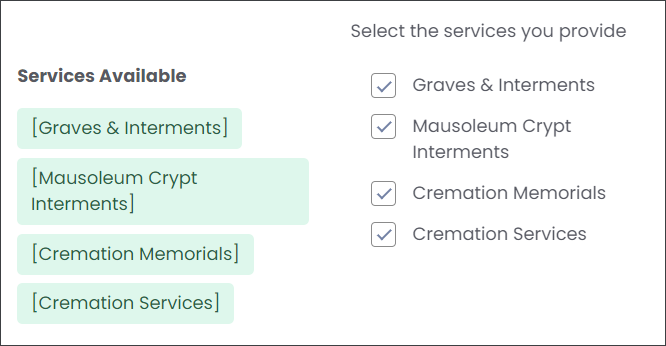
Then use the check boxes below the Price Range fields to indicate what services you provide. Services available are configured in the OpusXenta byondcloud administration portal, where these are set up as a preconfigured selection list.
When you are satisfied with your Summary Catalog Entry press Save.
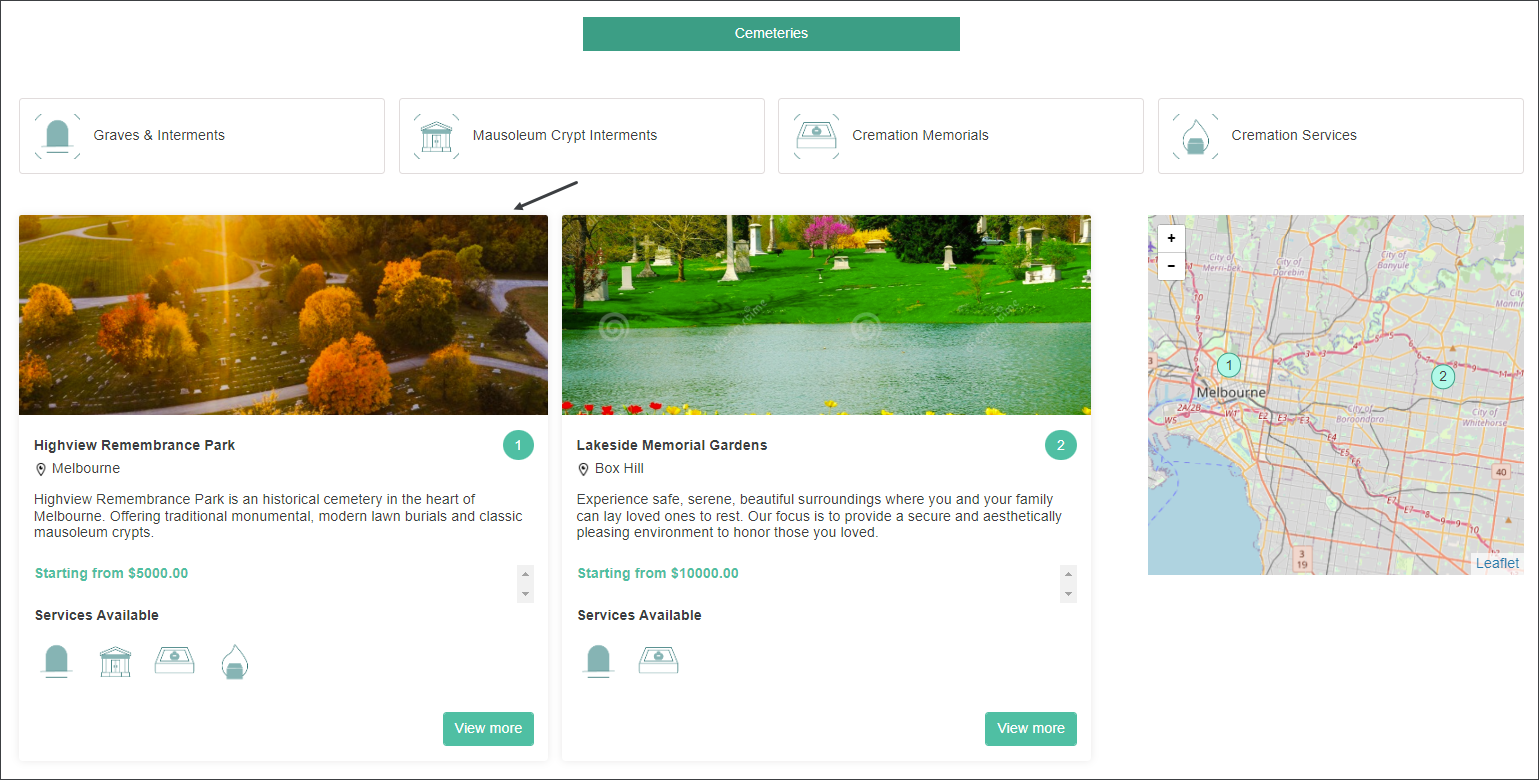
The information you have just entered will have the same layout on your website as you can see on the Summary Catalog Entry below.
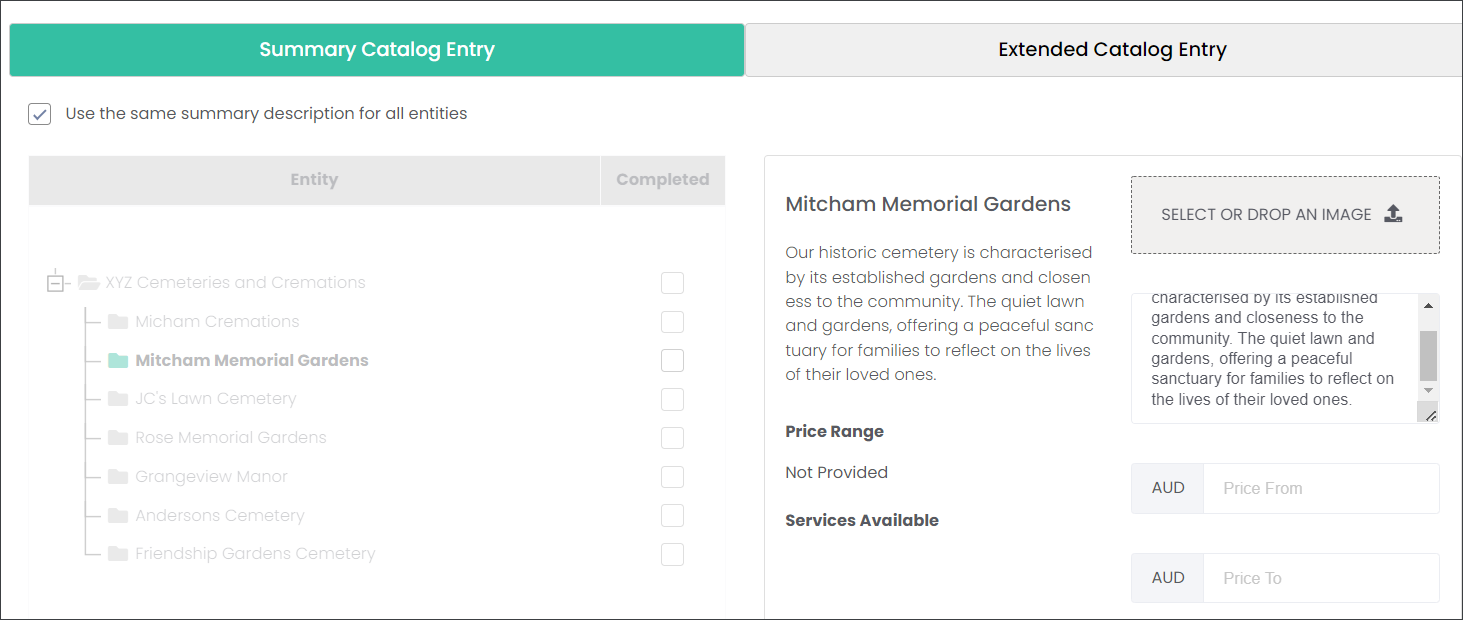
Note: If you configure marketmakr for more than one entity, for example for multiple sites, you can select for all of them to use the same summary description to display on your website.
This will save you time in creating individual descriptions for each branch. In the example below you can see that marketmakr suppresses creating individual descriptions for the sites at the XYZ Cemeteries and Cremations. They will all have the same main image, description, Price Range and Services Available. However, on the Assign Plans to Entities page customers can still have individual products and services added to each individual site.