(c) Copyright by OpusXenta Pty Ltd. All rights reserved.
Step 3: Move pins to the correct location
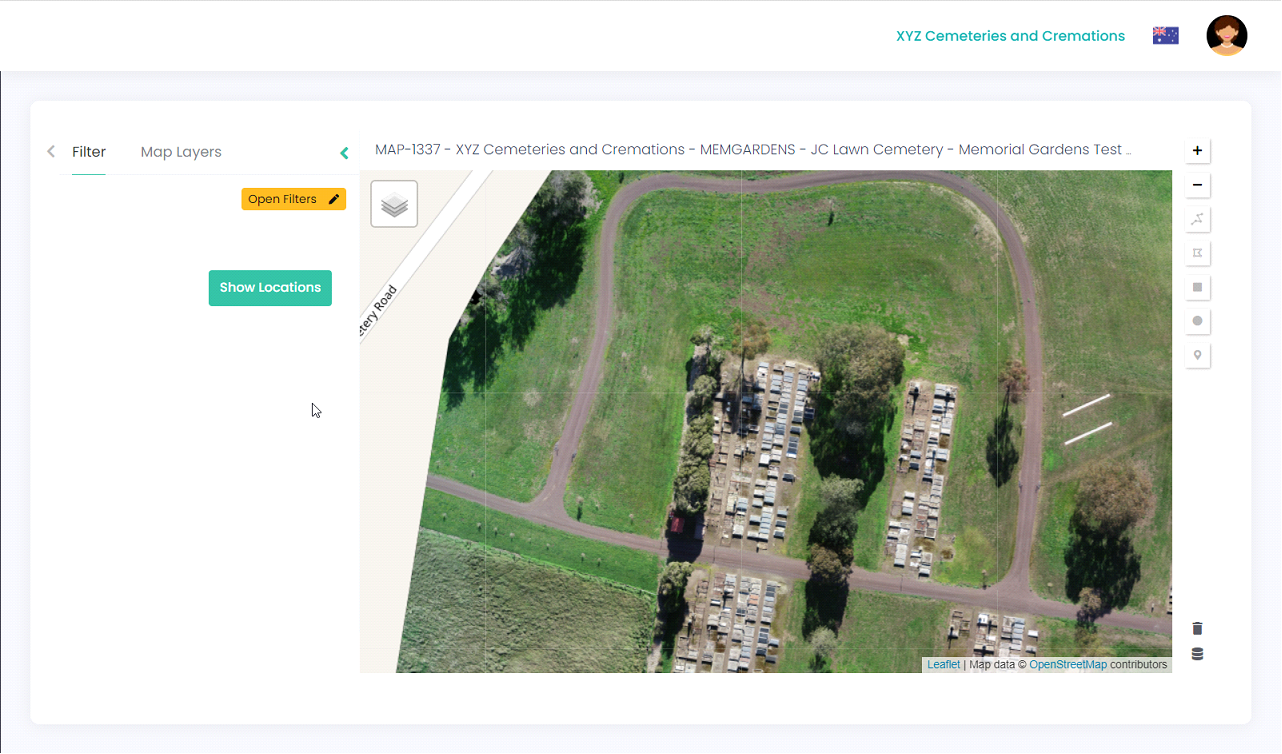
If you brought in your locations using a generic longitude and latitude, or you find that your location pins are not in their exact position based on your paper maps, you now have the option to arrange your location pins accordingly. Let’s look at an example below:
Click on Show Locations.
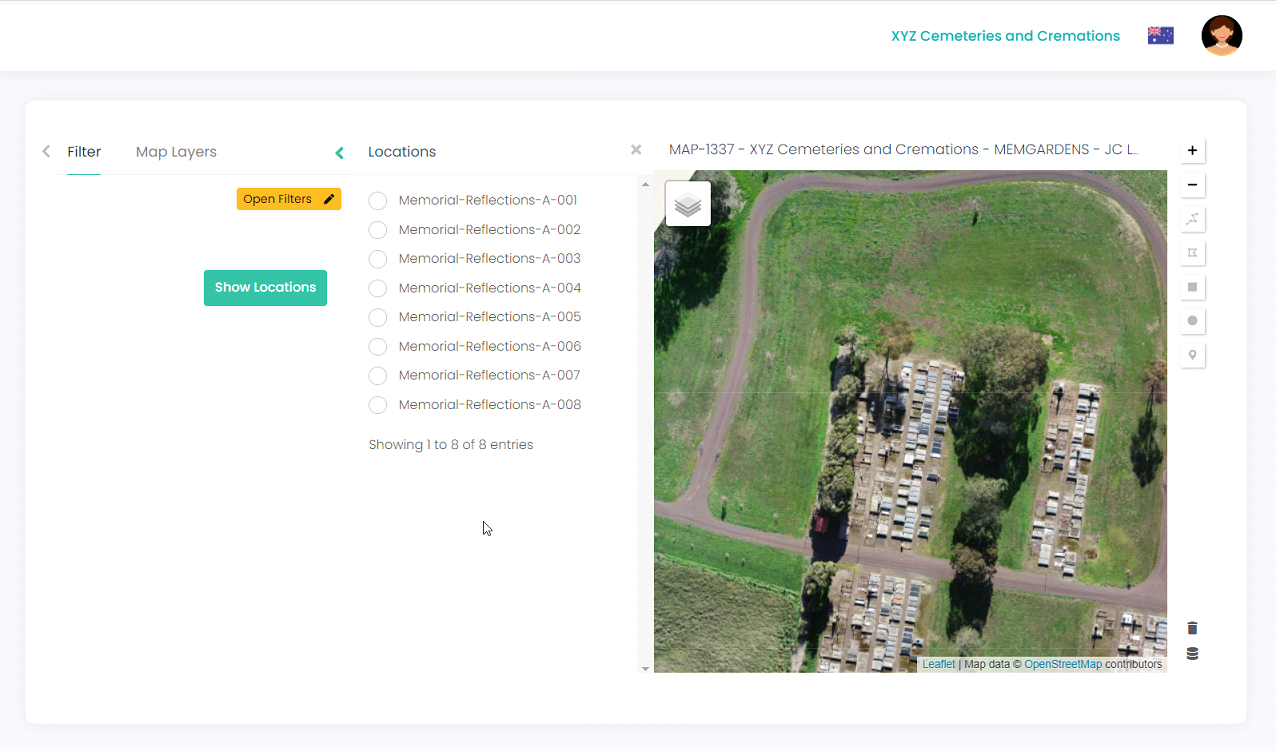
Your locations will now display next to the map.
Use the + next to the mapto zoom in to see the pins / locations more clearly. Note: only the pins in the area that is on screen are visible - as you zoom out, it will adjust to incorporate the pins for locations on screen.
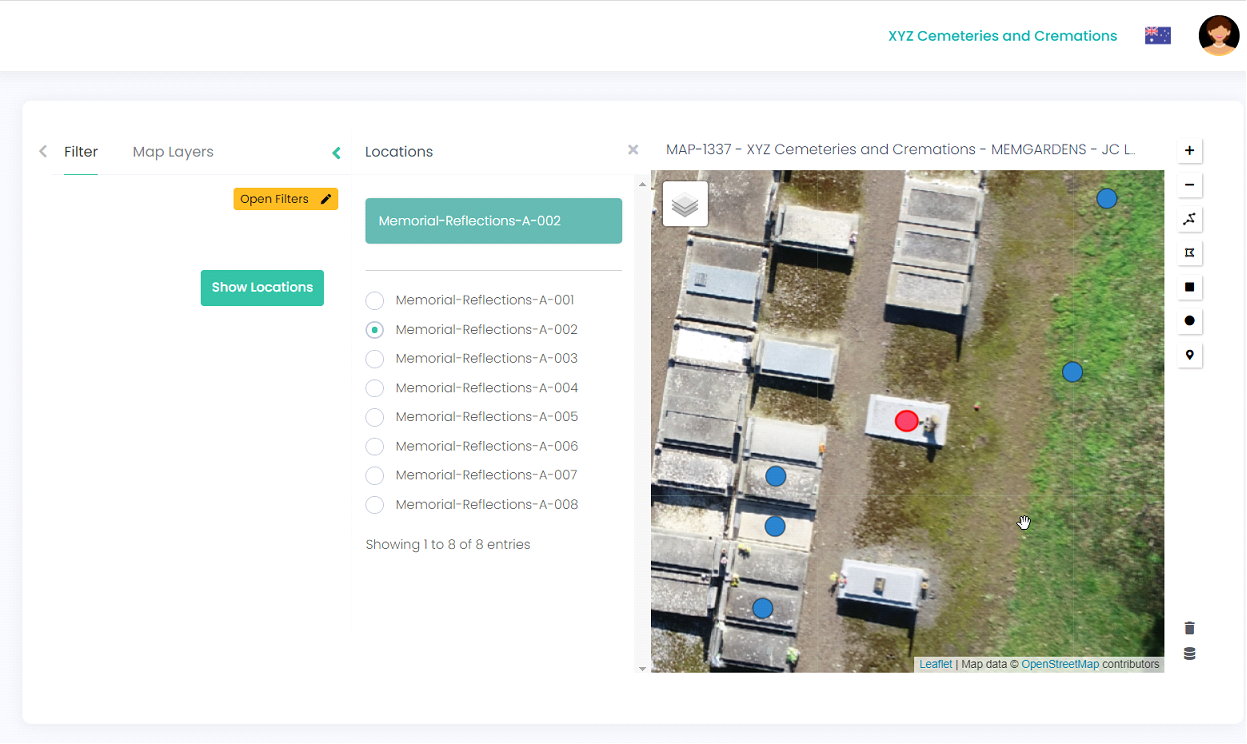
When you click on a location in the list, this will activate the corresponding pin in the map (the active pin will turn red). Click on the red pin and move it to the correct location (the pin will now turn blue).
Repeat this process for all locations in the list until all locations are in their correct position.
Using filters
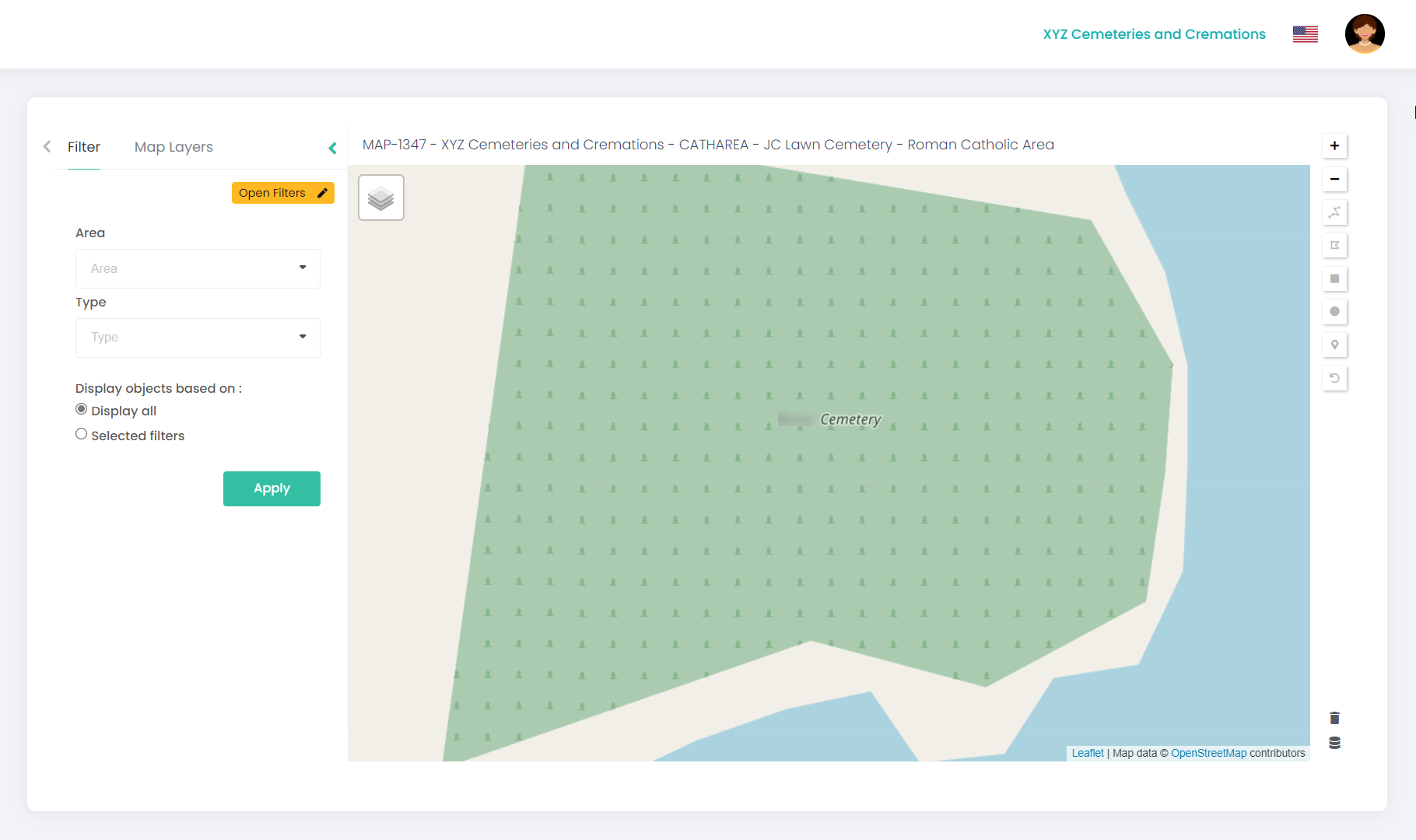
To help you view or filter selected locations within your Map Project, you can also add map filters, such as type, area or sub-area. These filters can be added into the CSV template used when locations were exported from byondpro. In the example below, we have included Area and Type as our filters:
To view filters in MapMakr:
Click on the relevant Project ID hyperlink.
Filters included in your CSV template will display next to your map, so you can filter your map results accordingly. In the example below, we can now filter our locations by Area and Grave Type. TIP: You’ll need to type one character in the filter field to view results (e.g., type 'R' in the Area field and select Roman Catholic from the drop-down list to see the results filtered for Area – Roman Catholic).