(c) Copyright by OpusXenta Pty Ltd. All rights reserved.
Step 1: Export Location Data from byondpro
The first step is to export your location data from byondpro into a CSV template. This will most likely be completed by our Technical Team.
Location data may be for a specific area within your cemetery, for example, the Roman Catholic area. This will then be imported into MapMakr to create a Map Project for that area.
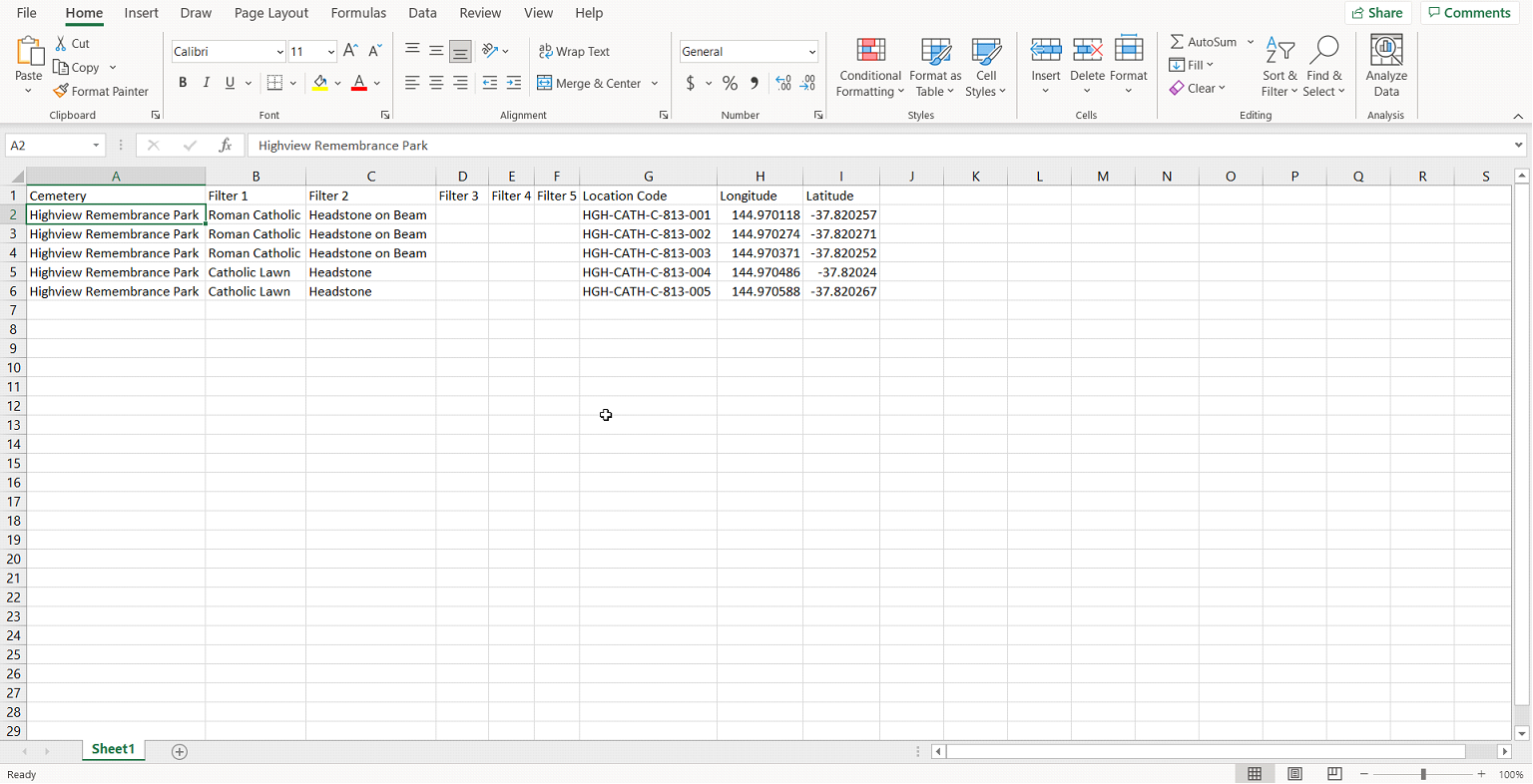
Once you have created your Map Project, you can arrange / pin multiple locations within that specific area at one time. For your reference, the minimum information required in this template is listed below:
Information Required
Description
Cemetery
This is the Cemetery / Site name e.g., Highview Remembrance Park.
Location Code
This is the location code / name e.g., HGH-ANGL-807-007.
Longitude
This can be the generic longitude of your site or a specific longitude if available.
Latitude
This can be the generic latitude of your site or a specific latitude if available.
You can also include additional fields such as Area or Type of Grave, which can then be used to filter your locations in MapMakr! Here’s an example of a CSV template below:
Once you have populated your template with the required data, save this document as a CSV or Excel file, ready to import into MapMakr.