Show Locations, Clone and Export
Once you have added in your map layer, the next step is to view your locations and coordinates on the map, so you can correctly map the area or move the markers to the correct location.
You can do this from the Show Locations function.
There are a number of ways to access this:
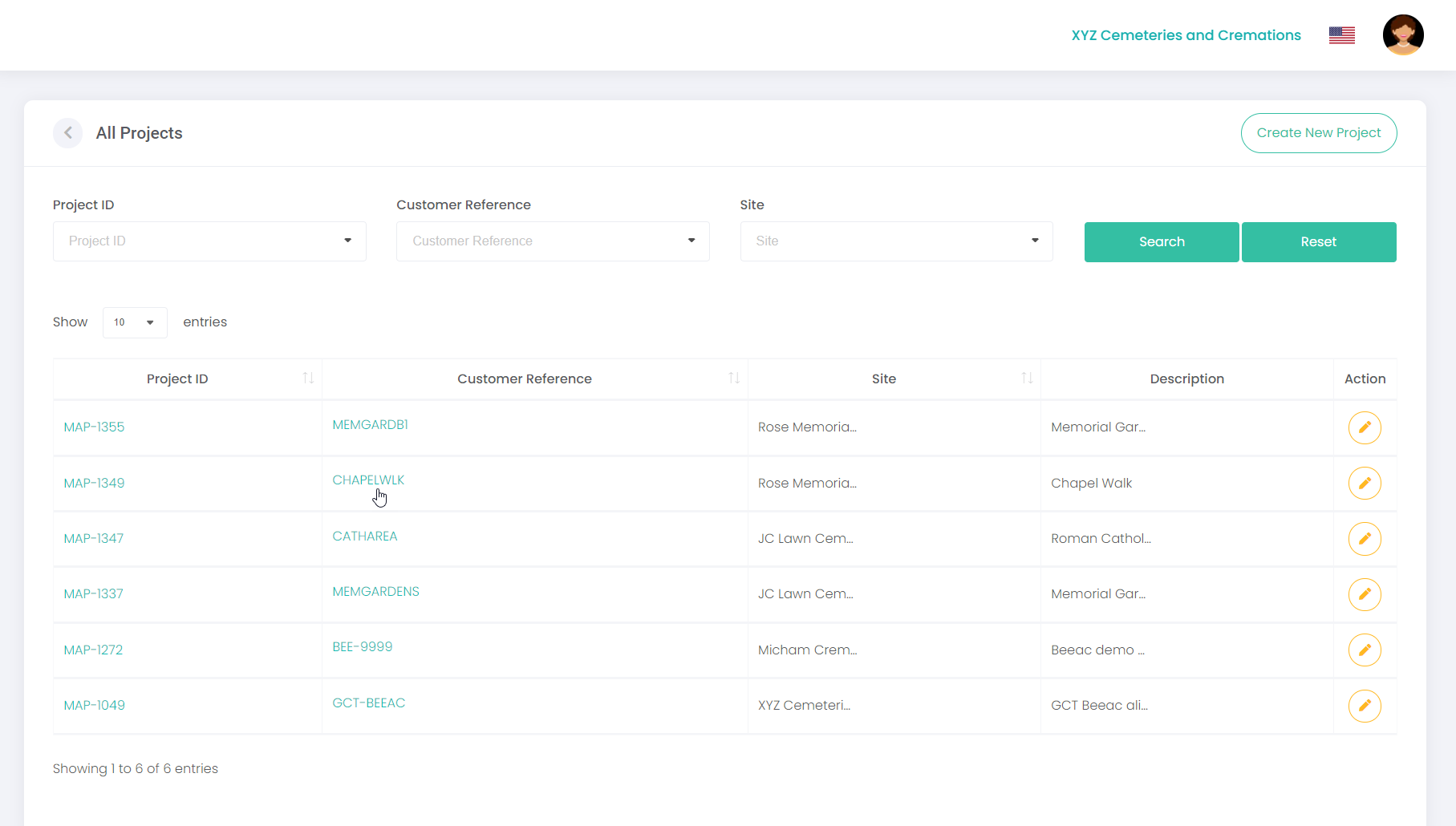
From the main screen, click on the relevant Project ID or Customer Reference hyperlink you wish to view.
Click on Show Locations. A list of locations imported from the CSV file will display in a list next to your drone image, along with the corresponding blue markers on your map.
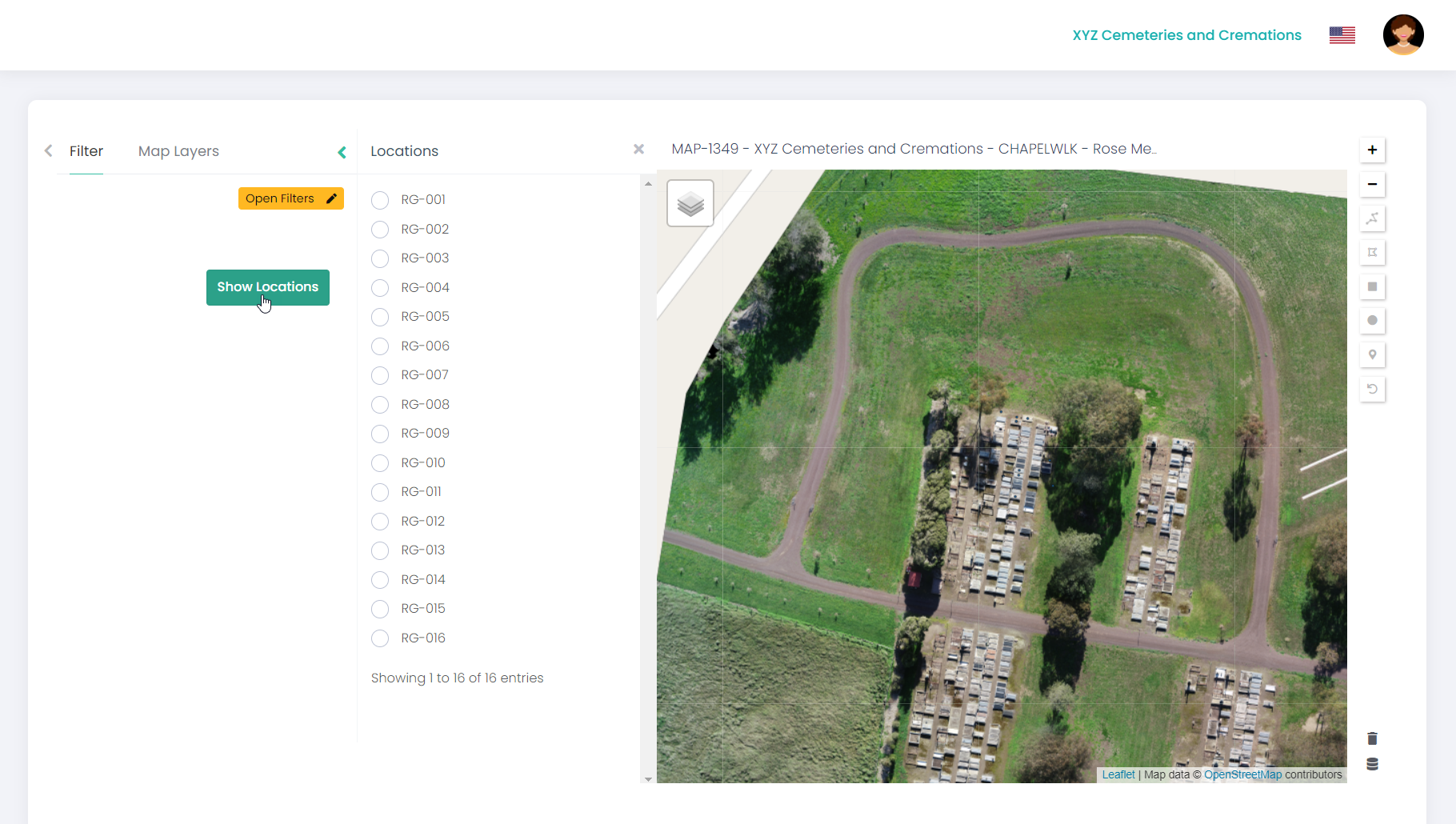
Alternatively, you can access the Show Locations function from the Map Layers screen:
If there are no filters applied to your map project, simply click on Filter, then click on the Show Locations button. Your locations list will display next to the map.
If there are filters applied to your map project, choose the appropriate filters to narrow down the selection (refer to next topic) or, click Apply to see a list of all locations.
From here, you can click on each location name in the list to identify the corresponding marker on the map, or alternatively, click directly on the marker on the map to highlight the location code. When active, the marker will turn red.
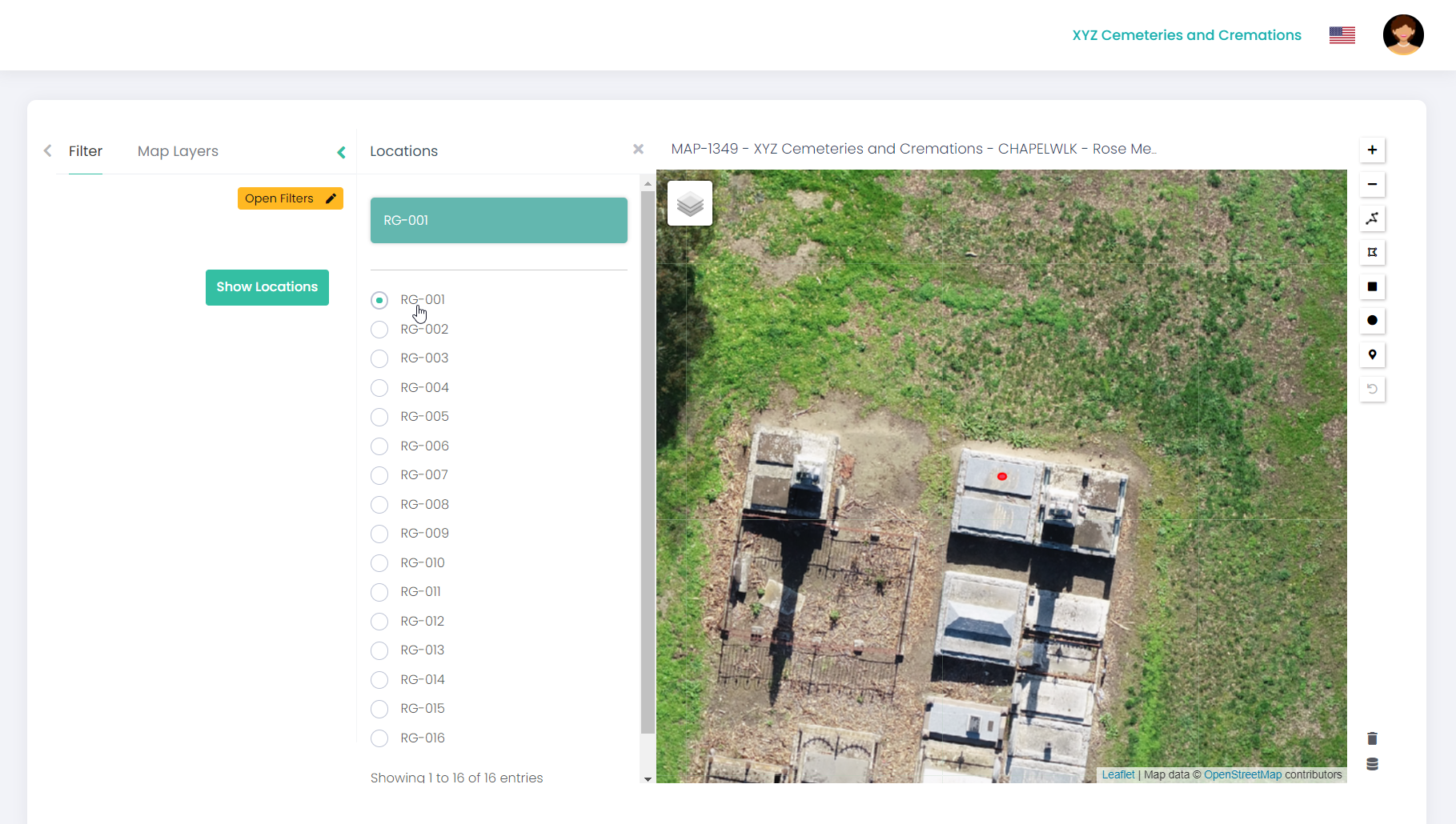
Next, click and drag the marker to its correct location. Complete the rest of your locations until all your locations are marked correctly.
To Zoom in and out of the map, use the + and – buttons on the map toolbar.
Note: The markers that display on the map are for the area that is currently viewable on the map, not the whole cemetery. As you pan around the map, the markers for the rest of the cemetery are loaded.
TIP: Be careful when moving around the map, as you don’t want to accidentally move correctly placed pins. Place your cursor in an area where there are no pins to safely move around the map.
To add shapes such as polylines, polygons, rectangles, circles or pins to a selected location without coordinates, click on the relevant shape's option from the map toolbar and follow the instructions on screen to draw your shape. You can rotate, re-shape, resize and move the shape by right-clicking on the shape. When finished, right-click on the shape again and select Stop Editing.
You can also clone the shape you have created to use for another location, which will save you time in re-drawing the shape. Right click on the marker to replicate and choose Start Cloning, select the location from the list and drop the shape where required. Click on Stop Cloning on the top right hand corner of your project when complete.
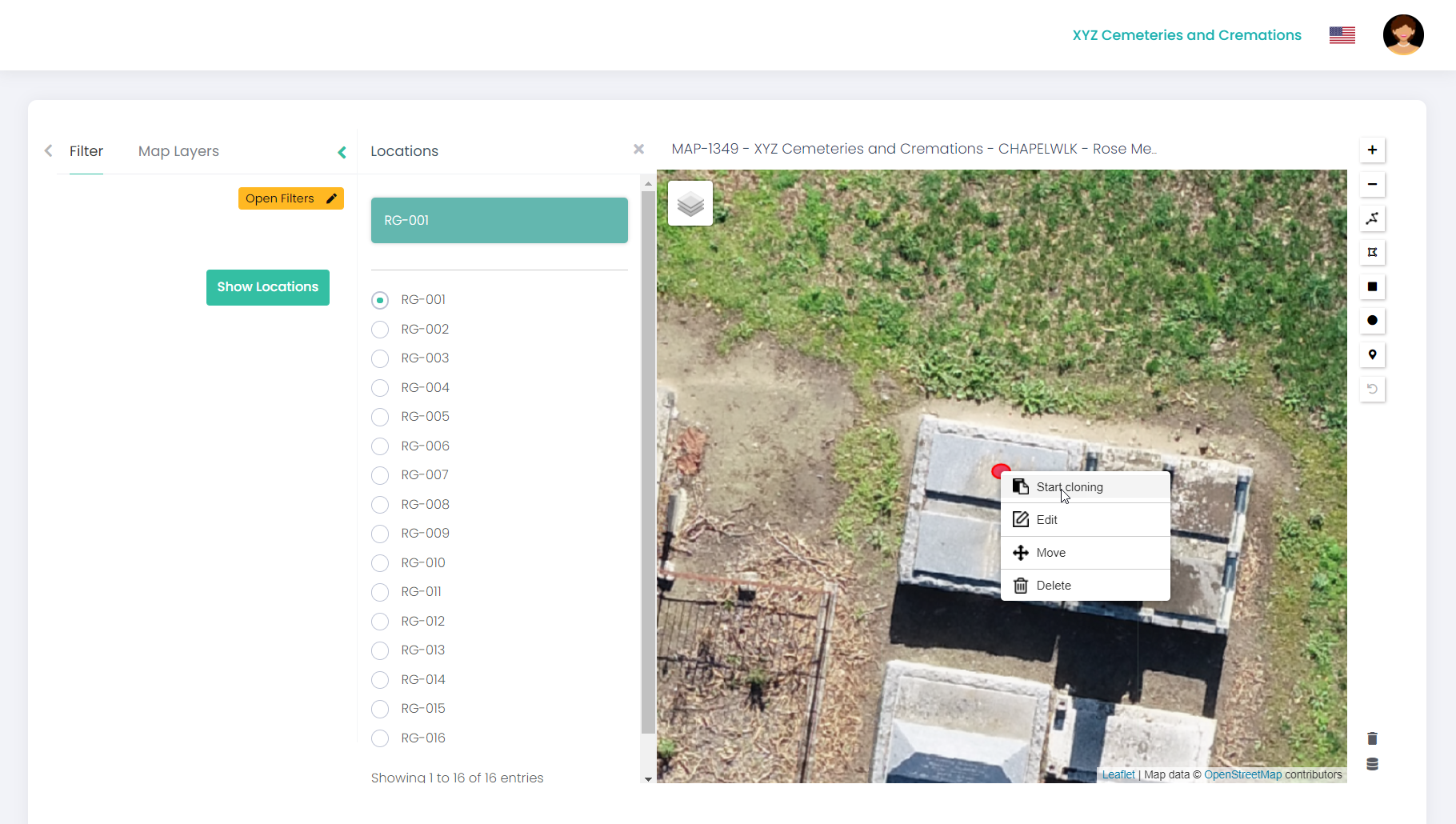
To delete a marker on your map, right-click on the individual pin and select Delete.
To start the entire map project again and clear out all shapes / markers on the map, click Clear All (bin icon on the bottom-right of the map).
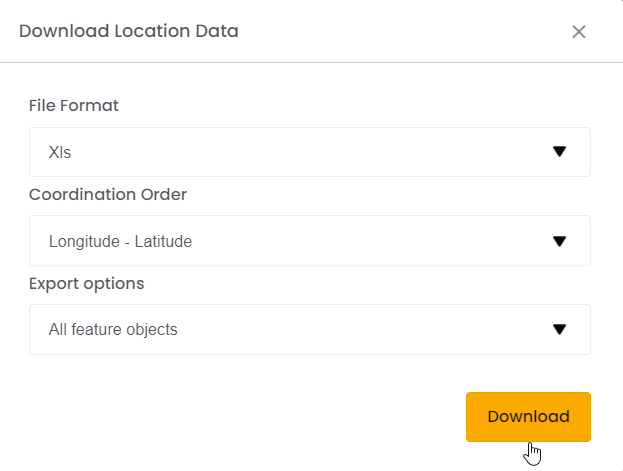
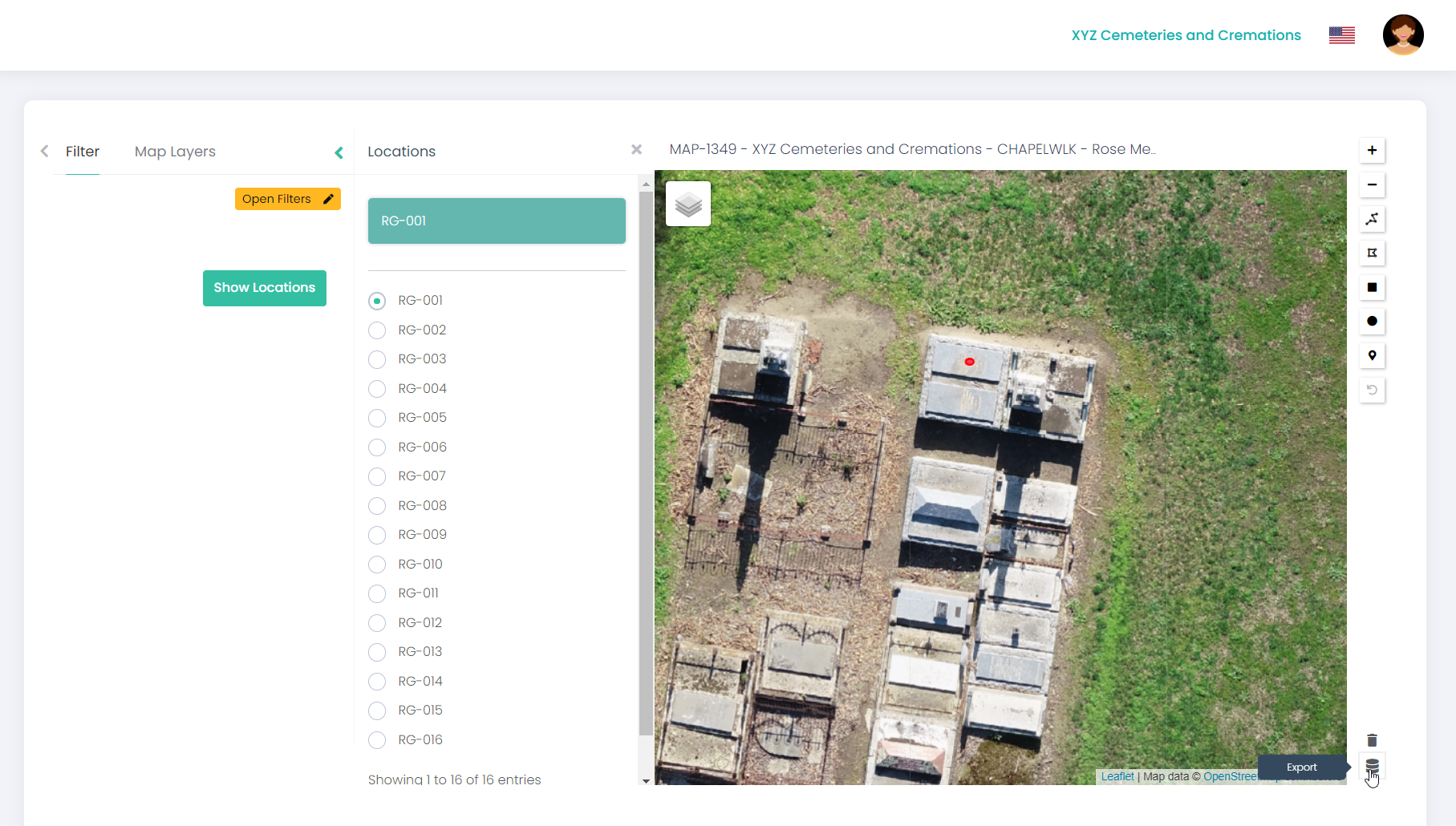
To export the map project information to a CSV or Excel file, click on the Export icon (bottom right of map).
Next:
a) Select the required file format from the File Format drop-down list. Choose from xls, xlsx, csv or GEO JSON.
b) Select the order you would like the coordination details to display from the Coordination Order drop-down list. Choose either longitude-latitude or latitude-longitude.
c) Select the required export option from the Export Options drop-down list. Choose either: all feature objects, map markers only or polygons only.
d) Click Download. The file will download in the selected format.
The download can then be used to import the map project reference back against RecordKeepr locations, or to insert co-ordinates against byondpro locations by our consulting team.