To help you view or filter selected locations within your map project, you can also add map filters.
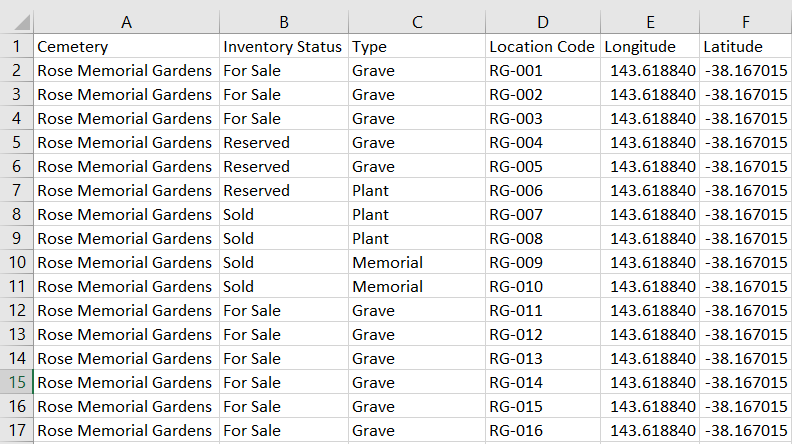
These filters are the fields which you may have included in the Import Location Data CSV or Excel file uploaded when creating the map (see example below Inventory Status and Type):
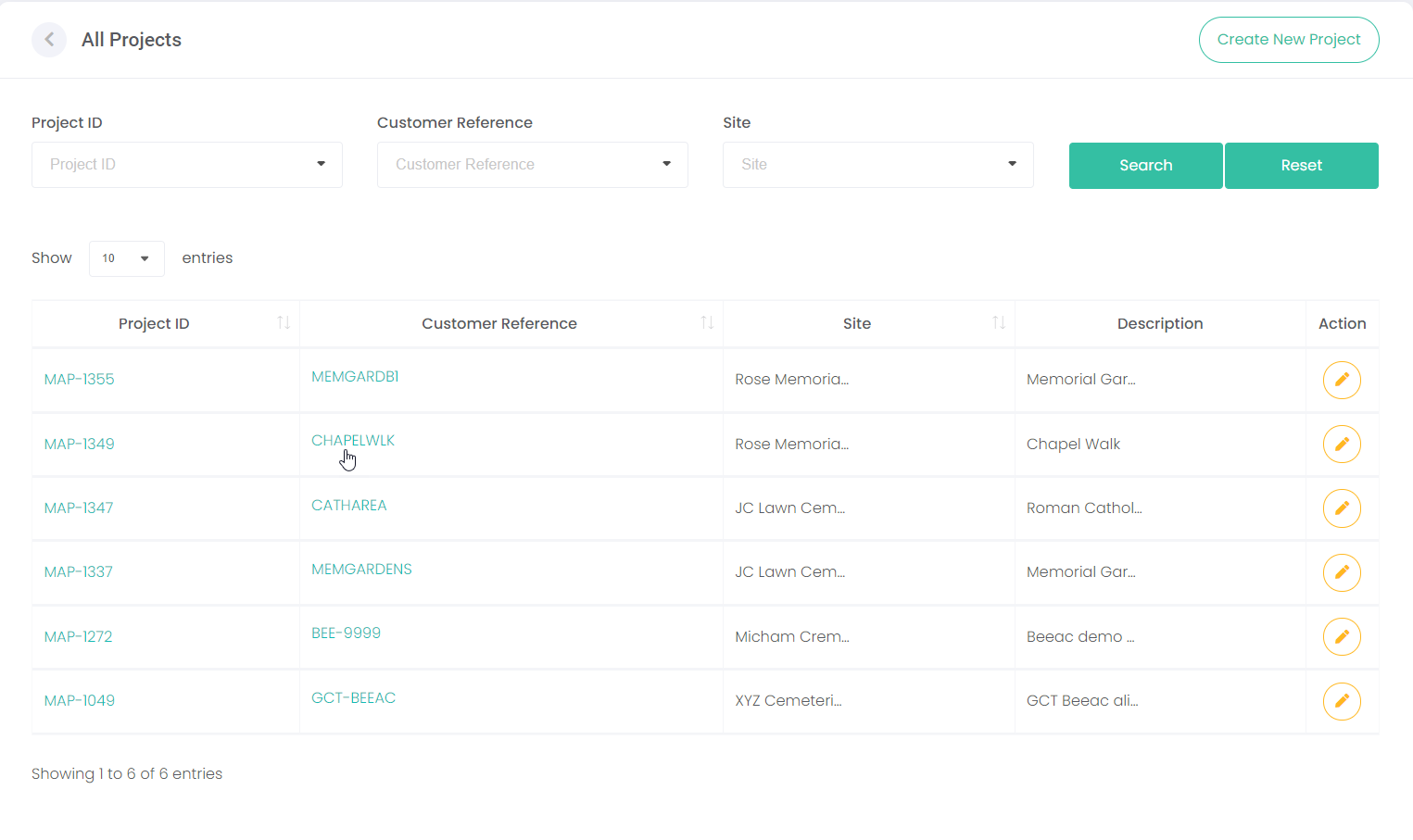
From the main screen, click on the relevant Project ID or Customer Reference hyperlink.
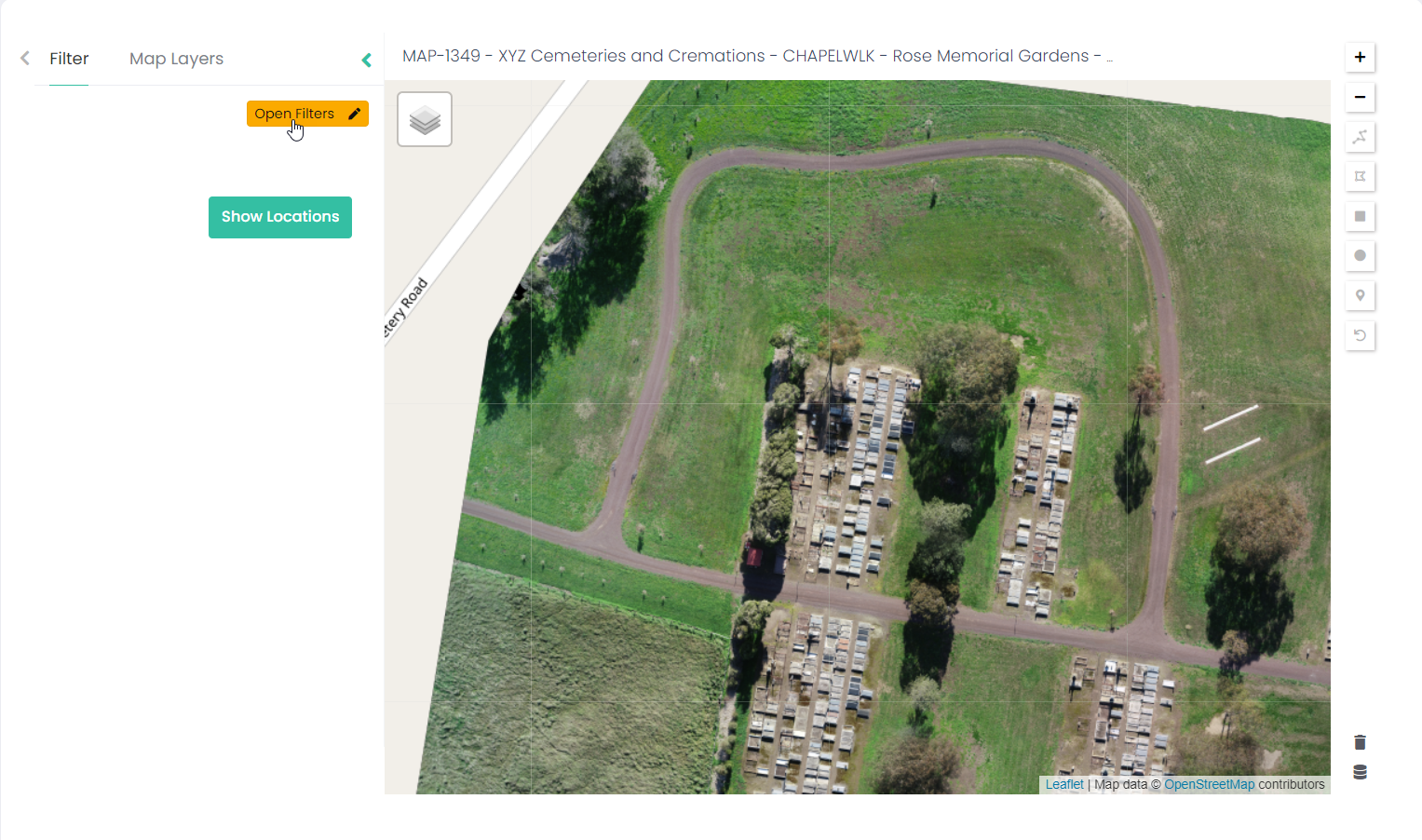
Select Filter and then click on Open Filters.
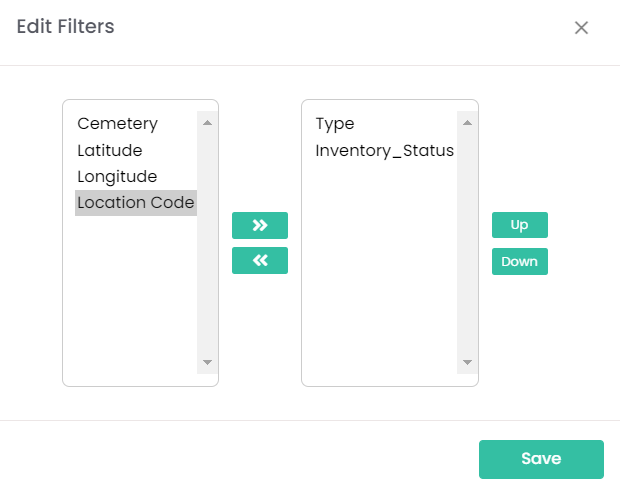
The Edit Filters window displays. You can move the filters / fields you would like to use from the left column to the right column by clicking on a field name and clicking on the green forward arrow. Filters selected will display in the right column.
TIP: You can choose as many filters as you need. You can also click on the Up and Down buttons on the right to change the order of the selected filters on the search screen.
To remove a filter, click on the Filter Name in the right column and click the green back arrow.
Click Save.
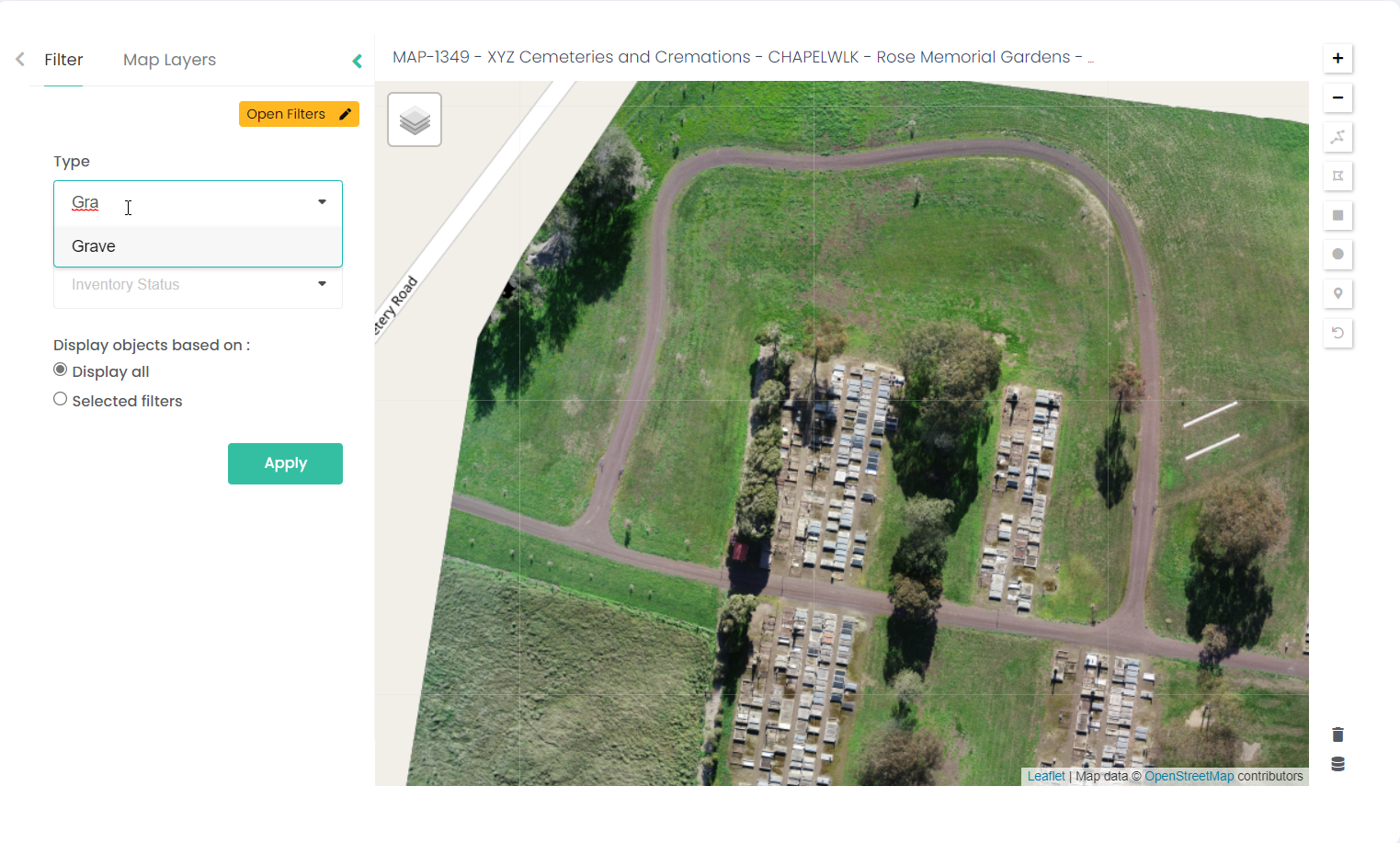
Filters will now display next to your map, so you can filter your map results accordingly. In the example below, we can now filter by Type or Inventory Status, so that we only see the filtered locations on the map.
Hint: Type the first letter of the option you would like to filter by, for example type ‘G’ for Grave in the Type field – then select Grave from the drop-down list.
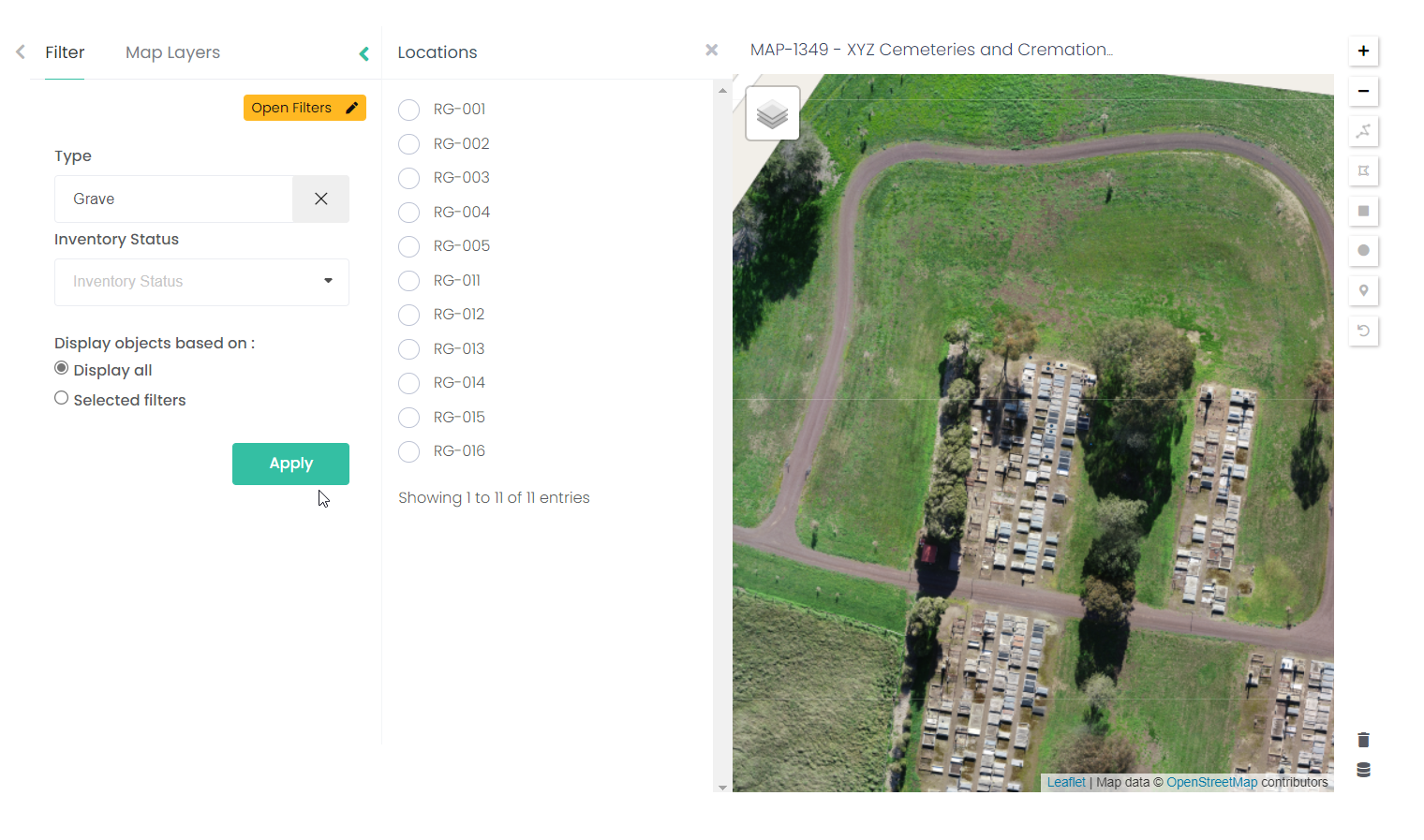
If you select Display all and Apply, only locations matching that filter are displayed in the list, but all markers for the area you are working in are displayed on the map regardless of the locations listed.
When Selected filters is selected, only the locations and corresponding markers matching the filters will display on the map.
Remember, if you need to remove or change your filters, click on Open Filters and update. accordingly.
Click Save.