Setting up the Timeline for Resources
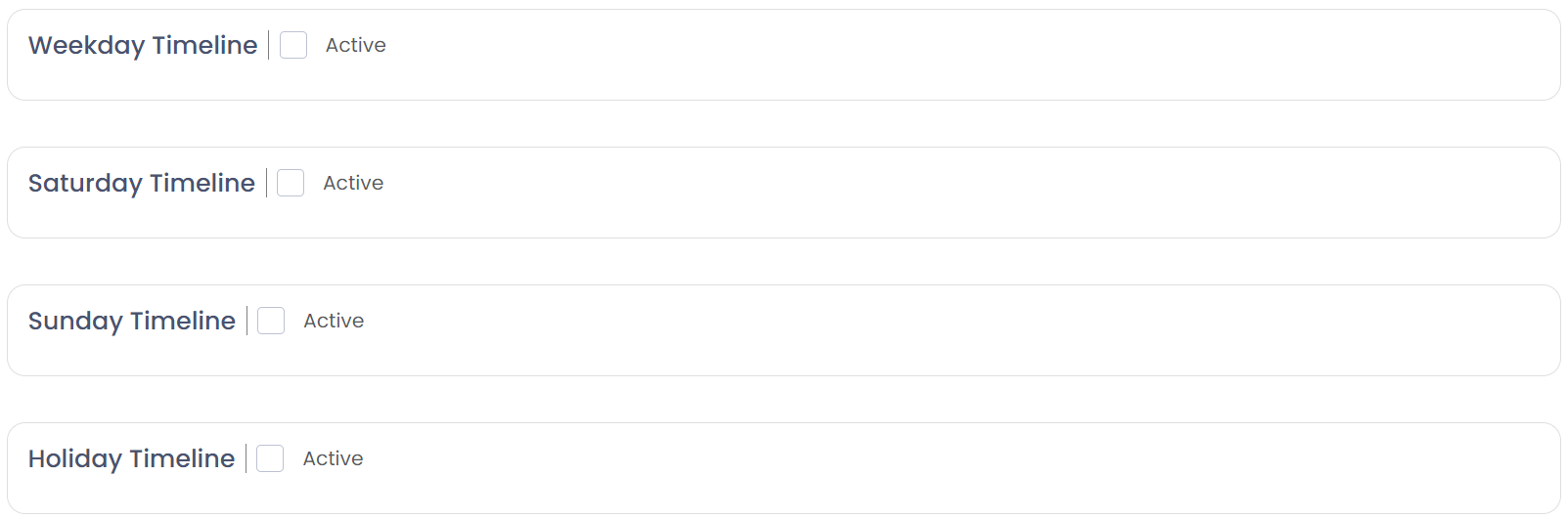
Separate timelines can be configured for weekdays, weekends and holidays.
Ticking the Active tick box next to the relevant timeline will open additional settings and activate the timeline to accept bookings.
To configure, choose the Start and End time relevant to your resource.
For example, on a weekday it may be that you will offer services starting at 8a.m and the last time is 4p.m, whereas you may like to set the Saturday timeline with a start time of 8a.m but last time at 2p.m.
Similarly, you can set different timelines for Sundays and holidays or leave them inactive if bookings are not accepted.
By leaving the settings activated for the timeline and nominating a start and end time, funeral directors will be able to make bookings at various times. For example, 8:05 a.m. 08:10 a.m. 08:15 a.m. etc.
If the Fix Start tick box is activated, you will then be presented with timeslots in line with the resource settings.
In our example above, we have set the Crematorium Services Resource with a 30-minute duration, so we are presented with half hour booking timeslots.
Click on the blocks that you would like to activate and activated timeslots will be marked purple.
Each of the purple timeslots will be available for your funeral directors to make bookings. Depending on your requirements you can set these timeslots to suit your business needs.
In our example, we are selecting every second block and leaving an hour and a half not activated to cover lunch breaks.
There is also the option to create Custom timeslots if you would prefer not to use the pre-programmed logic that flows from the resource settings and the fixed start settings.
When all timelines are set, choose Save on the bottom right of the screen to secure your timeline settings.
Additional resources (e.g. chapel) can be added by repeating the steps above for the new resource, starting with
Add New Resource.
A resource should be created for every resource held within byondpro, if integrated. The resource needs to reflect the calendar times available in byondpro.