In preparation for the General Meeting, your attendees will need name badges for the day of the event.
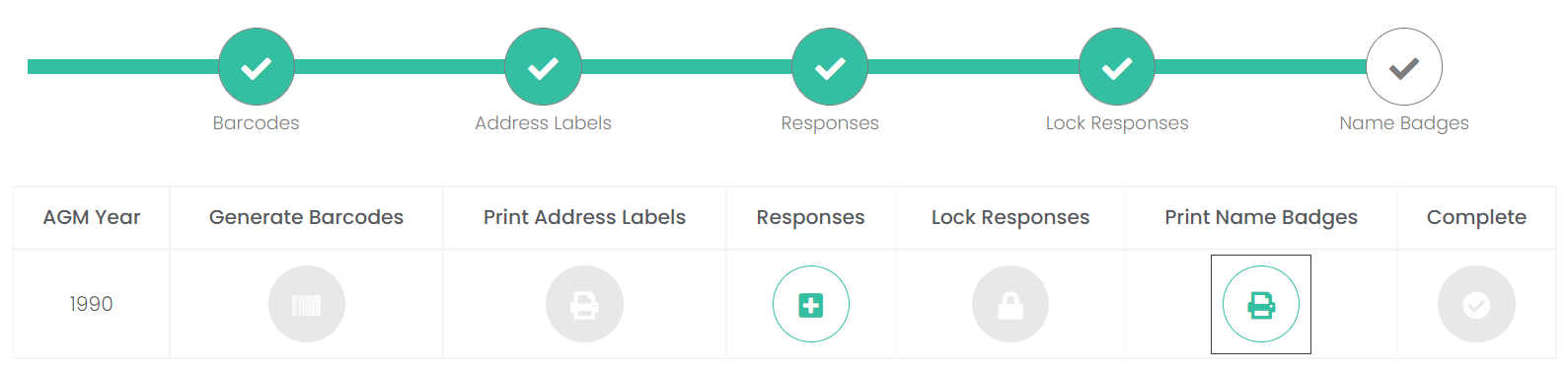
To Print Name Badges, click on the Name Badges icon.
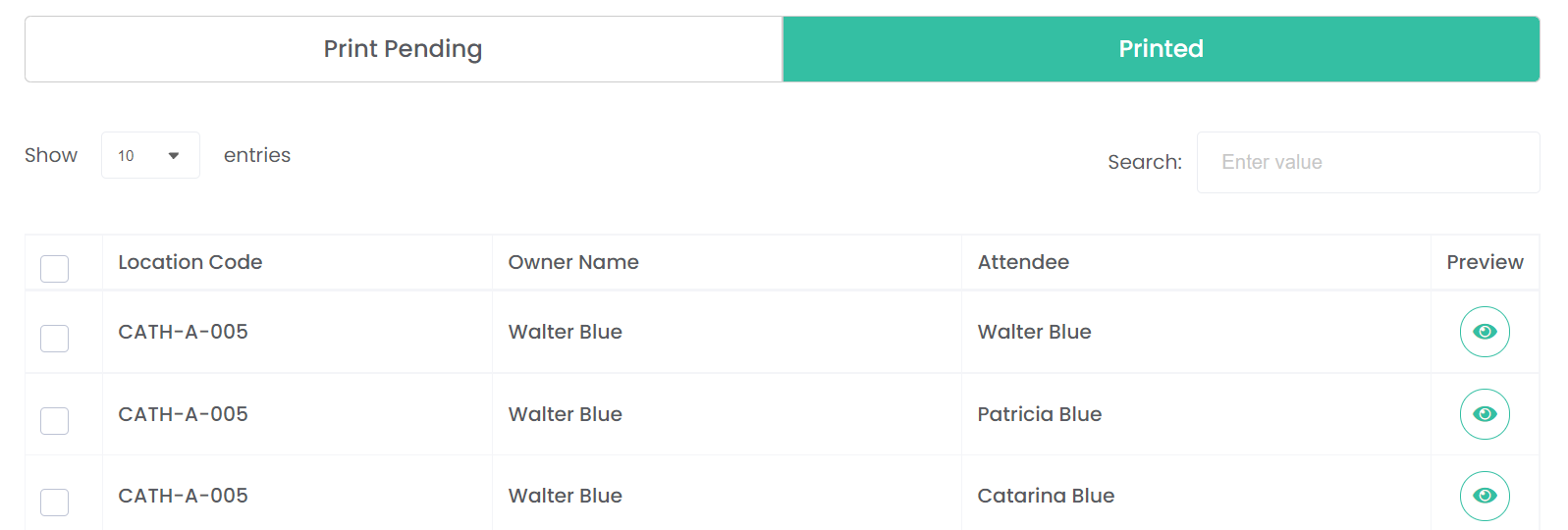
The Print Name Badges section is divided amongst two sections: Print Pending and Printed.
All name badges for those marked as attending, and their guests, that have not yet been printed will display in the Print Pending section.
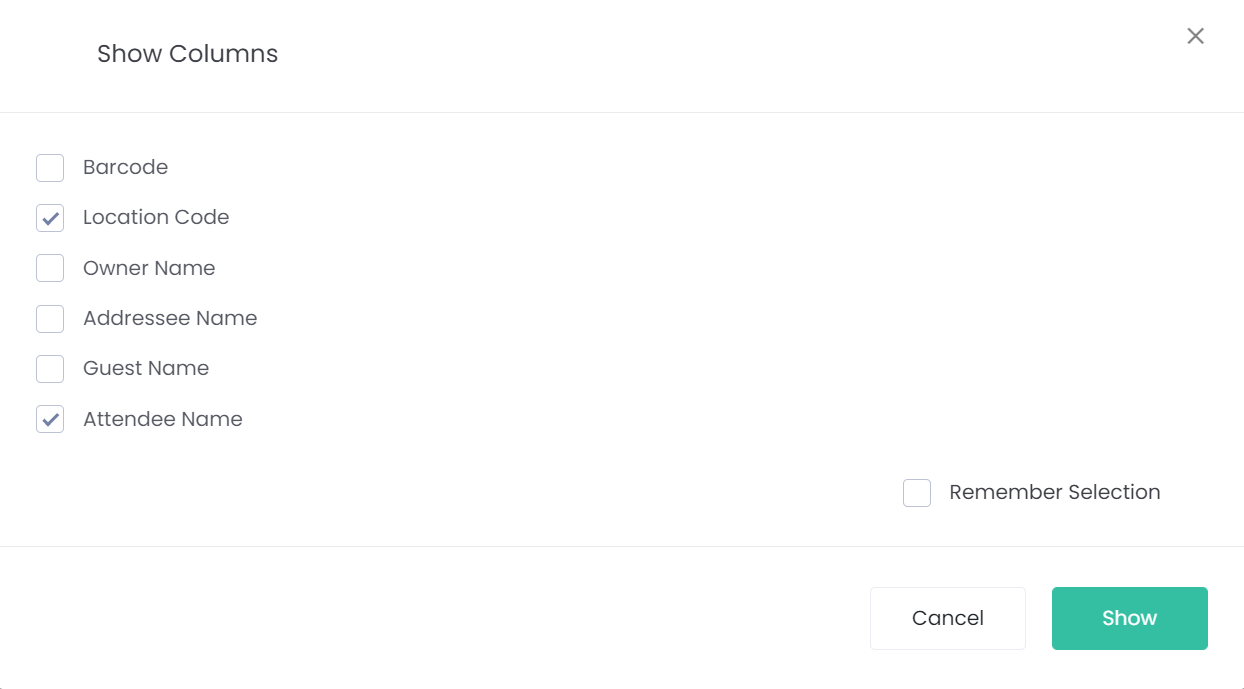
By clicking on the Show Columns button, you can choose to have more or less information about the attendees display in the list.
From the pop-up window, choose from the following to display:
Tick the box next to Remember Selection if you want all the columns chosen to always display when you enter this screen.
To apply the changes, click the Show button.
To disregard the changes, click the Cancel button.
If you made any changes, the columns will have been updated to reflect these changes.
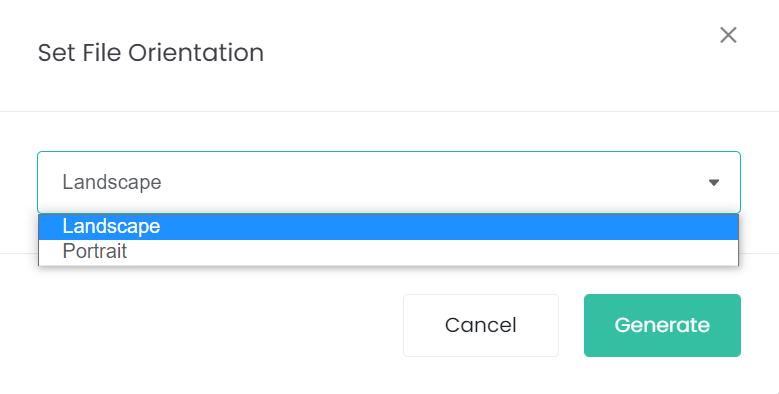
Clicking on the PDF button, will allow you to run the data in either Landscape or Portrait format.
Choose the format from the pop-up window which displays and then click the Generate button.
A PDF will download to the device. Click into the PDF to view.
You will note that the PDF displays the columns that display on the Name Badges screen.
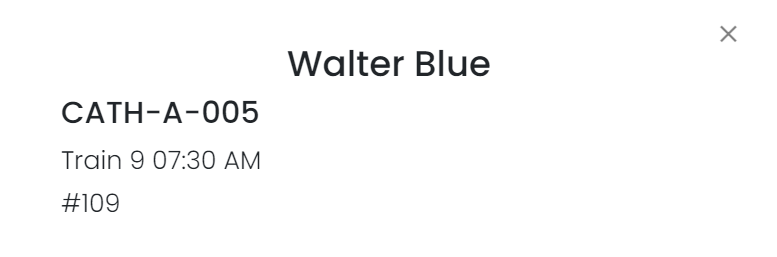
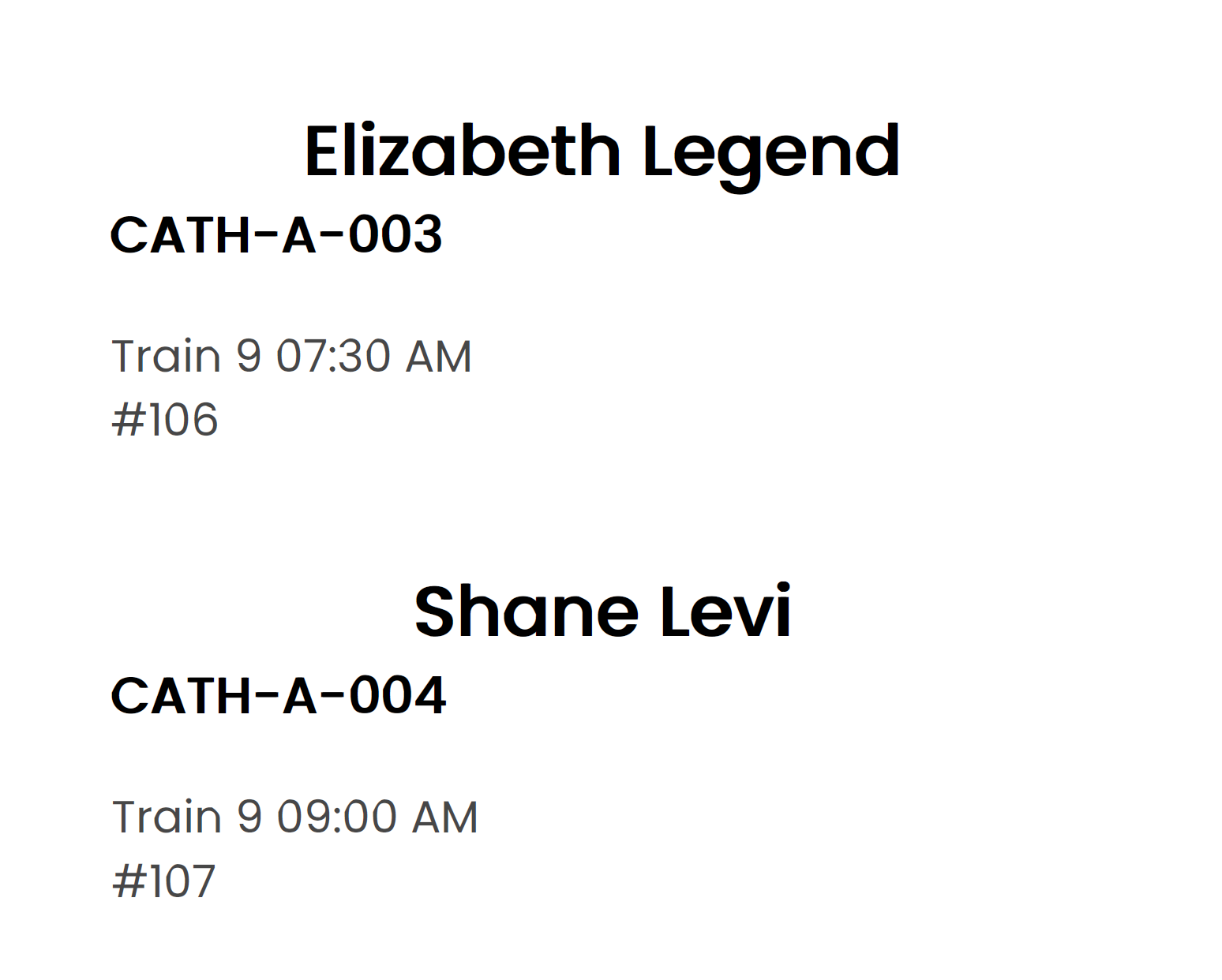
To view one of the Name Badges before printing, click on the Preview icon.
A pop-up window will display the name badge, which includes:
-
-
-
-
Arriving By details, if chosen on the vote slip
-
Foreman initials from byondpro
-
Reference Number from byondpro
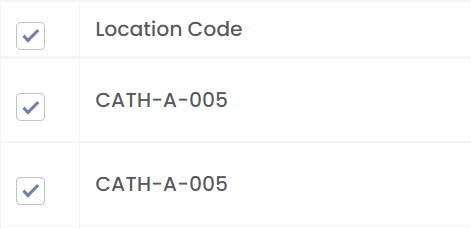
Choose the name badges to print by ticking the individual boxes in line with the attendee.
Should all name badges need printing, simply click on the box in line with the column headers, and all attendees will be ticked.
The Print button on the bottom right-hand side of the page will now display as green.
Click the Print button to print the desired name badges.
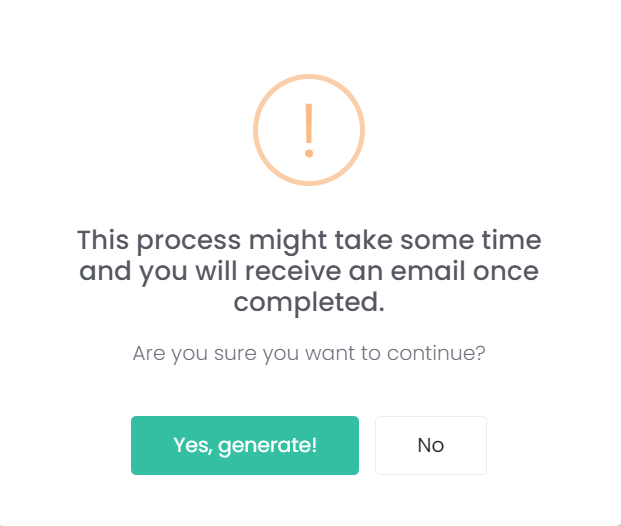
A pop-up window will display asking you to confirm if you want to generate the Address Labels and that you will receive an email once generated. If you want to continue, choose Yes, generate!
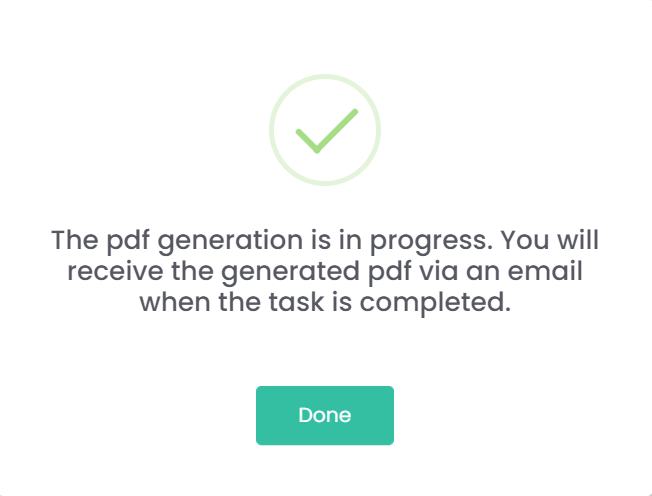
The below window will appear. Click Done.
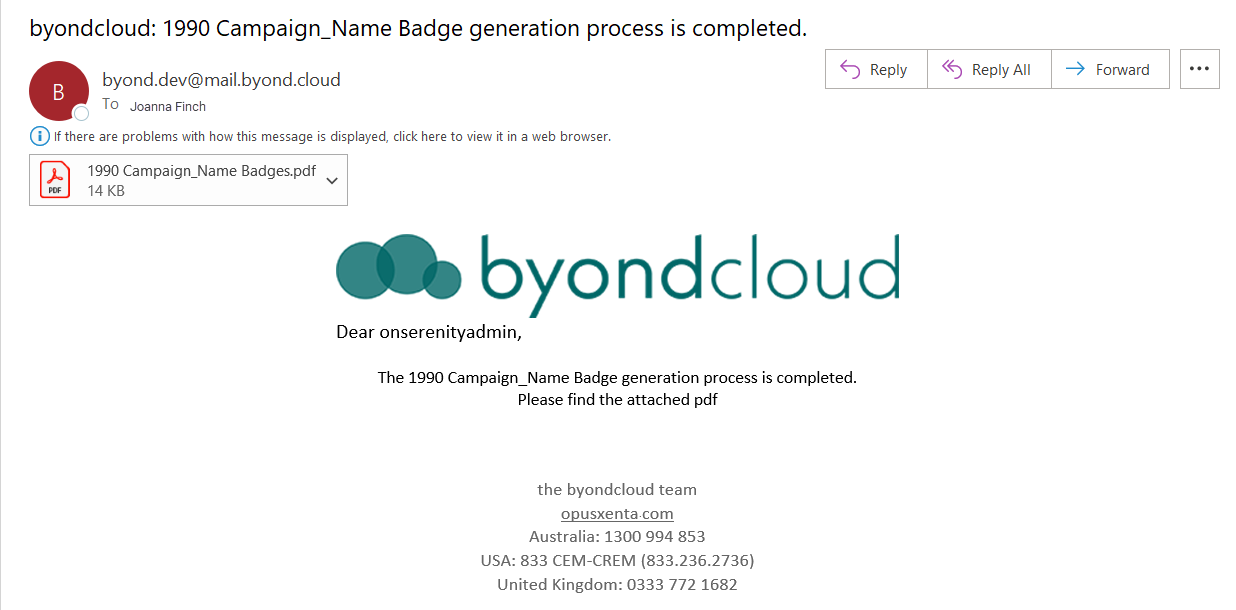
The email will be sent to the logged-in user's email address on the account.
Click on the PDF in the email to access the address labels.
The PDF is designed to fit a 4" x 6" page, using the Avery Label Template #5141.
To save the document to the device, choose the Save icon.
To print the badges, choose the Print icon.
Back in byondcloud, the name badges will no longer display in the Print Pending section if printed, and will now display in the Printed section.
They can be printed again from the printed tab, if necessary, by ticking the relevant boxes and pressing print again.
To return back to the Manage Campaign section, click on the arrow next to Name Badges.
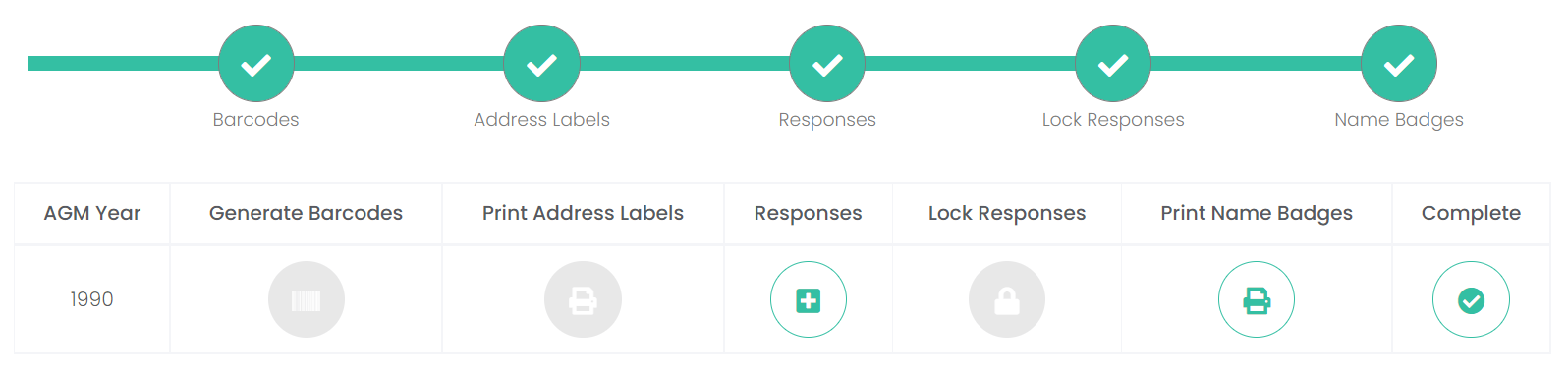
Note the Name Badges section of the process timeline is now marked as complete with a green tick.
An option now exists to mark the campaign as complete.