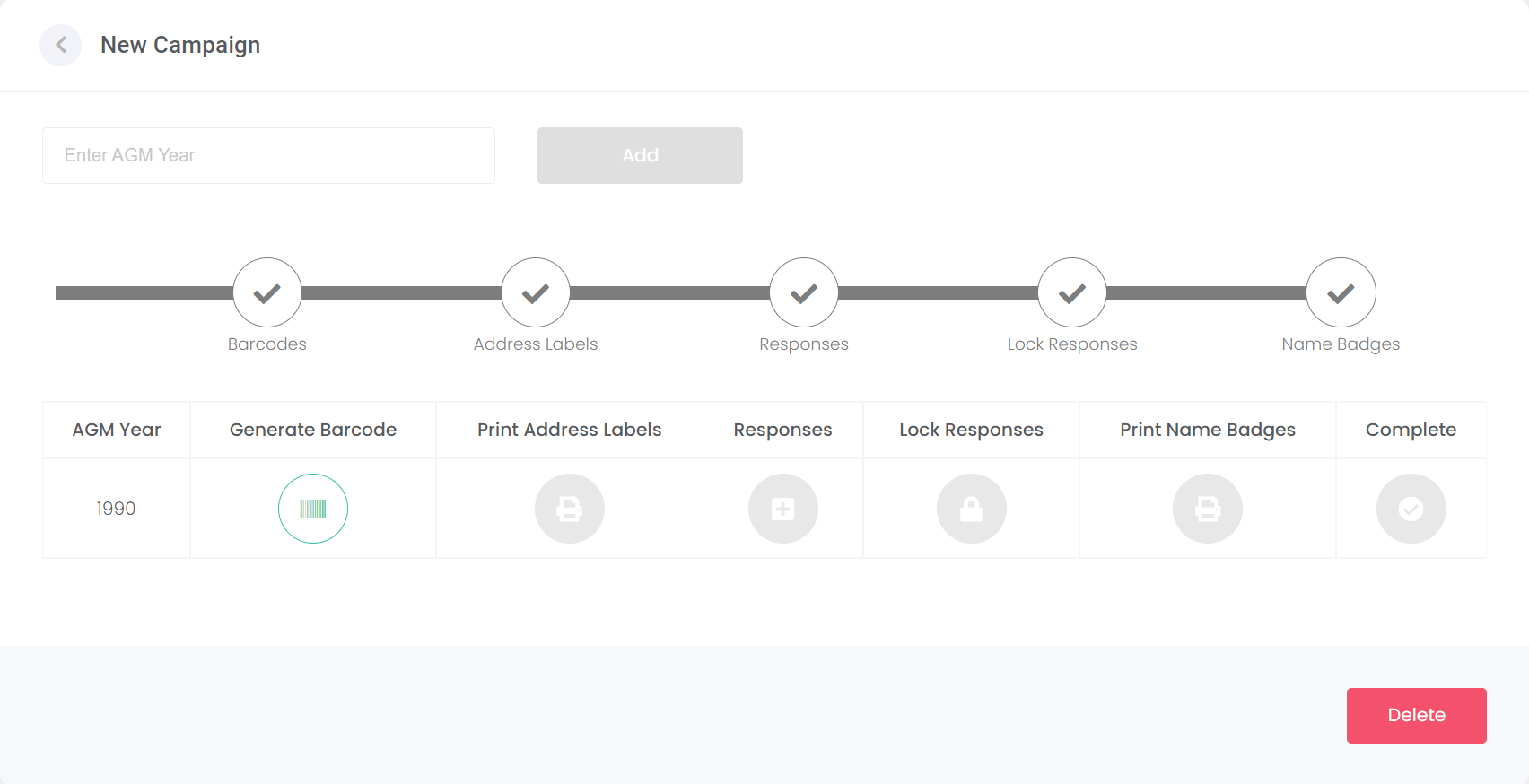
To start a new campaign, choose the New Campaign button from the top right-hand side of the page.
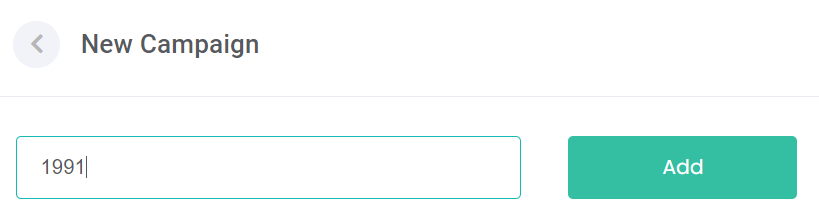
Type in the AGM Year in the field and click on the Add button.
Please note that this field must be a valid year in numerical format.
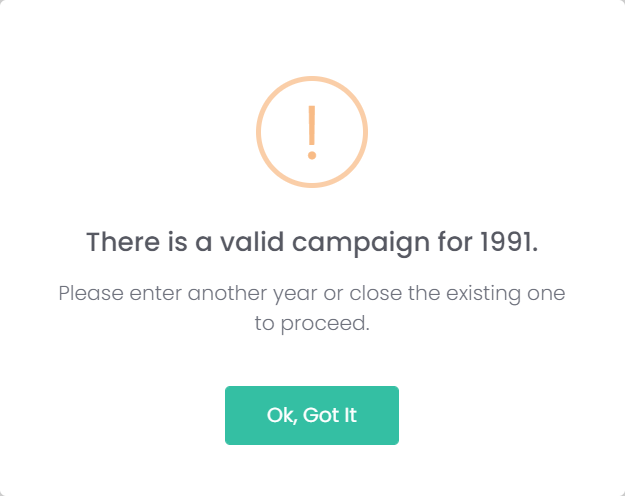
If there is already an active or completed campaign for the AGM year entered, a message will display advising this is the case.
To add this campaign, enter in another year or delete or inactivate the existing one first to proceed.
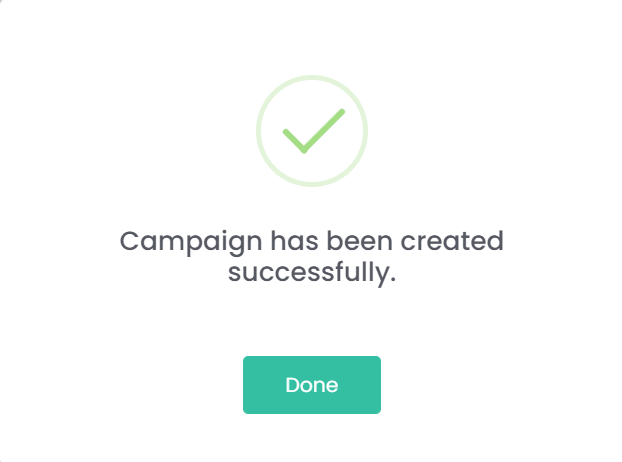
A message will display advising that the campaign has been created successfully.
Click Done.
You will now be ready to manage the campaign.
Should the campaign have been added in error, click the Delete button on the bottom right-hand side of the page.
This button is active only until the Barcode Generation step has been completed.
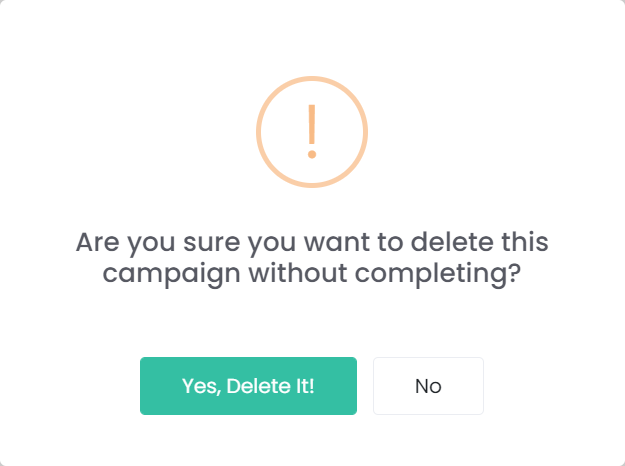
A message will ask to confirm if you want to delete the campaign without completing.
If you wish to proceed, choose Yes, Delete it! If not, choose No.
You can now start to manage the campaign or simply return to the campaign when ready to
Generate Barcodes.
To return back to Manage Campaign, click on the arrow next to New Campaign.