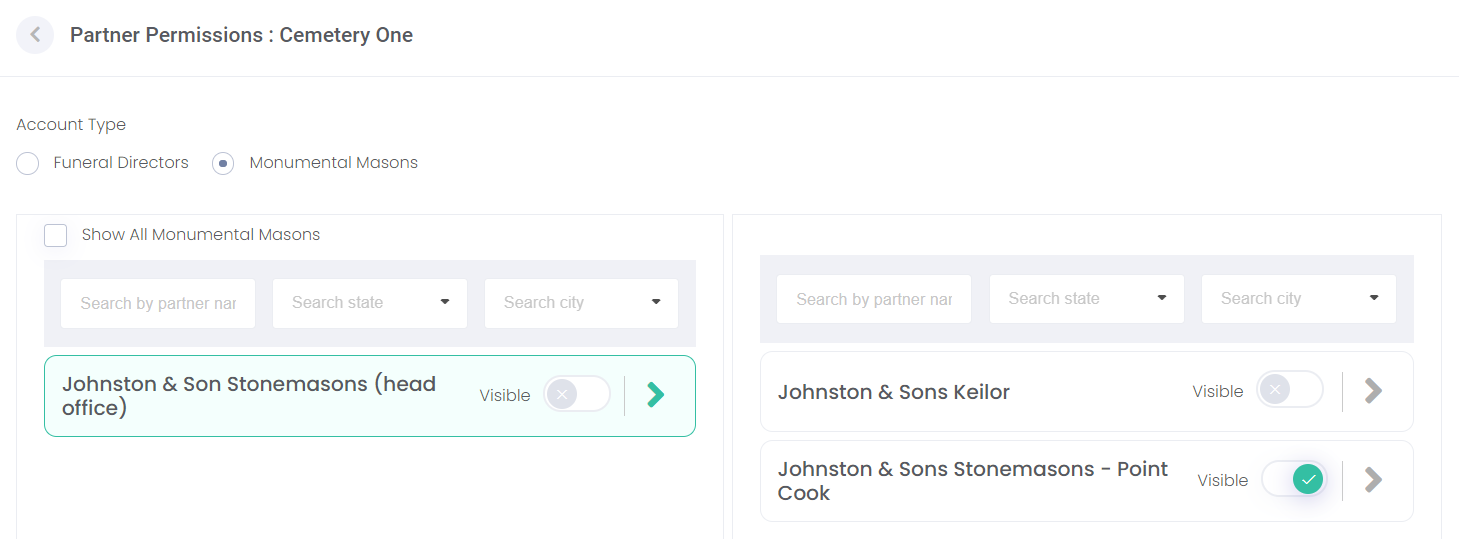
Manage Partner Permissions
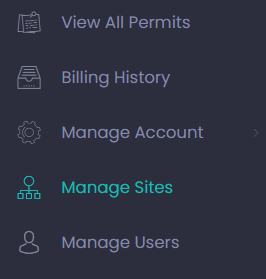
To access Manage Partner Permissions, first we must access Manage Sites by either clicking on the Manage Sites button on the side menu:
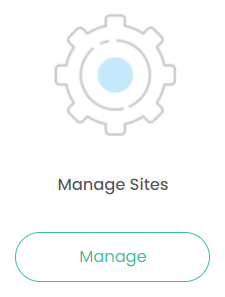
Or, by clicking the Manage button under Manage Sites on the dashboard:
Next, choose the cemetery you wish to manage and click the Partner Permissions button.
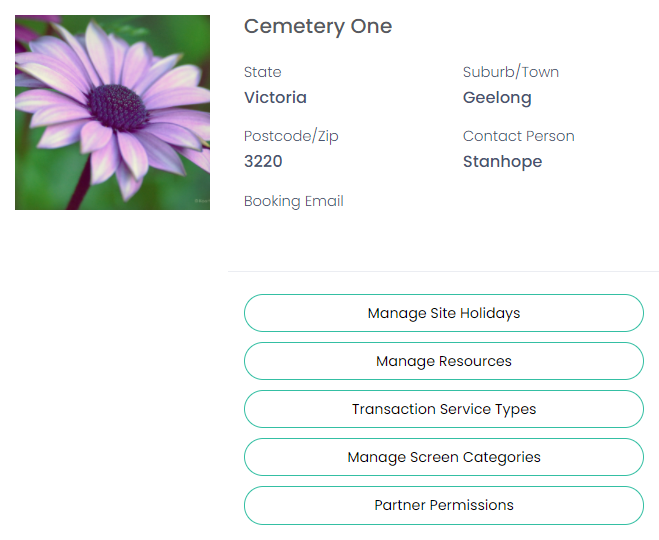
The cemetery has the ability to control which masons are authorised to work with each of their cemeteries.
If you are using a byondpro-integrated version of byondcloud, then you will need to have mapped the masons in the Monumental Mason Mapping section before you can grant them partner permissions.
From the Partner Permissions screen, the list of Monumental Masons and their branch permissions will be displayed.
Select the Monumental Masons account type.
You can search for the mason by name, state or city.
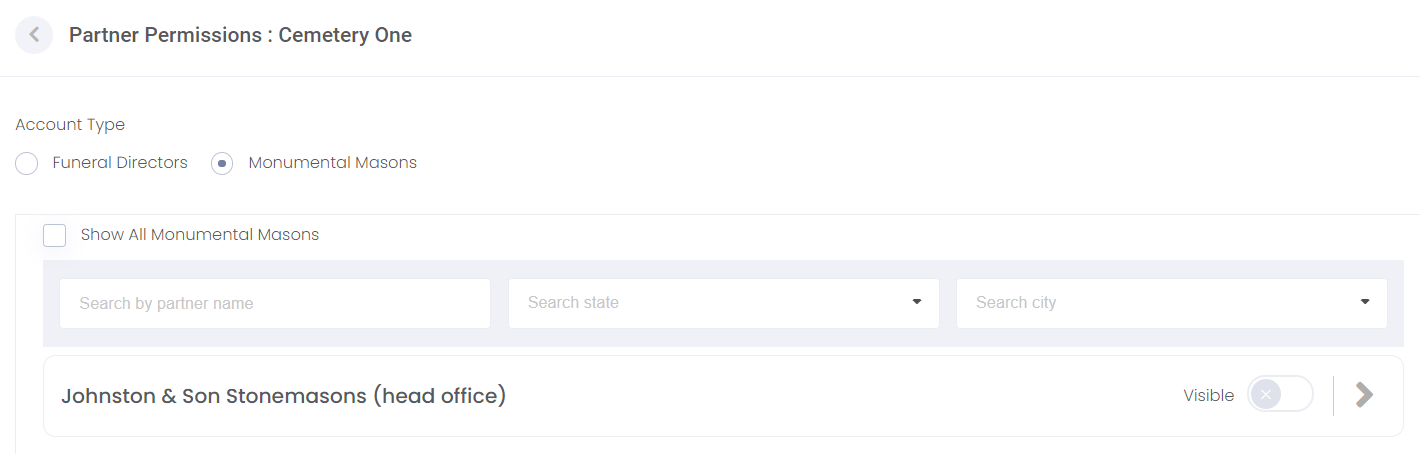
Or alternatively, you can select the Show All Monumental Masons tick-box and scroll through the list of registered masons.
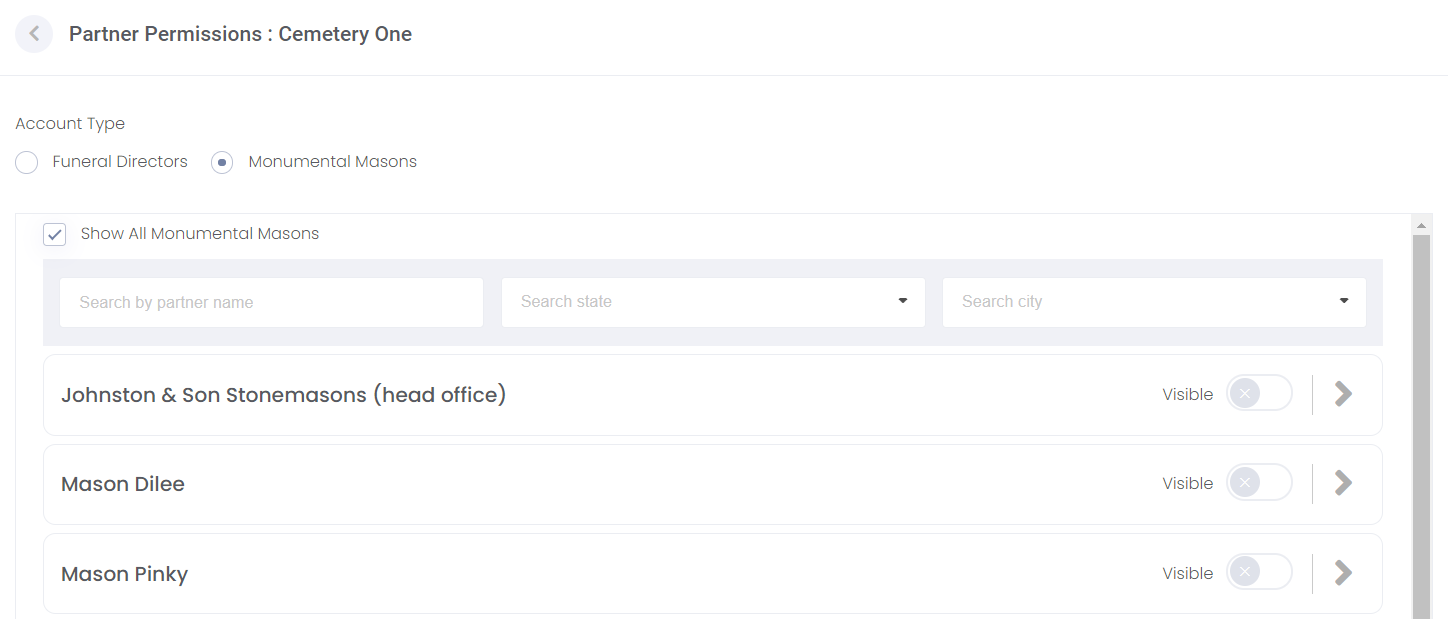
Choose the mason you wish to review or add permissions to.
In this example, we have chosen Johnston & Son Stonemasons.
As shown below in the right-hand column, this stonemason has two branches associated to it.
The Visible tick-box next to the branch indicates that the Point Cook branch is the only branch with permission to work with Cemetery One via the portal.
To give all the mason’s branches permission to work with Cemetery One, the cemetery could switch the Head Office to Visible.