(c) Copyright by OpusXenta Pty Ltd. All rights reserved.
Internal Checkout
On the Internal Checkout page the user can take Floral Programs orders from customers manually. If a customer would like to place a Floral Program order in person or over the phone this option is available on the Internal Checkout page.
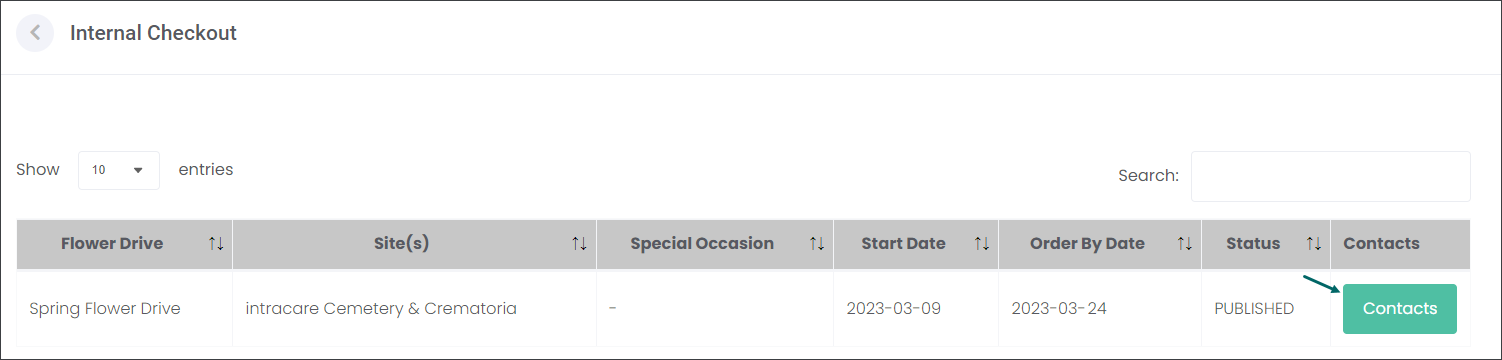
To add orders manually click the Contacts button in line with a corresponding Floral Program.
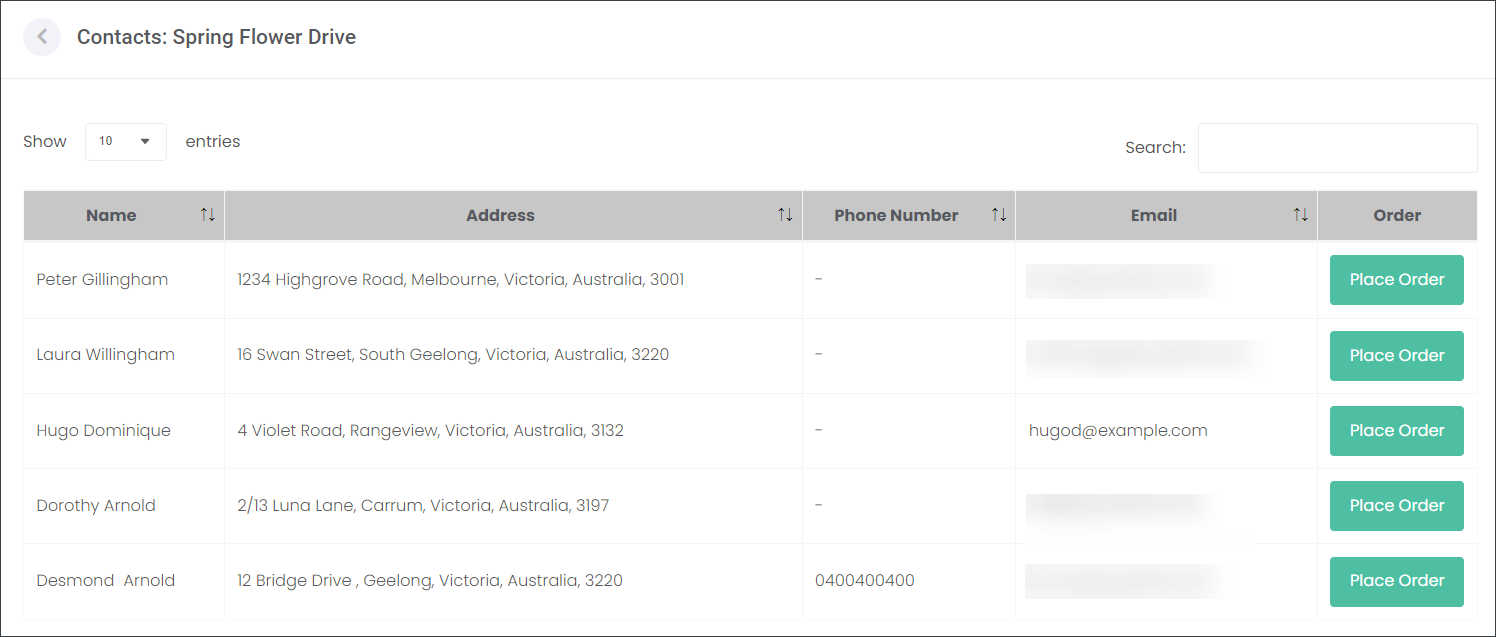
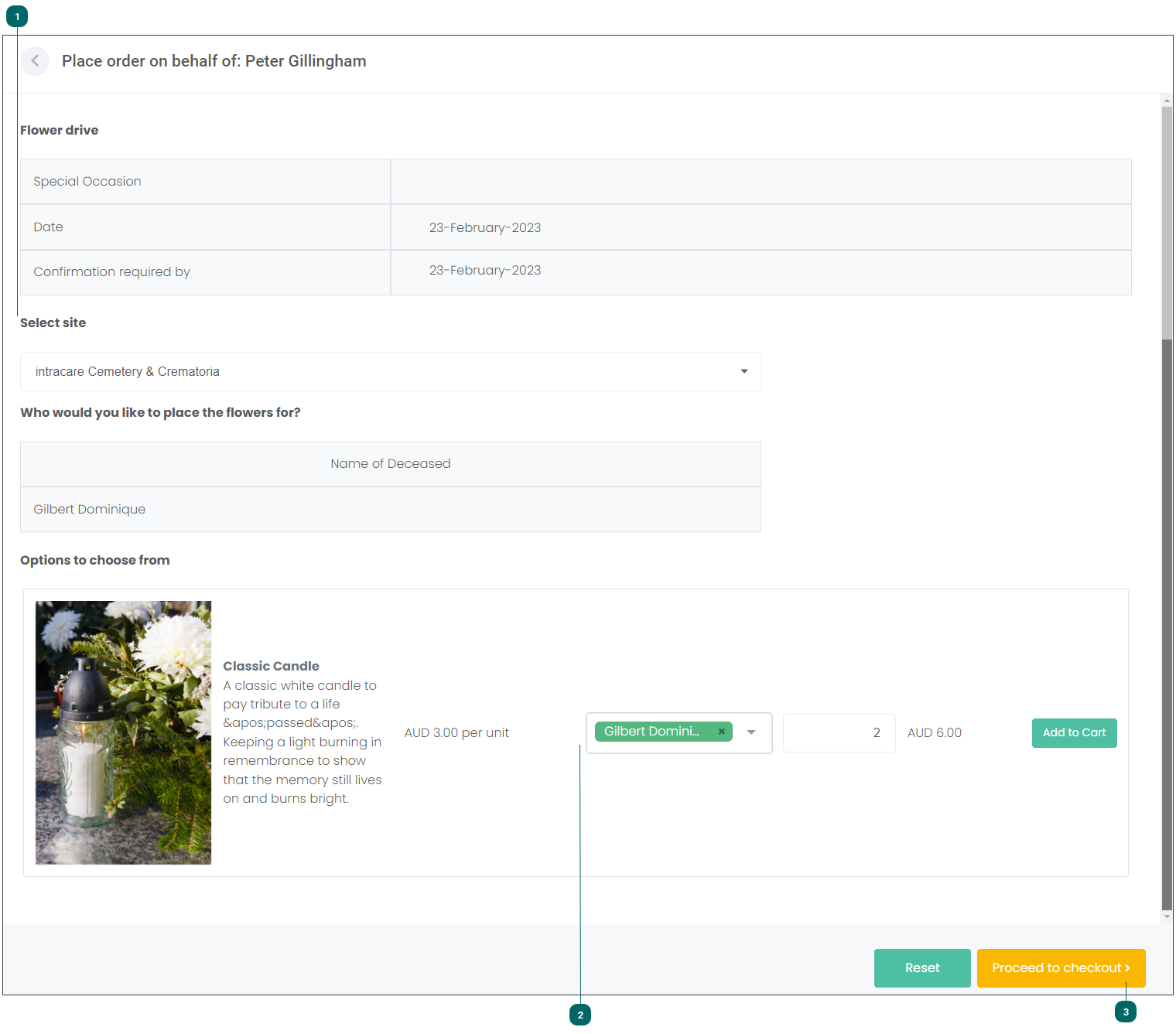
Click the Place Order button in line with the customer's name. You will be taken to the Place order on behalf of page. On this page populate the details as outlined below.
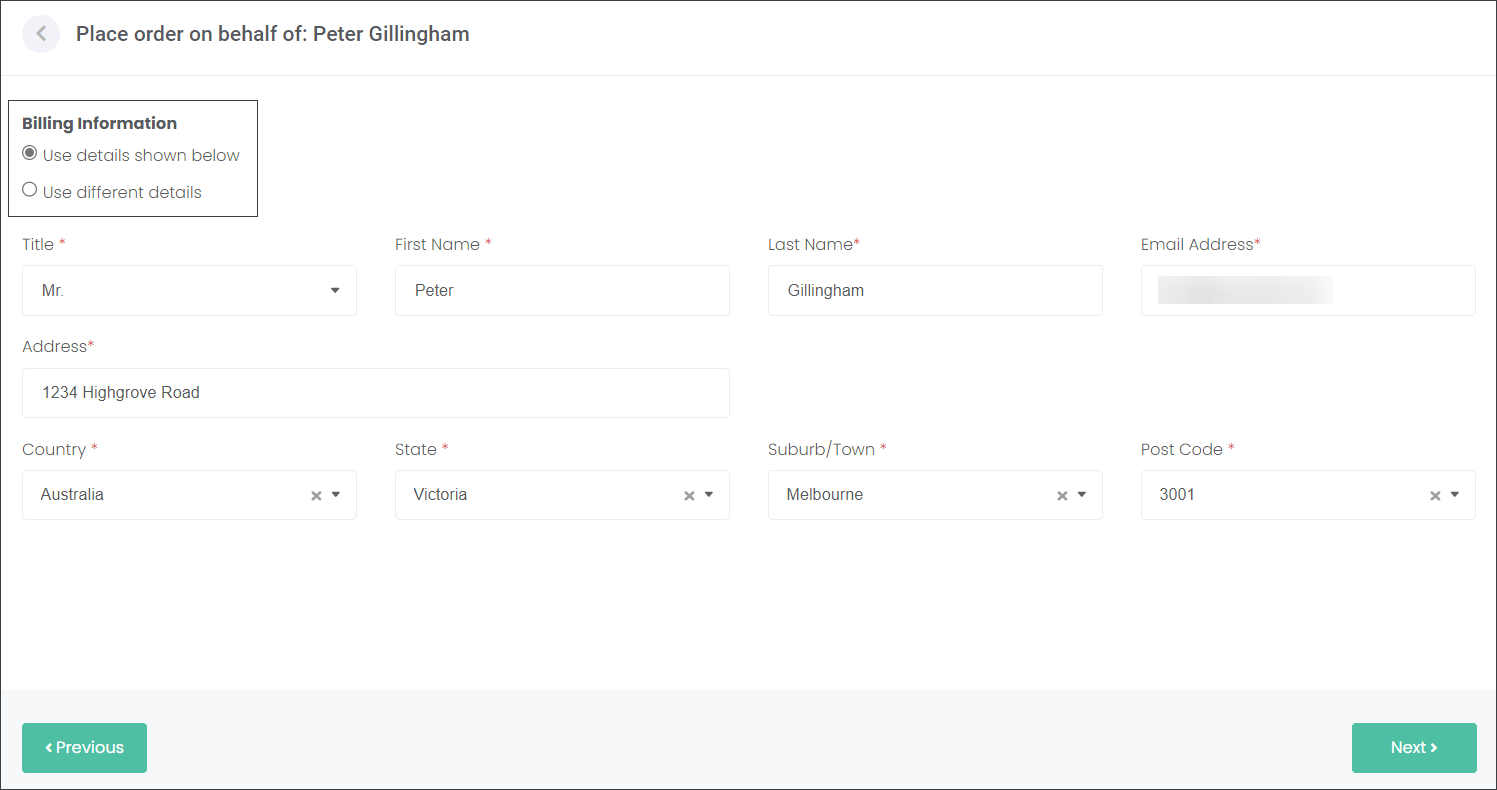
On the next page you will see the customer's Billing Information. The customer's contact details will auto populate from their Person record. However, if the customer would like to use different contact details, select the Use different details circle and type in the details manually. Then press Next.
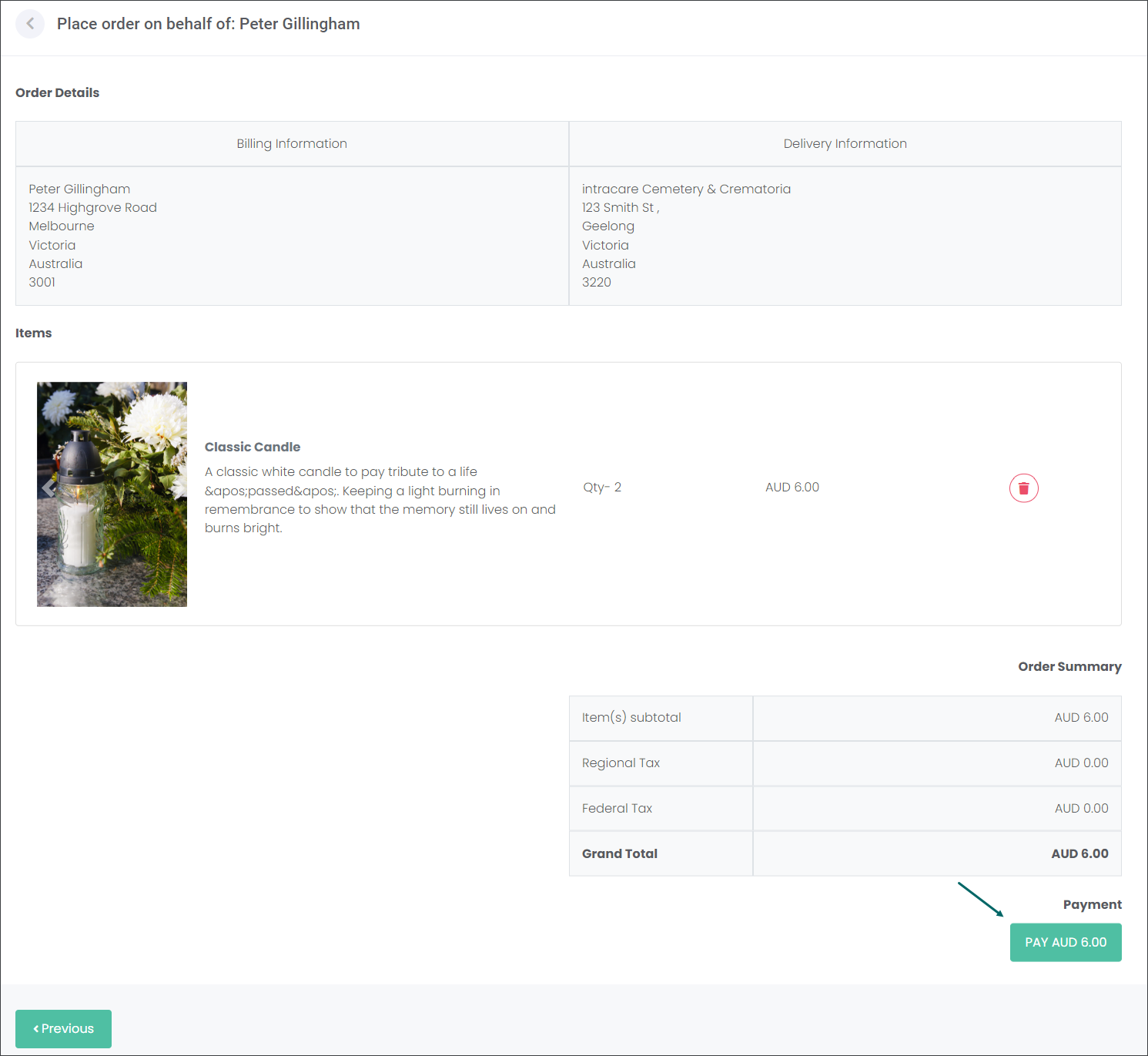
Review the Order Details including Billing Information, Delivery Information, Items and Order Summary. Then press the PAY button.
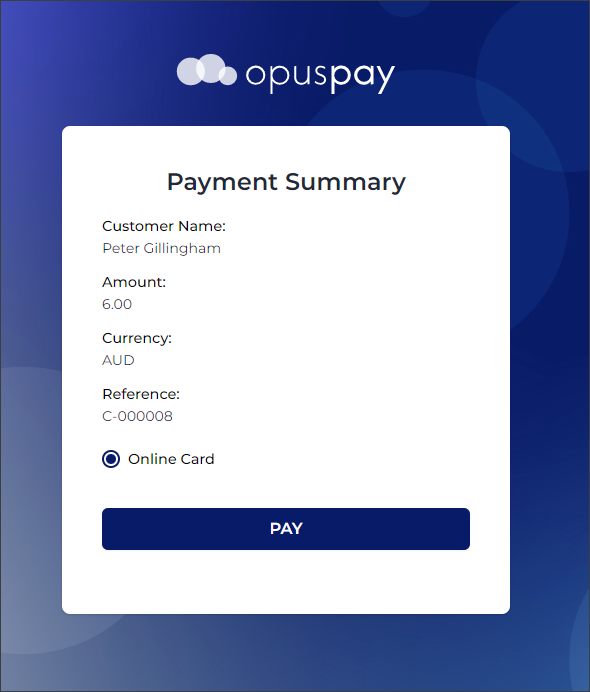
You will be taken to an online payment page supported by opuspay. Review the Payment Summary and press Pay.
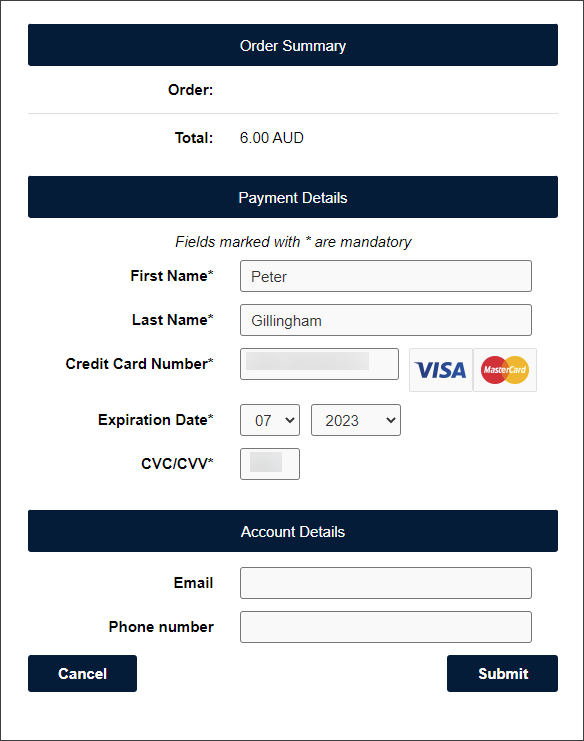
If your customer is on the phone and is happy to provide you their card details, type them in the next page. If the customer is on site, they might want to enter their card details in this page on their own.
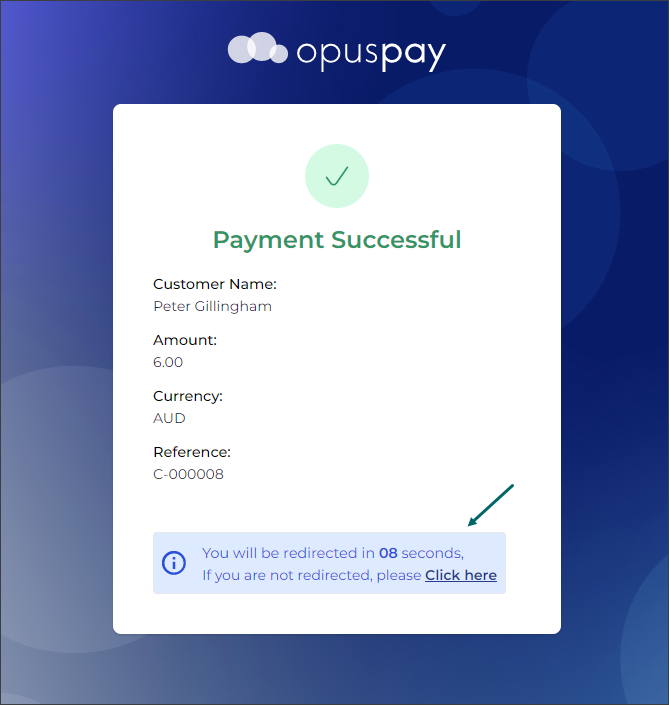
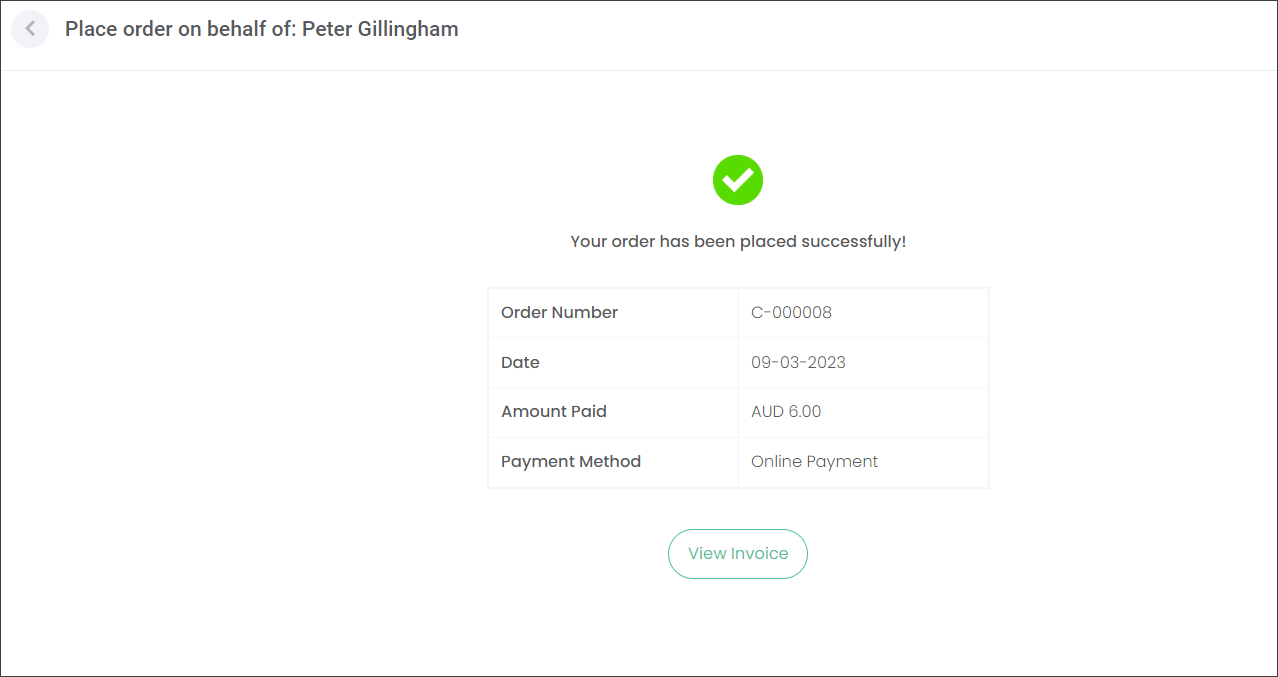
When the payment has been processed successfully, you will be automatically navigated back to byondcloud.
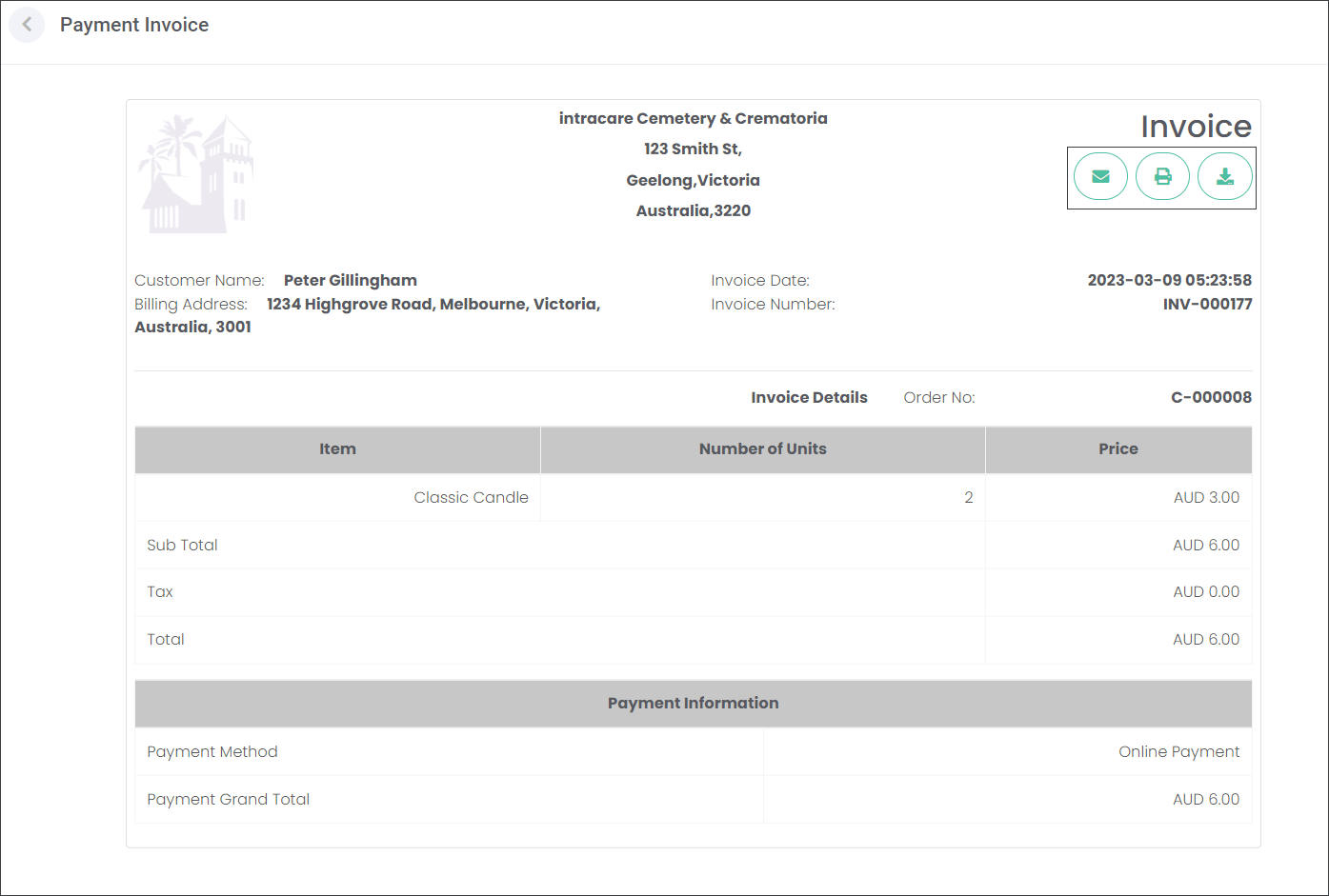
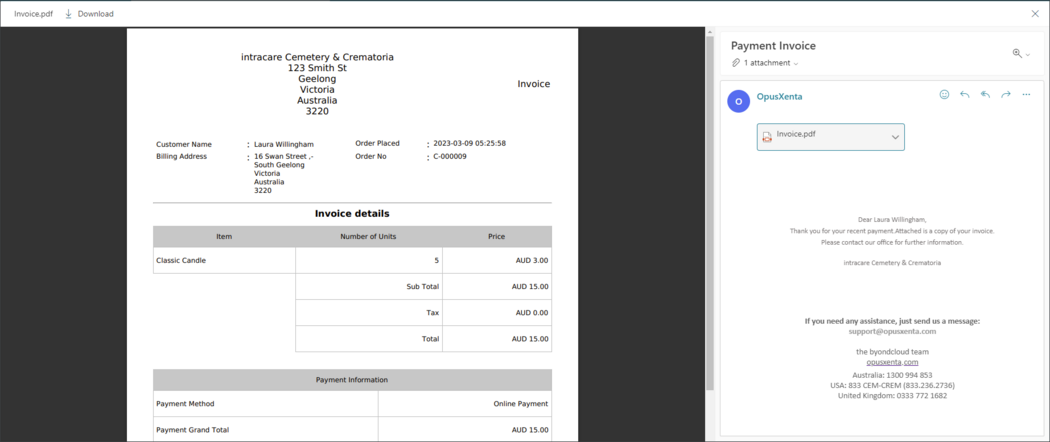
Press the View Invoice to see its details. On this page you can also email, print or download the Invoice.
The customer will also receive the Invoice in an email notification.
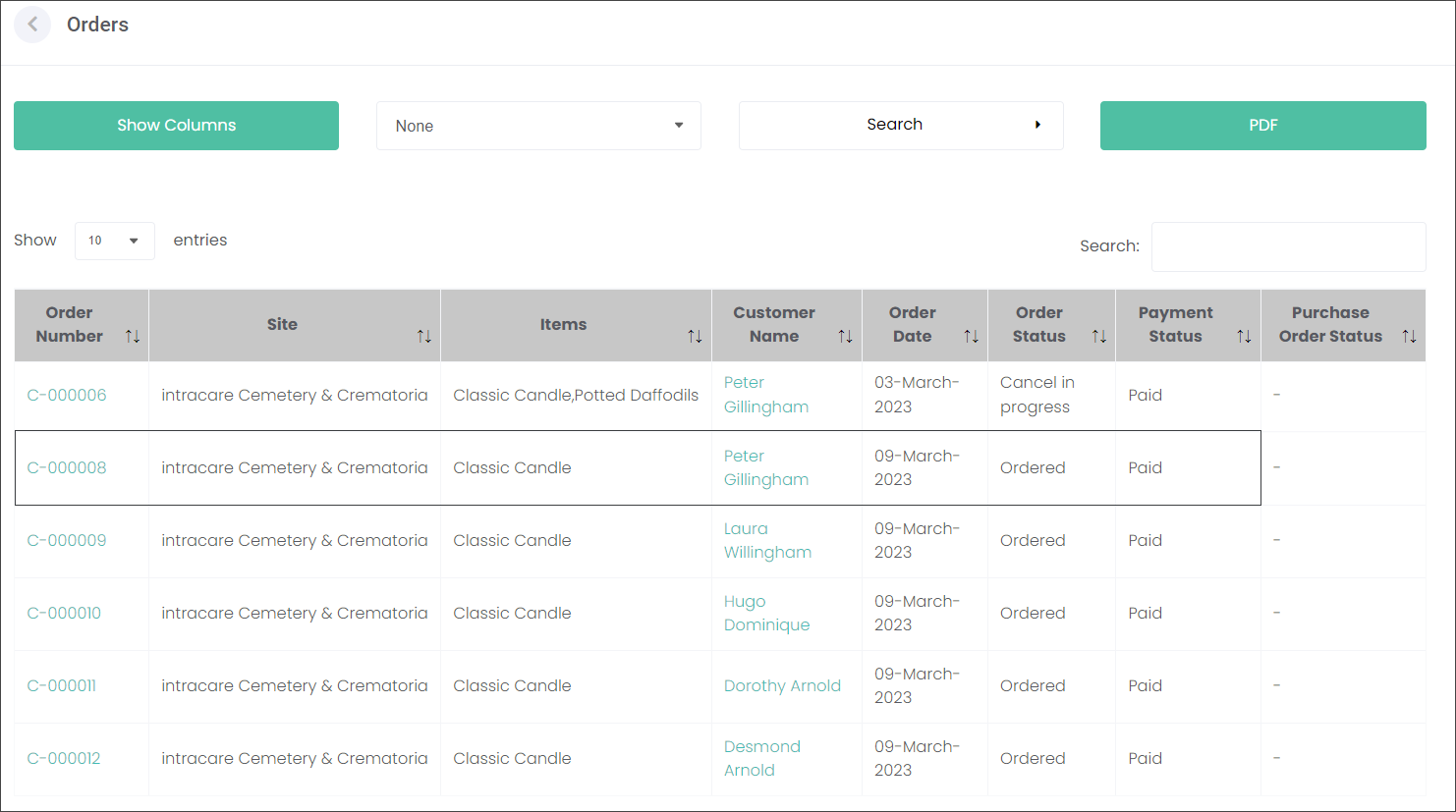
The order has been placed and will now be stored on the Orders page.