(c) Copyright by OpusXenta Pty Ltd. All rights reserved.
Add Purchase Order Receipt
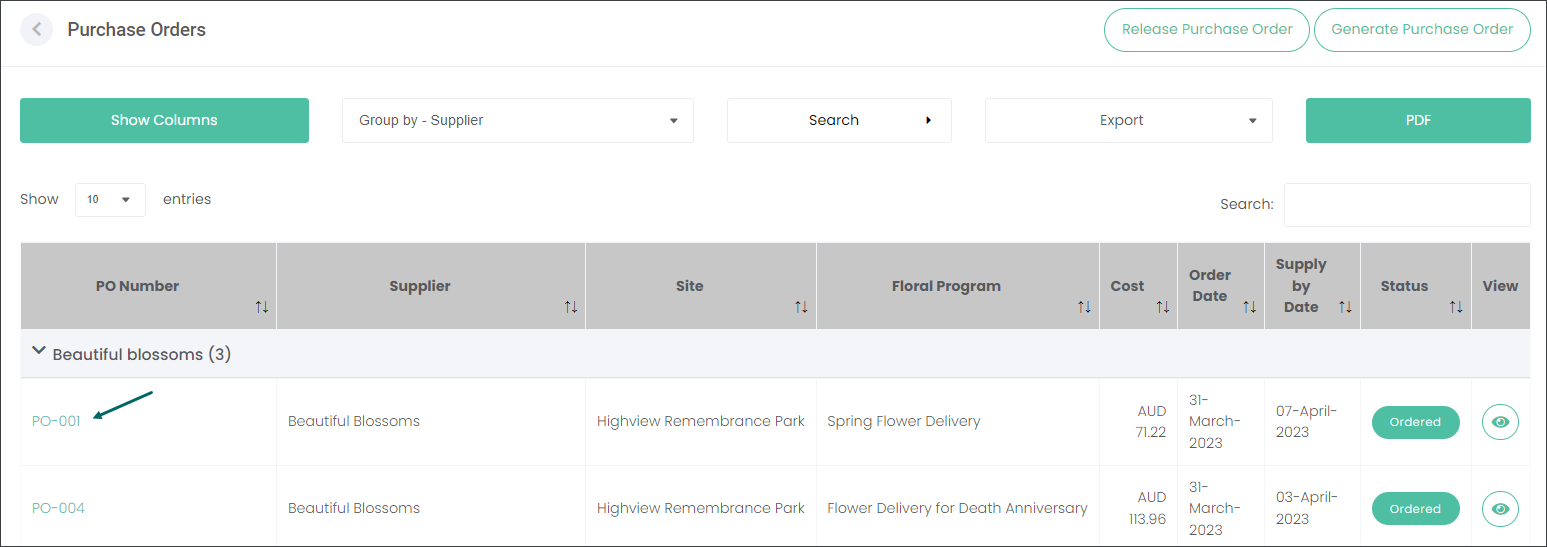
When you receive the requested products from your Supplier, navigate to the Purchase Orders page and click on the corresponding Purchase Order hyperlink.
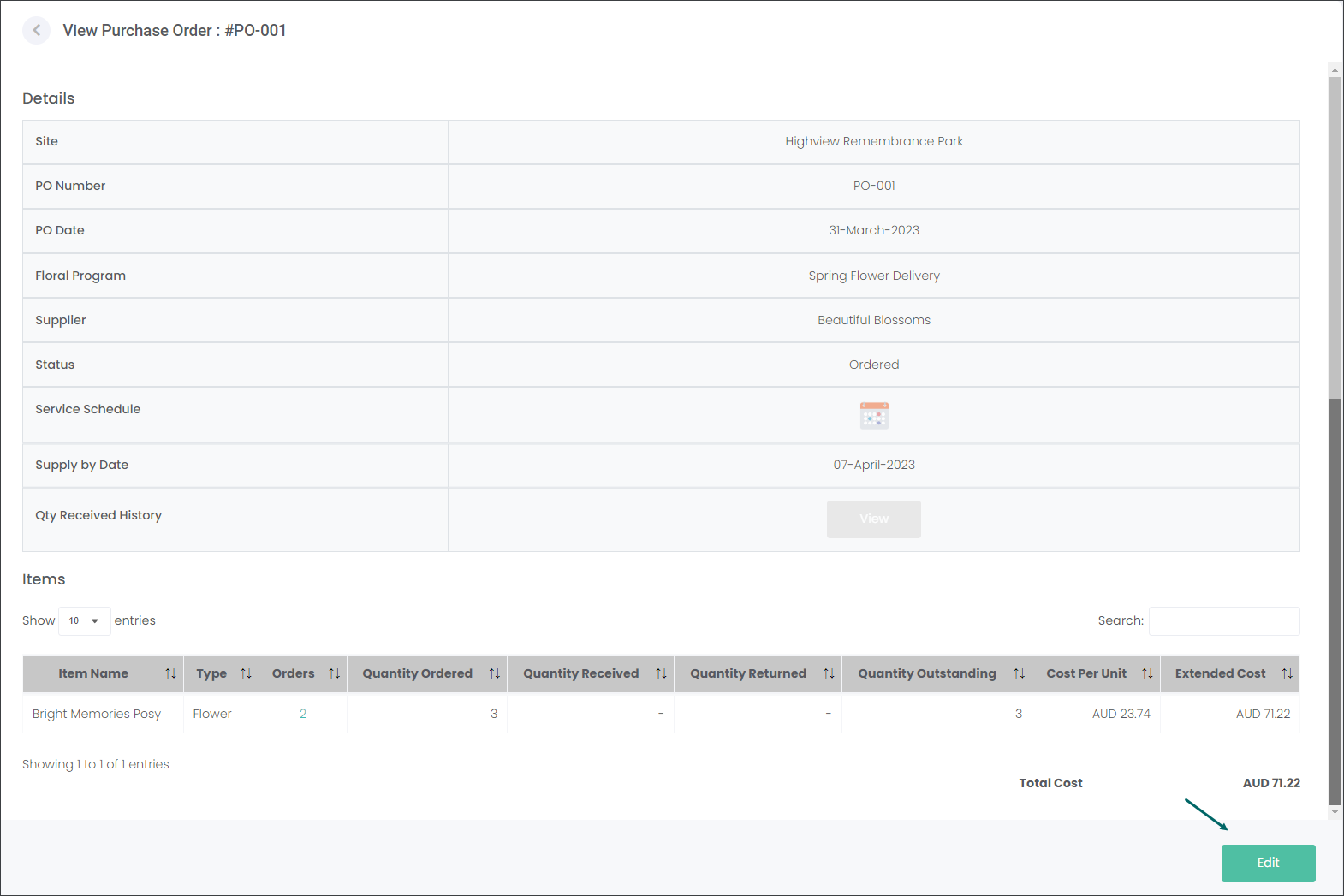
On the View Purchase Order page press the Edit button.
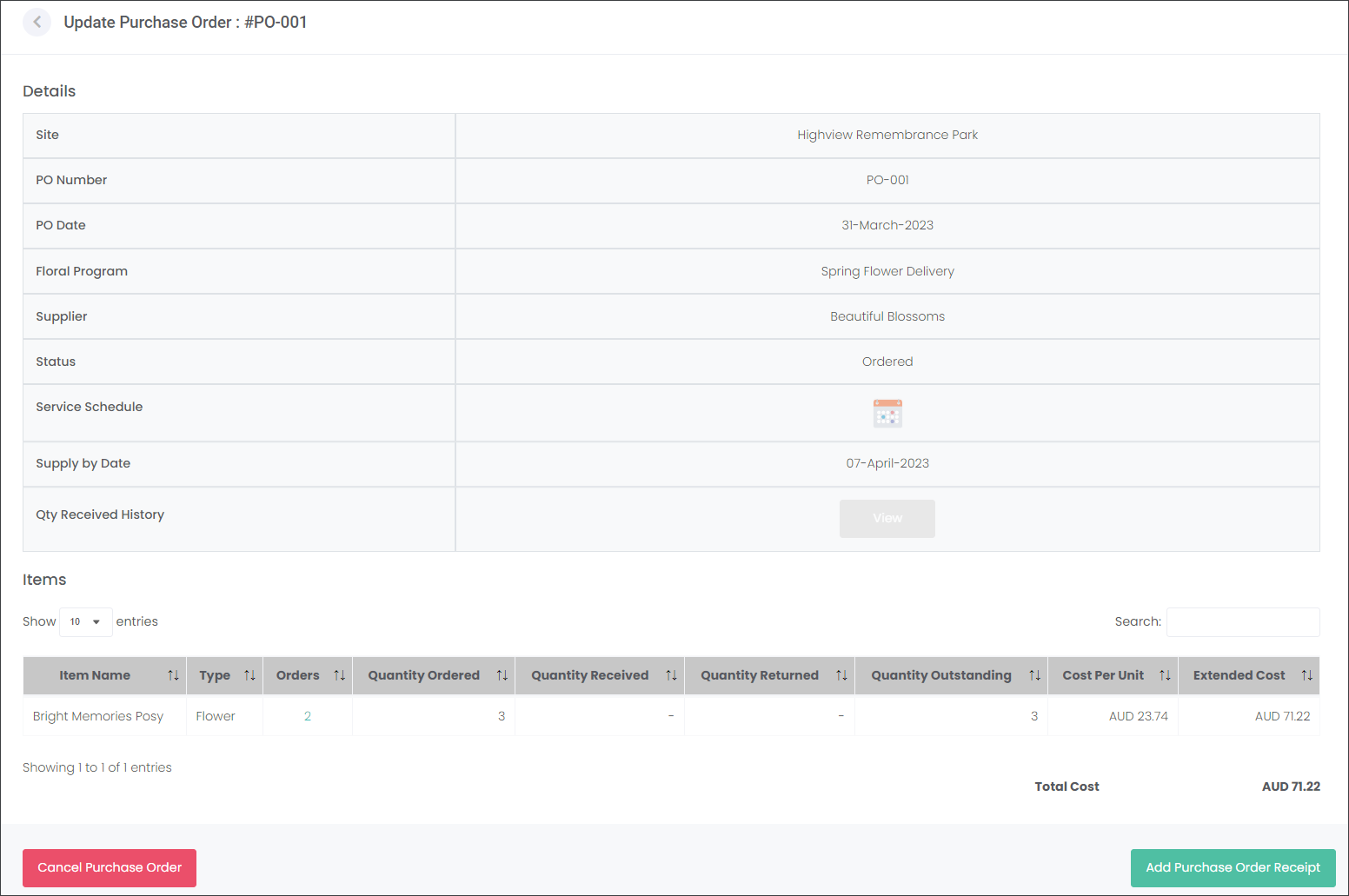
While in the edit mode you will be able to:
Cancel Purchase Order, or
Add Purchase Order Receipt which will confirm that you have received the products
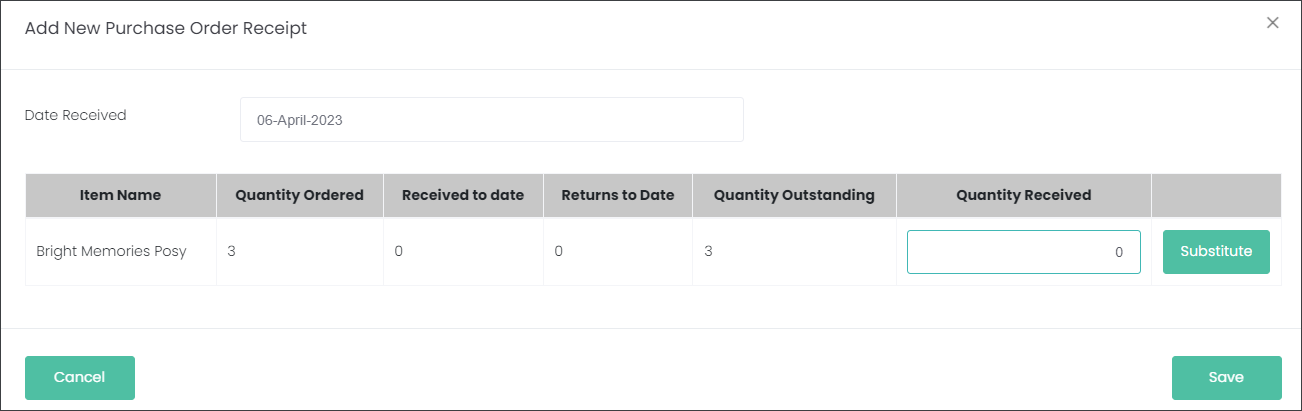
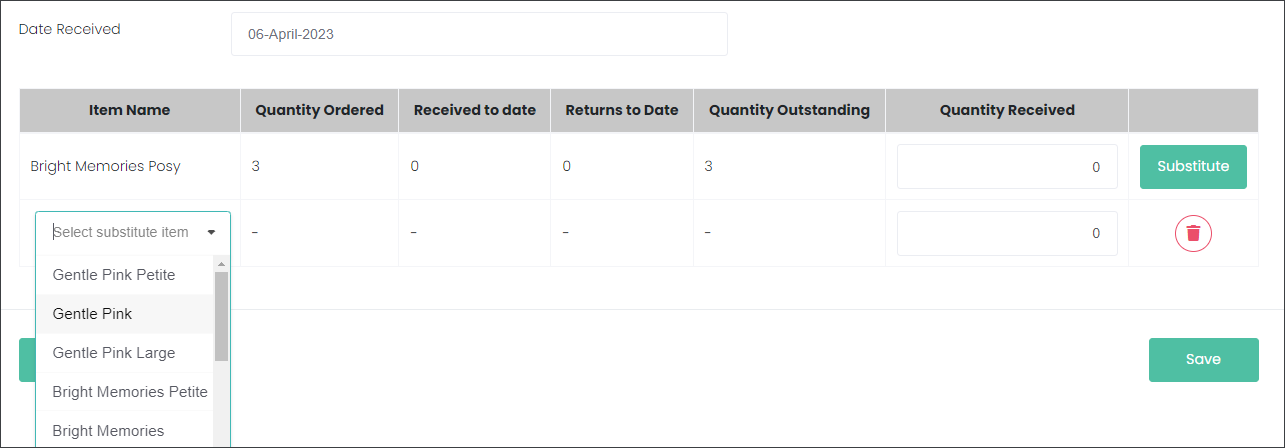
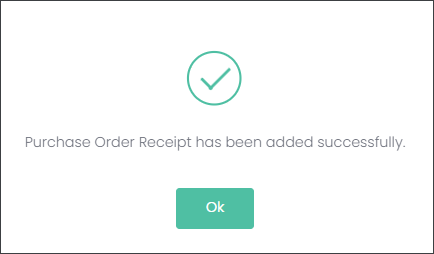
Press the Add Purchase Order Receipt button. On the Add New Purchase Order Receipt pop-up window type in the Quantity Received - how many products you have received from the supplier. Then press Save.
If the Supplier couldn't deliver all requested products but has provided you with product substitutes, press the Substitute button. Select what Items you have received instead in the Item Name selection list. Then type in the Quantity Received and press Save.
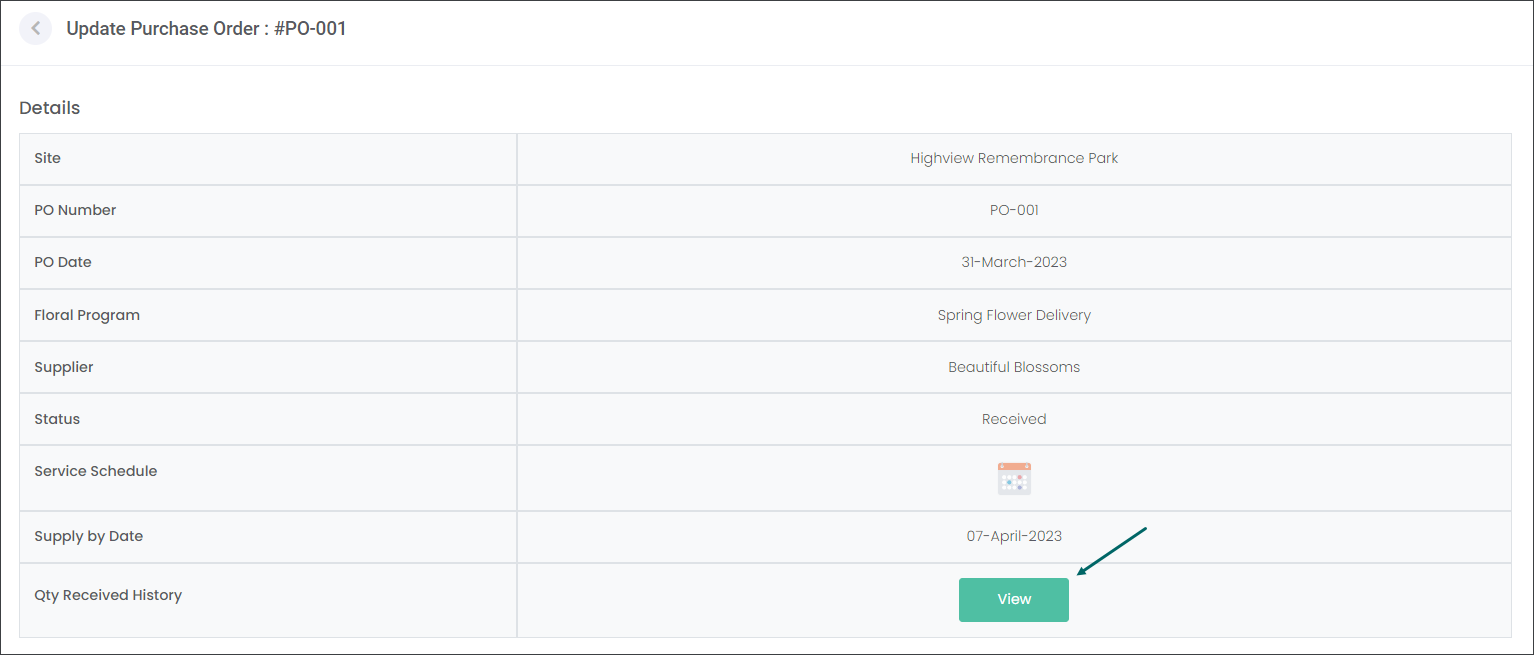
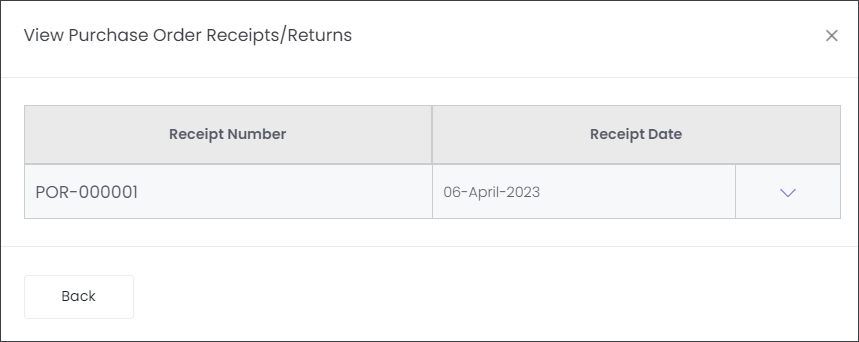
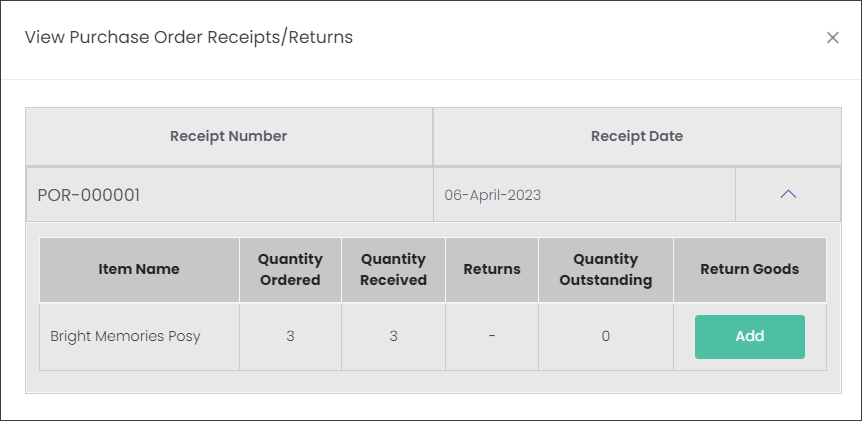
While still in edit mode you can View the history of the received products.
Click on the View button.
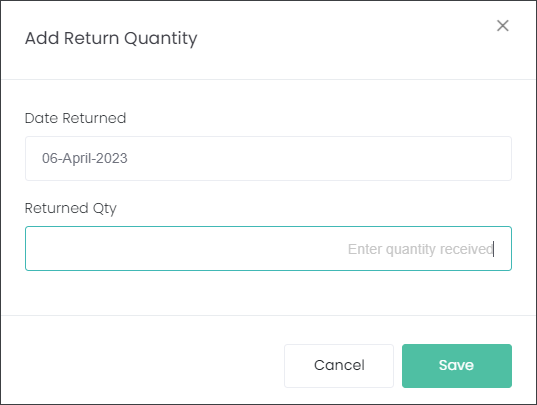
If you have returned some products, you can record that by pressing the Add button in the Return Goods column.
Select when products were returned and type in how many. Then press Save.