(c) Copyright by OpusXenta Pty Ltd. All rights reserved.
Funeral Director Mapping
The Funeral Director Mapping matches the company in byondpro with the Funeral Director name in byondcloud.
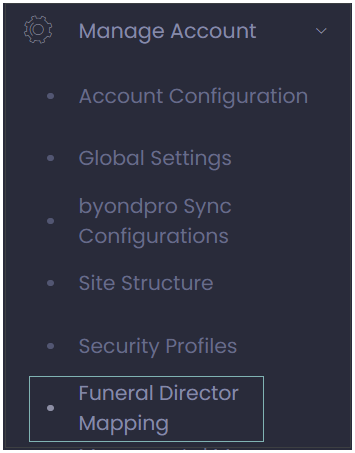
To access the mapping, click on the arrow next to Manage Account and choose the Funeral Director Mapping option.
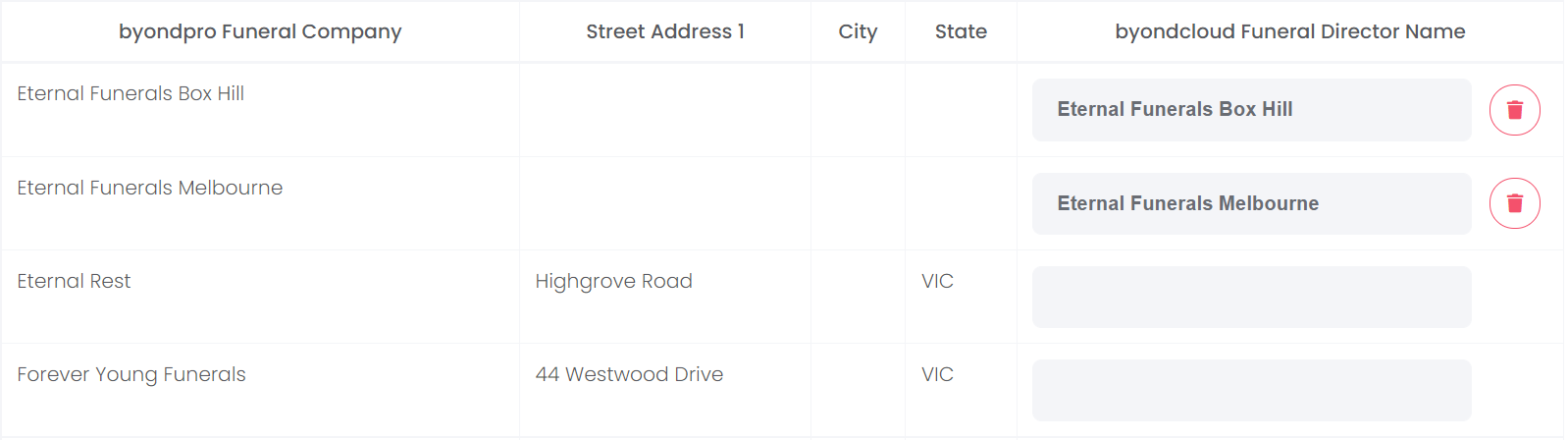
All funeral companies in your byondpro will be listed along with the Street Address, City, and State.
Use the search option on the right-hand side of the page to filter the companies by the byondpro Funeral Company Name.
When one of your Funeral Companies has informed you that they have registered with byondcloud, locate the byondpro Funeral Company and click into the grey box in line with the name.
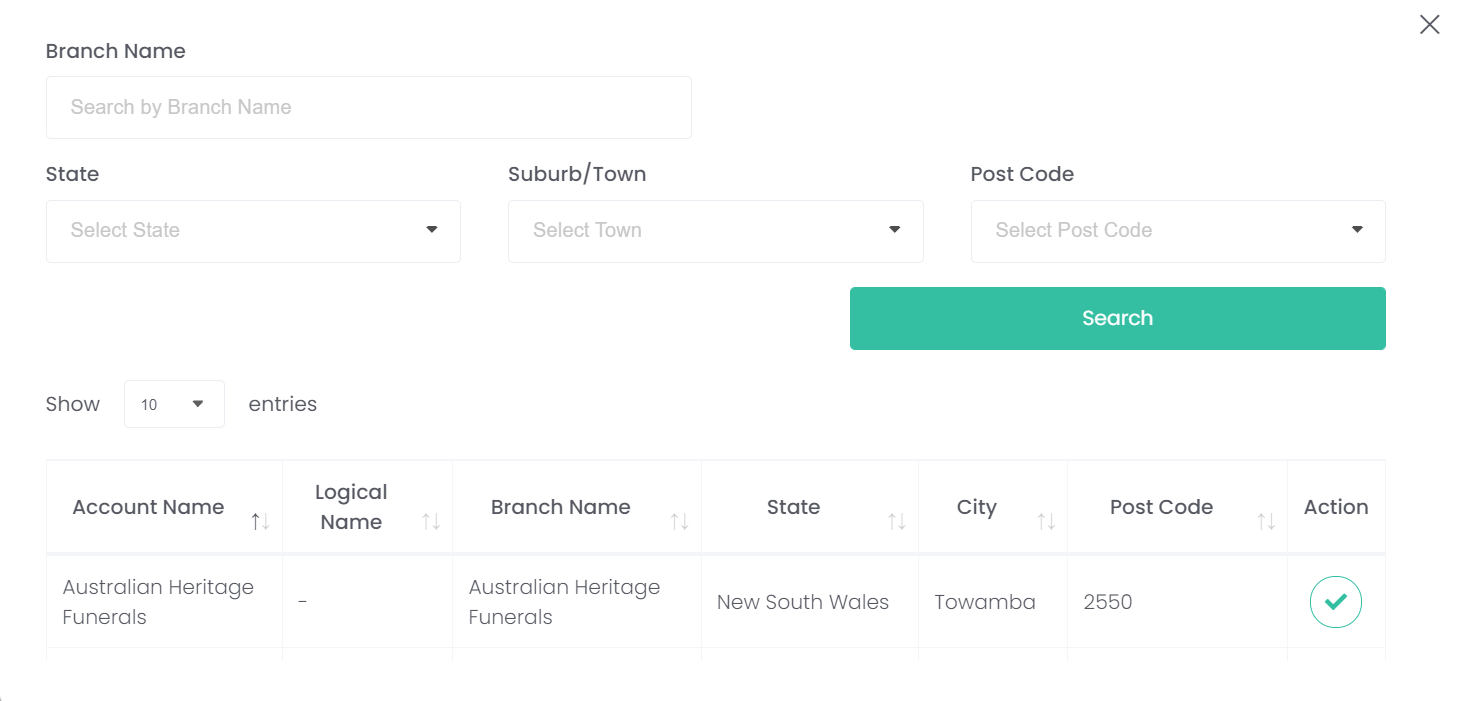
All Funeral Directors signed on to byondcloud will appear.
Use the search field at the top to search through the branches of the Funeral Directors signed on to byondcloud via
Branch Name
State
Suburb / Town
Postcode.
After entering in your search criteria, choose Search.
Click on the check mark under Action to map the correct branch to the funeral company.
The byondcloud Funeral Director Name field will now be populated with the Funeral Director chosen.
Remember to allow the Funeral Director to make bookings with you in the Partner Permissions area of byondcloud.
When a Funeral director places a booking in byondcloud, the Funeral Company field on the summary screen of byondpro will be populated with the Funeral Company they are mapped to.
Should you have made an incorrect choice, or simply need to remove the mapping of the funeral director, simply press the Delete button (the trashcan icon).
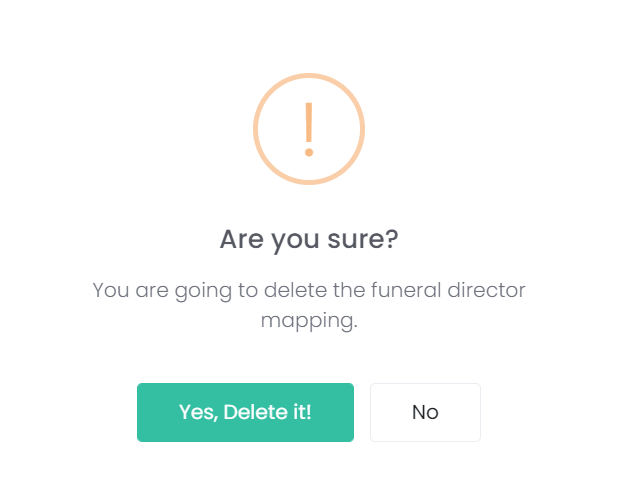
A message will ask you to confirm if you want to delete it. Choose yes, if you want to delete it, or no if you do not wish to delete the mapping.