Extended Catalog Entry

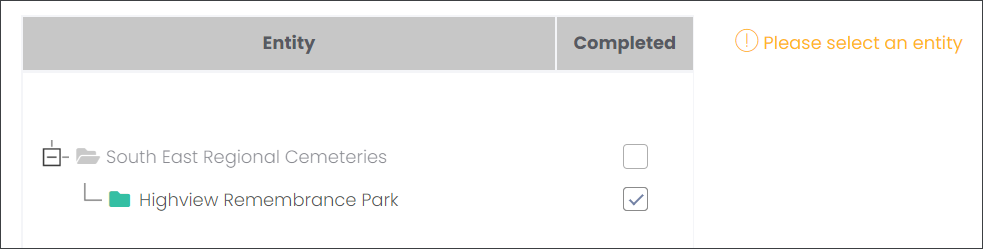
Now you can add more details to your Catalog Entry. Begin by selecting an entity - branch or site- from the Entity table. This will expand options on the right hand side to add the details. In our example, we will continue adding rich information and additional imagery to showcase Highview Remembrance Park.

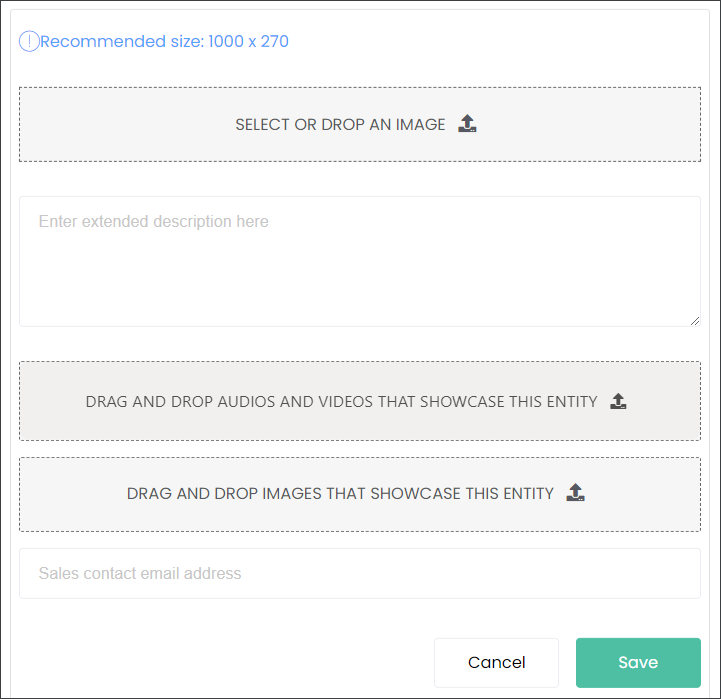
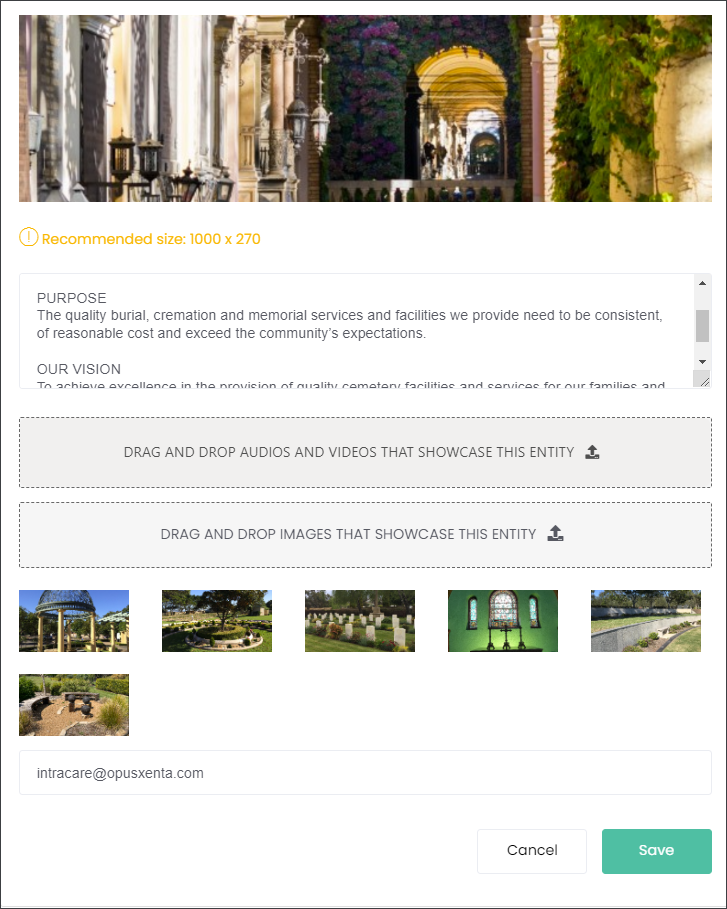
Firstly, select or drop an image that your customers will see at the top of web page showcasing the Entity.
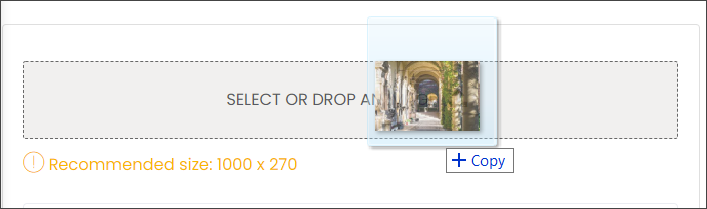
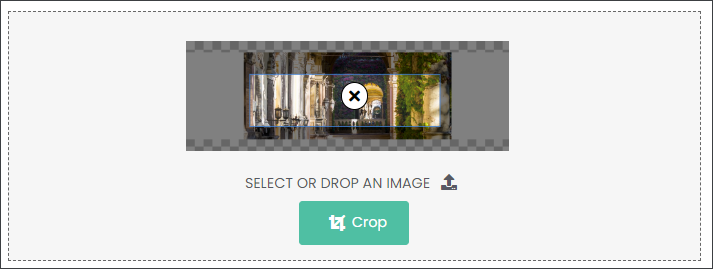
Crop the image to the recommended size following the same process as outlined in the Summary Catalog Entry.
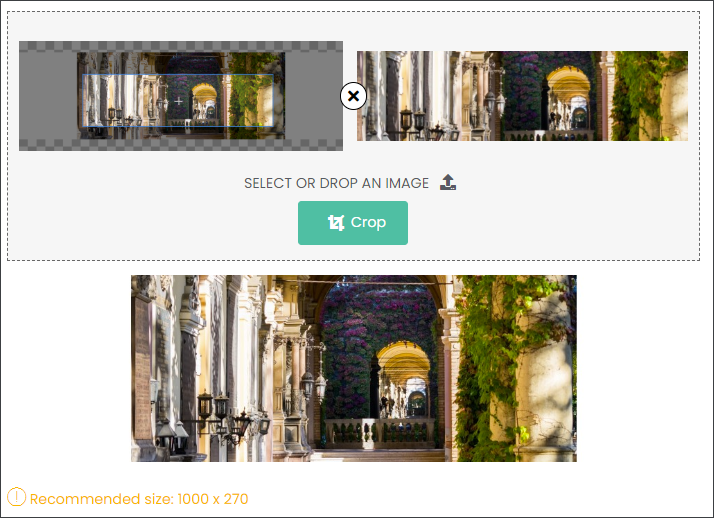
Please navigate to the Crop Feature topic to view a video showing how to crop images in marketmakr.
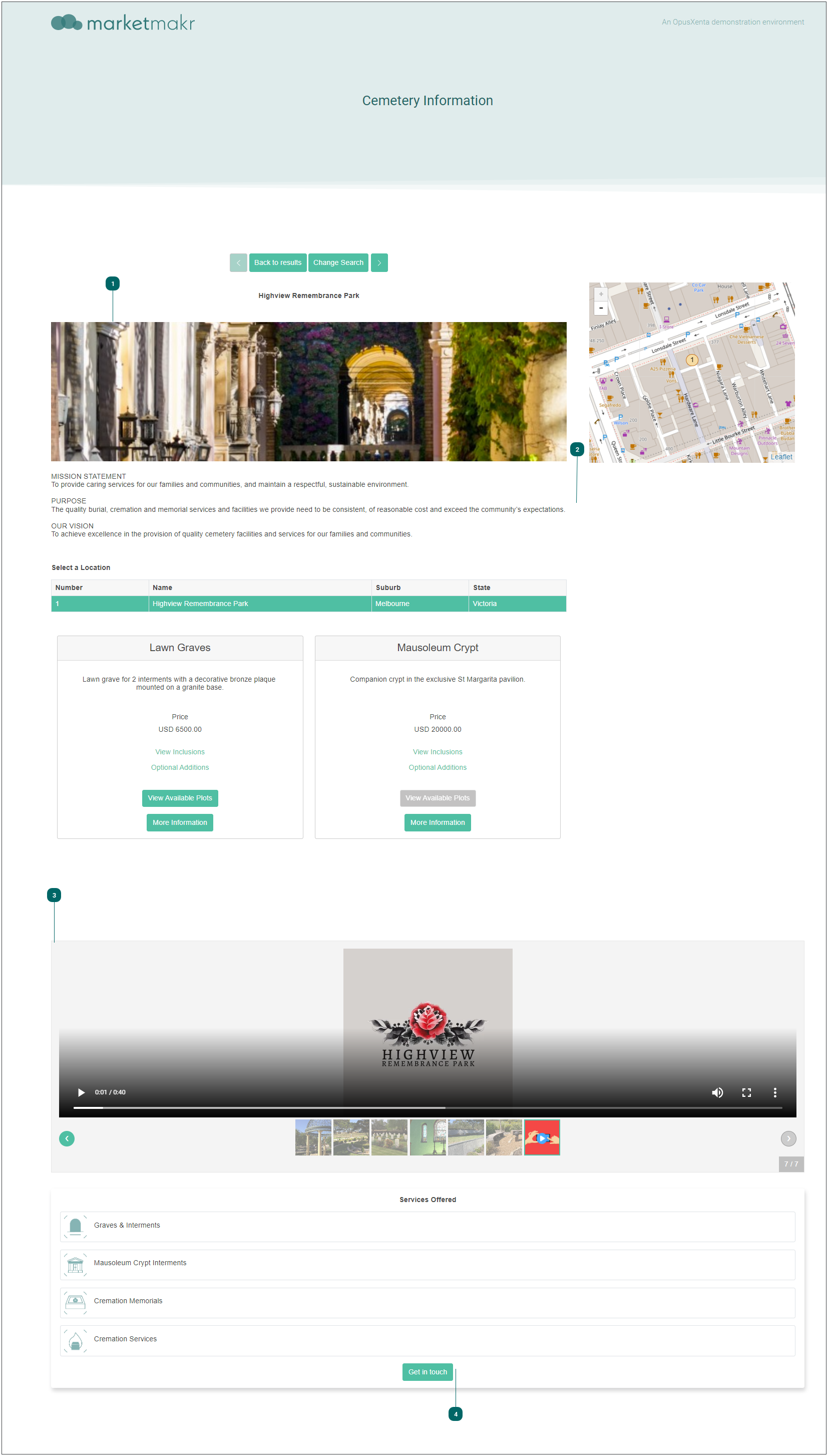
Then type in or paste an extended description of your branch or site in the text field below the image. In our example, we will tell our customers more about Highview Remembrance Park by showcasing our mission statement, purpose and vision.

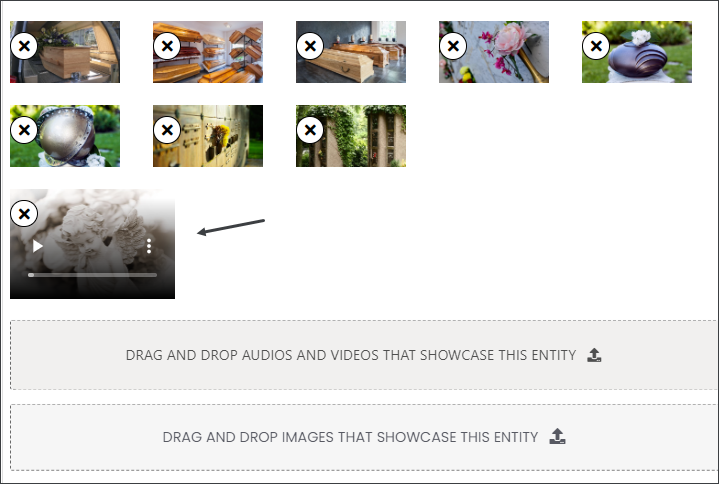
Below the text field add additional photos and/or videos that will showcase your branch/site. You can add them by clicking on the grey field and selecting from your computer files or dragging and dropping imagery directly into the field.
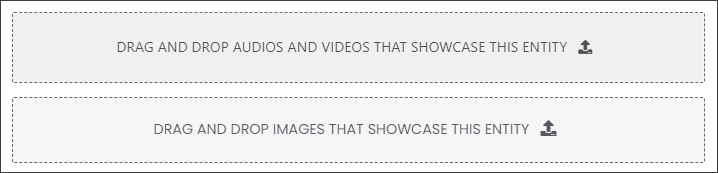
The image recommended size in 800 X 450. Crop the image/s to the recommended size for an optimal view on the website. The allowed file types are PNG and JPEG.
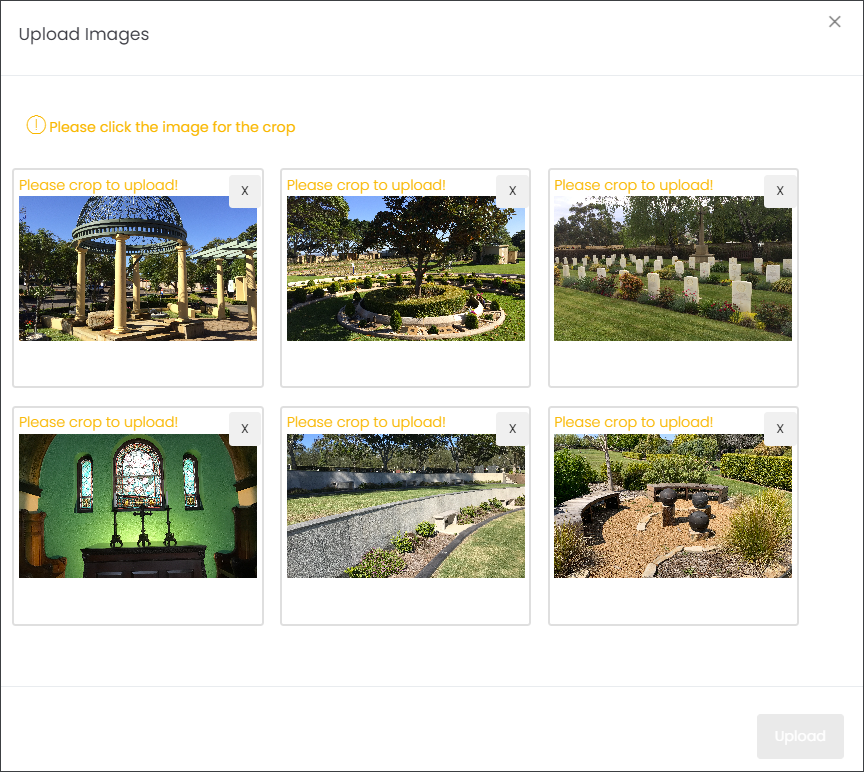
Click on the image, move the highlighted box with your cursor to select which part of the image you would like to use. Then press Crop.
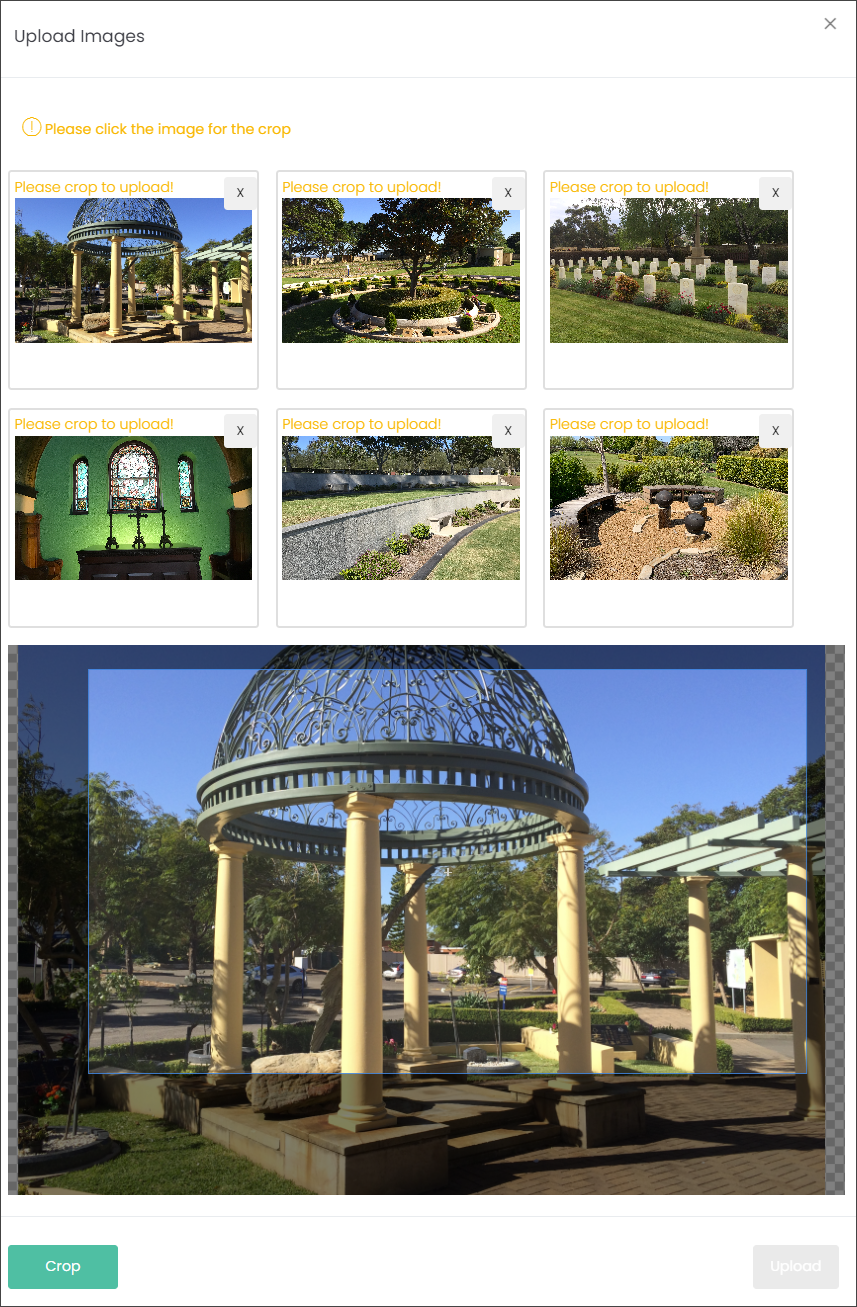
Repeat this for each image and press Upload.
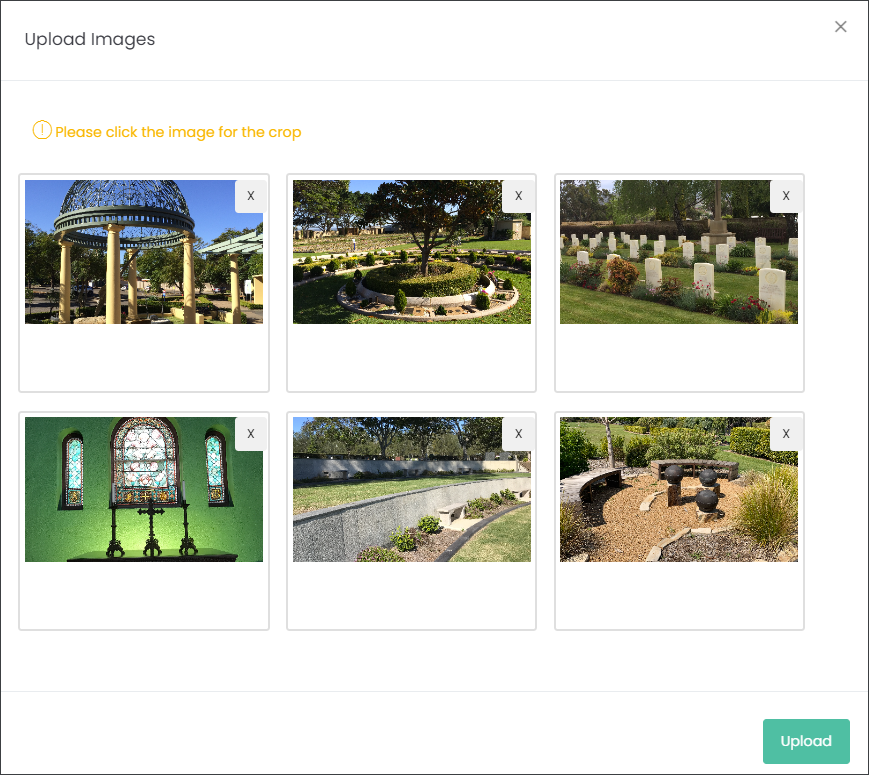
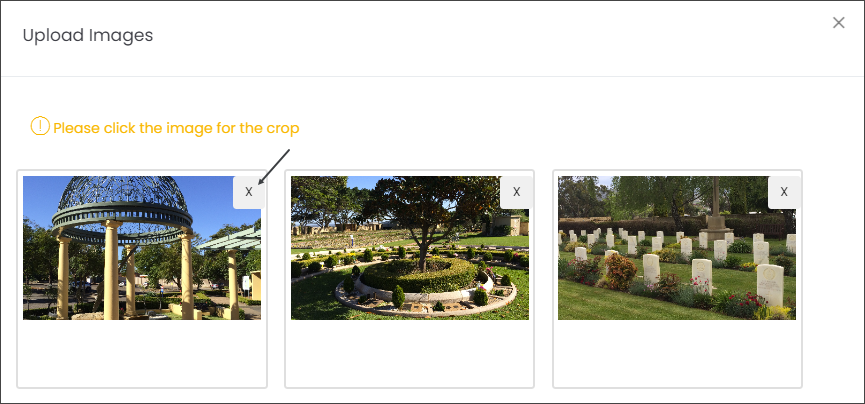
If you have changed your mind about selected image/s, you can delete them by pressing on the 'x' symbol on the top right corner of the image.
Follow the same logic when uploading audios and videos. The file size limit is 100 MG. When uploading audios you will be able to select MP3 files, while for videos MP4 files.

Lastly, type in the email address which will be notified when your customers are making inquiries on your website regarding your products.

When you're satisfied with your Extended Catalog Entry press Save.
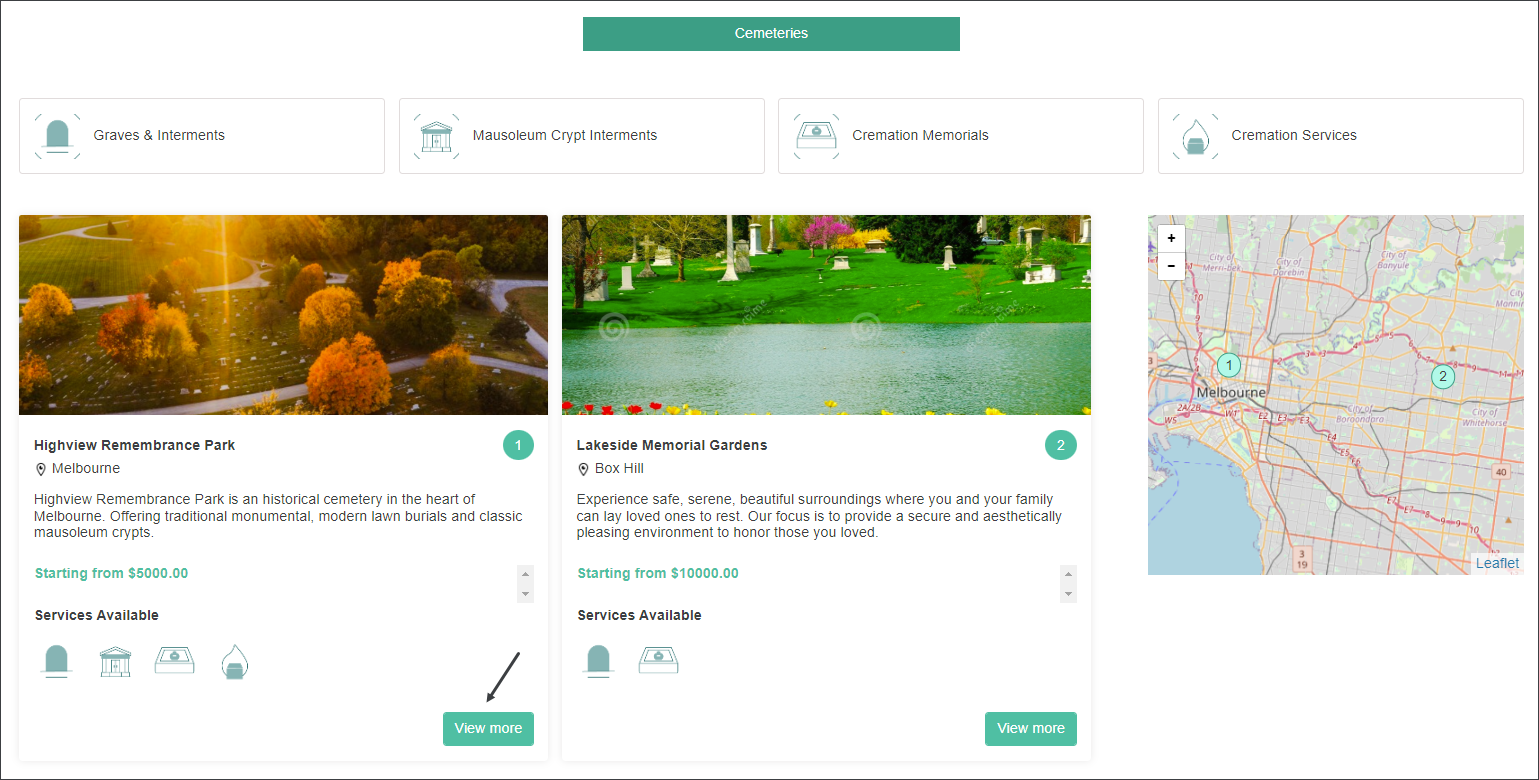
Lets take a look at how an Extended Catalog Entry will look on your website. In our example, when a customer, who is interested in Highview Remembrance Park, clicks the View More button they will be presented with information captured in the Extended Catalog Entry.