Edit User Profile
Within the Manage Users function, users may wish to make changes and update their profile.
The user would require the appropriate rights assigned to them to make changes to the user profile.
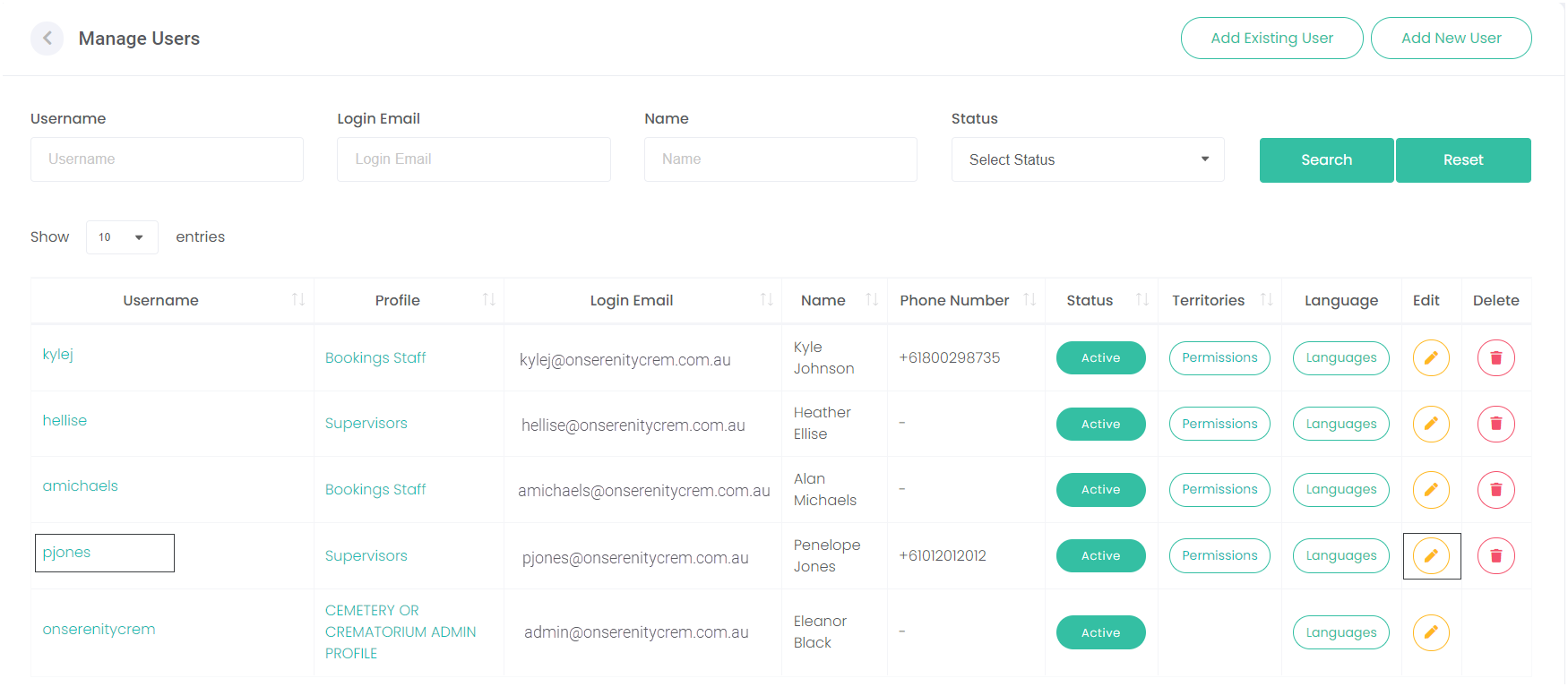
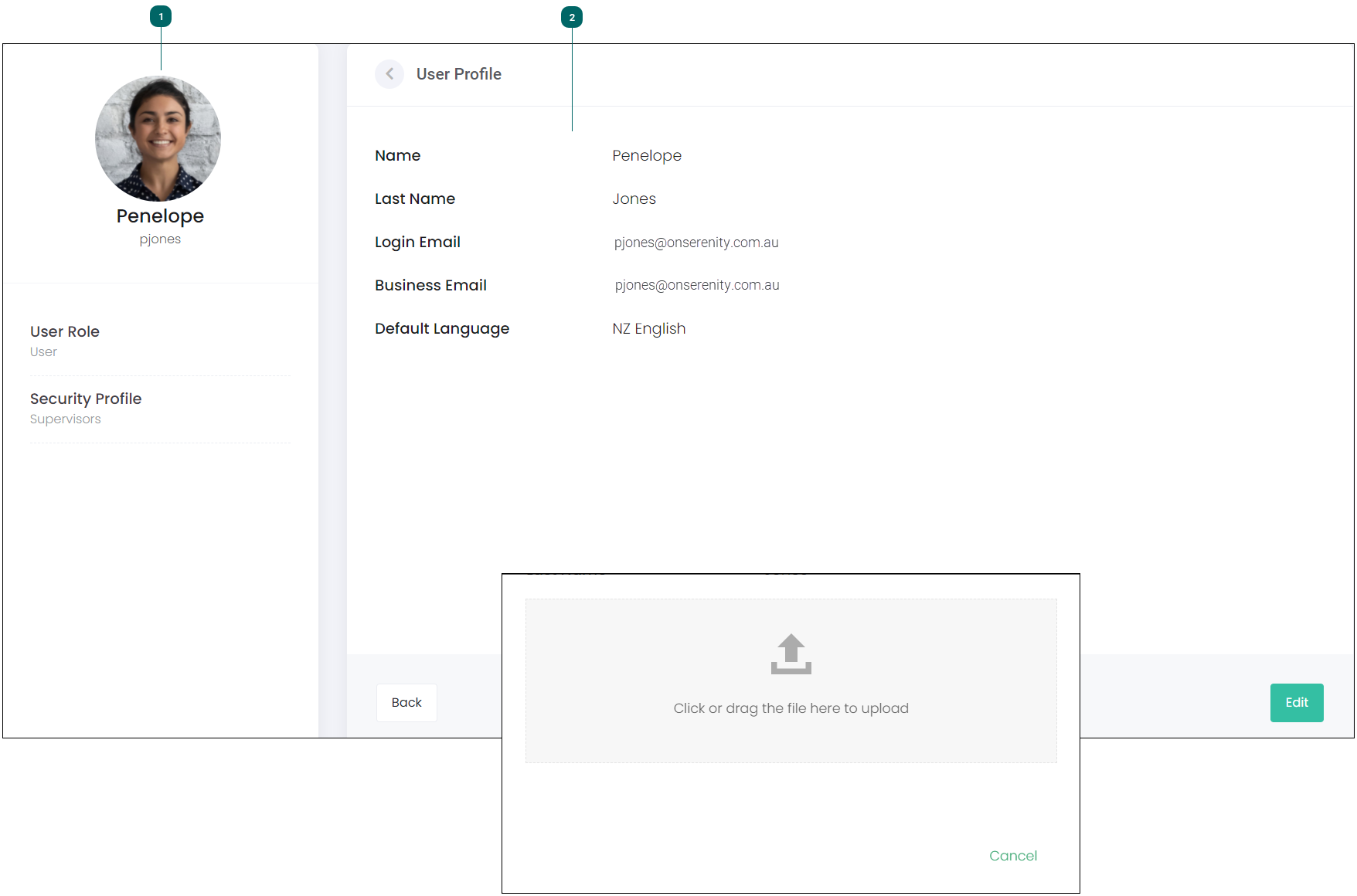
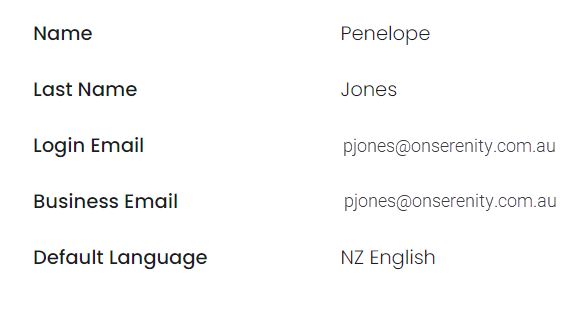
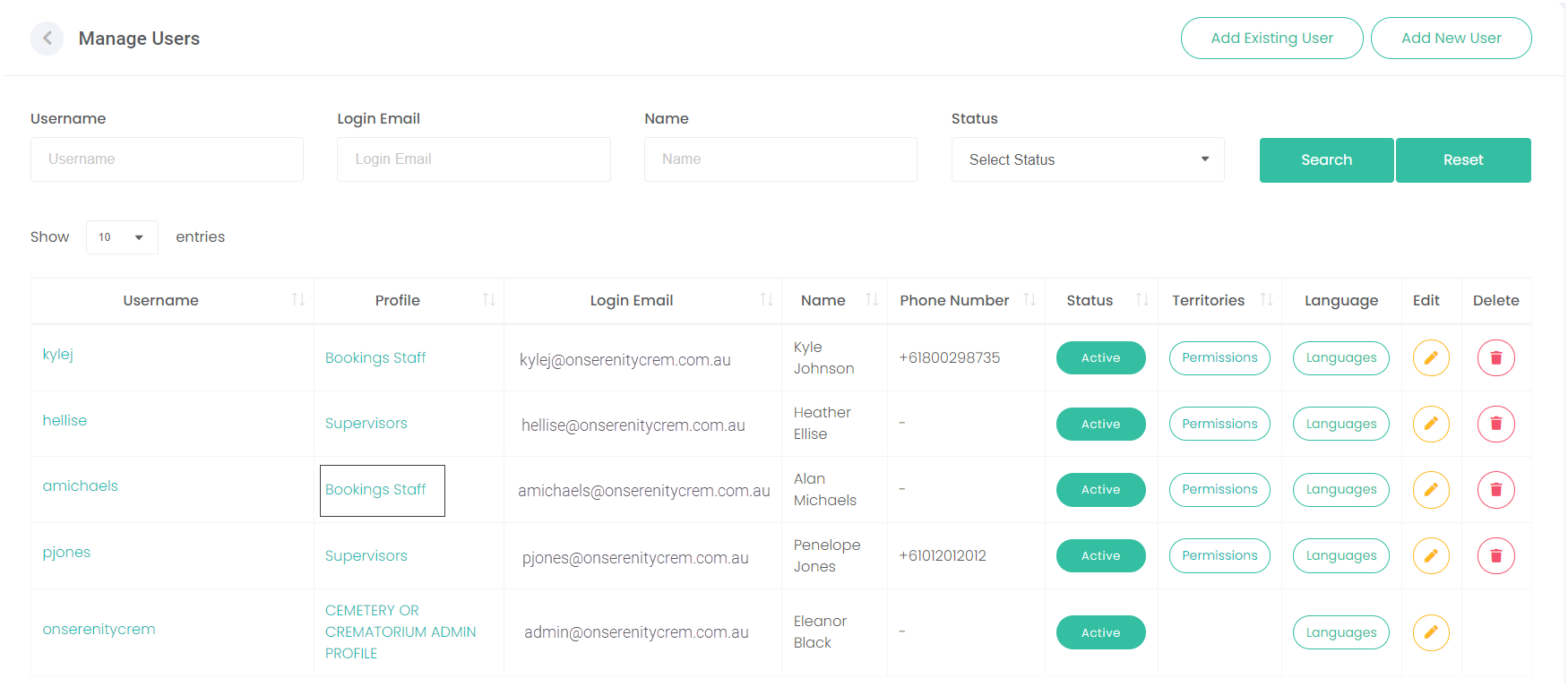
By clicking on the username hyperlink (in this example, pjones) or by choosing the Edit icon on the far right, the User Profile will open.



Profile Permissions
Back on the Manage Users screen, users with appropriate rights can amend profile permissions. A user without rights to make changes will only be able to view this screen.
Note: changes made to the profile will apply to all users linked to this profile.
To make the changes:
Choose the profile hyperlink. In our example below, Bookings Staff.
This will open the profile where changes can be made.
Choose Save to accept the changes once made.
Territory Permissions
Please note that for a Funeral Director or Mason user, site will appear as the word branch.
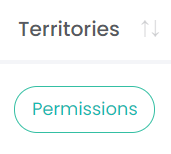
Territory permissions can be amended by choosing the Permissions button on the right and applying access to the relevant territories by selecting the tick box for the site /s the user has permission to access.
Users with the appropriate permissions will be able to make changes to territory permissions on their own.
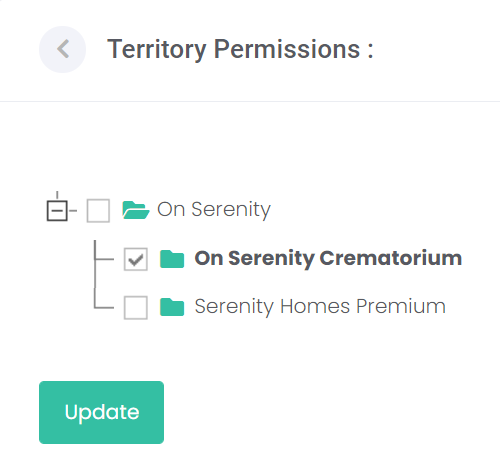
Check the box alongside each of your sites / branches that this user can access. That is, the user can transact on behalf of the checked sites / branches.
Once selections are made, select Update.
Delete / Inactive
Users can be deleted by choosing the Delete icon, however, you may prefer to edit the user profile and make the user inactive rather than outright deleting the user.