(c) Copyright by OpusXenta Pty Ltd. All rights reserved.
Details
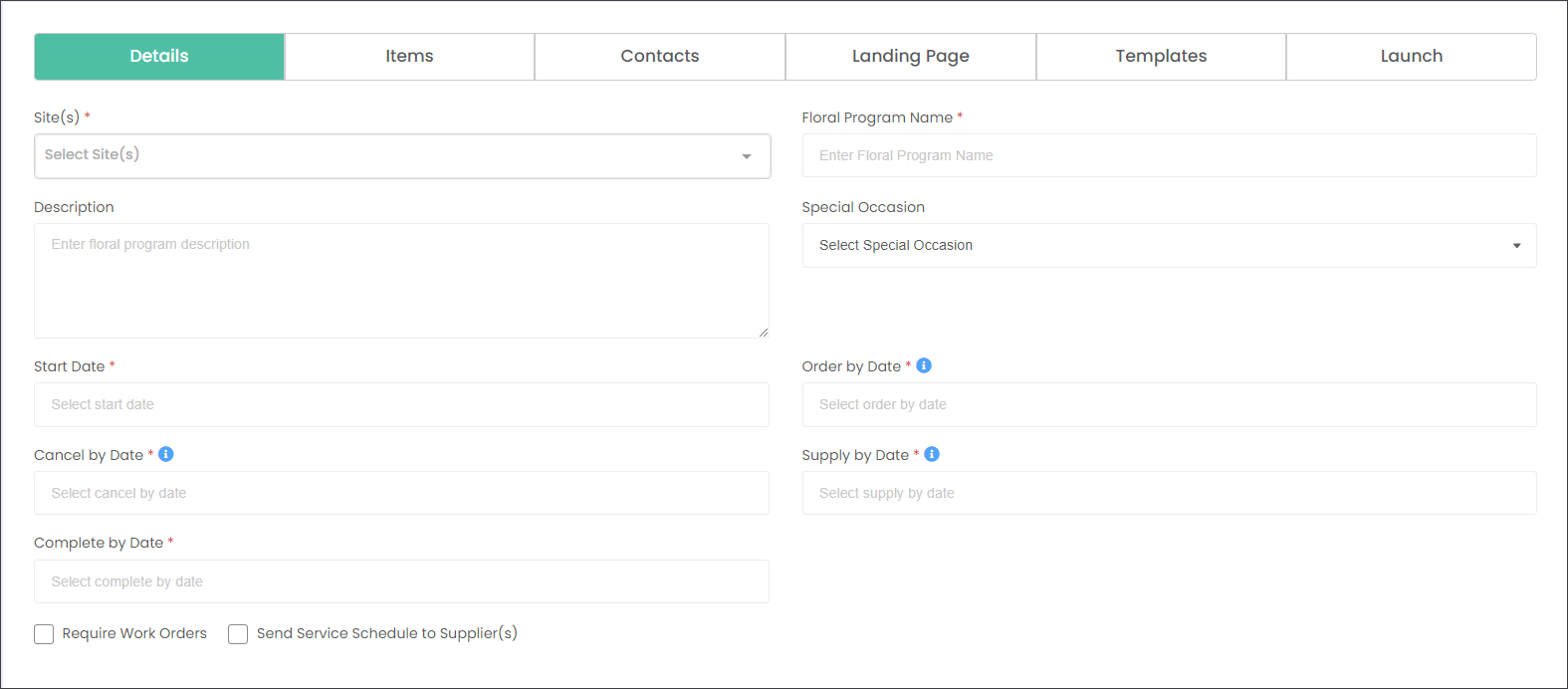
Begin entering the Floral Program information on the Details tab.
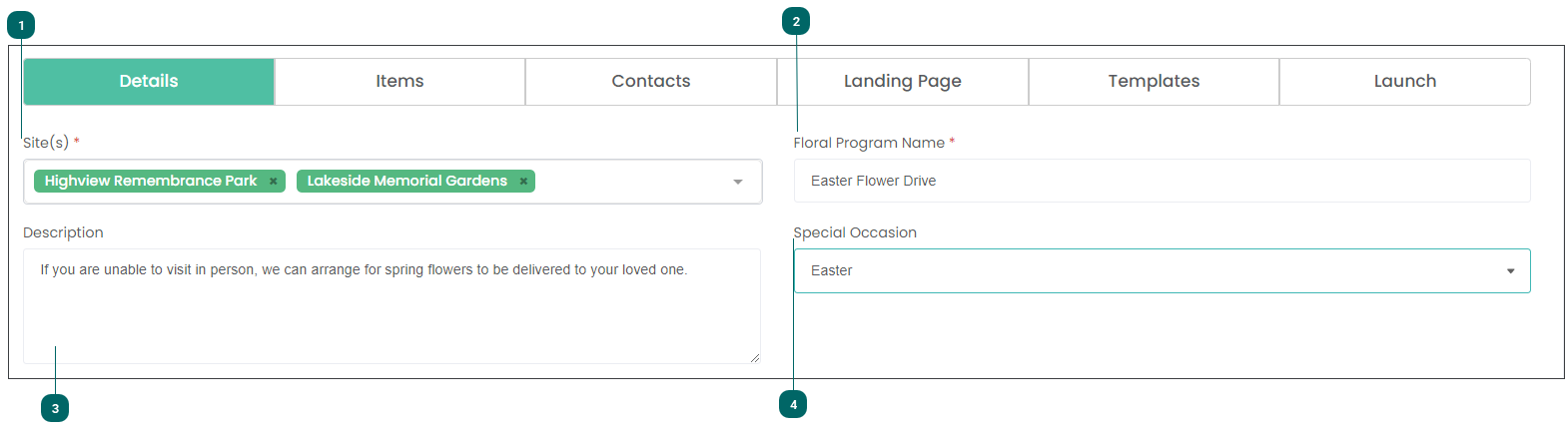
Select the Site(s). You can select one or multiple.
Please note that the Site selection influences the Landing Page, which in turn is affected by the MarketMakr Organization Settings. If your Organization Settings are set as Branch, you will have to select the cemetery sites on this screen. If you select the name of the overarching organization you do not need to add the Landing Page; it uses the entry in MarketMakr.
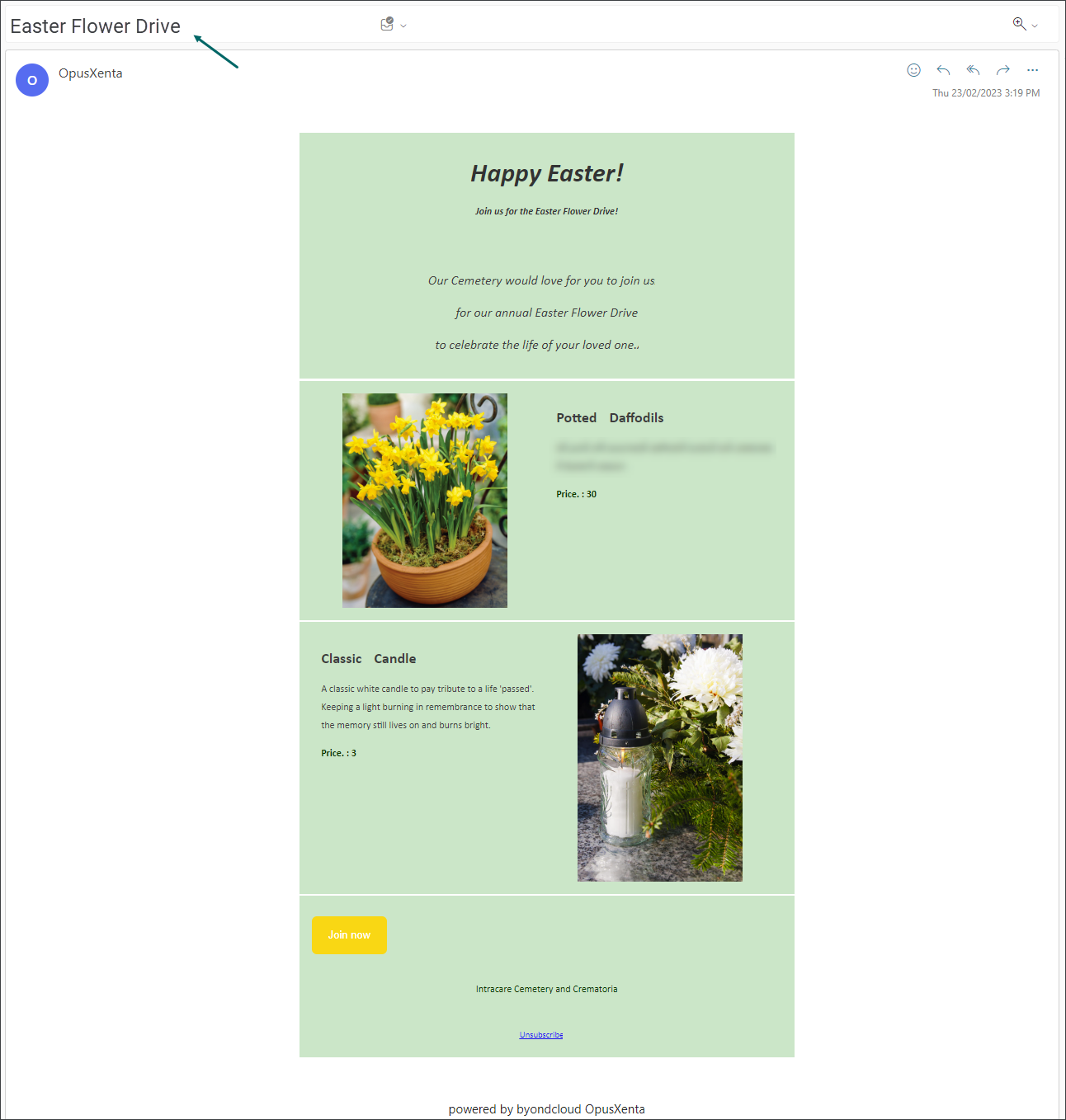
Please note that the Floral Program Name will also be the subject of the email your customers will receive about the campaign. Therefore, the name should be selected with care.
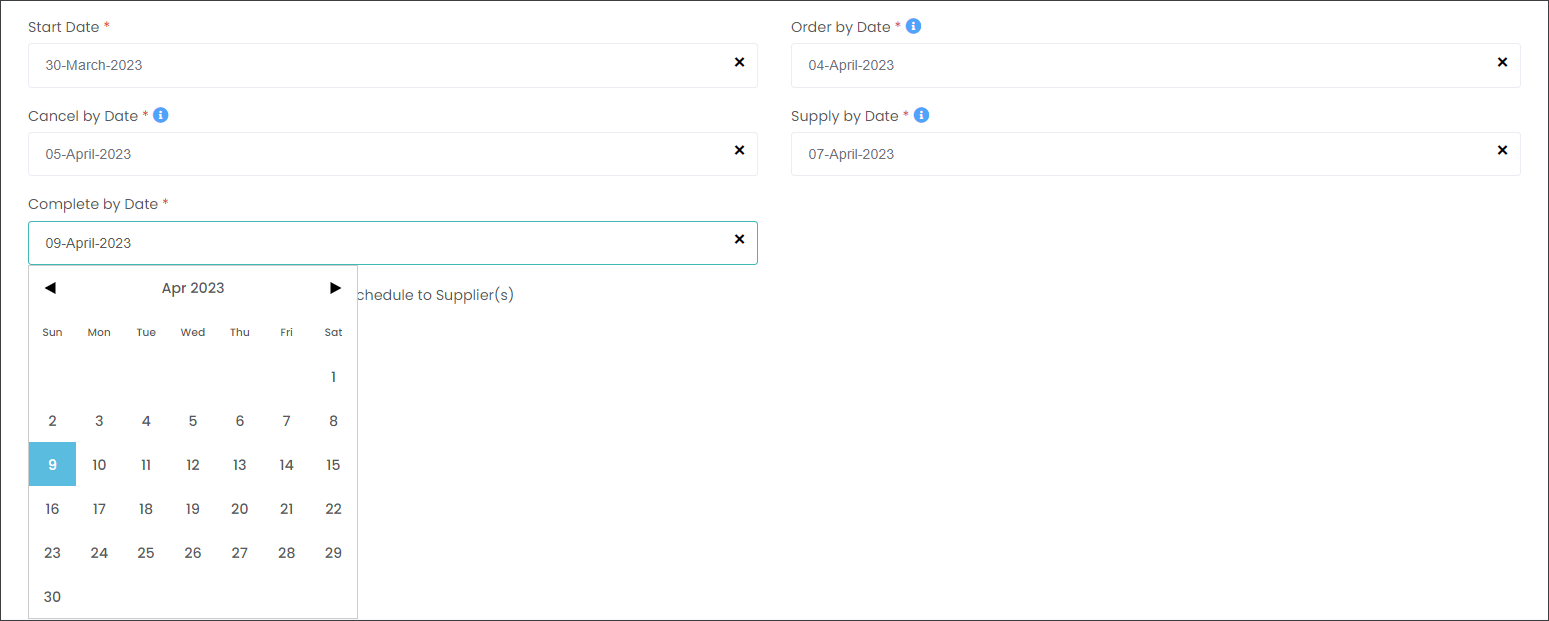
Set the time-frames of the Floral Program by selecting the following dates:
Start Date is when the program begins.
Order by Date - Customers will be able to place orders till this date.
Cancel by Date - Customers will be able to cancel orders till this date.
Supply by Date - Suppliers will be notified to deliver Items to the sites by this date once the purchase order is released.
Complete by Date - the program will be finished.
Flag whether the program requires these services.
In order to generate the Work Orders for internal teams to deliver flowers to locations your byondcloud instance needs to be connected to Task Manager.
***Important: Please, note that it's a coming soon feature.
When you check the Send Service Schedule to Supplier(s) box and the Supplier offers Delivery & Placements of the Items, the Supplier will receive a Service Schedule in their byondcloud instance.