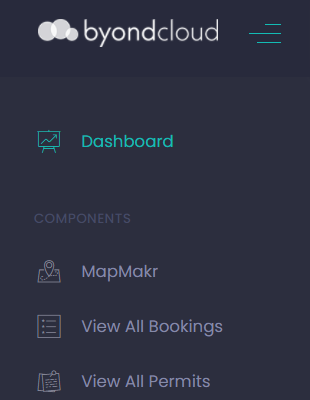
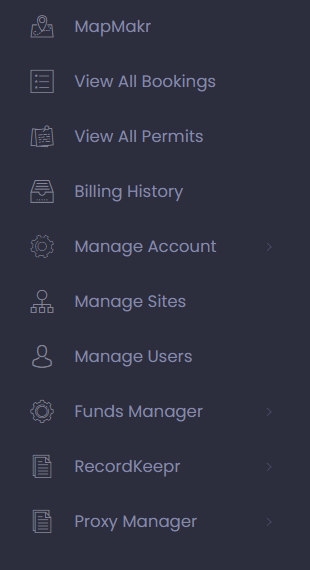
The Side Menu provides a way to navigate byondcloud, which can be locked open or closed depending on user preference.
The side menu is locked open when the three lines next to byondcloud are pointing left and the full menu will display.
To unlock the side menu, simply press on the three lines and the side menu will then be activated.
When you hover over the headings, the three lines will indicate the screen is not locked open.
By clicking on a selection from the side menu, you will be able to access the application or complete relevant actions to the selection from the screen which displays.
For example, clicking on RecordKeepr will bring the user to the RecordKeepr dashboard.
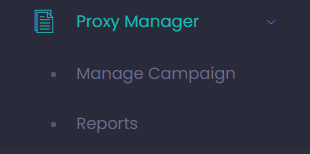
If the selection has an arrow on the side menu, clicking on the arrow will provide further selections which relate to the application or selection of your choosing.
Dashboard
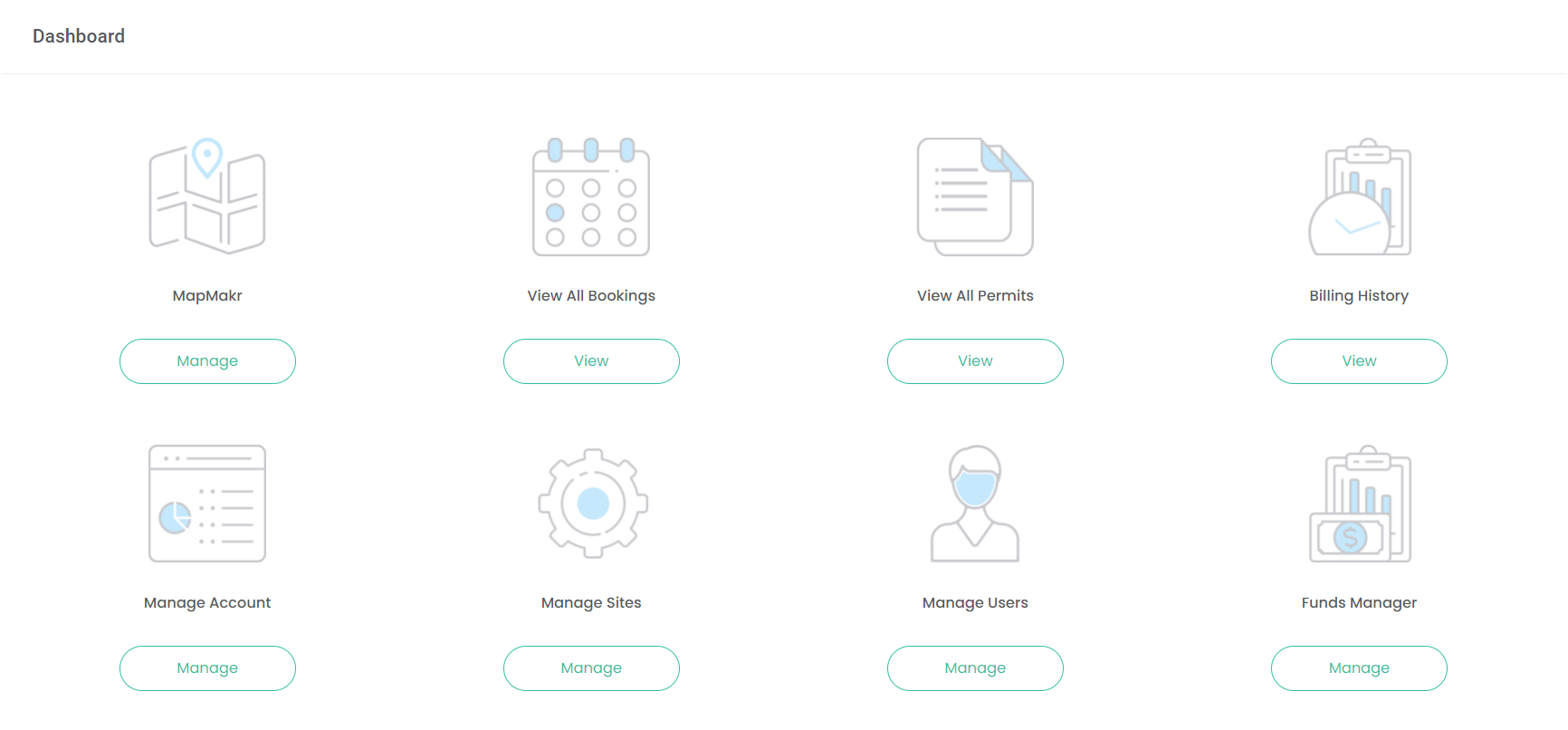
The Dashboard also serves as a way to navigate through byondcloud.
All applications which the user has access to will display on the dashboard.
In order to access an application or complete relevant actions as part of an application, click on the action button underneath the icon of your choosing.
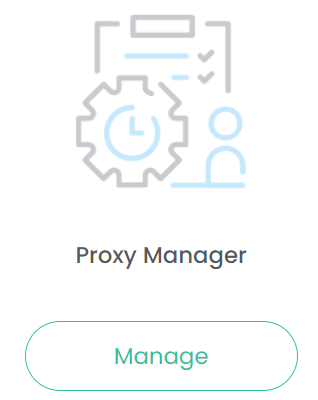
For our example below, clicking on Manage under the Proxy Manager icon will bring the user to the Proxy Manager dashboard.