Create User
Click on the New User button at the top of the User Management page to open the Create User page.

To create a new user, you must fill out all the fields labelled with a red asterisk.
Each new user will require a:
-
Username.
-
Password.
-
Email.
-
First name.
-
Last name.
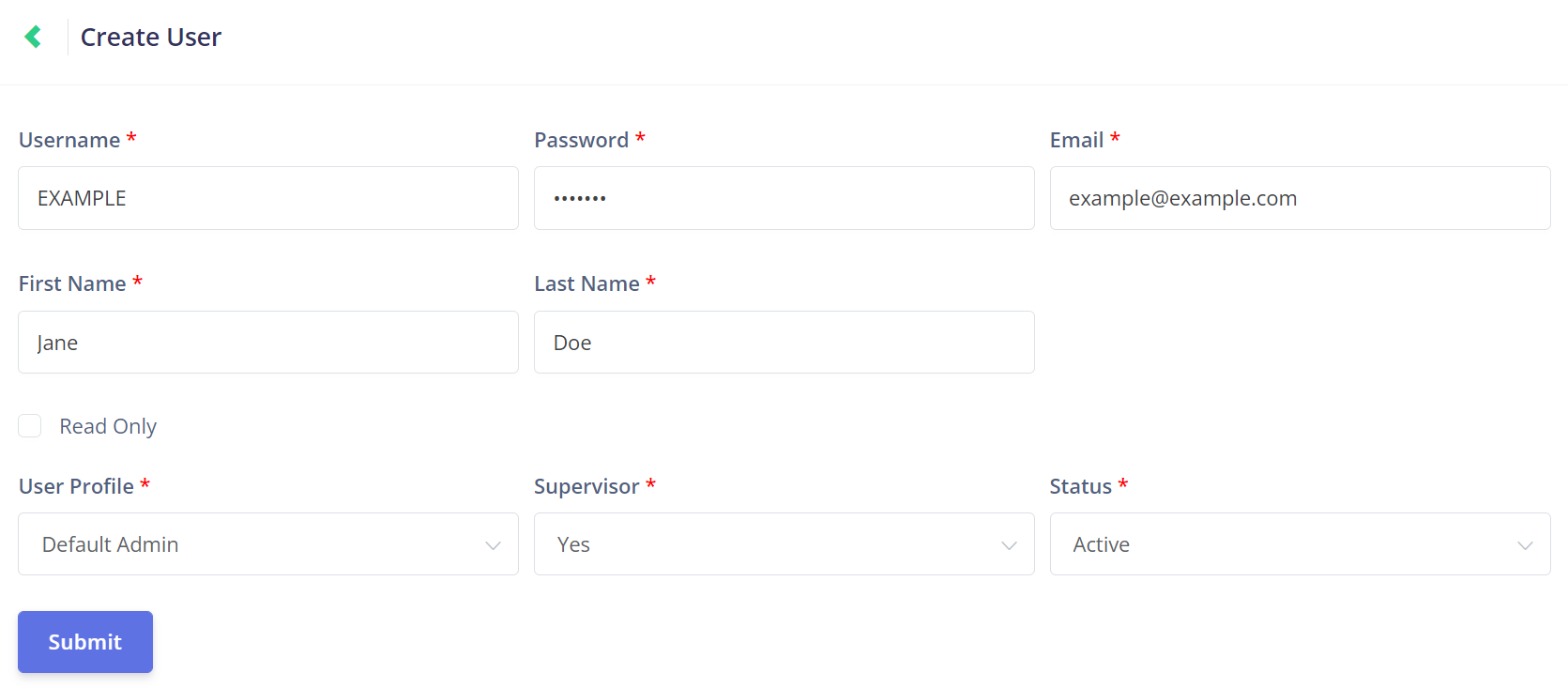
Once the personal details have been filled out, it is time to set up the access this user will be granted in Task Manager.
The first consideration is whether the account will be a read only account.
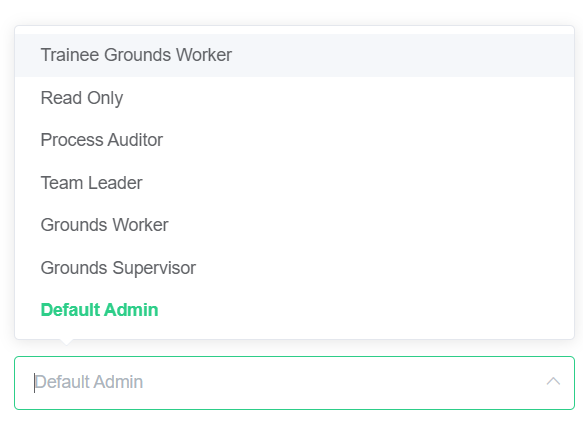
The next step is to select a profile for your new user from the User Profile drop-down list.
This profile will determine what permissions the new user will have in the rest of Task Manager.
When ticked, the Read Only function limits the user to only viewing information about jobs.
A user assigned to a read only profile cannot complete tasks or phases, nor can they do any type of configuration in Task Manager.
A user assigned to a read only profile cannot complete tasks or phases, nor can they do any type of configuration in Task Manager.

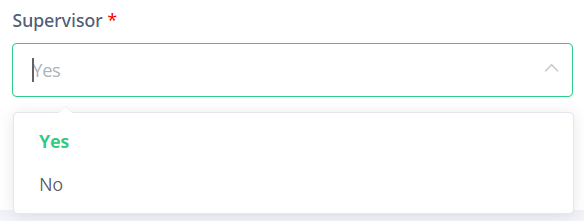
The profile selected above will likely indicate to you whether your new user is a supervisor.
Simply select yes or no from the Supervisor drop-down.
This will determine whether the new user has supervisor access, which will determine whether they can complete phases, as shown in the Phase Completion topic in Supervisor Processes.
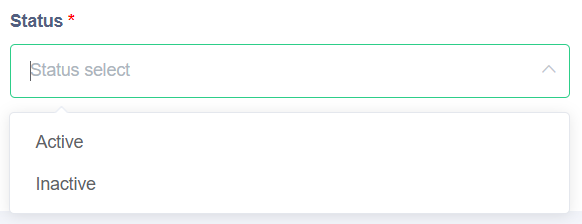
Finally, the Status field determines whether the account will be Active or Inactive.
An Inactive account is inaccessible and cannot login to the software.
It may be preferable to use this function rather than deleting the user in some situations.
Once all the required fields have been completed, click the Submit button to save the new user setup save the new user setup.