Create Contract
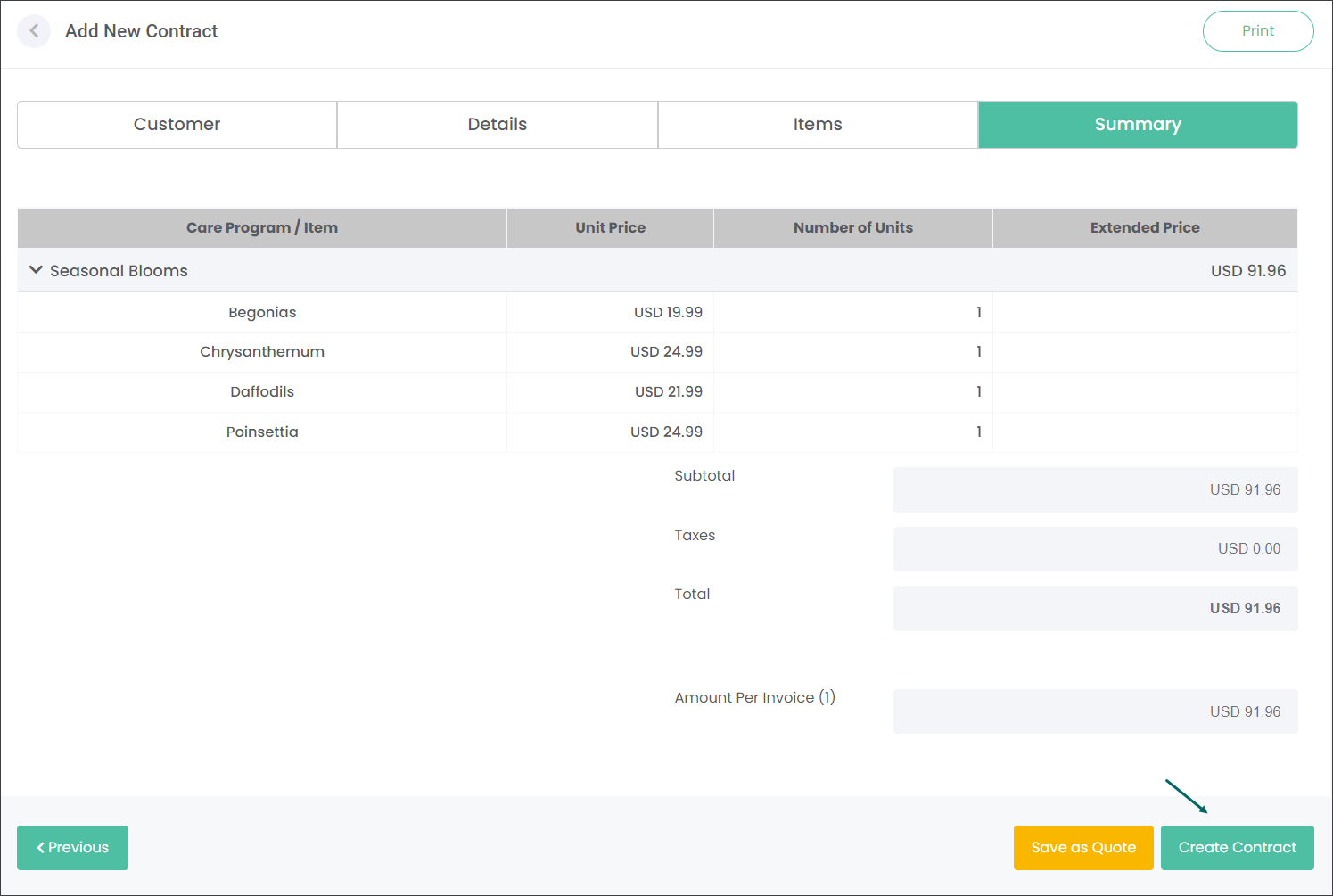
Press the Create Contract button to save the changes. Choosing the Create Contract option implies that the customer has accepted the details outlined in the contract and is entering into an agreement with the Site. The user can't undo the customer's acceptance of the details once the Contract is generated.
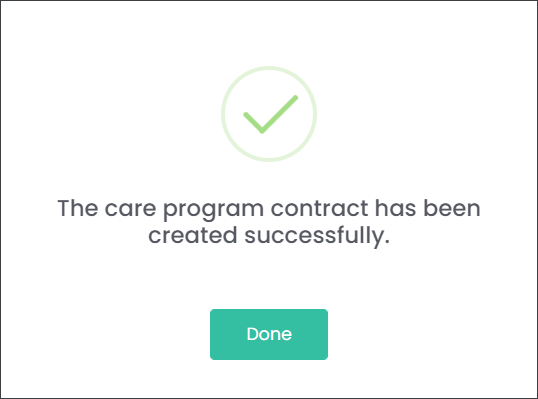
A preview of the Contract Invoice will be generated after committing the changes.
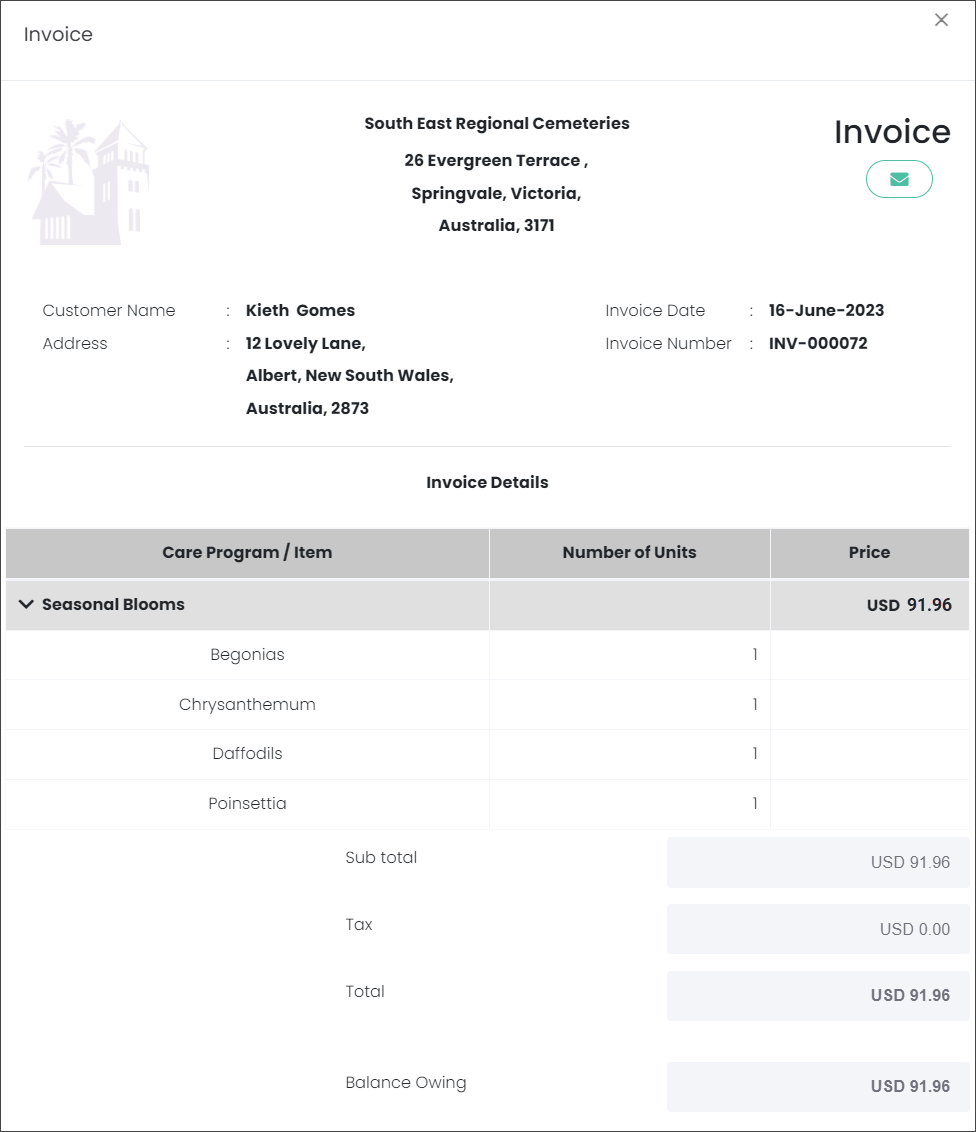
Press the envelope button to email the Contract Invoice to the customer, to Keith in our example.
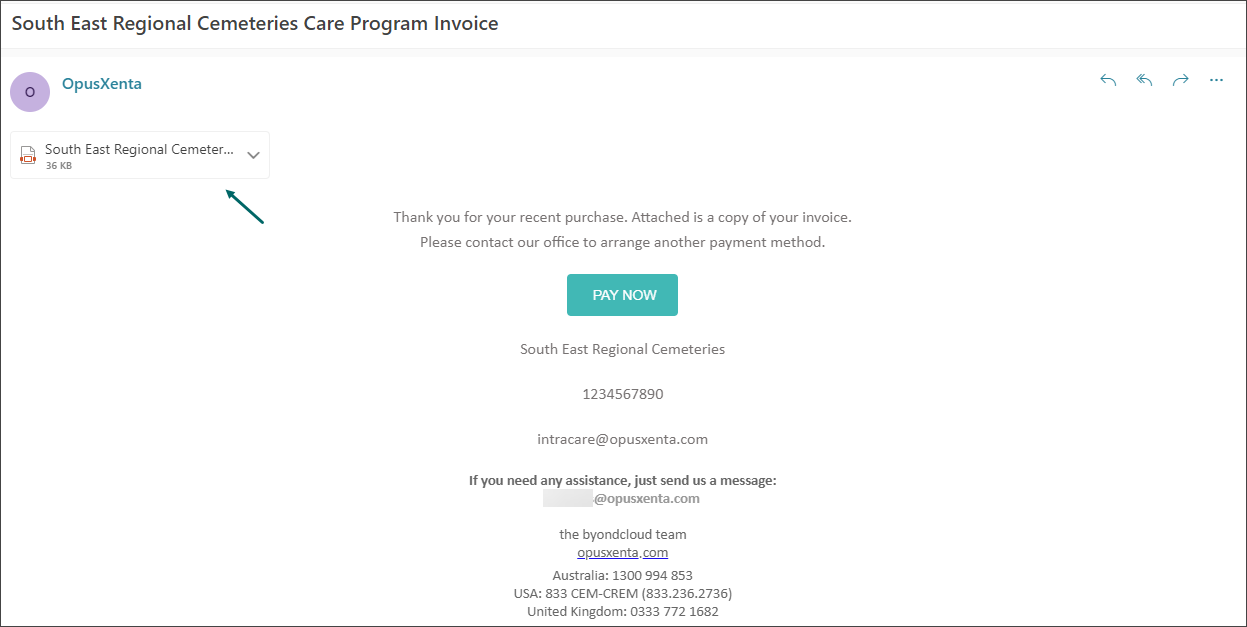
Important *** If your byoncloud is integrated with opuspay, sending the invoice to the customer will also send the customer a payment link to pay for the contract online. Please, navigate to the Contracts & opuspay topic to find out more.
The new Contract is stored on the Contracts dashboard.
The Status of the new Contract is Contracted.
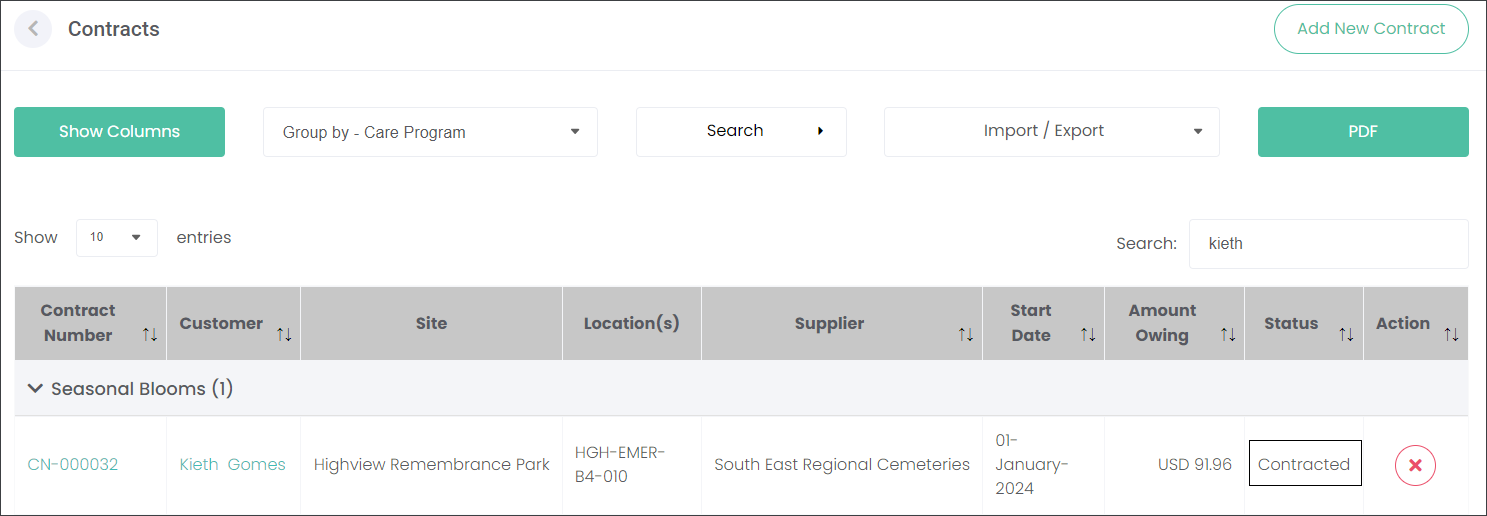
Back on the Contracts page, the user can press the green hyperlink of the Contract Number to view and take payments against it.
Navigate to the Add Payments section of this guide to find out how to take payments.
When viewing the Contract, you may notice that the Contracted agreement now has a Customer Accepted Contract box ticked by default. Since the user chose the Create Contract button to make the agreement, it has deemed that the customer has accepted it.

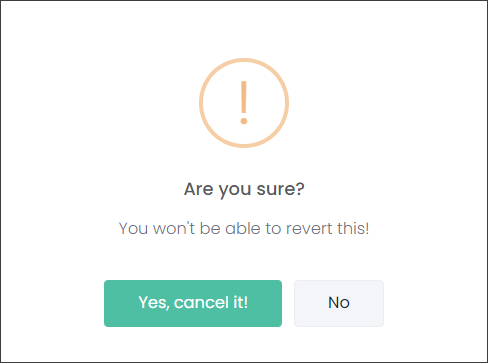
The users can still cease the Contract by pressing the red X button, if the customer happens to change their mind.


If the Customer accepted the Contract, you can now take payment for the Care Program depending on the selected Billing Frequency.
Navigate to the Add Payments section of this guide to find out how to take payments for the Contracts.