Contracts & opuspay
When you create a Care Program Contract, byoncloud will generate a preview of the Contract Invoice.
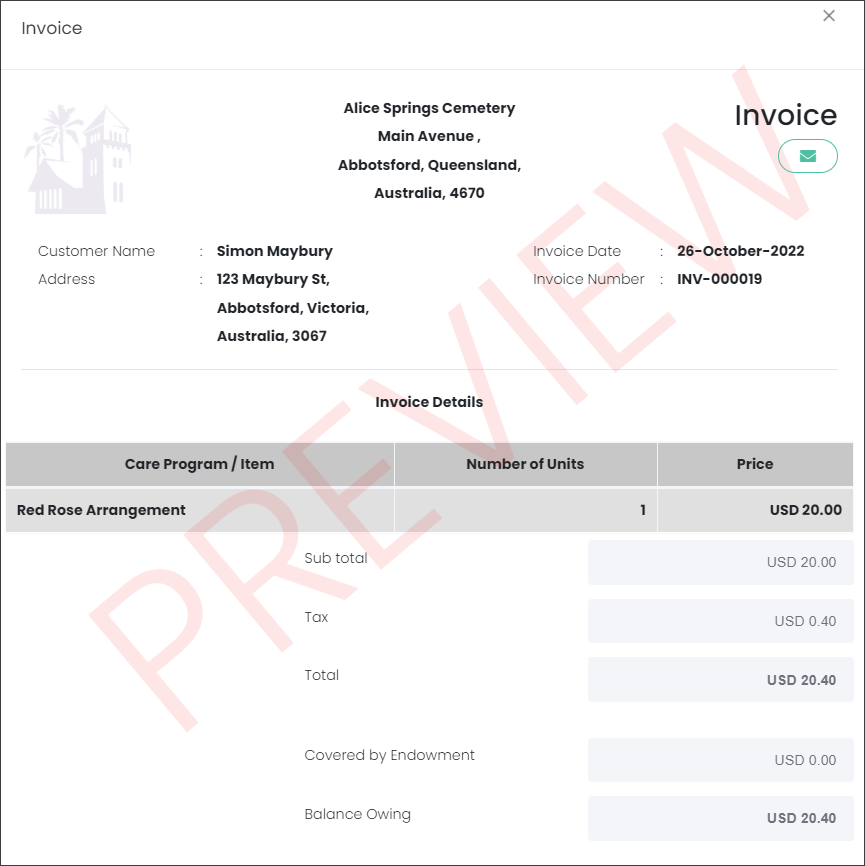
From the preview you can send the Invoice to the customer's email.
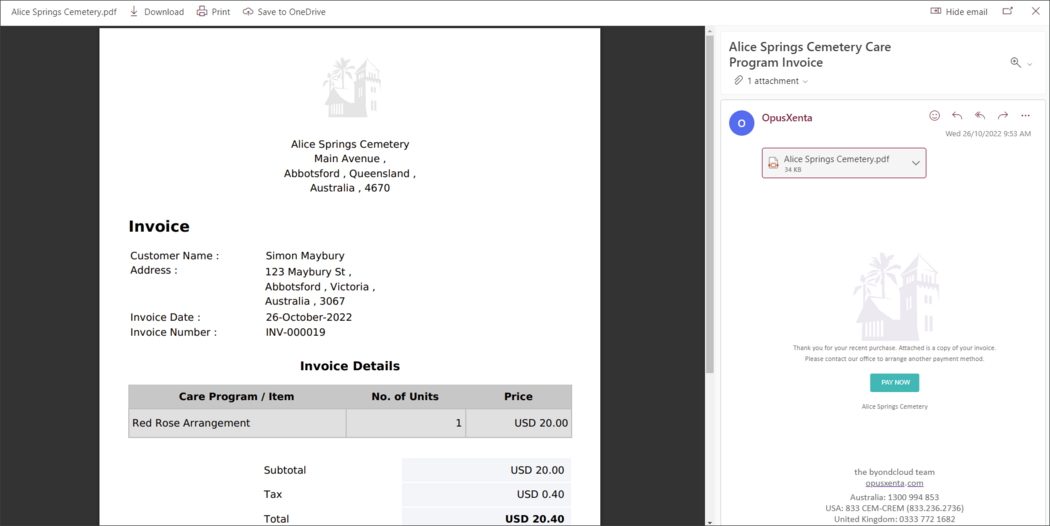
If your byoncloud is integrated with opuspay, sending the invoice to the customer will also send the customer a payment link to pay for the contract online. Your customer can choose to pay for it online or contact the site to arrange for another payment method.
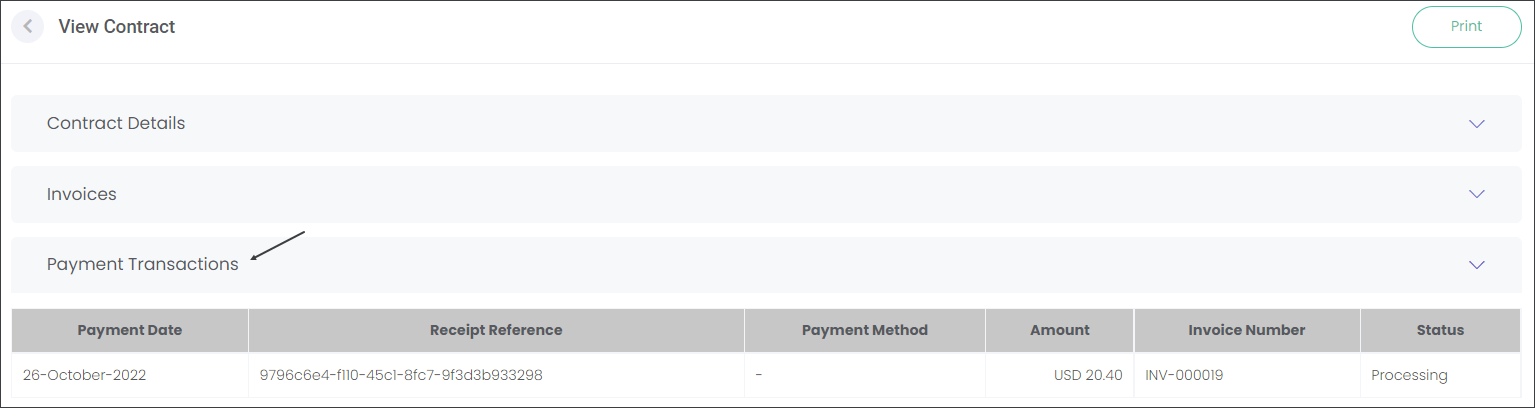
In byondcloud, this will be recorded on the Contract in View Contract -> Payment Transactions. The payment will have the status 'Processing' until the customer pays online.
If the customer decides to pay online, they will be presented with an online checkout page hosted by opuspay where they can securely enter their card details via the payment gateway. When they complete the payment this will be recorded in byoncloud with the status Approved and Online Payment Method. In the Invoices tab, the Invoice will be Fully Paid.
This is outlined in the Online Payment topic.
If the customer contacts the site to use a different payment method, for example cash or card, users needs to follow the steps outlined in the corresponding topics of this guide.
When processing the different payment method, staff need to check the Expire pending payments box to cancel the initial payment.

For example, a customer spoke to staff about paying for the services with an Online Payment. The customer was sent a link to an online checkout page with their Contract. In byondcloud this transaction was recorded as Processing until the customer actioned it. However, the customer found themselves on site and would like to pay with a Terminal Payment instead. The cemetery staff can add a new payment as Terminal Payment but also has to check the Expire pending payments box to cancel the Online Payment Processing