Add Task
Clicking the New Task button at the top of the Task Management page will take you to the Add Task page.

This page allows you to create the tasks that will then be applied to phases and sequenced into a logical order in later steps.
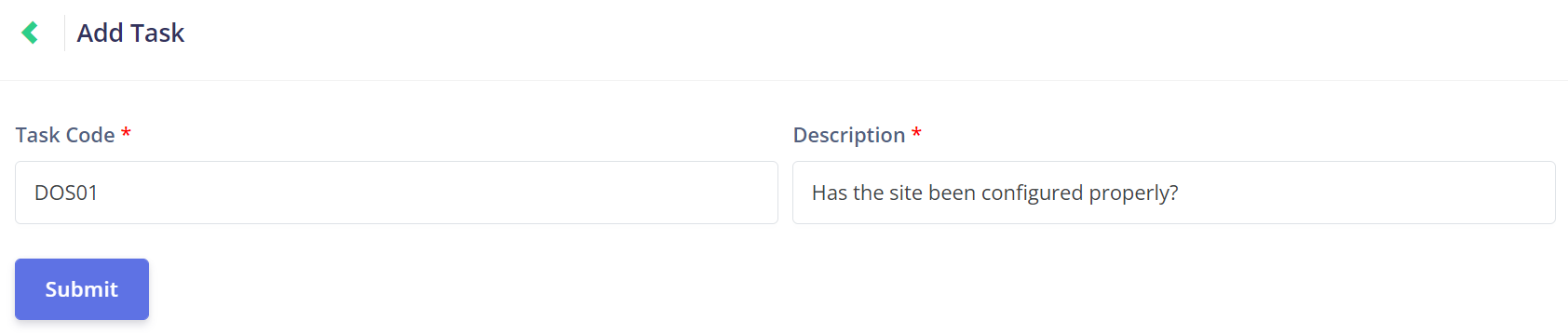
The Task Code is an identifying code that will be useful when linking tasks to phases in the Phase Details Management process.
Tasks that occur together in a phase should be set up with codes that indicated they are related.
For example, if you have a Day of Service Activities phase, then you could set the task codes as DOS01, DOS02, etc.

The task's Description will be seen by team members during the Task Completion by Team Members process.
The description will tell the team member what they should be doing, and should be framed as a Yes-or-No question.
For example, the first task in the Day of Service Activities phase could be 'Has the site been configured properly?'
Tasks can be attached to different phases within Task Manager and re-used with different operational situations.
For example:
-
Has the burial location been verified? - Could be used in combination with lawn and monumental graves.
-
Has a ledger check been completed? - Might be used only for monumental graves.
It is important to consider that Task Manager tasks are a series of safety checks or actions to be performed by operational staff relevant to each job.

Once the all fields are complete, click the purple Submit button to save the new task.