Add Response
To mark a response, click on the Add Response button.
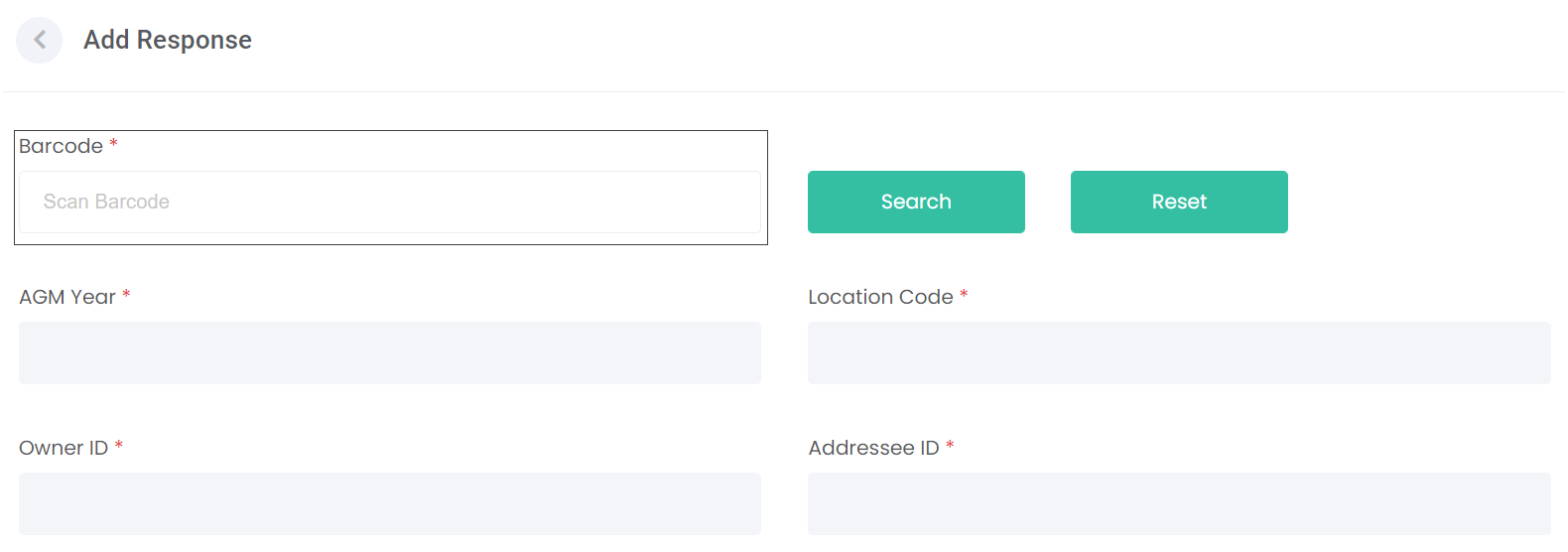
On the response screen, click or place the cursor in the Barcode field.
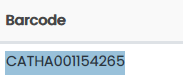
Either scan the image using a barcode scanner, a barcode scanner app on your phone / tablet or copy and paste the barcode number into the field.


Then click Search.

The fields of AGM Year, Location Code, Owner ID, and Addressee ID will populate based off the barcode.
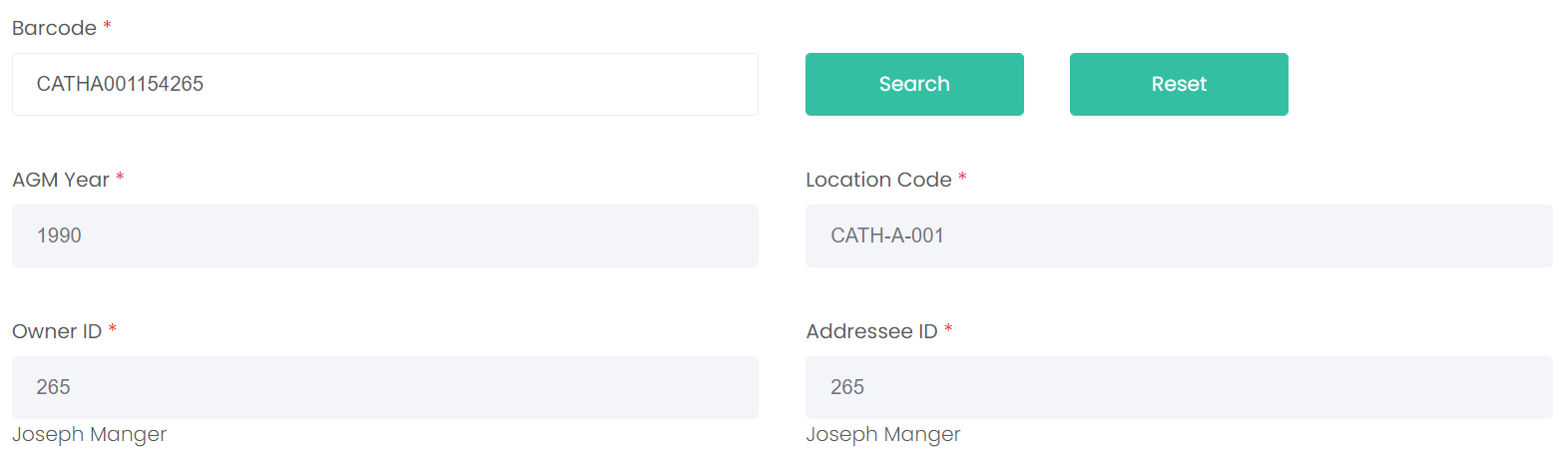
Below these details are the boxes to enter in the vote details.
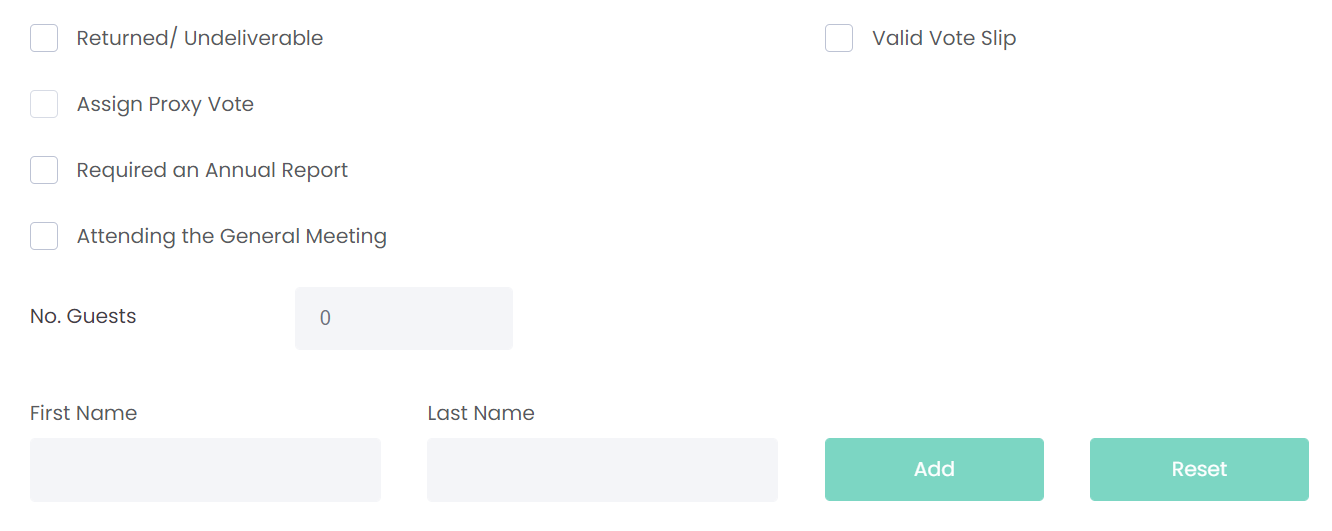
After reviewing the response, complete the fields as per the vote slip.
|
Vote Slip Marked as
|
Rules / Other Actions
|
Tick Boxes Unable to Be Selected
|
 |
Vote slip has been returned to sender, likely due to an incorrect address.
|
|
 |
Should be checked only if vote slip is valid.
Once ticked, allows users to tick
|
|
 |
Only allowed to tick if valid vote slip is ticked.
Can also tick
|
|
 |
If the vote slip requests for an Annual Report, whether attending or not.
Can also tick
|
|
 |
If the vote slip has indicated the voter will attend the meeting and therefore place a vote.
Can also tick
|
|
If the vote slip has indicated the rights holder will be attending the General Meeting, they can indicate that they will be bringing guests on the vote slip.
Simply indicate the Number of Guests in the field.

Enter in the First Name and Last Name of each guest.

If there will be more than one guest, click on Add for new name fields.

The Delete button allows the user to remove the first and last name.

The Reset button deletes the text in the first and last name fields of the top entry.

Additionally, if the Proxy Manager Configurations were set prior to adding the response, there will be a tick box to say how the attendee(s) is arriving.
If arriving by train, as per our example, tick the box and indicate the arrival time of the train so that cemetery staff can pick up the attendee(s) at the train station at the appropriate time.

Finally, the Other Information field is a text field to indicate more information about the vote slip, if necessary.
Once completed with the entry, click on the Save button on the bottom right-hand side of the page.

The Reset button on the bottom left-hand side of the page will clear all details on the response.

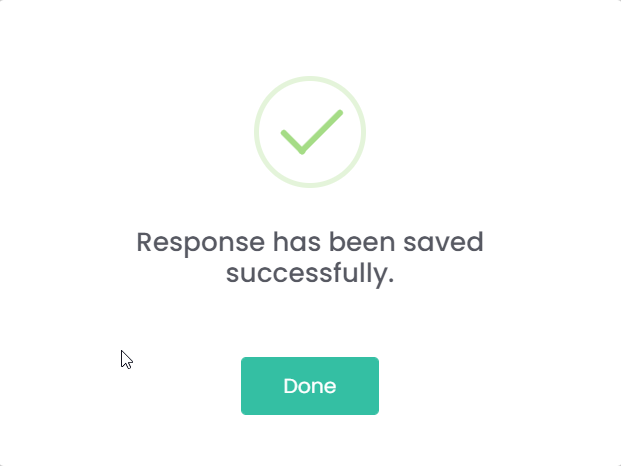
Once saved, a message will state that the response has been saved successfully.
Click Done.