When adding resources, ensure that you are adding a resource for each resource within your byondpro (if integrated), and that the calendar rules are defined as per the calendar rules for that resource in byondpro.
Choose the Add New Resource button at the top right of the screen.
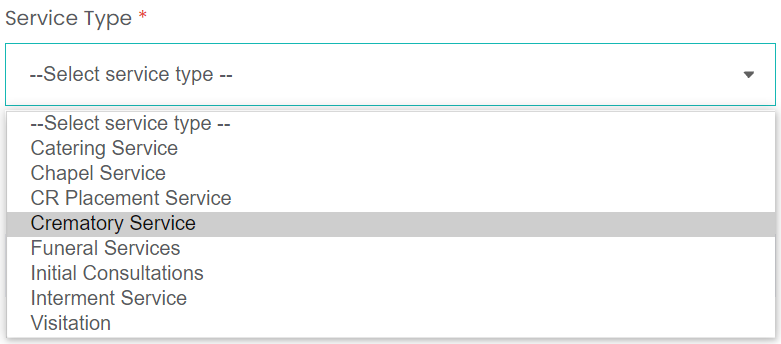
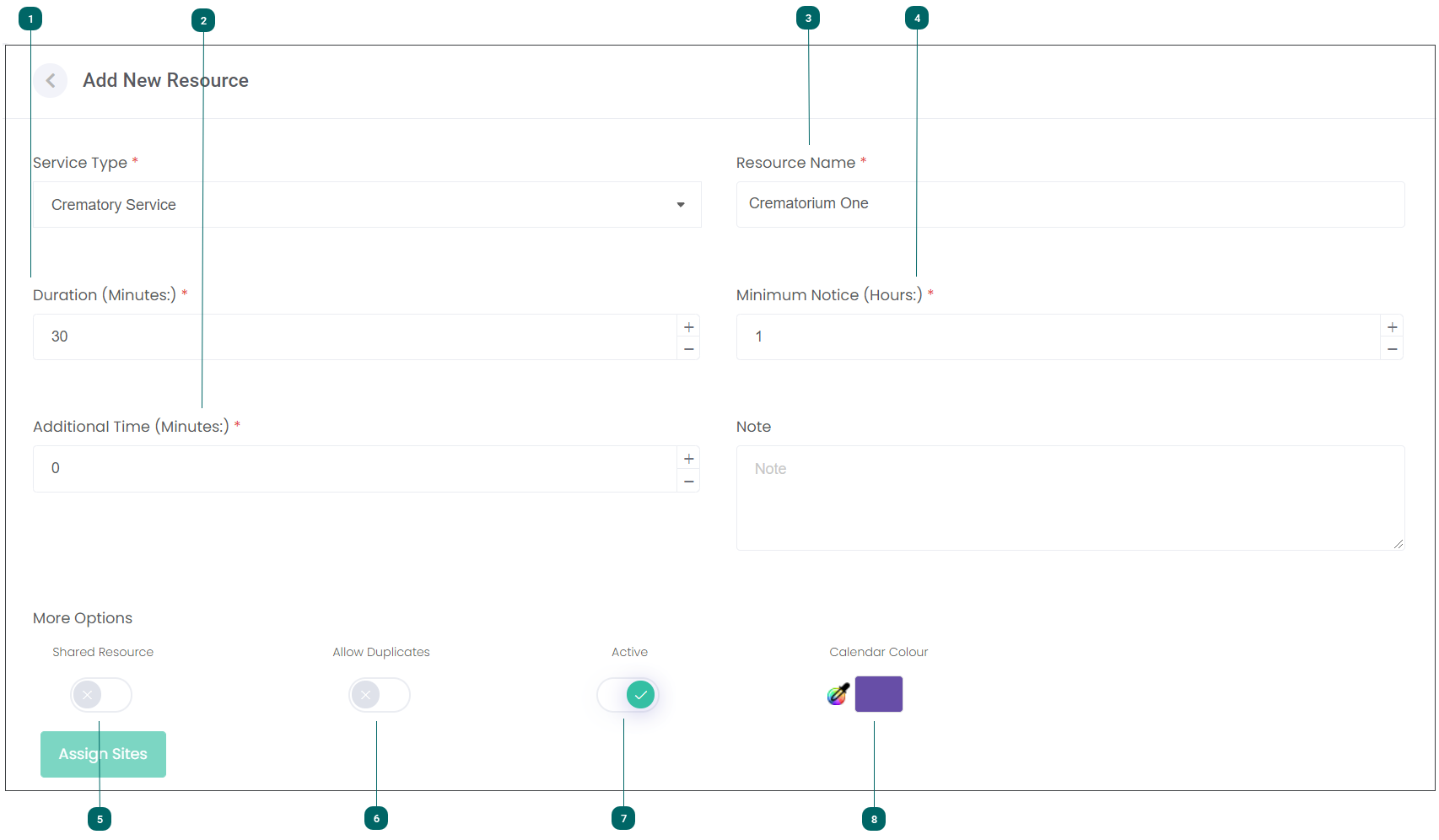
The first selection to make in adding a new resource is the Service Type.
For our example, we will set up ‘Crematory Service’.
 Duration
Time the service will take. i.e. Chapel Service may be 45 minutes.
|
 Additional Time
Time can be used as the buffer between services.
May be relevant to chapel services to allow time between each service.
|
 Resource Name
Name of your resource.
For our example, we are naming our resource Crematorium One.
|
 Minimum Notice
Minimum notice period you require a funeral director to give for a service.
For a cremation resource this may be one-hour notice prior to their arrival.
However, if the funeral director was booking a chapel service, you may require at least one day notice to prepare and therefore would not accept same day bookings. In this case, you would set the minimum notice period accordingly.
|
 Shared Resource
Applies if you “share” your chapel between multiple sites. For a single site, you can leave this switched off.
|
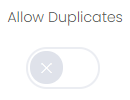
 Allow Duplicates
Switching this on may be useful for direct cremation services. Means Funeral Directors can make bookings at the same time.
|
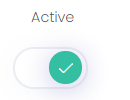
 Active
Allows the resource to receive bookings.
|
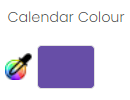
 Calendar Colour
Each calendar resource can be assigned a colour to distinguish between resources.
Applies to stand-alone byondcloud product only.
No colour choice is necessary for an integrated byondcloud.
In our example, choosing purple as the calendar colour means our Crematorium One Calendar will display as shown below when users view the resource calendars.
Resource Calendar settings will be shown in more detail under the Resource Calendar section.
|