Add Payment
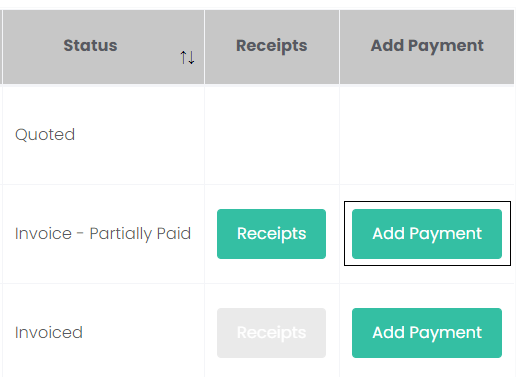
Payments can be added to an invoice in two locations. On the Manage Quotes/Invoices page, click the Add Payment button in line with the invoice.
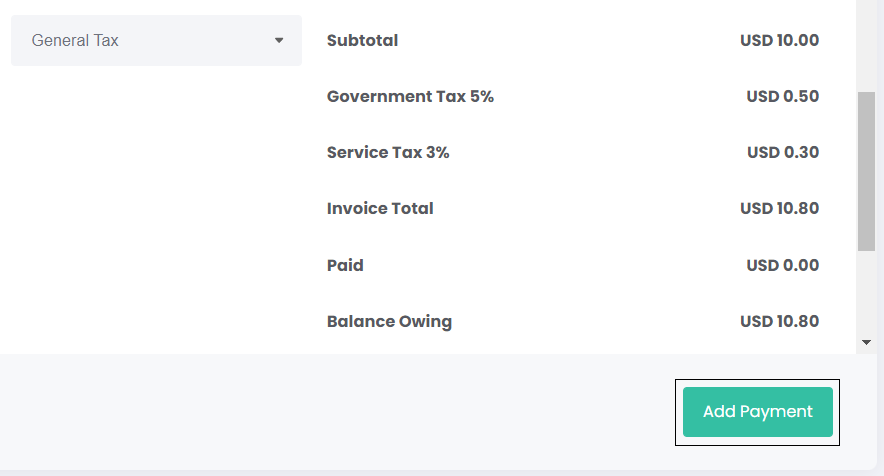
Alternatively, click the Add Payment button on the bottom right-hand side of the View Invoice page.
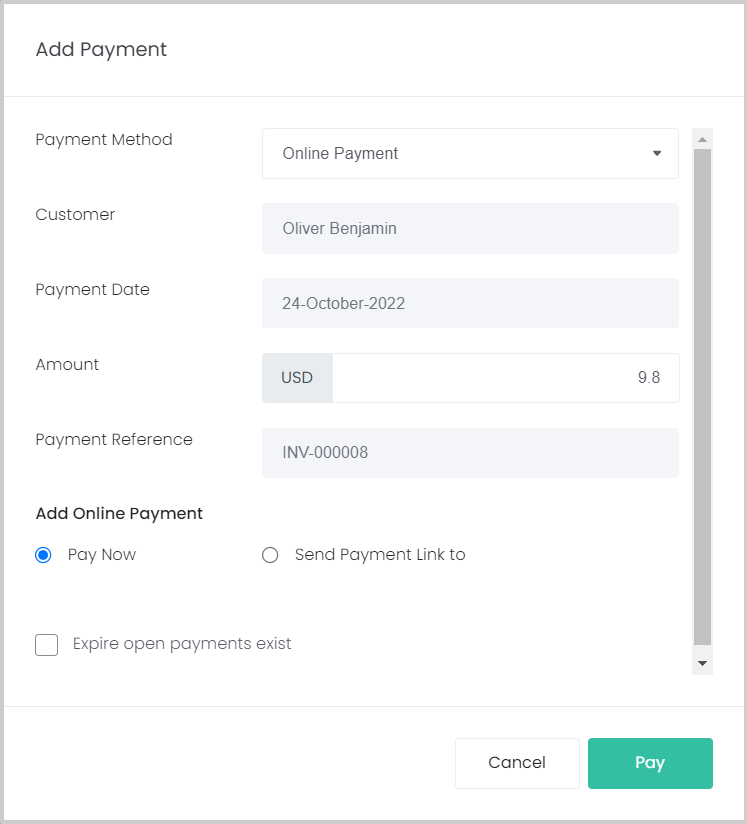
Using either method above will open the Add Payment pop-up screen.
The invoices can have three statuses depending on the payment process:
-
Open - no payment has been processed against the Invoice
-
Partially Paid - only a portion of the Amount Owing has been paid
-
Fully Paid - the Invoice has been paid in full.
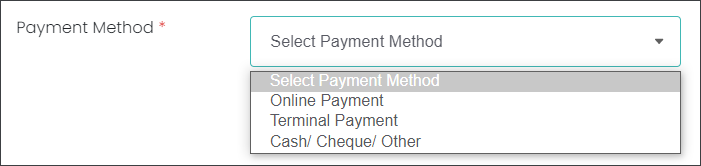
When processing a payment you can select from three payment options:
-
Online Payment - processing a payment through an online checkout hosted by opuspay via the gateway provider.
-
Terminal Payment - processing a payment using an EFTPOS device integrated with opuspay.
-
Cash/ Cheque/ Other - recording other payment methods that don't involve opuspay.
Navigate to the corresponding sections of the guide to find out how to process payments using different methods.