Add New Quote
To create a new quote, click Add New Quote on the Manage Quotes/Invoices screen.

This opens the Add New Quote screen. When first opening this page, most of the fields are blocked from entering information until a person has been created or selected.
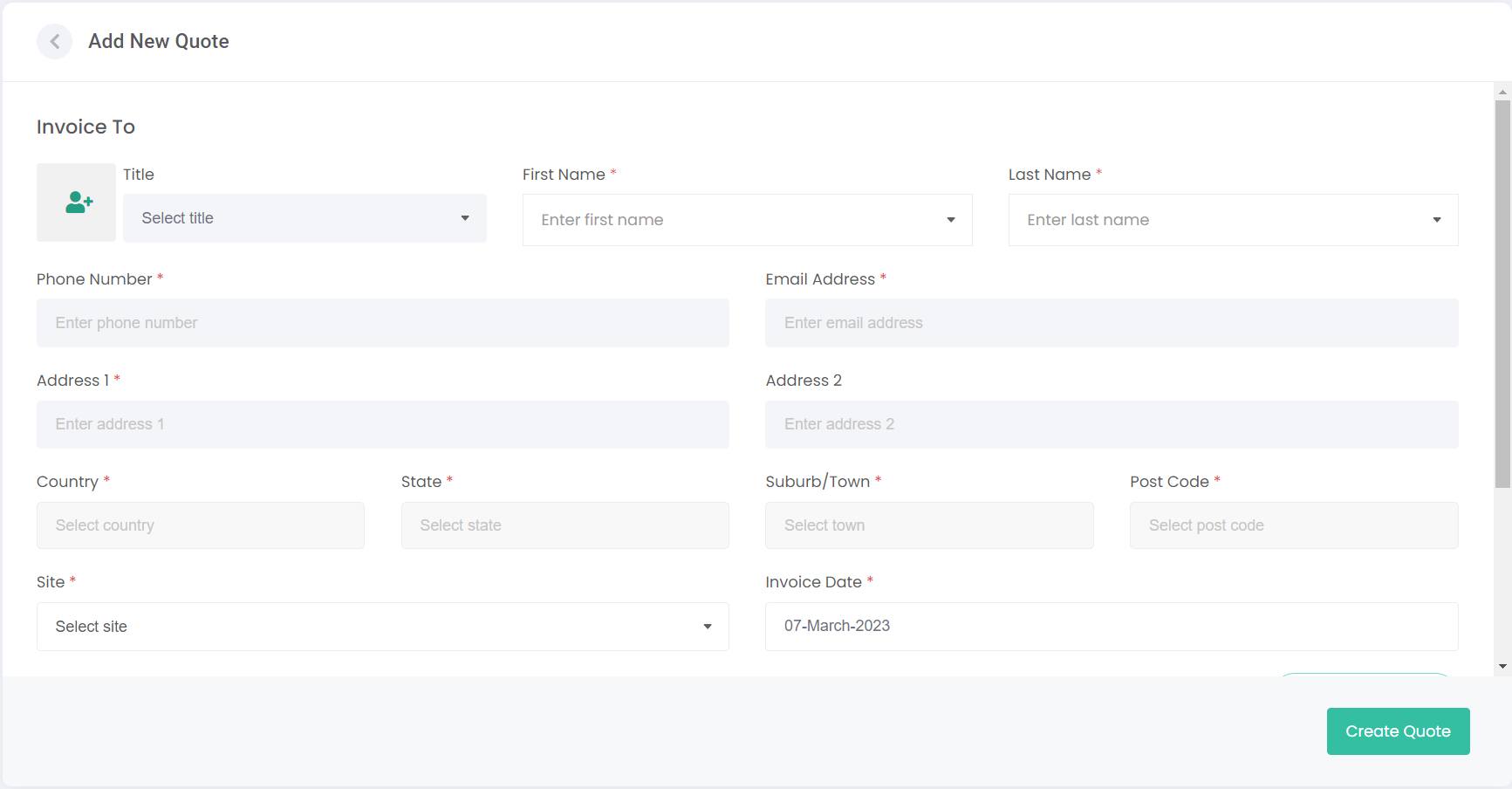
To select an existing person, use the First Name or Last Name fields to search your Person records.
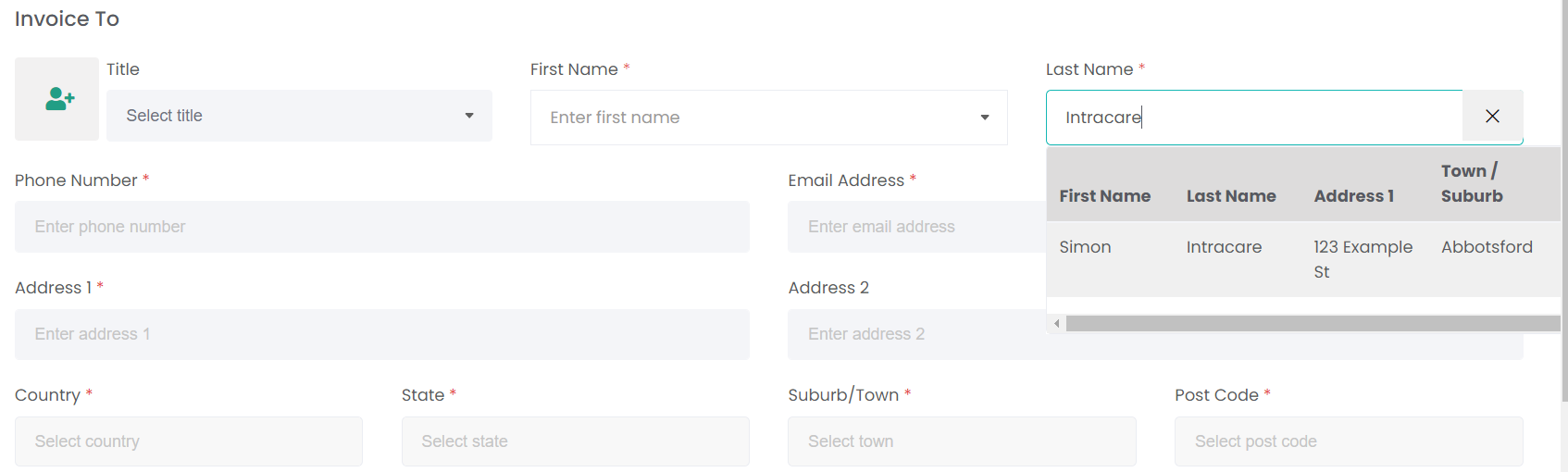
Once the Person is selected, their contact and address details auto-populate from their person record.
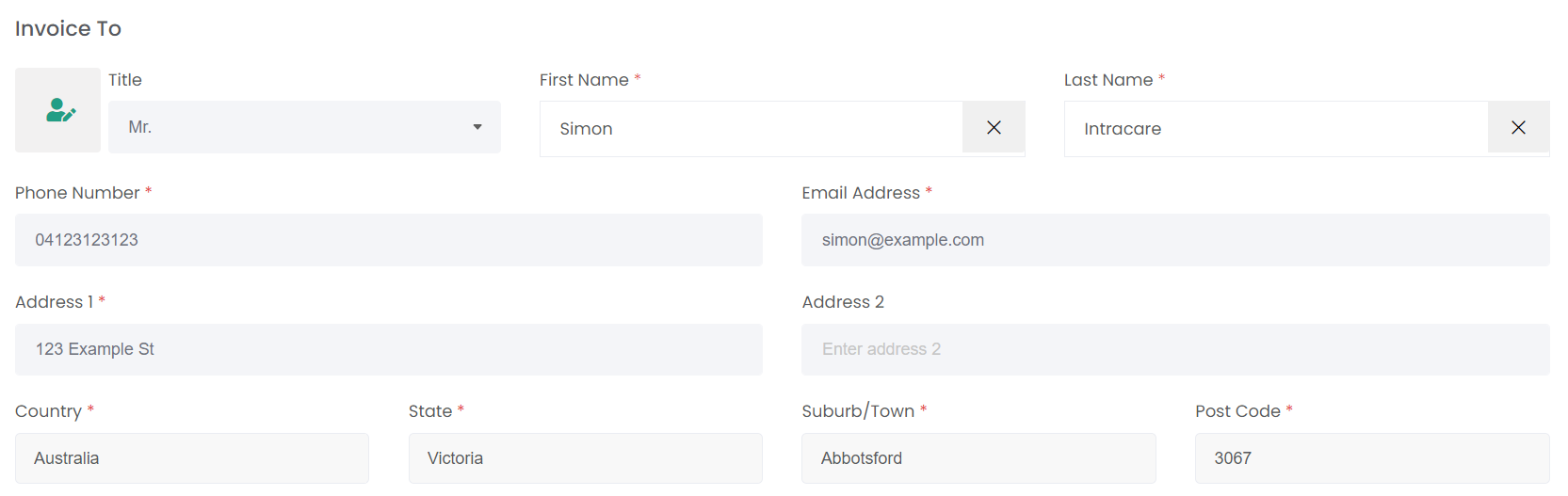
If the person being billed is not already set-up in byondcloud, you need to create a new Person record.
Click on the profile image with the plus symbol to the left of the Title field:
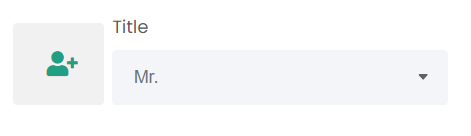
This opens the Add New Person pop-up. Refer to the Persons module for guidance on completing this process.
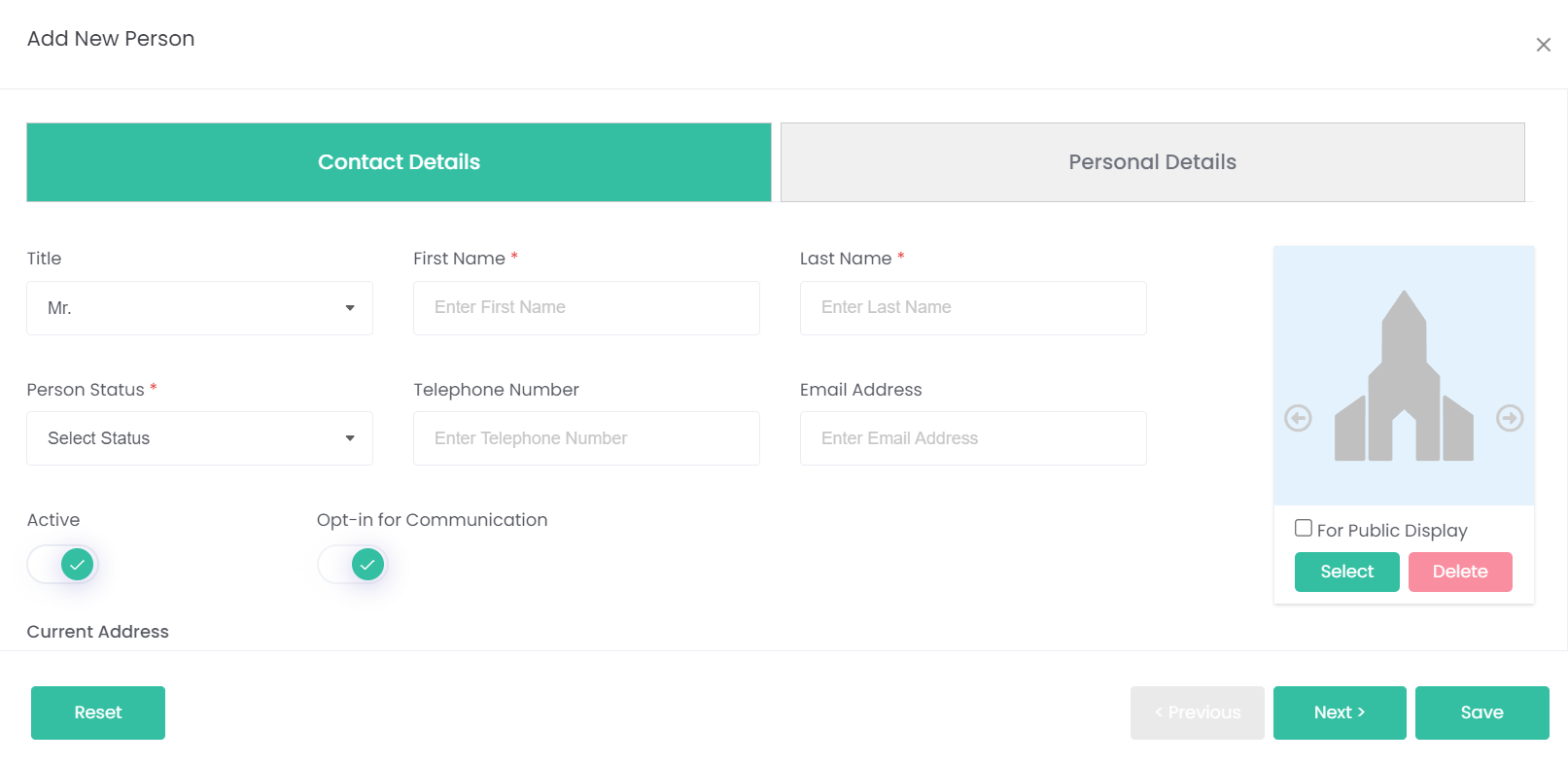
Once the new person's details are entered and you've hit Save, their details will be entered into the Add Quote page.
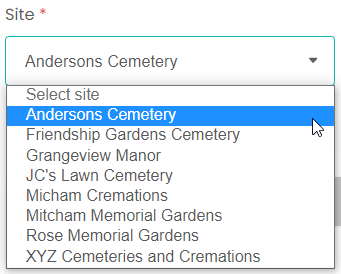
Using the Site drop-down, select the cemetery site where the transaction is taking place.
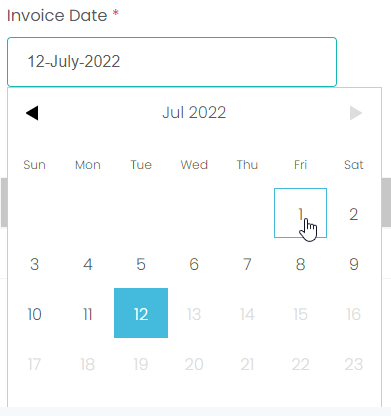
The Invoice Date field will auto-populate with today's date. If the date needs to be changed, click on the field to open the date search function.
The Invoice Items section is where items can be added and priced for the quote. Click Add Item to generate a new item row.

Select an Item Type and Item Name from the drop-down lists. This will generate a Price automatically from the Item record.
Please refer to the Items module to learn how these item records are configured.
The Qty field allows us to change the quantity of the item being sold. The Price field is the price per item and can be changed on the quote to be different from the pre-configured item price. The price field is multiplied by the quantity field when calculating the Extended Price.
Items can be deleted by clicking the Delete button on the right-hand side of the item row.
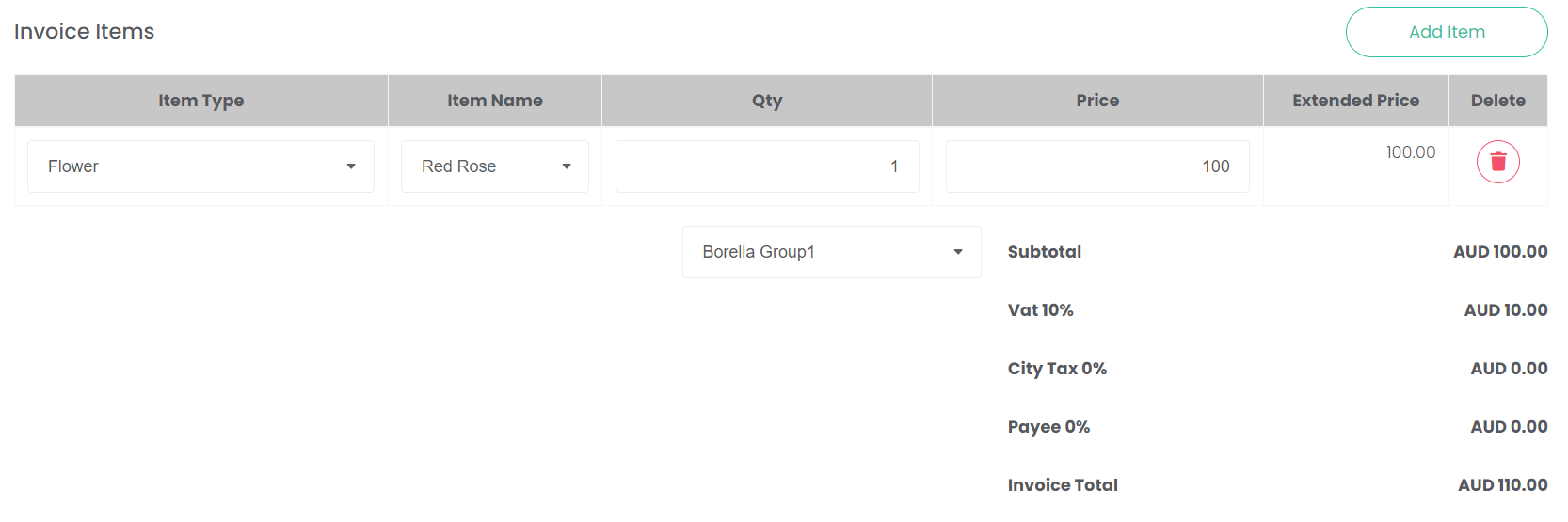
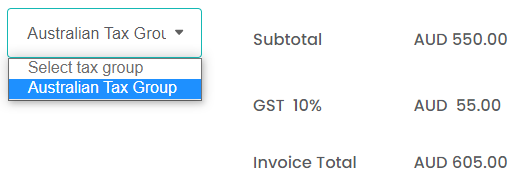
The Select Tax Group drop-down allows the relevant taxes to be added to the transaction. The tax group settings can be configured company-wide under Account Configuration or for each site under Site Structure.
The items above are tax-exclusive in their pricing; therefore, the tax percentage will be added to the existing subtotal. If the user's pricing outside of RecordKeepr is tax-inclusive, then care will need to be taken when calculating the price versus the tax.
Once all fields are completed and the items have been added, click Create Quote to save the changes.

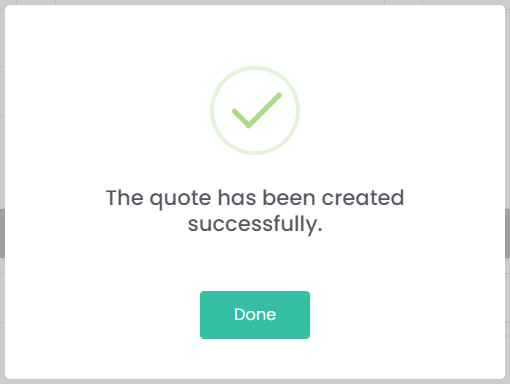
A pop-up will display, confirming that the quote was successfully created. Click Done to close this.
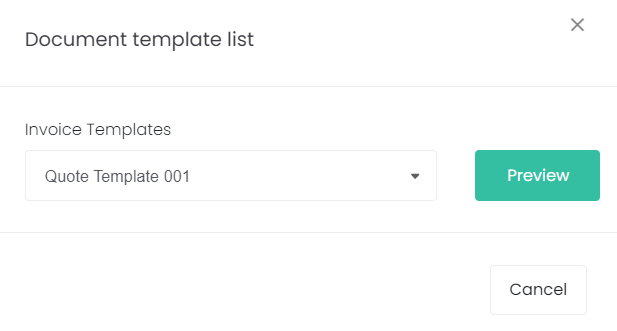
The following pop-up shows the Invoice Templates drop-down list, which allows a document to be selected. These documents are generated from templates set-up in the Document Templates section of byondcloud.
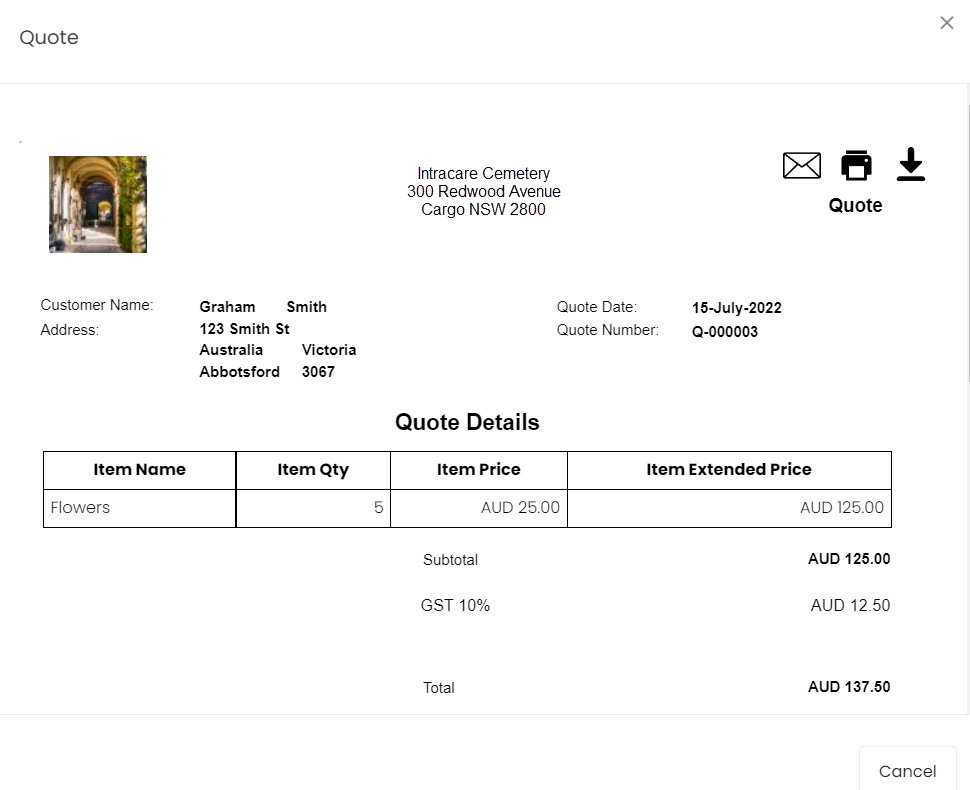
Click Preview to see the document.
From here, use the three buttons on the top right-hand side to Email, Print or Download the document.
Closing the documents window takes the user back to the Manage Quotes/Invoices screen, where they can see their new quote listed.