(c) Copyright by OpusXenta Pty Ltd. All rights reserved.
Add Individual Item
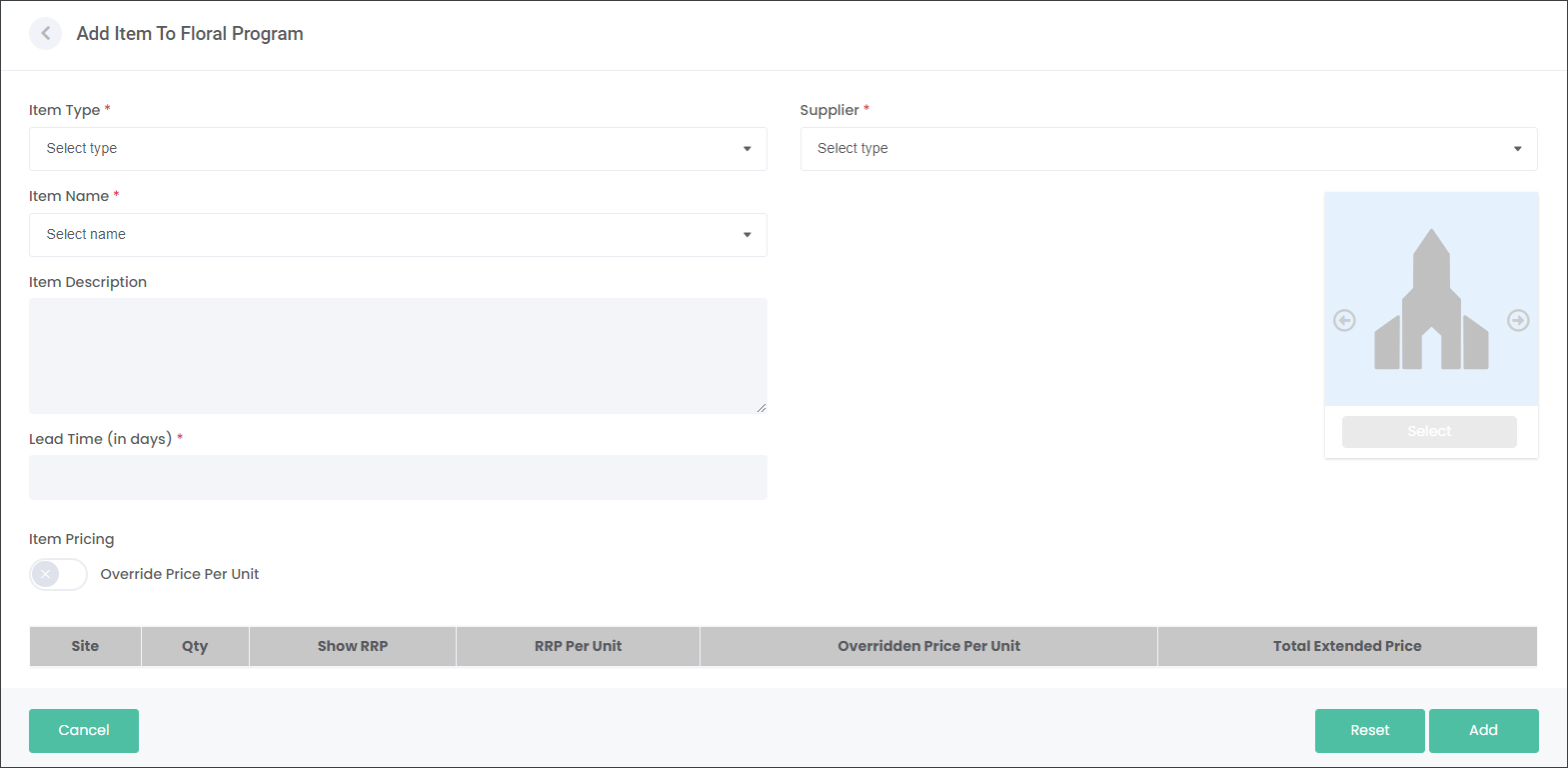
Press the Add Individual Item button.
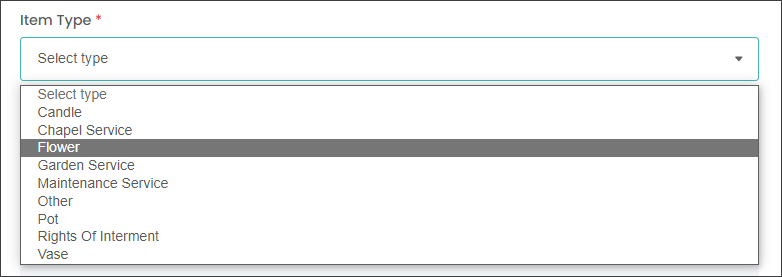
Begin adding an Item by selecting the Item Type.
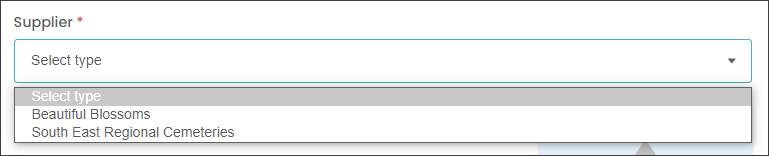
Then select who the Supplier is.
When adding individual Items the user can select from their internal Items catalog and from their partner Supplier's catalog. In the example below you can see that South East Regional Cemeteris user can select flowers from their partner florist's - Beautiful Blossoms- catalog and from their internal catalog.
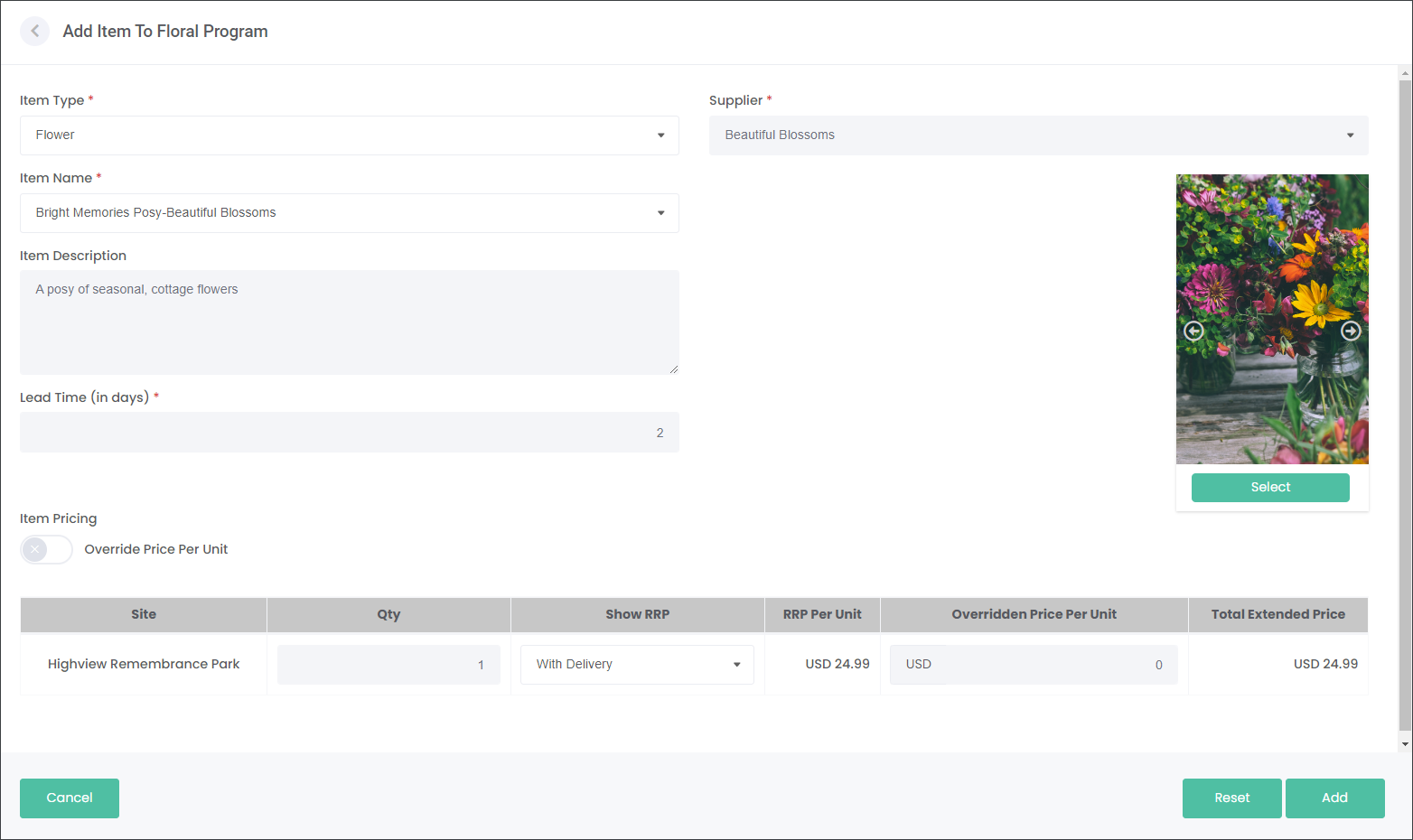
Then select the Item in the Item Name field.
The Item details will be auto-populated as per settings in the Items catalog.
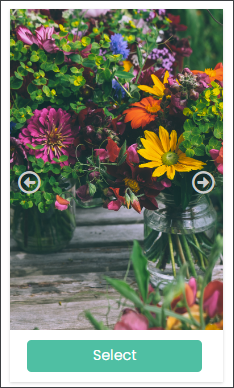
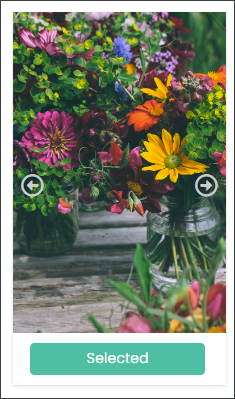
When adding Items from the external Supplier's catalog, your external Supplier might have a range of product images to choose from. The user can use the left and right arrow to browse through the images. When the user wants to use an image in their Floral Program campaign they click the Select button. The image will be used in the paper brochures and/or emails sent out to the customer.
In the Item Pricing section you can Override Price Per Unit which means that you can set a different price than the Supplier's suggested RRP. To override the price select the corresponding slider. If you would like to use the Supplier's RRP leave it unchecked.
If the Supplier offers both Delivery and Delivery & Placement select from one of the options. The RRP Per Unit field will automatically populate.
If you decide to override the original price, type in the new price in the Overridden Price Per Unit field.
Then press the Add button in the bottom right corner of the screen.