(c) Copyright by OpusXenta Pty Ltd. All rights reserved.
Add a New Location
To add a new location, select Add New Location from the top right of screen.
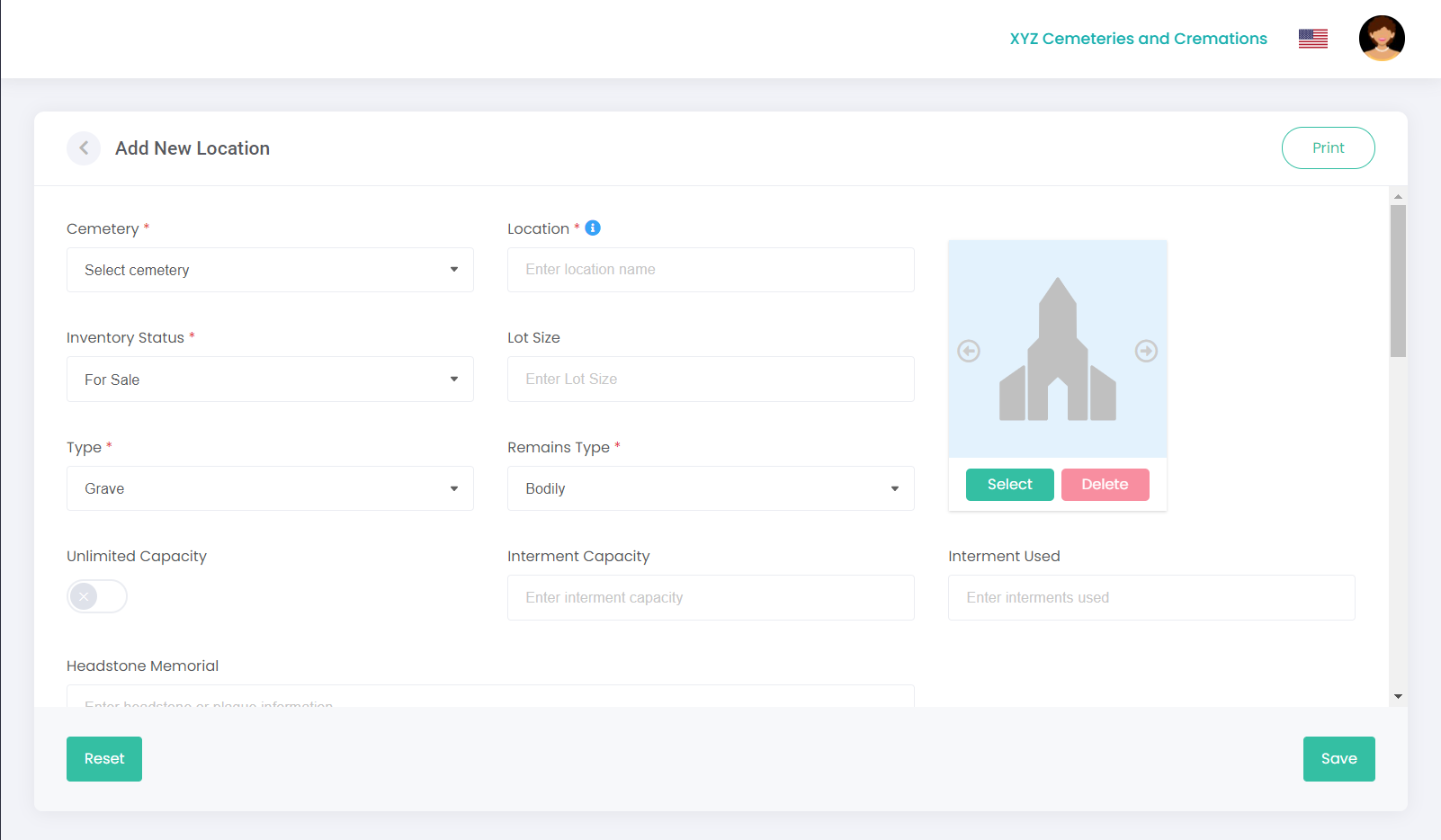
The following screen displays:
Enter the location details in the following fields:
Field
Field Description
Cemetery
Select the relevant cemetery from the drop-down list.
Location
Enter a location name / code. Note: A location can only be created once and must be a unique identifier within the selected cemetery. This can be in any format, however it is highly recommended that the format used is consistent across all locations.
Inventory Status
Select the inventory status from the drop-down list: (For Sale, Reserved, Sold, Interment, Non-inventory Location or Unspecified).
Lot Size
Enter in lot size (if required).
Type
Select the location type from the drop-down list: (Grave, Grave-Lawn, Grave-Monumental, Grave-Headstone, Memorial, Crypt, Vault, Niche or Plant).
Remains Type
Select the relevant remains type from the drop-down list: (Bodily, Cremated, Memorial, Unspecified or Unknown).
Unlimited Capacity
Click the toggle button if there is unlimited capacity at this location. When active, RecordKeepr will not monitor the interment capacity allowed as new deceased records are entered for this Location.
Interment Capacity
Enter the interment capacity in this field. If the interment capacity is specified, RecordKeepr will disallow additional deceased interments into this Location.
Interment Used
Enter the number of interments used for pre-existing Location records.
RecordKeepr will update this field as new deceased interments are recorded for this Location.
Headstone Memorial
Enter headstone or plaque information here.
Point of Interest
Tick the checkbox if this is a point of interest.
POI Details
Enter point of interest details here.
Map Project
If this location is linked to a map project in MapMakr, RecordKeepr will display overlay images, GPS co-ordinates and polygon images for the location from the MapMakr map project listed. Note: If the location is linked to a map project, the location cannot be changed in RecordKeepr, and the latitude / longitude fields will be disabled.
Map Search
Enter a location to search e.g. your cemetery name, and select the location from the drop-down list. This will display a map using Google Maps functionality, along with a blue marker showing the coordinates for the main building / entrance gates. You can zoom in or out of the map using the + or – buttons on the side of the map. You can also move the blue pin by clicking on the black pin icon on the right of the map, which will allow you to move the blue generic marker on the map to the location required.
Note: any field marked with an asterisk must be completed.
To add a photo of the location, click on Select and choose an image from your computer to upload.
Note: you can add multiple images, and then use the left and right arrows on the image to scroll through the images.
This image will also display on the Deceased Search function which is viewable by the public, so ensure that images uploaded here are not of a confidential nature.
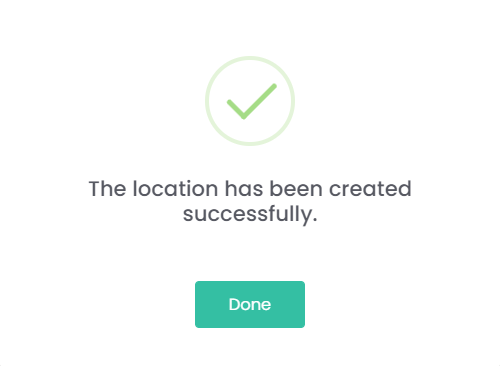
Once all your details have been entered, click Save. The following message displays – click Done.
TIP: You can click on the Print button on the top right of the screen to print a copy of the record.
Next, we will look at Managing Rights Holders, including the Transfer of Rights screen.