(c) Copyright by OpusXenta Pty Ltd. All rights reserved.
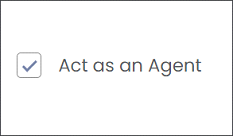
Act as an Agent
The Act as an Agent function is available in cemetery and funeral director portals. It allows for 2 things:
OpusXenta to act as a virtual agent on behalf of our byondcloud customer.
OpusXenta consultants will be able to log on to the customer’s byondcloud system to conduct processes on the customer’s behalf. For example, the OpusXenta consultant could run and manage the entire Floral Program process.
Note: There are no changes to end-user processes when the Act as an Agent is enabled.
2. OpusXenta to process transactions on the customers behalf using opuspay
If the “Act as agent” is enabled, opuspay will be setup by the OpusXenta administrator using the OpusXenta Merchant Account and Merchant ID.
The OpusXenta administrator will setup a new sub account under the OpusXenta Merchant Account in opuspay to support processing payments using OpusXenta’s Merchant ID. The sub account will be named according to the customer’s registered byondcloud account name.
It will streamline the opuspay initial set-up process as the whole configuration will be autoloaded into the customer’s byondcloud from the OpusXenta Admin Portal.
The customer will pay a fee for OpusXenta to process the transactions on their behalf.
Note: The customer won’t be able to change opuspay settings in their byondcloud instance; the opuspay settings will be available to ‘view only’. The customer will not need to access their Merchant Account as OpusXenta consultants will manage this for them.
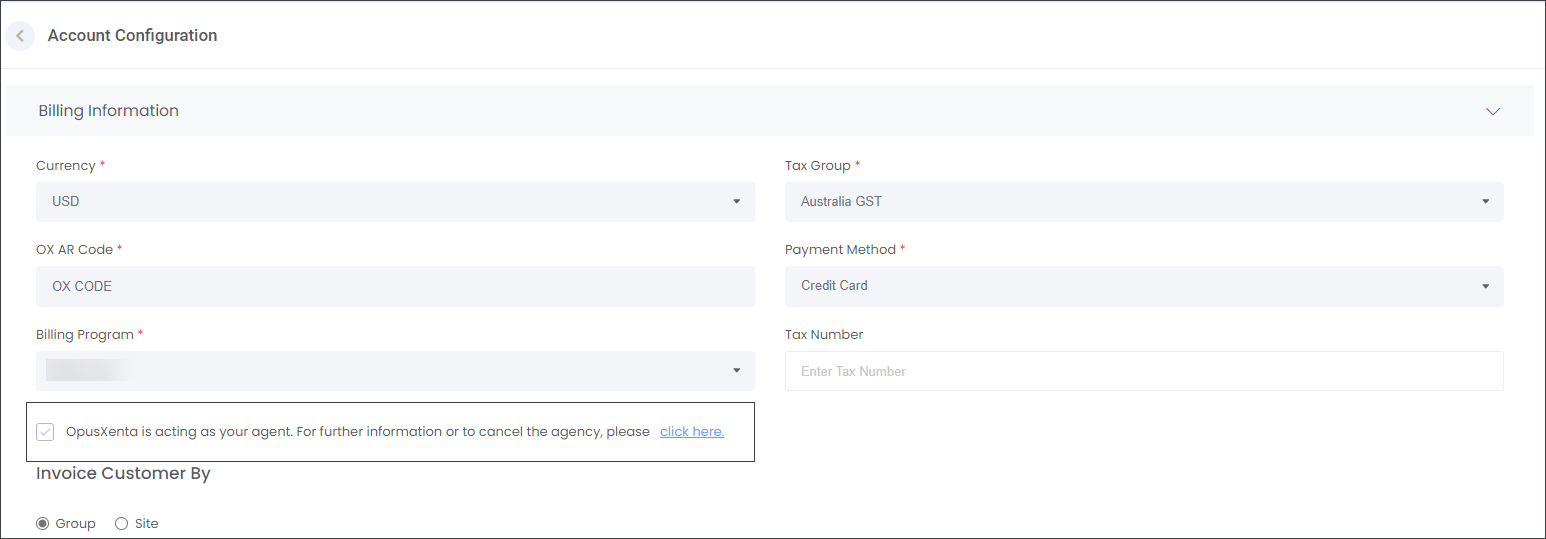
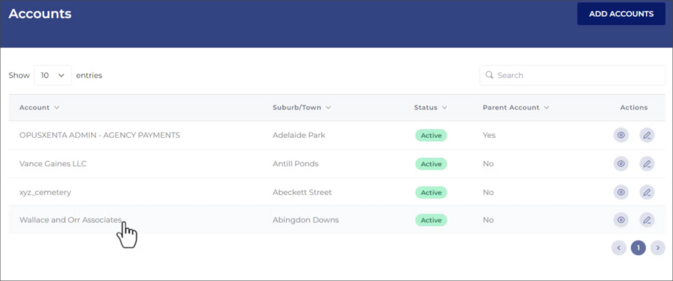
The customer can opt in for the Act an an Agent service during the sales process. The OpusXenta administrator will enable the Act as an Agent on the customer's account in the byondcloud Admin Portal. The customer will then have to accept new terms and conditions in the Account Configuration in their byondcloud instance.
The customer can make inquiries and/or changes to the agency agreement by contacting OpusXenta from their byondcloud instance. The customer needs to navigate to Manage Account -> Account Configuration ->Billing Information, press the Click Here button and Send the inquiry form.
Please, see the video below for more detailed information.
Please, navigate to the opuspaytopic to find out how the opuspay Settings will look like when the Act as an Agent function is enabled.