Account Configuration / Account
The account / account configuration function, to review corporate details, can be accessed by choosing Manage Account on the dashboard or Manage Account / Account Configuration from the side menu.
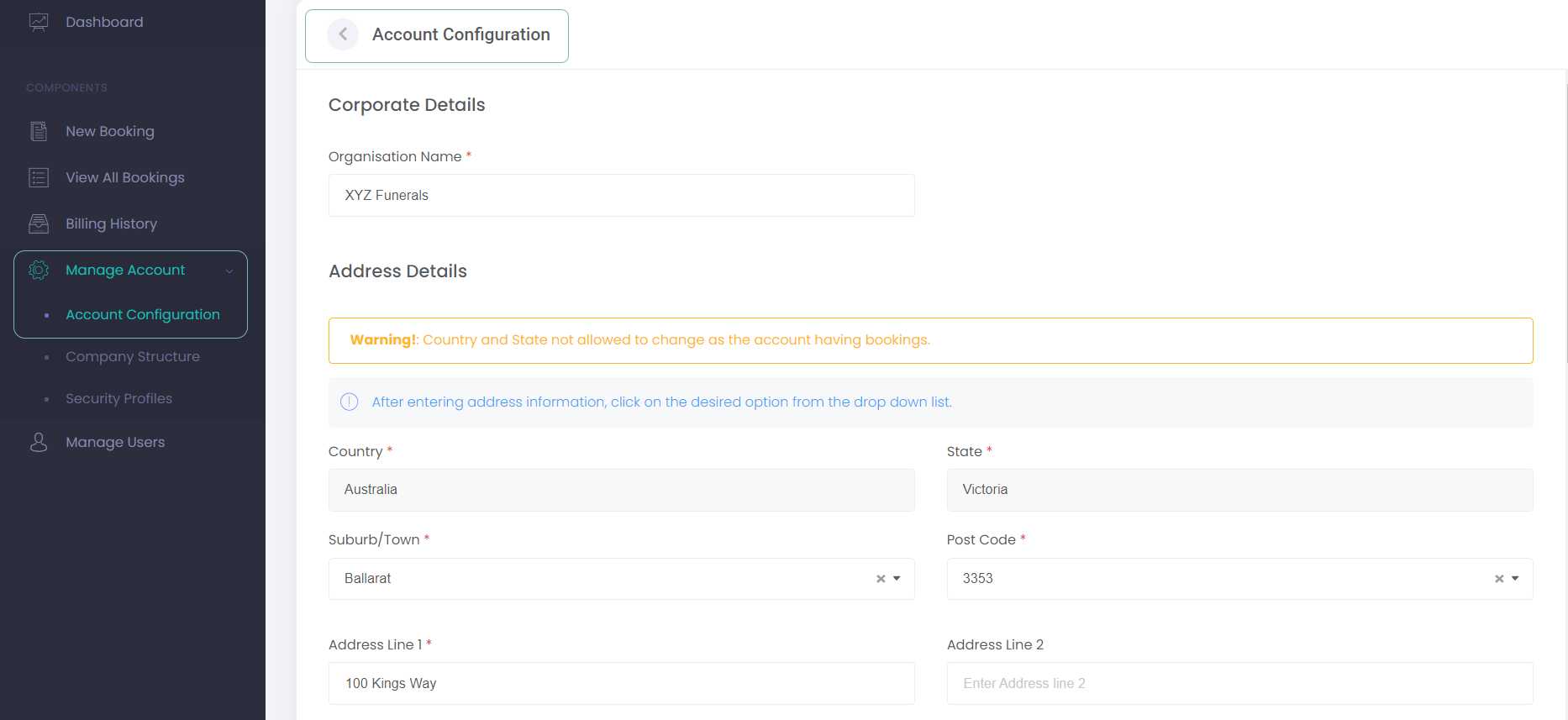
Alternatively, for a Mason user, choose Setup / Account from the Dashboard or the side menu.
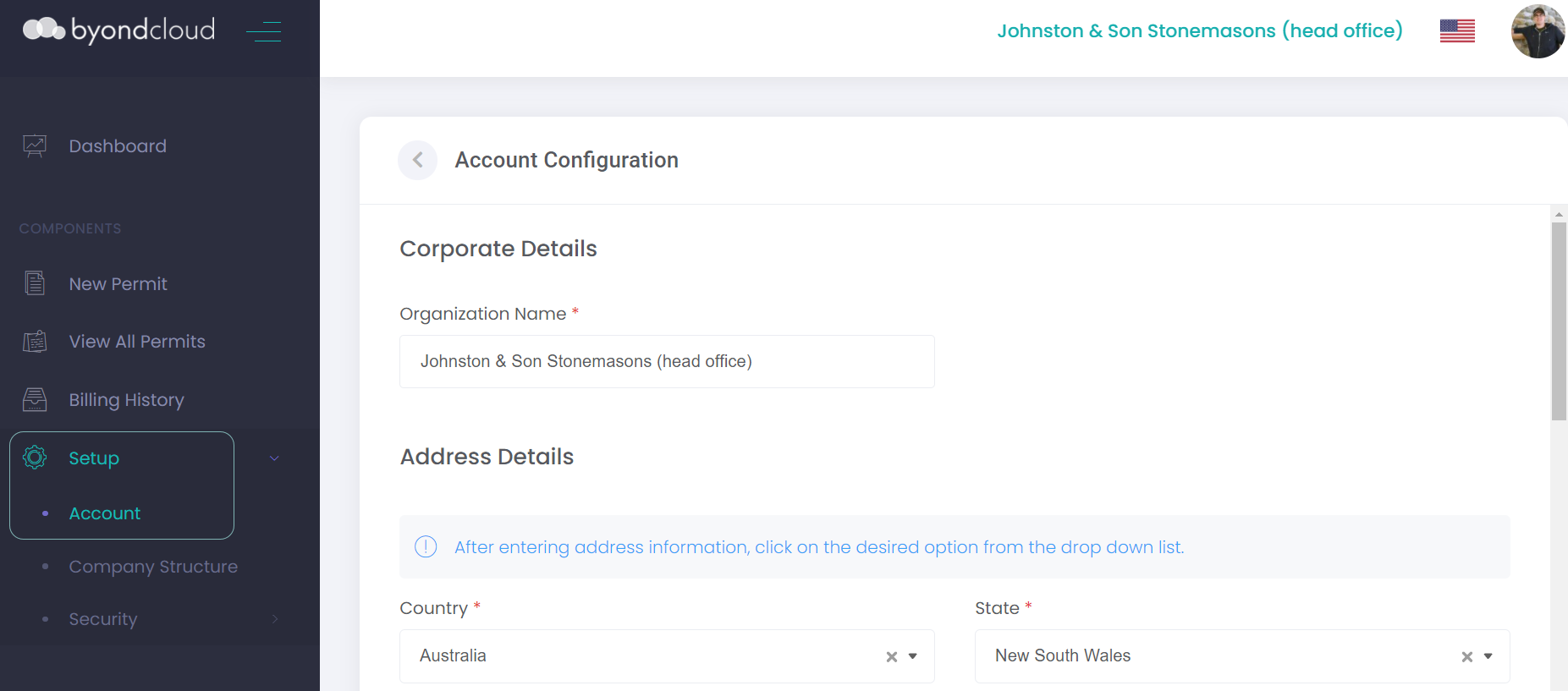
Confirm your Corporate Details
Let us now check the corporate details captured are correct.
The Organisation Name is what will be displayed to byondcloud users.

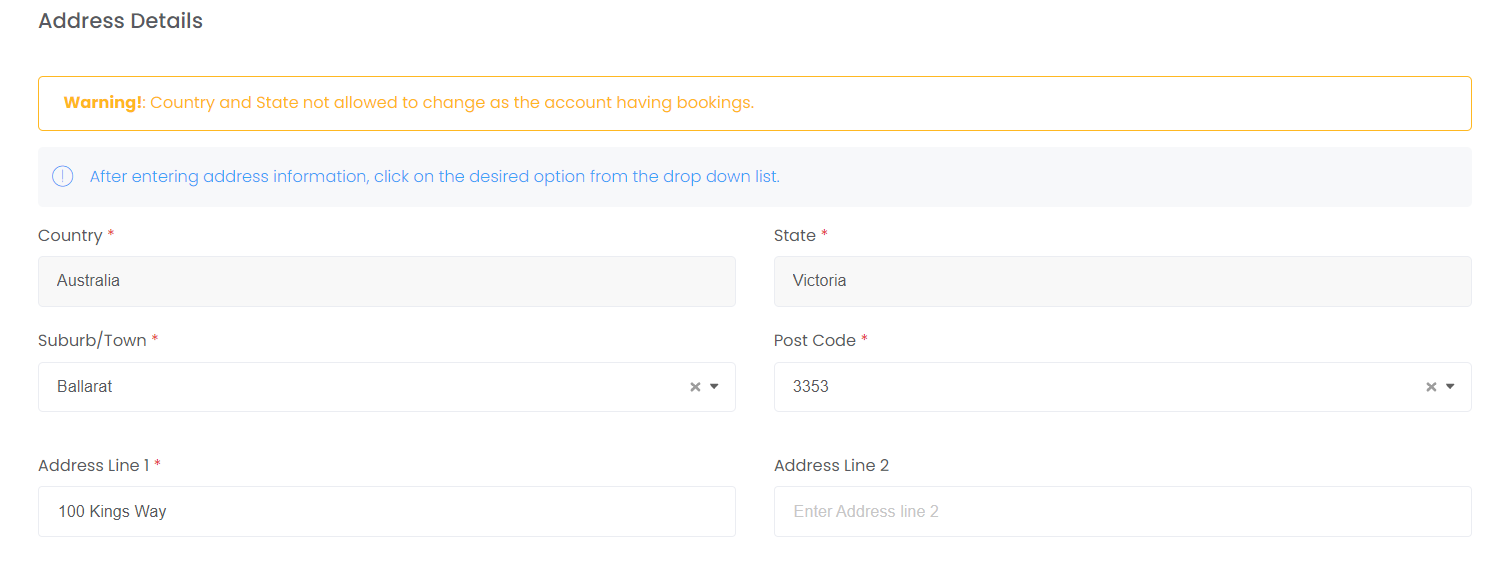
Confirm Address Details have been captured correctly.
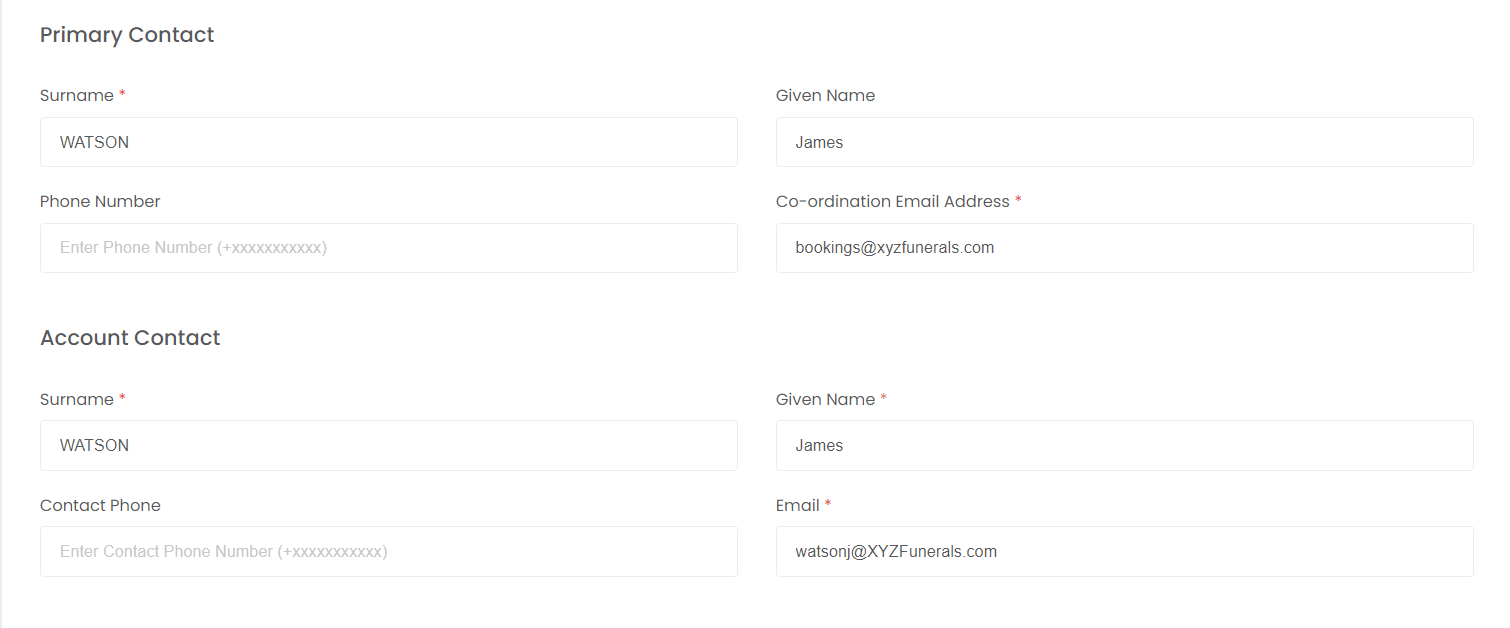
For the contacts, note that the Primary Contact is where transactional notifications will be directed. The Account Contact is where account notifications will be directed from the OpusXenta administrator.
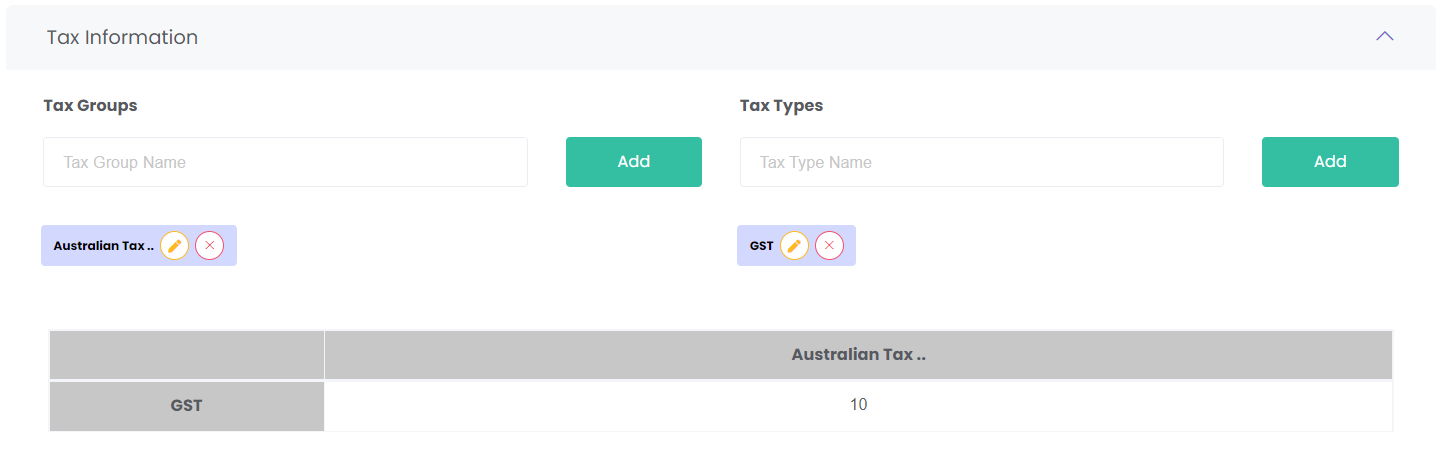
The Tax Information section allows tax percentages to be set. These tax groups and types are company wide by default, but individual sites can have their taxes set-up differently in the Site Structure module.
Tax Groups allow for different taxes to be set-up for different countries, states, or even purchase types. Type the Tax Group Name, then click Add. The new tax group can be seen under the text box, and has buttons to edit its name or delete it.
Each tax group can then be configured to include Tax Types, e.g. GST. Type the Tax Type Name, then click Add. The new tax type can be seen, edited, and deleted below.
Once the Tax Groups and Types have been created, type in the tax percentages in the table below.
If any changes are made, select Save.
Use the back button to navigate back to the Dashboard.